reTerminal Sticky
A magnetic e-paper panel that shows your day, and takes about a minute to set up.
The Sticky is a 3.97" e-paper panel with three buttons and a magnet on the back. It sits on a desk, a monitor, or a fridge and shows today: what's on now, what's next, what needs attention, and the rest of your day behind three more views. It sleeps between interactions — e-paper keeps its image with the power off — and wakes to sync, to keep the clock, or when you use it.
It is a companion, not a client. Everything on it comes from your Fokus account, and everything you press on it — done, accept, decline, start a timer — reaches your account the same way it would from any other app.
Where to get one
The Sticky is made by Seeed Studio, not by us — you buy the hardware from them and pair it with your Fokus account. reTerminal Sticky at Seeed Studio
Putting Fokus on it
A Sticky you have just unboxed does not have Fokus on it yet. The firmware is installed from a web page — there is nothing to download and nothing to install on your computer.
- Plug the Sticky into your computer with a USB-C cable.
- Open getfokus.com/sticky in Chrome, Edge or Opera on a desktop computer. Those are the browsers that can talk to USB devices; Safari and Firefox cannot, and neither can a phone.
- Press Install firmware and pick the Sticky from the list your browser shows. It appears the moment you plug it in.
- Wait for it to finish, then let the same page hand the device your Wi-Fi over the cable. The Sticky needs 2.4 GHz — it has no 5 GHz radio.
When it restarts it will show a pairing code, and the rest of this page takes over.
Only once
You do this on a new device and never again. After that the Sticky updates itself over the air. It checks for a new version when it syncs, and when one is out a download arrow appears in the status bar. It then installs itself at night, inside your sleep window, while it is plugged in or has at least half its battery — and tells you "Updated to" the new version the next time you press a button. Don't want to wait? Install it straight away from Settings → About.
Setting it up
Plug it in or hold the action button, and the panel shows one of two screens.
If it has never been on your network
You get Set up Wi-Fi, with a QR code and a hotspot name like
Fokus-Sticky-4A2C. There are three ways from here, and any one of them is
enough:
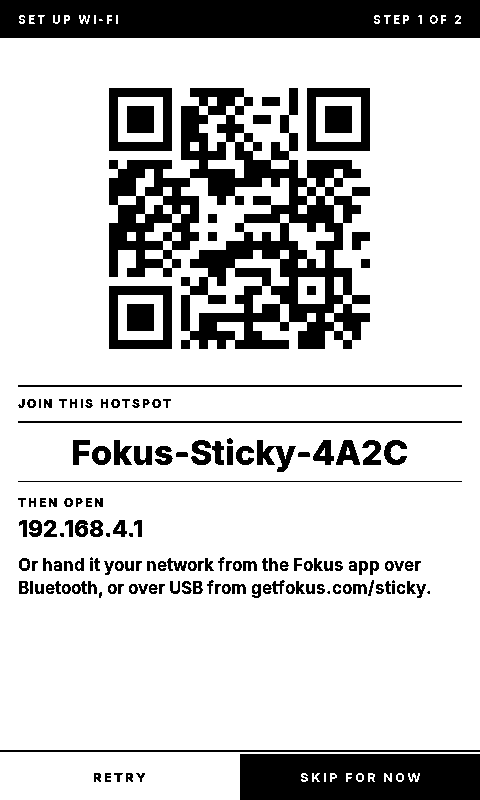
- The Fokus app — open Fokus on your phone, go to Account → Devices → Link a device, and point the camera at the code on the panel. The app finds the Sticky over Bluetooth and hands it both your Wi-Fi and your account. This is the shortest path and the only one where you never type a Wi-Fi password.
- The hotspot — scan the QR with your phone's camera to join
Fokus-Sticky-XXXX, and a setup page opens by itself. Pick your network, type the password, done. If the page doesn't open, go to192.168.4.1. - A USB cable — plug the Sticky into a computer and open getfokus.com/sticky in Chrome or Edge. The page can hand the device your Wi-Fi directly over the cable.
Six digits
When you pair from the phone, the panel shows a six-digit number and your phone asks for it. That number is what proves the Sticky in front of you is the one your phone is talking to — nobody else can see it.
If it is already on a network
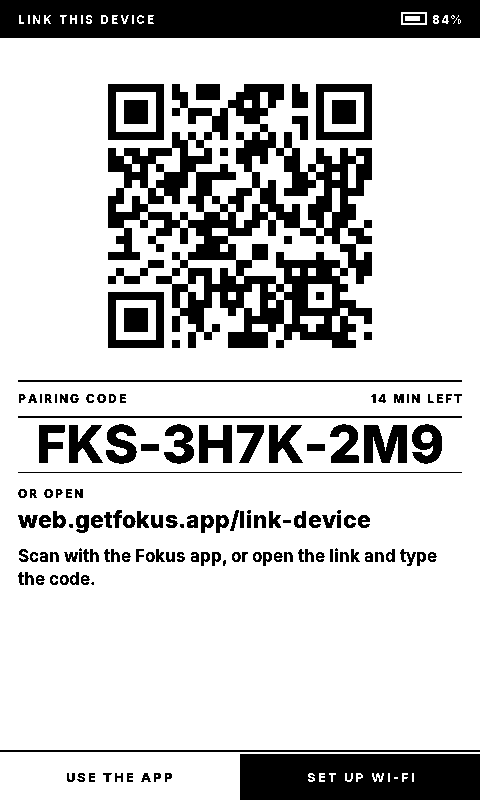
You get Link this device: a QR code, a pairing code like FKS-3H7K-2M9, and
a web address.
- Scan it with your phone. The Fokus app opens on the linking screen with the code already filled in.
- Or open web.getfokus.com/link-device
on any signed-in browser and type the seven characters after
FKS-.
Either way, the device is linked the moment you press Link device. Naming it and telling it where it lives are the two steps after that, and both can be skipped — the name shows up in your device list, and the location gives the day view its weather and the device its own time zone. Without one, it keeps the time zone of your Fokus account.
The code is good for fifteen minutes. If it runs out, press ▲ or ▼ on the device for a fresh one.
The three buttons
The buttons are on the right edge.
| Press | What happens |
|---|---|
| A (top) | Opens whatever the cursor is on, or ticks it off |
| Hold A | Quick capture — say a task or an event and approve what it heard |
| Press A twice | Record a voice memo, which becomes a note |
| ▲ / ▼ | Move the cursor; swipe left and right on the glass to change day |
| Hold ▼ | Lock the screen |
| ▲ + ▼ together | Power off, after a confirmation |
The screen is also a touchscreen. Tapping a row does what the action button would have done on it — there is no separate "select then confirm", because two refreshes to do what a finger already said once is a second of waiting for nothing.
Talking to it
The action button does two more things when you hold it or press it twice. Both use the microphone; neither needs the phone app open.
Hold A — quick capture
Hold A, say one thing, and let go. "Call the dentist tomorrow at ten." "Renew the domain on Friday." The panel shows AI LISTENING while you speak and PARSING while it works, then shows you what it understood — the kind of thing it made, the title, the date and time — with SAVE and DISCARD.
Nothing reaches your account until you press SAVE. That is the whole reason this one makes you wait: a couple of seconds end to end, and you see the result before it exists. A proposal left unanswered is thrown away after two minutes, so a device you walked away from does not save something you never read.
If it buzzes instead, the message says which way it went. Nothing was said means it heard no words — speak a little closer and hold A again. Could not make sense of that means it heard you but could not turn what you said into anything; say it again.
If the Sticky cannot reach Fokus when you let go, it keeps the recording instead. A tray glyph sits in the status bar, the clip is transcribed at the next sync, and Settings › Captures then lists what it understood — the same HEARD and PARSED AS sheet — for you to save, discard, or leave for later. Up to eight can wait; past that the button asks you to review them first.
Press A twice — a voice memo
Press A twice quickly and the panel starts recording, up to a minute, with the level moving as you talk. Press A again to keep it or ▼ to throw it away.
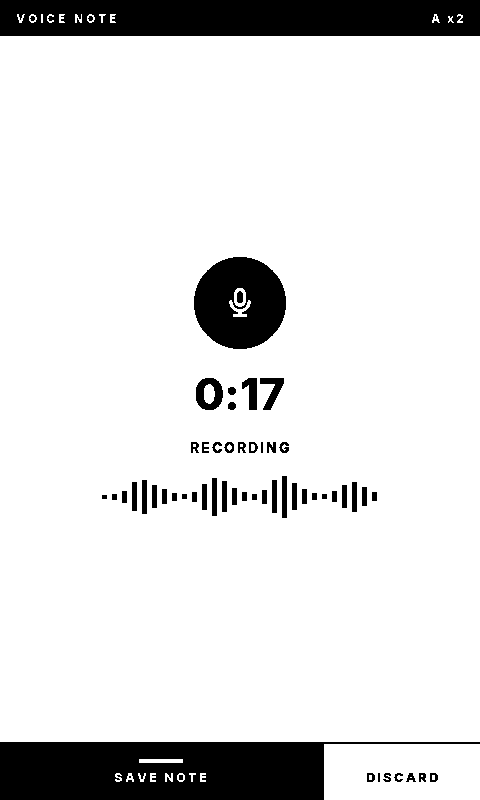
A memo does not wait for anything. It is transcribed into a note in your account, titled from its first words, and it turns up in Notes after the next sync. There is no proposal to approve because there is nothing to decide.
This is the one that works with the network down. A memo recorded offline is kept on the device and sent when the Sticky is next online — a microphone glyph sits in the status bar for as long as anything is waiting, and a toast confirms when it has gone. It survives the device sleeping, and being reset.
With a MicroSD card in the slot and SD card switched on in Settings, every capture and memo is also kept on the card as audio, filed by date, with what Fokus made of it beside it. The Sticky never deletes them; the card is yours to empty. Bear in mind what that means: the card holds the sound of the room the device was in, and it leaves with the card. The switch is off until you turn it on, and the row says NO CARD when the slot is empty.
What it needs before it will listen
Voice memos need the Meeting Scribe add-on on your account, and quick capture spends your AI budget. When either is missing the device says so at the moment you press the button, with a short buzz — rather than taking a minute of your breath and refusing afterwards. Quick capture needs the network to show you a proposal; without it the clip waits on the device until the next sync.
Changing its Wi-Fi later
Settings → Wi-Fi on the device puts the setup hotspot back up and shows the same screen as first run. Join it from a phone, pick the new network, and the Sticky rejoins on its own.
Unlinking
Settings → Unlink device asks first, then forgets the account and shows a pairing code again. Nothing in your Fokus account is deleted — the device is just no longer one of the things that can reach it.
You can also unlink from the other end: Settings → Devices on the web, or Account → Devices in the phone app. That revokes the device's access immediately, which is what to do if you have lost it.
What it shows
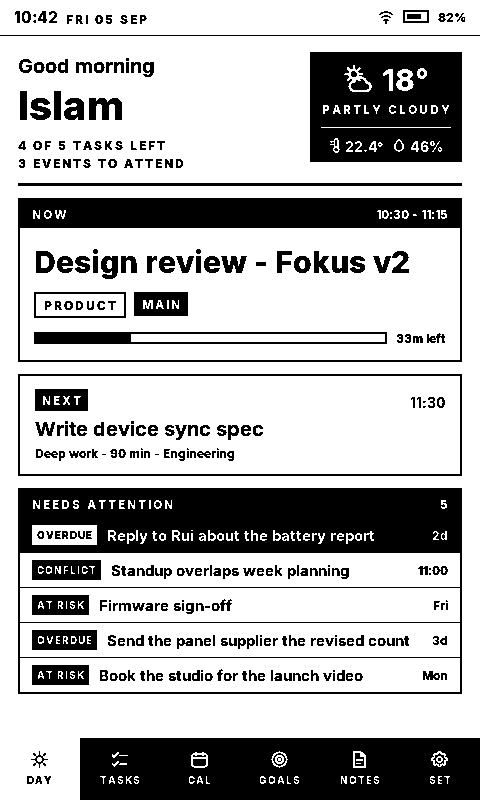
Six views, reached from the bar along the bottom:
- Day — a greeting, the weather, what's on now with its progress, what's next, and anything that needs attention. The NOW card's header says whether it is a task or an event, so you can tell the two apart. All-day events never take the card: a birthday is not what you are doing at 10:30.
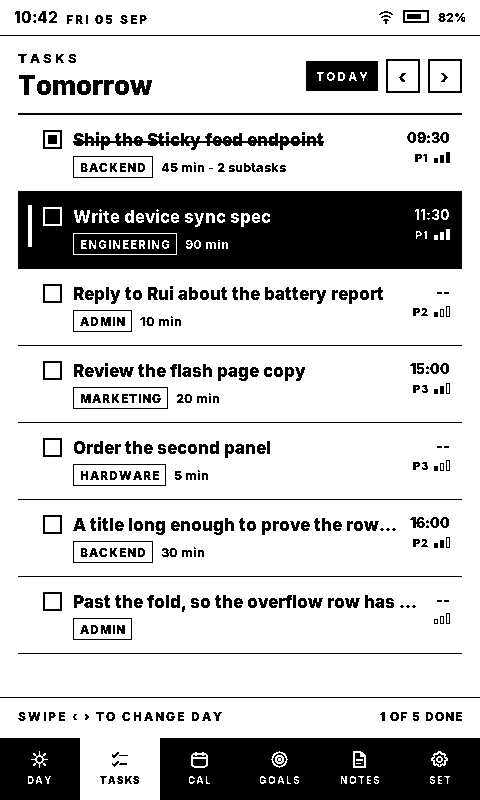
- Tasks — the day's tasks, twenty at a time, with the day you're looking at in the header. Ticking one marks it done everywhere.
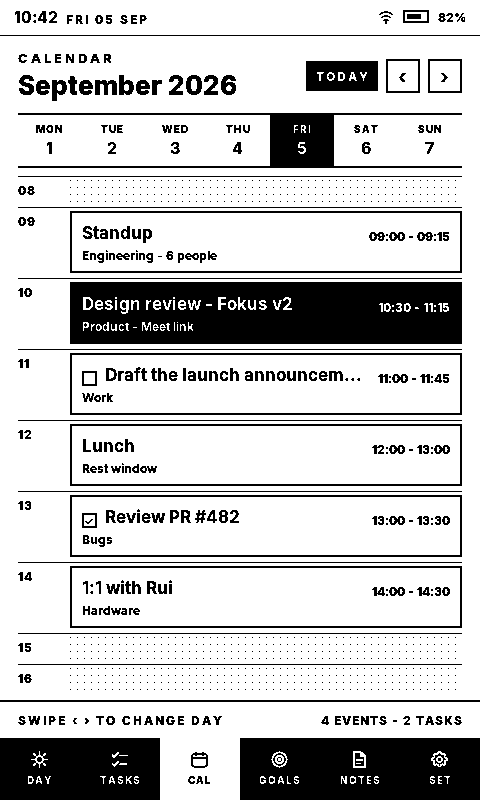
- Calendar — the hours you're awake, hour by hour, with everything that occupies them: your events, and the tasks that have been scheduled into a time. A task carries a checkbox and its bucket, so you can tell the two apart at a glance; a finished one is ticked rather than hidden, because it still took that hour. Tasks with no time on them stay in the Tasks view. The count at the foot names both, so "3 events, 11 tasks" is a day you can read without counting rows.
- Goals — your objectives by period, with progress and trend.
- Notes — your ten most recent notes; opening one renders it properly, headings, lists, checkboxes and all. A voice memo shows the length of the recording beside its word count, so you can tell it from something typed.
- Settings — refresh mode, Wi-Fi, Bluetooth, sync interval, captures waiting for review, SD card, sound, screen lock, auto sleep, contrast, font size, what firmware it is running, Open source (the libraries it is built on, with a QR code to their full license texts), Unlink device, and Power off last.
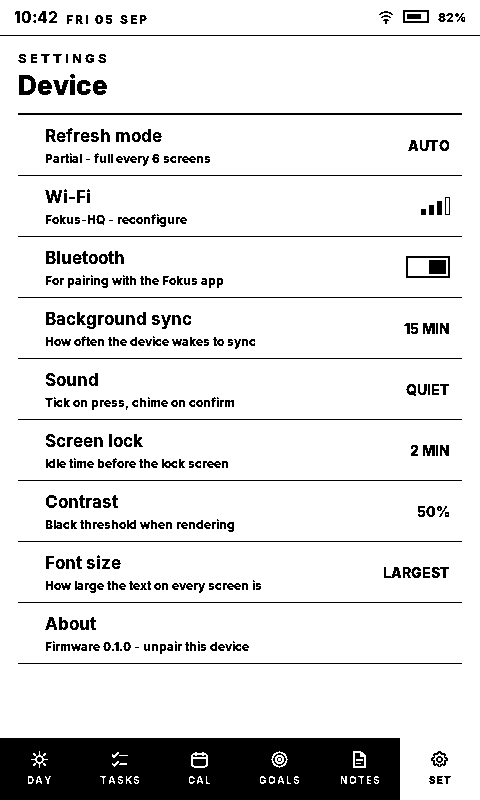
Font size has three steps. The larger two grow the text on every screen, and the screens give way accordingly — a list shows fewer rows and says how many it is holding back, rather than shrinking to fit. The big numbers stay where they are: the lock screen's clock and the timer's countdown already fill the panel.
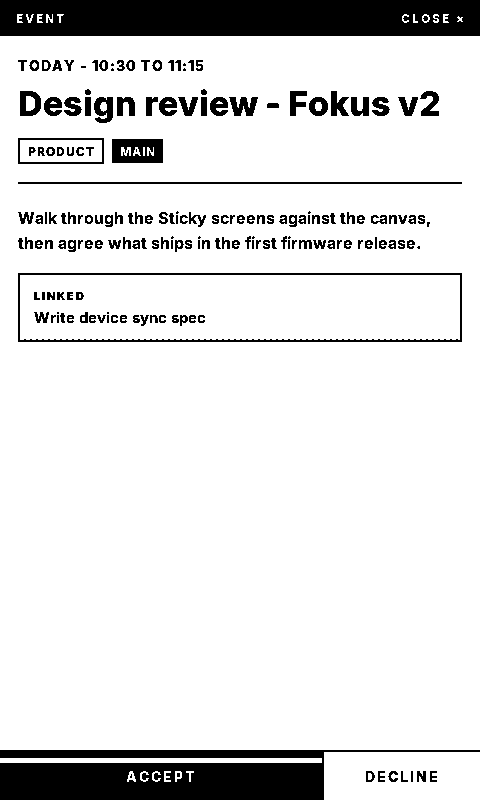
Pressing the action button on a row opens a detail sheet, and that is where the actions live: mark done on a task, accept or decline on an event, delete on a note, mark completed on an objective, and timer to start a pomodoro on the spot — which counts down in minutes and seconds while it runs.
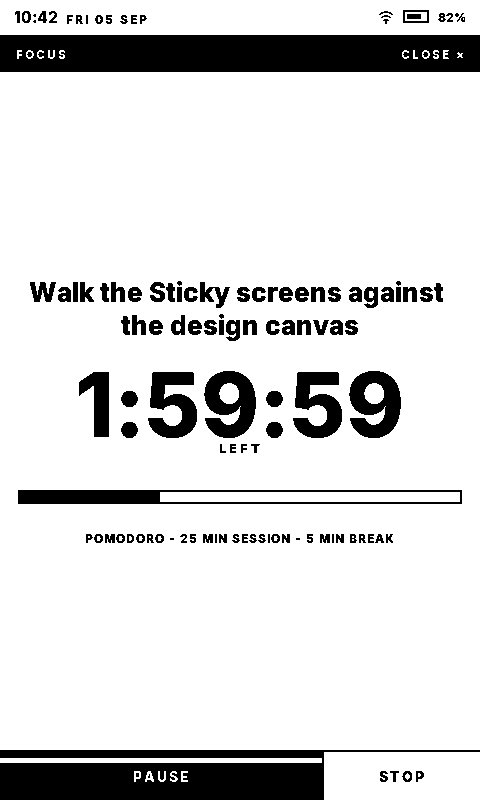 Opening a task from the Calendar gives you the task's
sheet, not the event one — the grid mixes both, so the sheet follows the row.
Opening a task from the Calendar gives you the task's
sheet, not the event one — the grid mixes both, so the sheet follows the row.
An event's sheet carries what you need to decide whether to be there: where it is, who is coming — by name, with the total when there are more than the panel can list — the calendar it belongs to, and the event's own description. Accept and Decline appear only when the answer will actually reach the organiser; where it would not, the sheet says so instead of offering a button that undoes itself on the next sync. Everything you press is applied on the panel straight away and sent to your account on the next sync, so it works with the network down and corrects itself if the server disagrees.
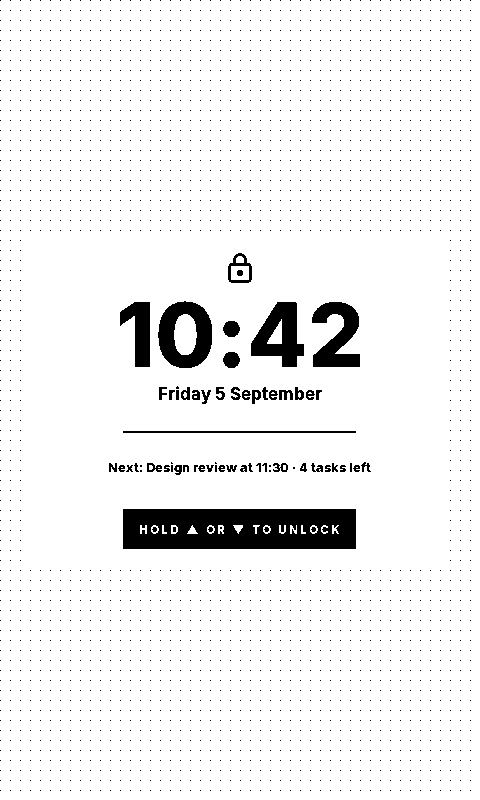
Screen lock is how long it sits idle before it locks and sleeps: one minute, five, or off. With the lock screen off it sleeps showing whatever view was open, and Auto sleep — which only appears then — sets how long that takes: one, five or ten minutes.
The Sticky sleeps between interactions to save its battery. A press wakes it in about a second; a locked device wakes to whatever was last drawn, because e-paper keeps its image with the power off. It syncs on its interval whether it is asleep or in your hands, in the background: the sync and Wi-Fi icons show while it runs — in the status bar, or on the lock screen — and the buttons keep answering instead of waiting behind the radio. Now and Next also move on by themselves when the current item ends, so the card is right between syncs.
How is this guide?