Browser extension
Turn any page — or any sentence on it — into a task, note, or event, without leaving the tab.
You're reading an article and a to-do falls out of it. Normally that means: switch app, find the right list, retype the thing from memory, come back, lose your place. The Fokus web clipper removes every step of that.
Install it
Get Fokus Web Clipper from the Chrome Web Store — it works in Chrome, Edge, Brave, and any Chromium browser — or from Firefox Add-ons for Firefox 140 and later. Then pin it to your toolbar. Both versions do the same things, as described on this page.
In Firefox
Firefox lets you switch off an add-on's access to websites (about:addons → Fokus → Permissions). If it's off, the popup says Fokus can't reach websites — click Allow access to websites to turn it back on. Without it, clipping from the popup, the right-click menu, and the keyboard shortcuts still works, but the selection menu, website blocking, and Google sign-in don't.
Sign in once
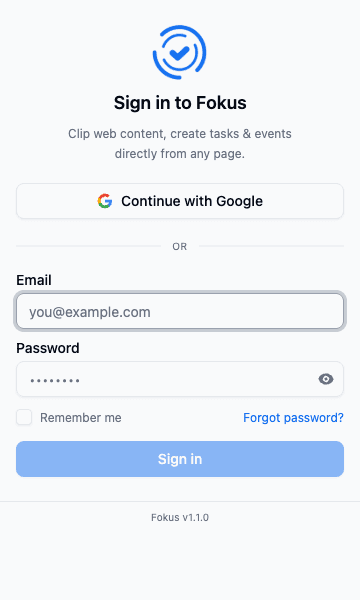
Click the Fokus icon and sign in with your account — the extension talks to the same workspace as everything else. Signing in with Google opens one browser tab for the consent screen; it closes itself as soon as the extension has you signed in, and it never hands you off to the desktop app:
Capture: a task, note, or event in one popup
The Capture tab is a tiny composer with three tabs of its own — Note, Task, Event — a bucket picker, and Enter to save:
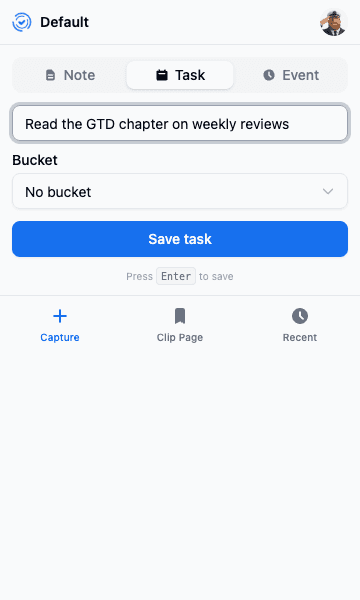
Whatever you create lands in your workspace immediately, gets enriched by TEA, and gets scheduled by Smart Scheduling like anything else.
Clip the page you're on
The Clip Page tab shows the current tab — favicon, title, URL — and saves it as a note with one click:
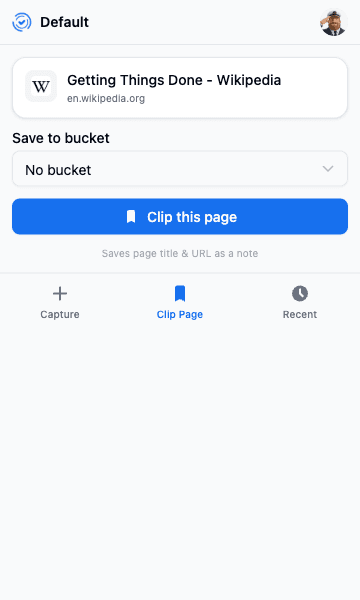
Reading list, research, that thing you'll definitely read later — clipped, bucketed, searchable.
Select text → capture it
This is the feature that changes habits. Select any text on any page and a small Fokus menu appears right there:
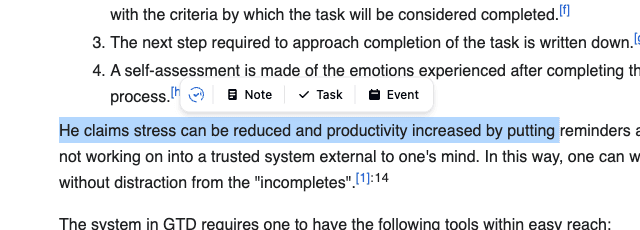
Pick Task and a compact form opens on the page — the same fields as a real task card: priority, energy, due date and deadline mode, do date, estimated time, bucket, and a description pre-filled with what you selected:
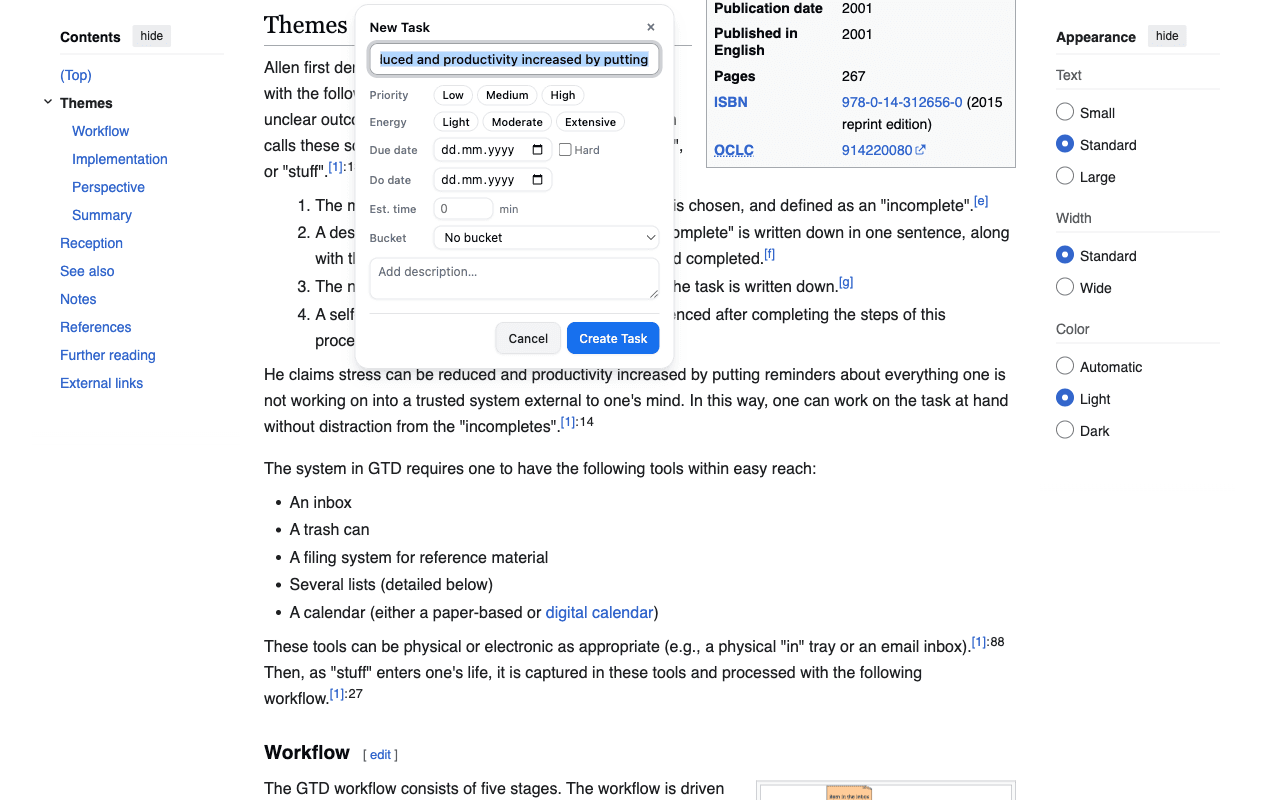
Create Task, and you're back to reading. The tab never changed.
Right-click and keyboard shortcuts
Everything above is also on the context menu — right-click a selection or the page:
- Save selection to Fokus / Save page to Fokus (as notes)
- Create task from selection / Create event from selection
And two keyboard shortcuts, straight from the page:
| Shortcut | Does |
|---|---|
| Alt+⇧+C | Clip the current page |
| Alt+⇧+S | Clip the selection |
Recent captures
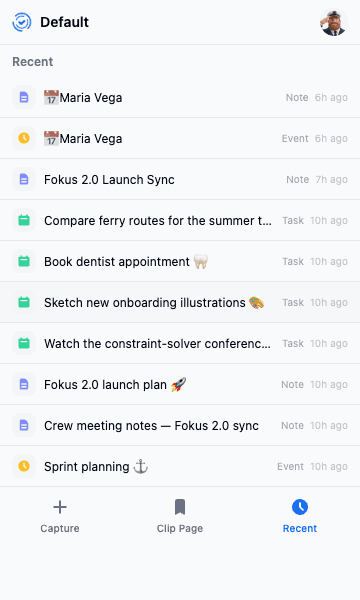
The Recent tab is your proof-of-capture: the last things you saved, typed by kind, so you can confirm it landed without opening Fokus:
Block distracting sites during a focus session
Start a focus session anywhere — the web app, the desktop app, your phone — and the extension holds the sites you've chosen until the session ends. Outside a session it does nothing at all.
Pick what to hold in Options → Website blocking:
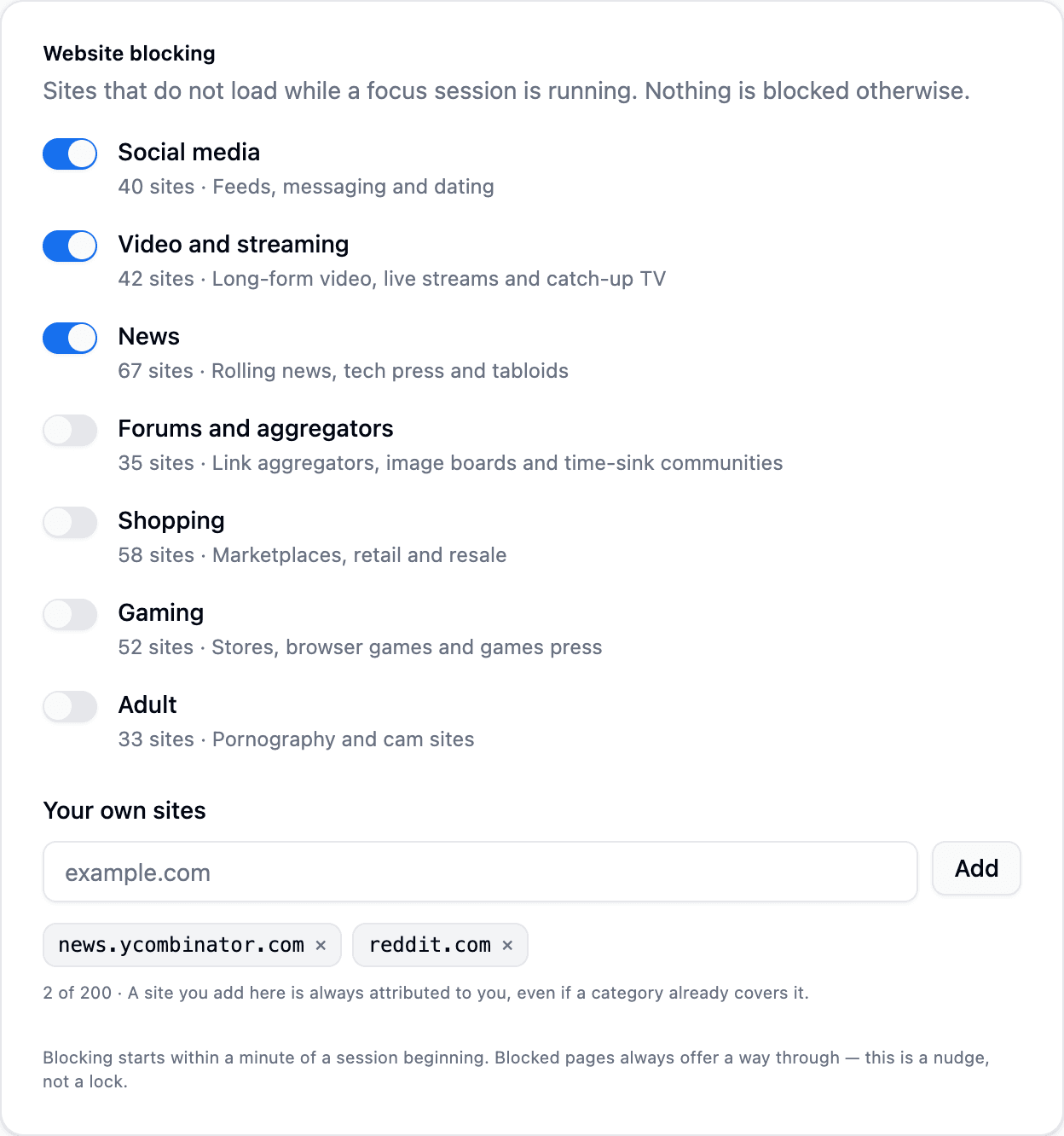
There are seven curated lists — Social media, Video and streaming, News, Forums and aggregators, Shopping, Gaming, and Adult — and each one is a switch. Nothing is on until you turn it on. Under them, Your own sites takes anything the lists miss: a bare domain like example.com, up to 200 of them.
Two lists worth keeping
A site you add yourself is always attributed to you, even when a category already covers it — so a blocked page can tell you which of your own decisions put it there.
When you open one of those sites mid-session, you get this instead:
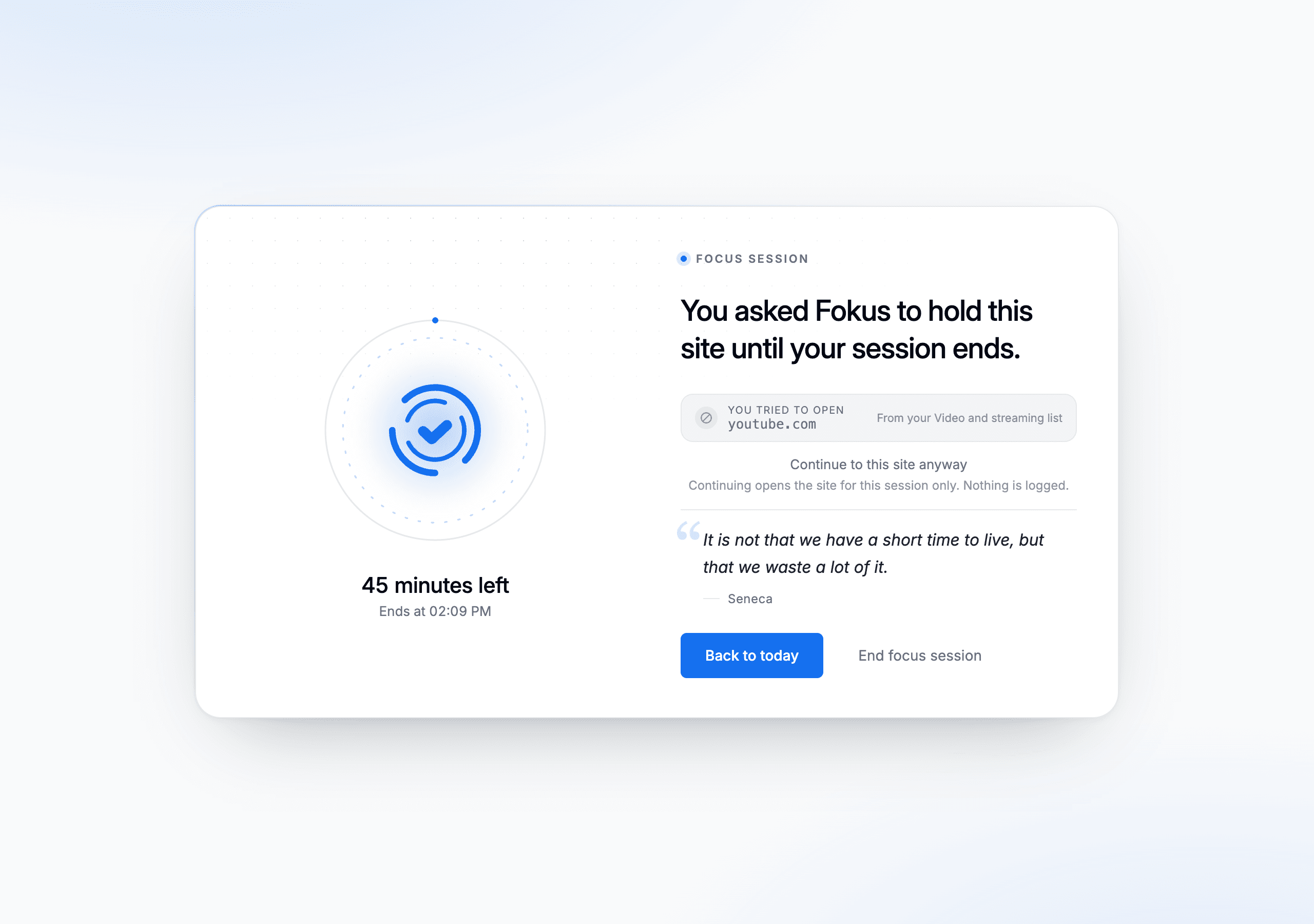
It tells you how long is left, when the session ends, and why this site is blocked — "From your Video and streaming list", or "On your own blocklist". Then it gets out of the way: Back to today returns you to Fokus, End focus session stops the session everywhere, and Continue to this site anyway lets that one site through for the rest of the session.
That last one is deliberate. This is a nudge, not a lock — the value is in the pause, and a blocker you can't get past is a blocker you uninstall.
What to expect
Blocking takes up to a minute to switch on after you press Start, and up to a minute to switch off when the session ends — the extension checks once a minute. It works in the browser you installed the extension in: other browsers, other apps, and incognito windows are untouched. And if the extension can't reach Fokus, it stops blocking rather than leaving you stuck behind a page that can't explain itself.
Signing out of the extension clears every rule and your cached list immediately, so nothing follows you onto a shared machine.
Settings
Right-click the icon → Options (or the gear in the popup):
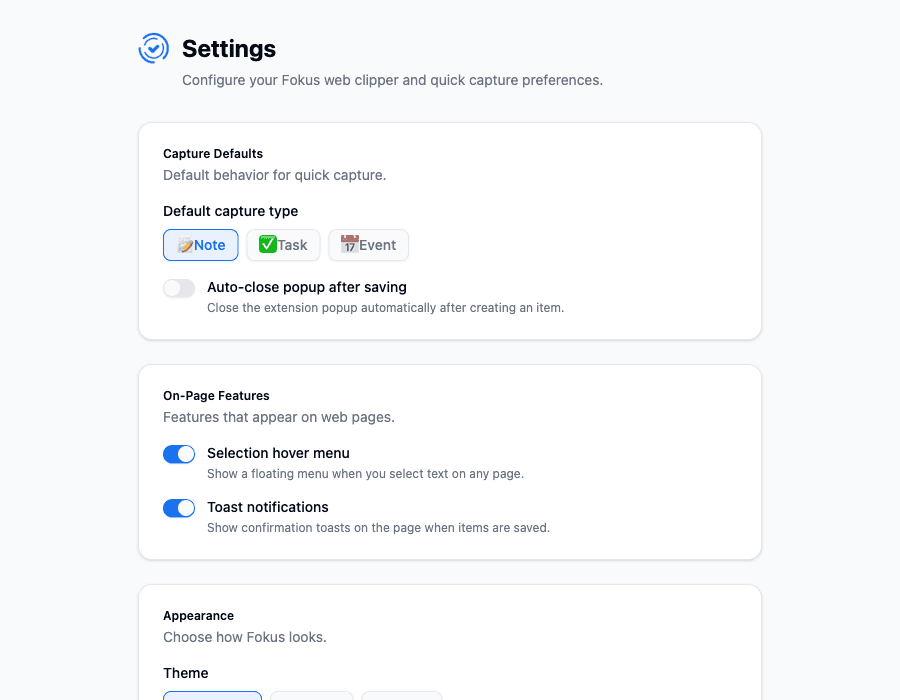
- Default capture type — should the popup open on Note, Task, or Event?
- Auto-close popup after saving — for rapid-fire capture.
- Selection hover menu — turn the on-page menu off if you'd rather not see it.
- Toast notifications — the little "Saved!" confirmations on the page.
- Website blocking — the curated lists and your own sites, as above.
- Theme — light, dark, or follow the system.
How is this guide?