Mobile app
Your day in your pocket — capture on the move, see what's next, and talk to Captain Fokus.
The mobile app isn't a shrunken dashboard; it's the parts of Fokus you actually need away from a desk. What's happening now, what's next, a two-tap way to capture whatever just crossed your mind, and the Captain — available on iOS and Android.
Your day at a glance
The home screen puts today's timeline on top and your task list underneath, with tabs for Tasks, Notes, Objectives, and Integrations:
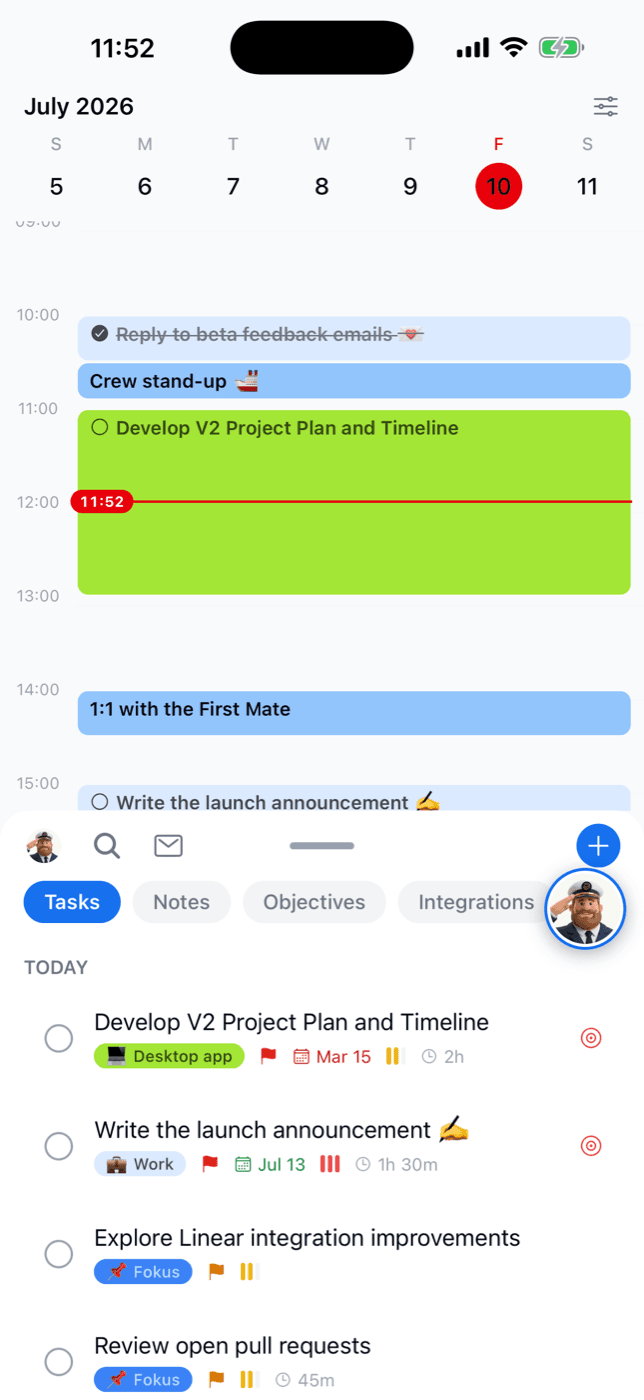
The red line marks now, events and scheduled tasks sit where they belong, and the same priority, energy, and bucket chips you know from the web ride along on each task.
Capture in two taps
The + button opens Quick Add — one sheet, four kinds of thing: Task, Event, Note, Objective:
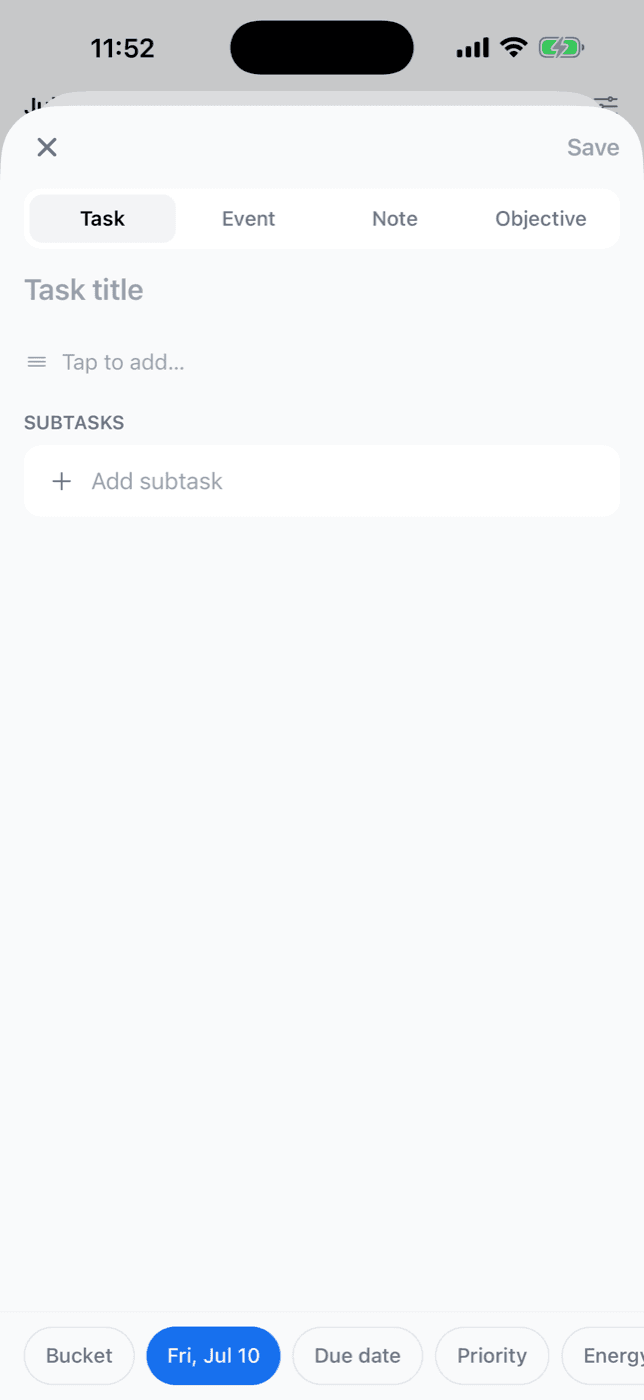
The chips along the bottom (bucket, do date, due date, priority, energy) mean a fully specified task takes seconds — and if you skip them, TEA fills in the gaps for you.
Work a task properly
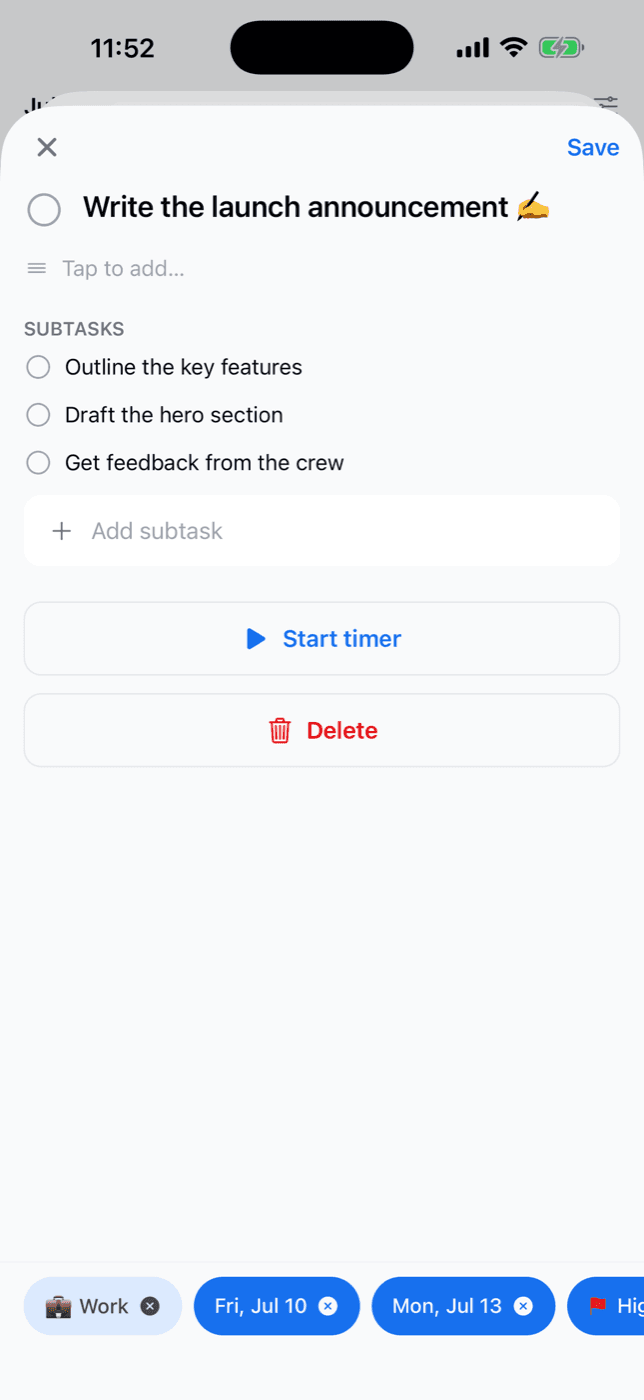
Tap any task to open it: complete it, add subtasks, edit the details, or start a timer for the work you're about to do — more on the timer on mobile in Focus Timer:
Events open the same way, and the chips along the bottom now cover what the web form does: reminders, calendar, bucket, all-day, status, repeat, time zone, video call, travel mode, tags, and — for all-day events — whether the auto-scheduler should work around it. Every chip carries an icon, so a filled bar reads at a glance.
Reminders work on events exactly as they do on tasks: tap the alarm chip and pick "at time of event", or 5/15/30 minutes, an hour, or a day before. You can add them while creating the event in Quick Add too — they attach the moment it saves.
Attach files to anything
Tasks, events, and objectives all have an Attachments section on mobile. Tap + and pull a file from your photo library, from Files, or straight from the camera — handy for a whiteboard photo or a receipt you don't want to lose. Images show a thumbnail; everything else gets an icon by file type. See Attachments for the size and format limits.
Notes are the exception: pictures go inside the note via the editor's image button, not into a separate list.
Open an objective
Tap any objective to open it properly: rename it, edit its description, move it to a different bucket, tick its linked tasks off one by one, and attach files to it.
The ✨ sparkle in the Tasks header hands the objective to ODA, which reads it — description and linked notes included — and proposes a set of tasks to break it down into. Everything comes back pre-selected: untick anything you don't want, then tap Create. The tasks land on the objective, inheriting its bucket.
Repeating tasks
Tasks repeat now, not just events. Give a task a do date and the Repeat chip appears — daily, weekly, or monthly. The task then shows up on every day the rule covers, the same days the web app shows.
Each day stands on its own. Tick Tuesday's copy and only Tuesday is done: Wednesday's is still waiting, and the series carries on. Delete one day and you skip just that day, leaving the rest of the rule intact. Subtasks come along too — the first time you touch a day it takes its own copy of the series' checklist, so this week's ticks never carry over to next week's.
Editing a repeating task
The Repeat chip only offers to change rules it can describe — plain daily, weekly, or monthly. A more elaborate rule built on the web (every other Tuesday, "first Monday of the month", one that ends after ten times) is shown but left alone, so the phone never quietly rewrites it into something simpler. Edit those on the web.
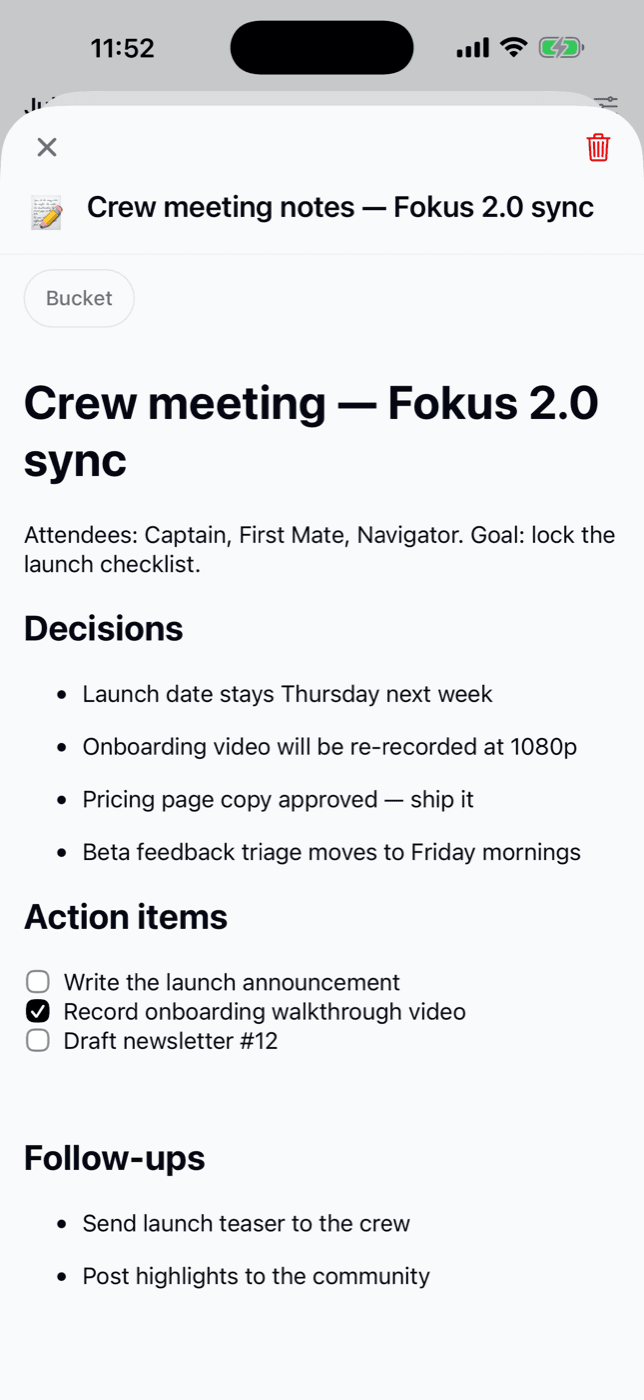
Notes come along too — the full rich text, checklists and all, exactly as you wrote them on the web:
Find any task or note
Long lists don't stay long. Every task list — the Today list, the Reservoir, and each Bucket — carries the same controls you know from the web, right on the header row:
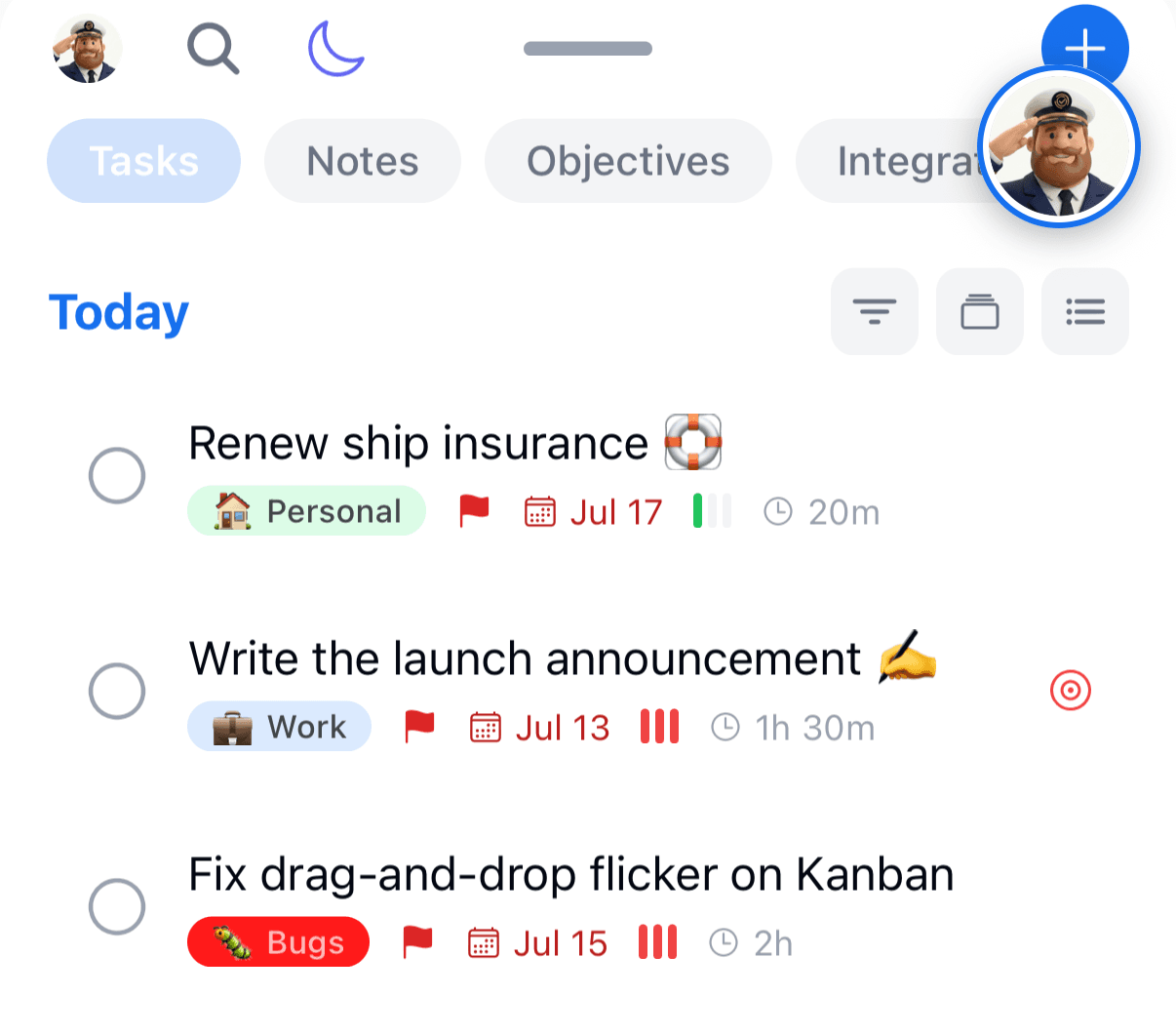
- Filter — by priority, energy, bucket, tags, or source. A dot on the button counts your active filters.
- Sort — by created or updated date, due date, or bucket, ascending or descending.
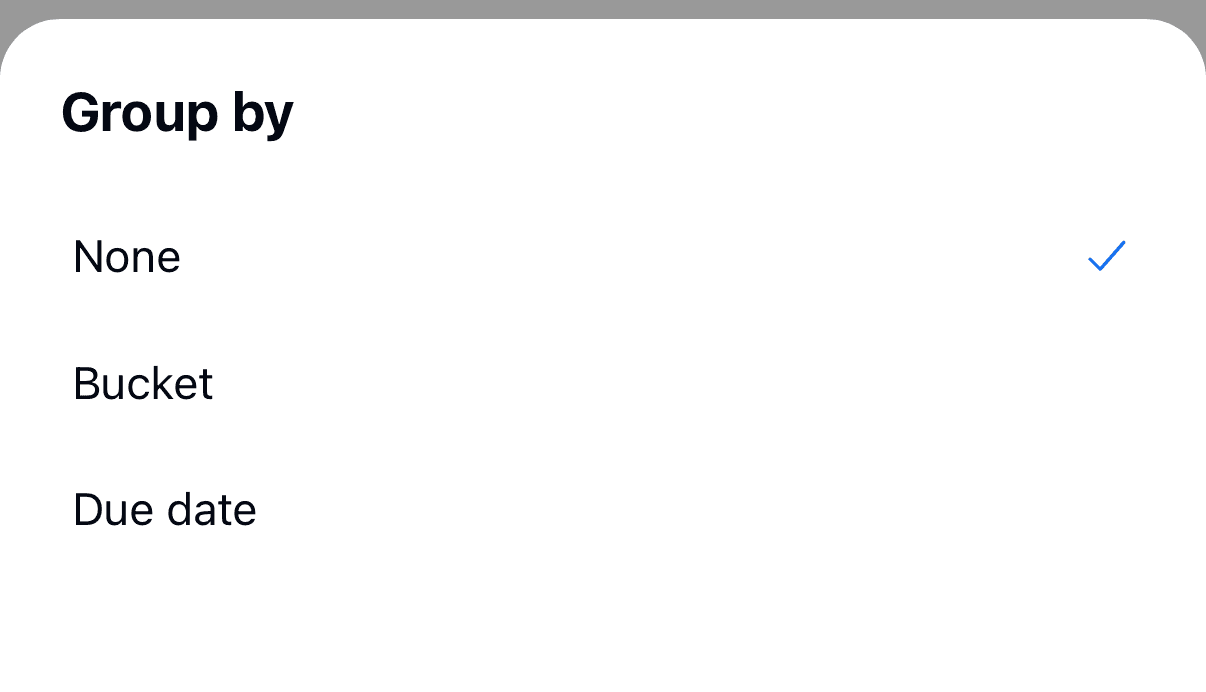
- Group — off, by Bucket, or by time (Overdue, Today, This Week, Later, No date).
- View — flip between compact rows and expanded rows with all the chips.
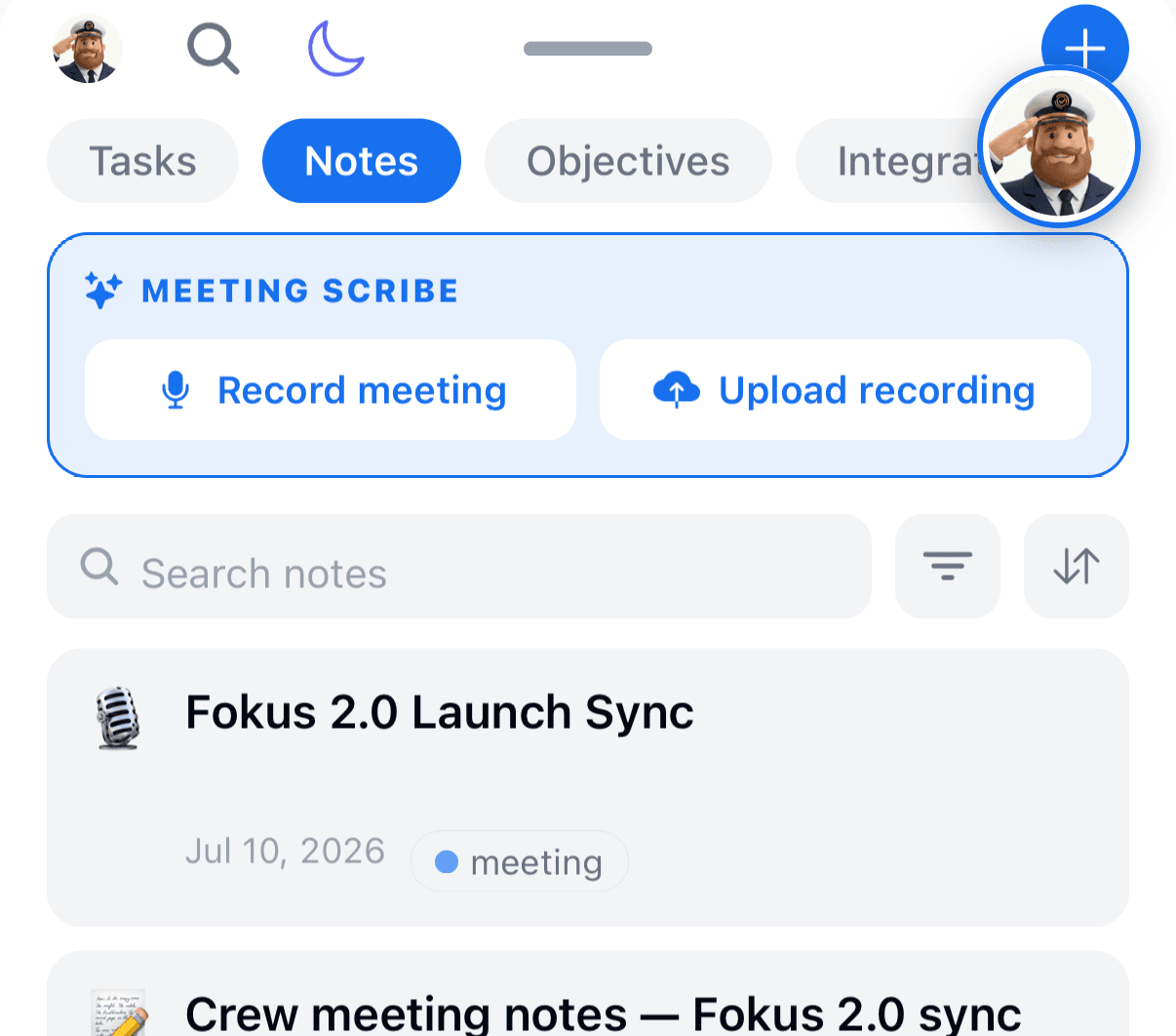
Notes get the same treatment — a search box plus filter and sort — so a busy notebook is one tap from the note you want:
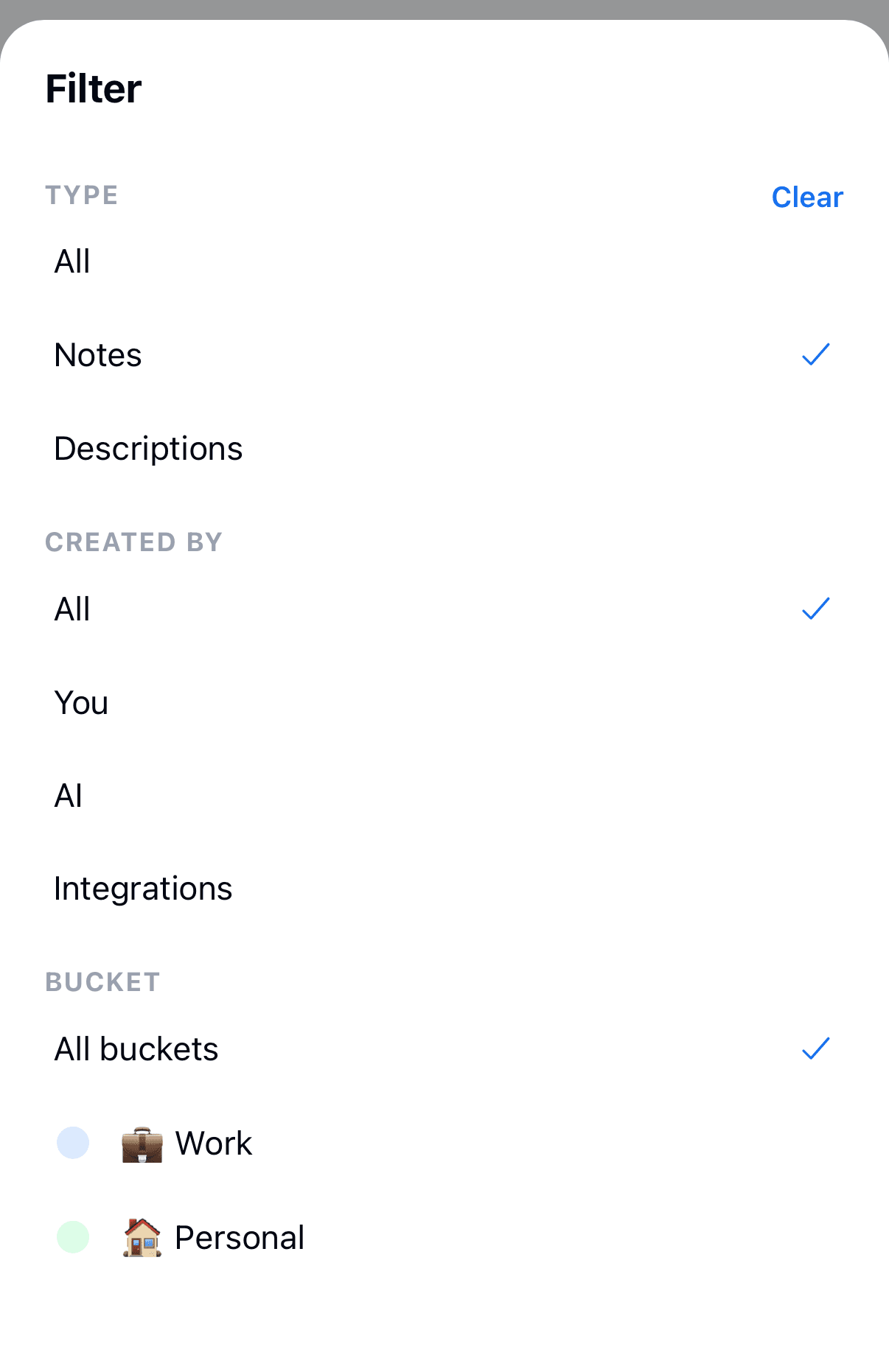
Filter notes by type (standalone notes vs. task and objective descriptions), who created them (you, AI, or an integration), bucket, or tags:
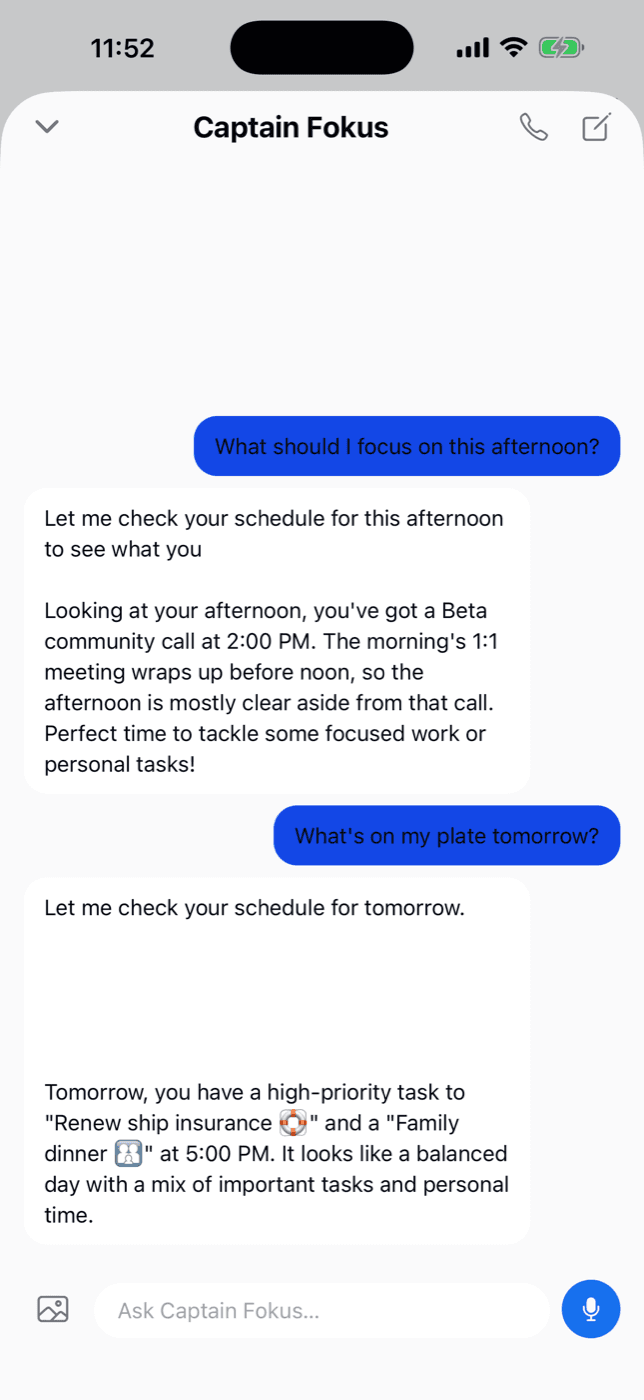
Captain Fokus, on the move
The chat comes with you. Ask what's next, create tasks by describing them, or hit the mic and speak — with the Voice Agent add-on the phone icon starts a real call, which makes a walk a legitimate planning session:
The inbox travels too
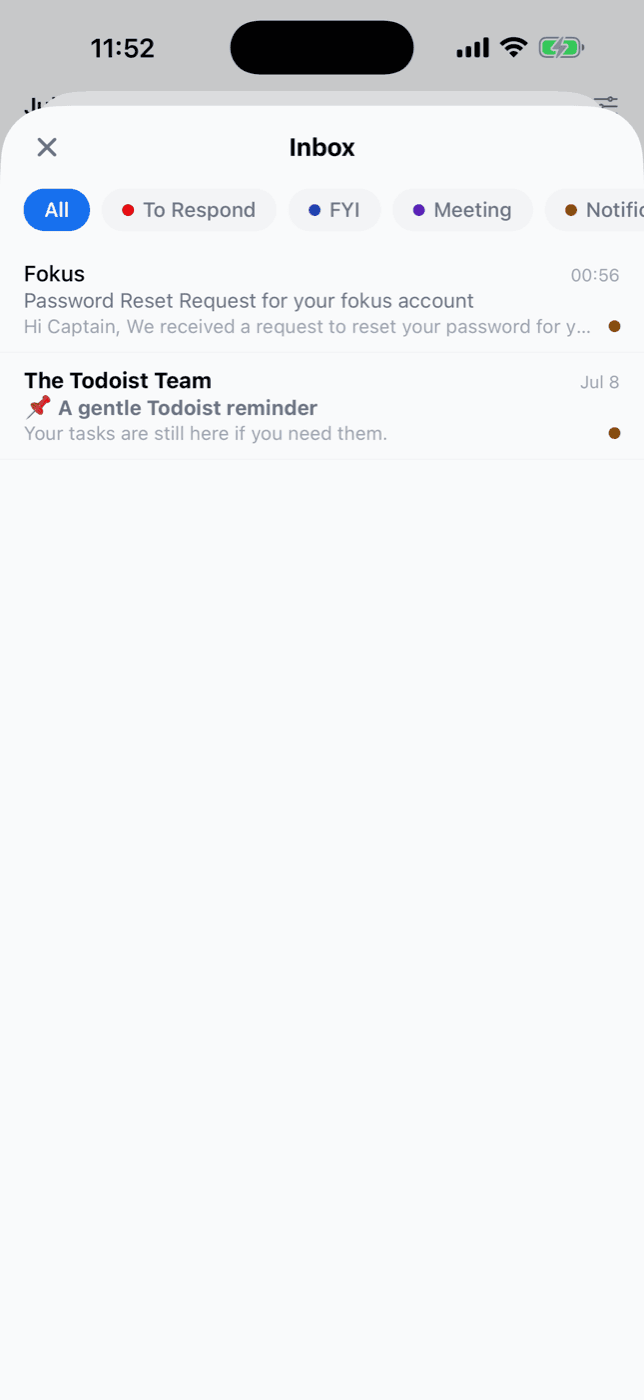
If you've enabled the Email Assistant, your triaged inbox is here — same categories, same sorting, on the train:
Listen to your daily brief
Your morning briefing and end-of-day review are narrated, and the narration plays on the phone. Open a brief — tap the sun (morning) or moon (evening) button above the panel, or the notification that tells you it's ready — and tap the round play button next to Listen to your brief, just under the title. Tap it again to pause; the bar beside it fills as the brief plays.
- The first play takes a moment. The button shows a spinner while the narration is fetched — longer if the brief was written only just now. After that, the same brief starts straight away.
- It keeps going with the screen off. Lock the phone or switch to another app and the brief carries on, so you can listen while you get ready. On iPhone it plays even with the silent switch on.
- If it says Couldn't play the narration. Try again. — tap play once more.
- Earlier briefs are under Briefings on the Captain Fokus screen: your last 20 briefings and reviews. Tap one to open it and play it.
A brief that has no narration shows no player. And the phone only opens briefs, it doesn't write them: there is no Generate Briefing button here — how you get a briefing covers that.
Share your daily brief
Your morning briefing and end-of-day review can go straight to your team. Open a brief — tap the sun (morning) or moon (evening) button above the panel — then tap Share:
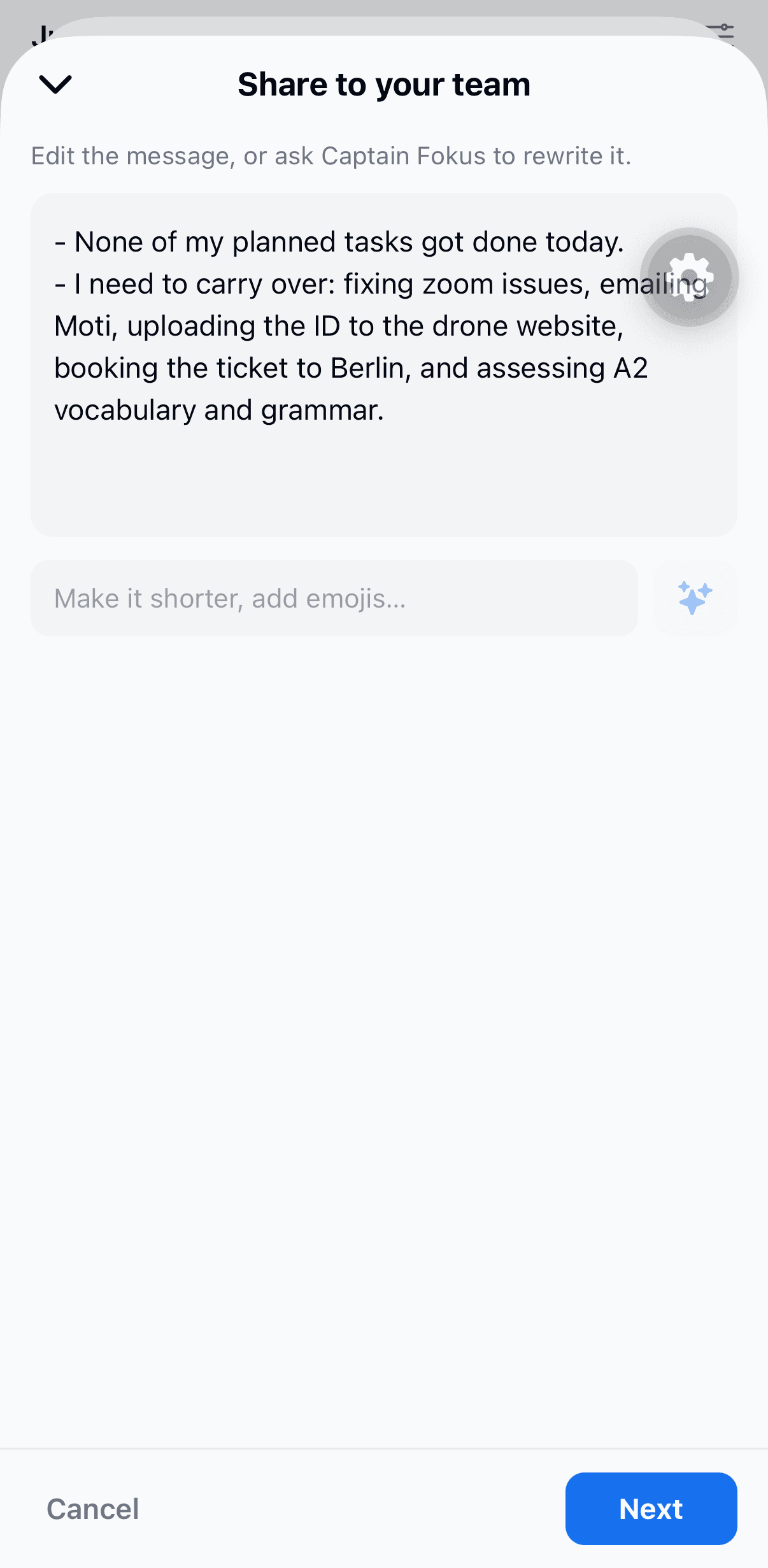
Review the message
Captain Fokus drafts a short, first-person standup from your brief. Edit it directly, or type an instruction — "make it shorter", "add emojis" — and tap the sparkle to rewrite it.
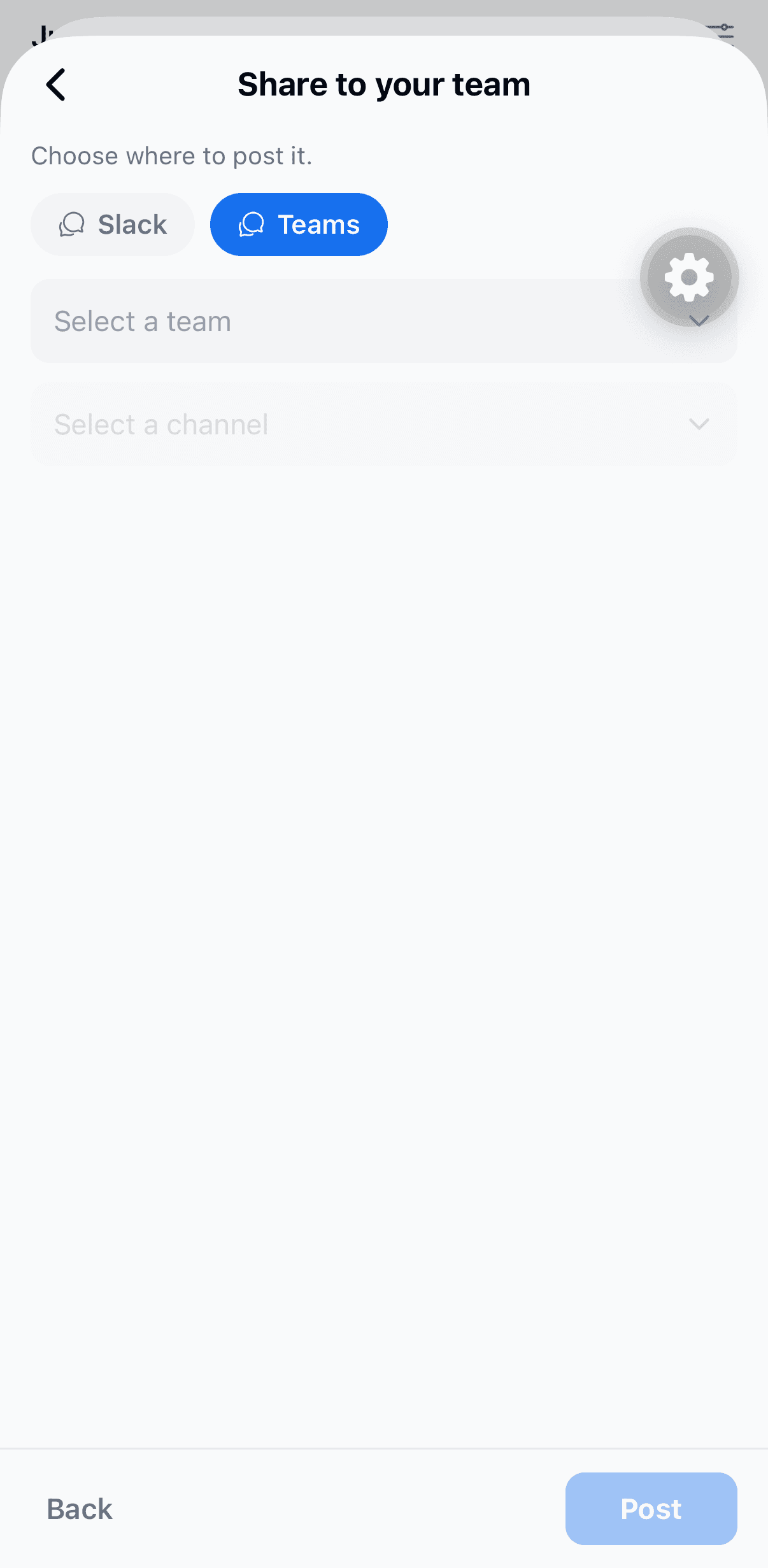
Choose where it goes
Pick Slack or Microsoft Teams, then the channel. For Teams, choose the team first, then the channel.
Post
Tap Post — it lands in the channel, posted as you.
First time? Connect on the web
Fokus posts as you, which needs Slack or Teams connected with posting permission. If neither is connected — or your Slack connection predates sharing and can't post on your behalf yet — set it up once in the Fokus web app (Settings → Integrations), then come back.
Fokus Session on your phone
A Fokus Session is quiet time that belongs to your account, not to one screen — the same session you can start on the web. The phone can start one, show one that's running, and end it.
On Home, tap the crosshair button in the bar above the panel, beside the sun or moon. The Fokus Session screen opens:
- Choose How long: 25, 50 or 90 minutes.
- On Android, Do Not Disturb is one switch for everything: Slack, Teams, and this phone — more below. Switch it off and the session sets nothing to do not disturb. An iPhone has no switch here, because iOS doesn't let an app silence it; the session still sets Slack and Teams to do not disturb.
- Tap Start focusing.
While a session is running, wherever it was started, the crosshair is tinted. Tap it to see when the session ends, and End session to stop it on every device.
From the phone, a session does do-not-disturb and nothing else: no focus music, no immersive mode, no timer. On iPhone you can also start and end one without opening Fokus — see Shortcuts and Siri on iPhone.
Could not start the session
The session lives on Fokus's servers, so starting or ending one needs a connection. If the screen says Could not start the session or Could not end the session, nothing changed: check you're online and tap again. A session you can't reach still ends on its own at the time it was set to.
Quiet the phone during a focus session
Android does this by itself
On Android, Fokus switches Do Not Disturb on for you. On iPhone it can't — see Shortcuts and Siri on iPhone below for the one-tap way to get the same result.
Start a focus session — from your phone, your laptop, anywhere — and if it has Do Not Disturb switched on, your Android phone goes quiet for as long as it runs. Calls and notifications are silenced. Alarms still go off, so nothing you actually need is suppressed.
When the session ends, your phone goes back to exactly the setting it had before. Not "off" — whatever it was. If you had Do Not Disturb on before you started, you still do afterwards.
The first time you switch it on, Android asks for one extra permission. It's a system settings screen rather than the usual pop-up, because changing Do Not Disturb is a privileged thing for an app to do. Fokus only ever uses it while a session is running, and if you'd rather not grant it, everything else still works — the session runs on all your devices, your phone just doesn't go quiet.
What to expect
A session started on another device reaches the phone while Fokus is running on it. If you'd closed the app, the phone goes quiet the next time you open Fokus. It can take a couple of minutes to lift once the session ends, especially if your phone has been sitting idle — Android batches wake-ups to save battery, and Fokus deliberately doesn't ask for the high-priority alarm permission just to shave that off. If you end the session from another device while your phone is asleep, it may not hear about it until it reconnects; the quiet lifts at the session's original end time at the latest. And if you change Do Not Disturb yourself mid-session, Fokus leaves your change alone.
Shortcuts and Siri on iPhone
Start a Fokus Session from the Shortcuts app, from Siri, from Spotlight, or from any automation — arriving at the office, an NFC tag on your desk, a time of day — without opening Fokus.
Turn it on in Settings → Shortcuts & Siri on your iPhone and tap Connect Shortcuts. That's the whole setup: Fokus is already signed in on this phone, so there's nothing to scan or paste.
You get two actions:
- Start Fokus Session — with a length you choose, 25 minutes by default.
- End Fokus Session.
iOS won't let any app silence your iPhone
There is no way for an app to switch a Focus on — Apple doesn't offer one, to Fokus or to anybody else. So Fokus can't quiet your iPhone the way it quiets an Android phone. What it can do is work alongside the Focus you set yourself.
The one Shortcut worth building
Put iOS's own action and ours in the same Shortcut, and one tap does both jobs:
- Open Shortcuts → +.
- Add Set Focus — pick Do Not Disturb, or Work, or whichever you use.
- Add Start Fokus Session and set the length.
- Name it, and give it an icon you'll recognise.
Now running it silences your iPhone and starts the session everywhere else: Slack and Teams go to do not disturb, any Android phone you're signed into goes quiet, and the session shows up on your laptop. Add it to your Home Screen, ask Siri for it, or trigger it from an automation.
Build the mirror image with Turn Focus Off and End Fokus Session to stop both at once.
Let a Focus start the session
The other direction works too. In Settings → Focus on your iPhone, open a Focus and add Fokus as a filter. From then on, turning that Focus on starts a Fokus Session.
This one can be late
iOS decides when apps are told about a Focus change, and if Fokus is closed it may not hear until you next open it. The session it starts ends on its own after the length you chose, so nothing is left hanging either way. If you want it to be instant and reliable, use the Shortcut above.
Disconnecting from Settings → Shortcuts & Siri stops all of it, and so does signing out.
Changes show at once
Tick a task, move an event, delete a note — the app shows the result immediately instead of making you wait for the server. An open task, event or objective has no Save button either: edits save as you make them, and the top of the screen says Saving…, then Saved.
When a change can't be saved, Fokus doesn't pretend it was. The change is taken back and a short notice says why:
- You're offline, not saved — the phone couldn't reach Fokus.
- No answer from the server, not saved — it took too long.
- Couldn't save the task (or add, delete, complete it — the same for events, notes and objectives) — the server said no.
Completing or reopening a task puts a Retry button on the notice: one tap sends it again. Anything else, make the change again once you're connected.
The Apple Watch app works differently: a task you tick on the watch with no signal is held on the watch and sent later.
Good to know
- Daily brief button — shows a sun in your morning window and a moon in the evening, and opens your most recent briefing or review, where you can listen to it. While a window is open and its brief isn't written yet, the button opens Plan your day (morning) or Close out the day (evening) instead.
- Push notifications — reminders, briefings, and schedule changes. Tune them in Settings → Notifications. The number on the app icon is how many arrived since you last opened Fokus on this phone — more on that.
- Real-time sync — check something off here and your laptop updates instantly.
- Offline — recently loaded data stays readable while the app is open. Changes need a connection: one made offline is taken back with a notice, not queued for later — see Changes show at once.
- Home-screen widgets and a system share sheet make capture even faster.
- Search everything (🔍 in the header) — tasks, notes, events, objectives.
How is this guide?