Focus Timer
Pomodoro or continuous — track real time against your estimates, task by task.
Every task card and task view has a little play button. Press it and Fokus starts tracking — a floating timer bar keeps the clock visible while you work, and the minutes land on the task as actual time when you stop.
Starting a timer
- From a card — hover any task in Kanban or Buckets and hit the Start Timer play button.
- From the task view — the play button next to the title does the same.
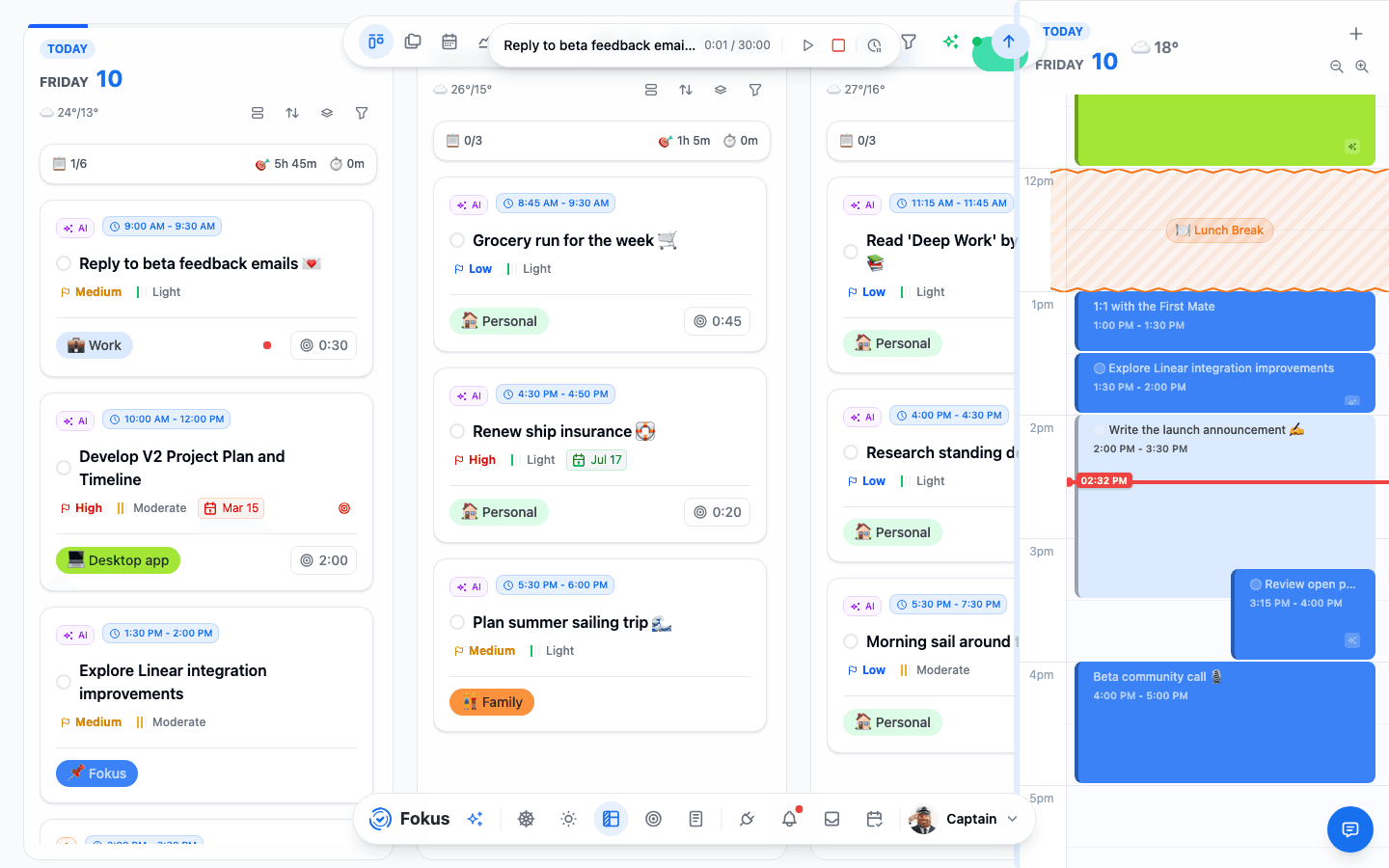
The timer bar docks into the header, showing the task, elapsed time against your estimate, and (on hover) its controls — pause, Stop & Save, and time logging.
The bar fills as the session runs, and the fill is a status at a glance: green while you're inside your estimate, orange once you pass it, and red past 110%. A task with no estimate simply doesn't fill. The desktop app's floating bar shows the same fill:
Two modes
- Pomodoro (default) — classic focused sprints with breaks between them. The bar walks you through work and break phases.
- Continuous — one running clock until you stop it. Better for deep sessions where a 25-minute bell would just hurt.
Switch modes from the timer bar's menu.
When a Pomodoro session ends
A work session is 25 minutes and a break is 5 by default. When the clock reaches the end of a session it stops right there and asks Time for a break!:
- Start Break — the break clock starts. Back to Work ends it and puts you back on the task.
- Skip — keep working. The next break is a full session away.
Sessions are counted from where you started working, not from zero. Start a timer on a task that already has 40 minutes logged and the first break is due at 50:00 — not the moment you press play.
An unanswered break isn't work time
If no device is awake to ask — the laptop lid is shut, the phone is in your pocket — Fokus still ends the work session at that moment, and every device shows it on its break the next time it looks. Time after that doesn't count as work: stop the timer an hour later and it logs the session you worked, not the hour. Still working? Skip or Back to Work puts the clock back on the task.
Stopping
Hit the red Stop & Save. The timer pauses, and Fokus asks what the session meant:
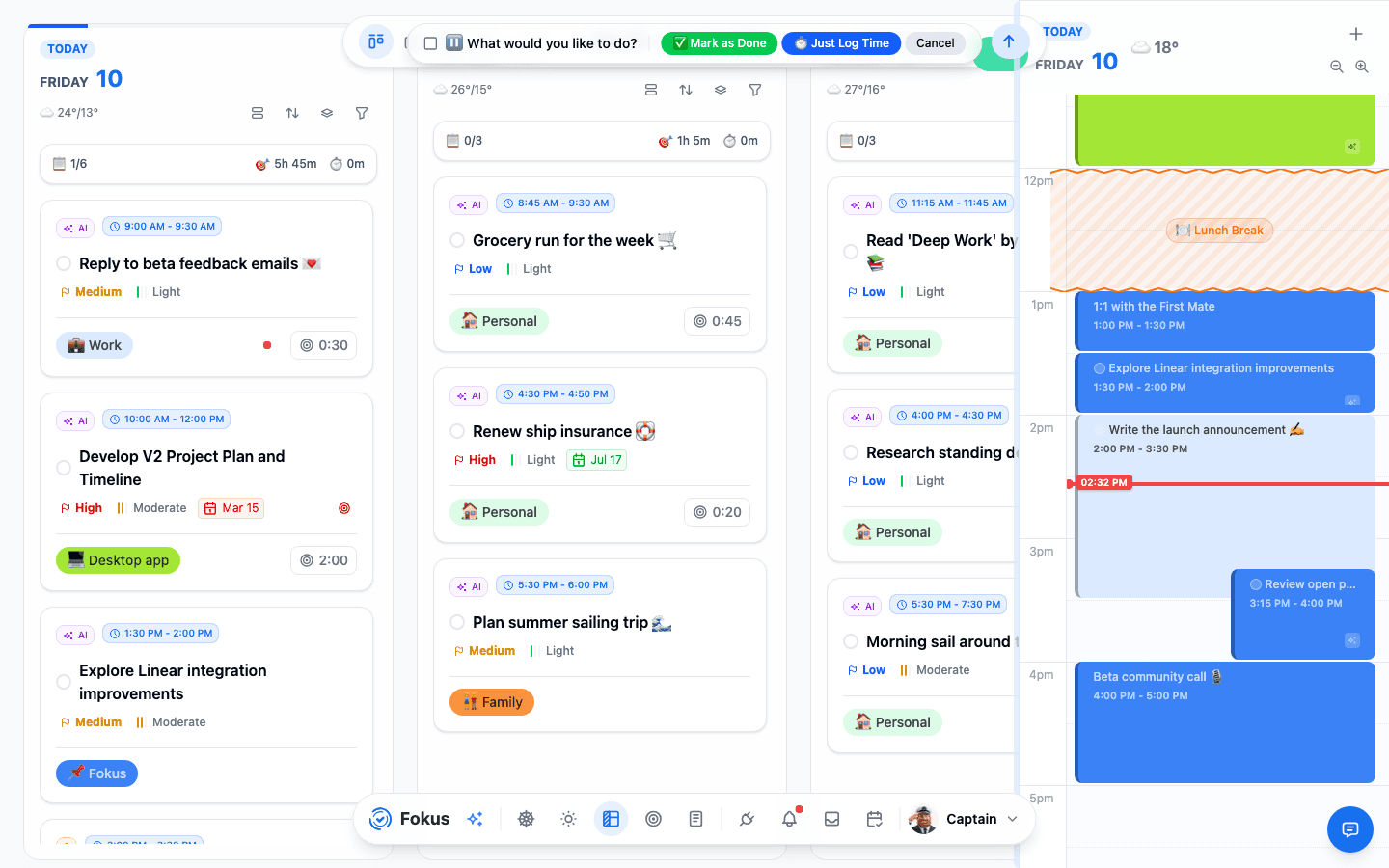
- Mark as Done — log the time and complete the task. The satisfying one.
- Just Log Time — add the minutes to the task's actual time and leave it open.
- Cancel — keep the timer running after all.
Nothing is logged until you pick one of the first two, so a stray click on stop costs you nothing.
One timer, every device
The timer belongs to your account, not to a screen. Start it on your laptop and your phone shows the same clock; pause it on the phone and the laptop pauses too.
The two questions follow the same rule. Time for a break! and What would you like to do? can be answered on any device — and once one is answered, or the timer is resumed, stopped or moved to another task anywhere, the prompt disappears everywhere else. You never end up answering a question that's already been settled.
On mobile
Open a task and tap Start timer. A mini-player keeps the clock in view while you move around the app; tap it for the full timer screen, where you switch between Pomodoro and Continuous, pause, and stop. Stop asks the same question as on the web — Mark as done, Just log time, or Cancel — and the end of a Pomodoro session offers the same Start break and Skip.
- A break reminder that doesn't need the app. With notifications allowed, Time for a break! arrives the moment the session ends, even if Fokus is closed or the phone is locked. Tap it and the timer opens.
- Starting another task's timer logs the running one first. The running session is ended and its time written to its task, and only then does the new timer start — no minutes lost in the switch. If the first half can't be confirmed (you're offline, say), nothing is switched and a notice tells you: Couldn't switch timers — the running one is unchanged.
- The task being timed says Open timer. Its button takes you to the timer instead of starting the session over.
Switching tasks on the web
On the web and desktop, stop the running timer first (Stop & Save → Just Log Time) before starting one on another task. Starting the new one directly replaces the running session without logging it.
Why bother tracking?
Two reasons, both automatic:
- Your day summary shows tracked time next to planned time, so you can see where the hours really went.
- The End-of-Day Review compares actuals to estimates — after a couple of weeks your estimates stop being fiction, which makes auto-scheduling dramatically more realistic.
If a task is starting soon
Start a timer while another scheduled task is about to begin and Fokus will offer to Switch the timer to it or Continue with what you're doing — so the plan and the clock stay in step.
Desktop bonus
In the Fokus desktop app, the timer pops out into its own tiny always-on-top window — glanceable while you work in other apps.
How is this guide?