Email Assistant Agent (EAA)
An inbox that sorts itself — eight honest categories, AI reply drafts that never send themselves, and the hidden to-dos surfaced.
Paid add-on
The Email Assistant Agent is an optional add-on, billed separately from your plan. During the public beta it's free, and there's no switch for add-ons on your side: it's either already on for your workspace or, if the app says it isn't enabled for this workspace, tell us which add-on you're missing through Support. Once billing is on, you turn it on in Settings → Billing — see During the public beta. When it's on for your workspace, enable it per account on the Gmail or Outlook Mail settings page.
Most email isn't work — it's noise wearing work's clothes. The Email Assistant Agent (EAA) reads every incoming message so you don't have to, sorts the humans from the newsletters, drafts the replies that need writing, and turns the actual to-dos into tasks. You open your inbox to find the thinking already done:
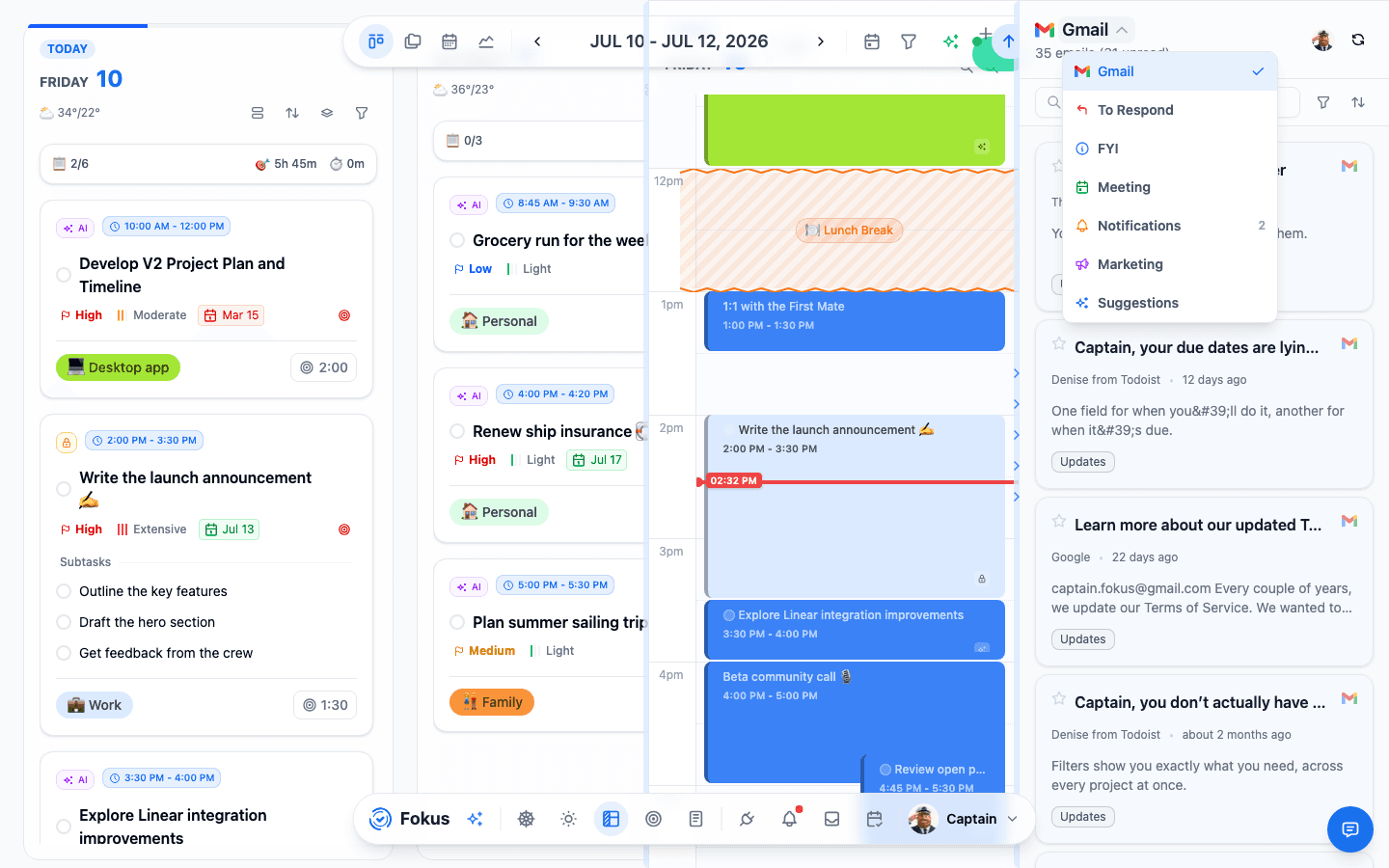
That dropdown is the whole philosophy: instead of one anxious pile, your mail lives in eight honest categories — To Respond (humans awaiting answers), FYI (worth a skim), Meeting (invites and reschedules), Notifications (machines reporting), Newsletters (the reading you signed up for), Travel (bookings, boarding passes, itinerary changes), Purchases (orders, receipts and renewals — money already spent), and Marketing (machines selling) — plus Suggestions, where extracted to-dos wait for your approval.
Two boundaries are worth knowing, because they are where mail most often looks like it is in the wrong place: a hotel or flight receipt stays in Travel rather than Purchases, and an invoice that still needs paying is To Respond, not Purchases — it is work, not a record.
Turning it on
The assistant works per email account. On the Gmail or Outlook Mail settings page, each connected mailbox gets its own Email Assistant card — headed by the address it applies to, and collapsible so a page of several mailboxes stays readable. Flip the toggle inside it:
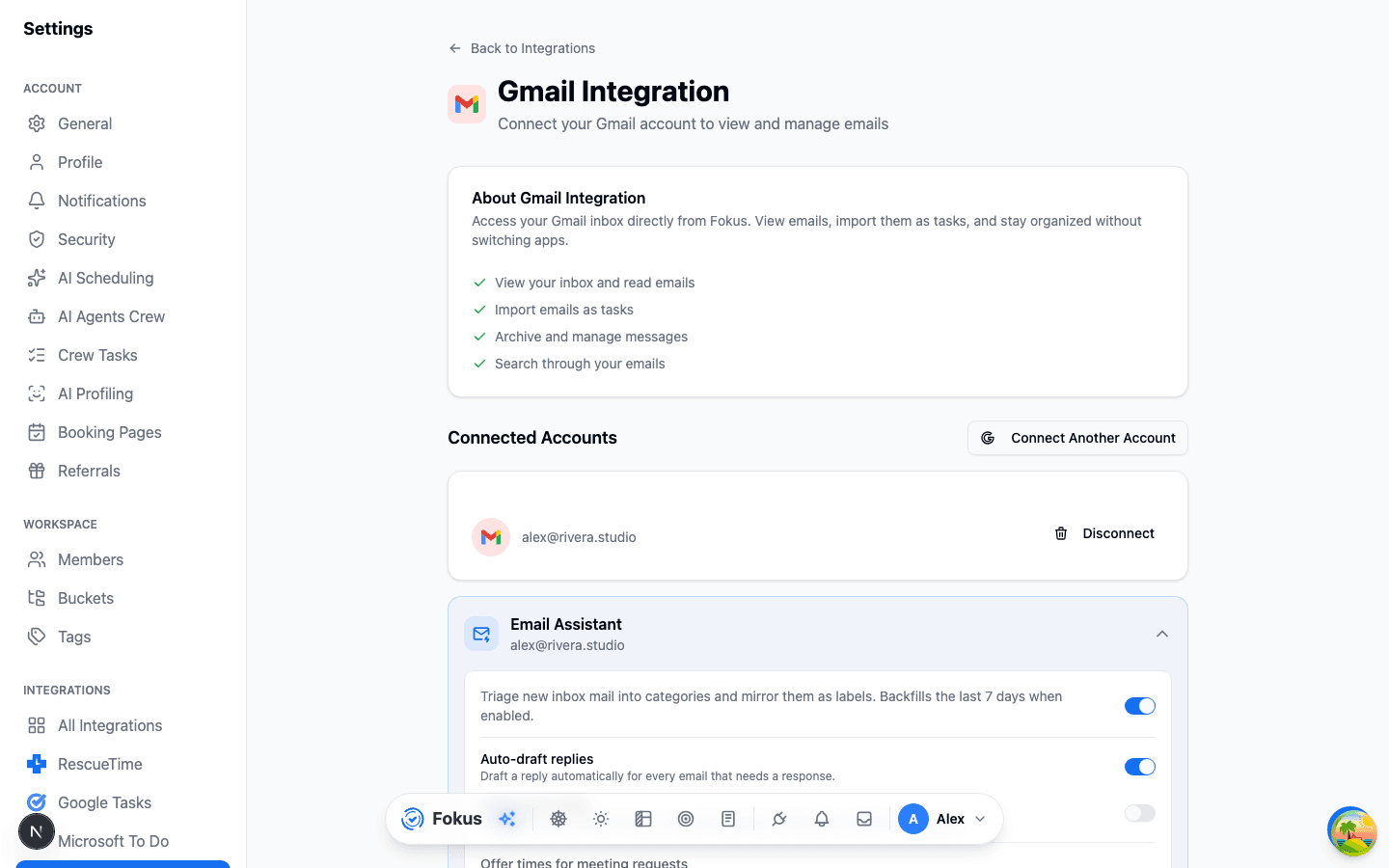
The moment it's on, it backfills your 200 most recent inbox messages — however far back that reaches — and then triages every new message as it arrives. The controls underneath are your policy knobs:
- Auto-draft replies — every email that needs a response gets a draft written proactively.
- Auto-push drafts — generated drafts land straight in your provider's Drafts folder. Nothing is ever sent.
- Auto-archive marketing / notifications — those two categories leave your inbox on arrival (still labeled, still searchable).
- Standing draft instructions — the rules you'd otherwise retype on every draft, written once. "Keep replies to three sentences unless the topic needs more. Never use bullet points with clients." They apply to every reply drafted for that account.
- Sign-off — set your closing once and drafts use it verbatim instead of inventing one. Leave it empty if your provider already appends a signature.
- Offer times for meeting requests — off, share your booking link, or propose specific free slots. See below.
When the assistant gets it wrong: rules
Triage is a judgement call, and judgement is sometimes wrong. Correcting the same sender twice is a waste of your attention, so correct it once:
A rule matches a from address, a whole domain, or an exact subject line, and forces the mail into the category you choose. Matching mail then skips classification altogether — the model never sees it, so it cannot get it wrong again, and you don't pay tokens for the decision.
That single mechanism covers three things people usually ask for separately:
- VIP senders — pin your manager, your investors, your biggest client to To Respond, and star the rule so they stand out in the list.
- Whitelists — a supplier whose order confirmations keep landing in Marketing? A rule pointing at Purchases ends it.
- Bulk filing — everything from
@notifications.example.comto Notifications, once.
When more than one rule matches, a specific address beats a whole domain, which beats a subject line.
Rules apply to every mailbox you've connected rather than to one account, so they live with the agent itself: Settings → AI Agents Crew, under Email Assistant. Everything that is per-account — the toggle, drafting, auto-archive, your sign-off — stays on the Gmail and Outlook Mail pages.
Living in the triaged inbox
Open the mail panel with Ctrl+⇧+G — your inbox, with category chips already applied and mirrored as real labels into Gmail or Outlook, so the order follows you everywhere:
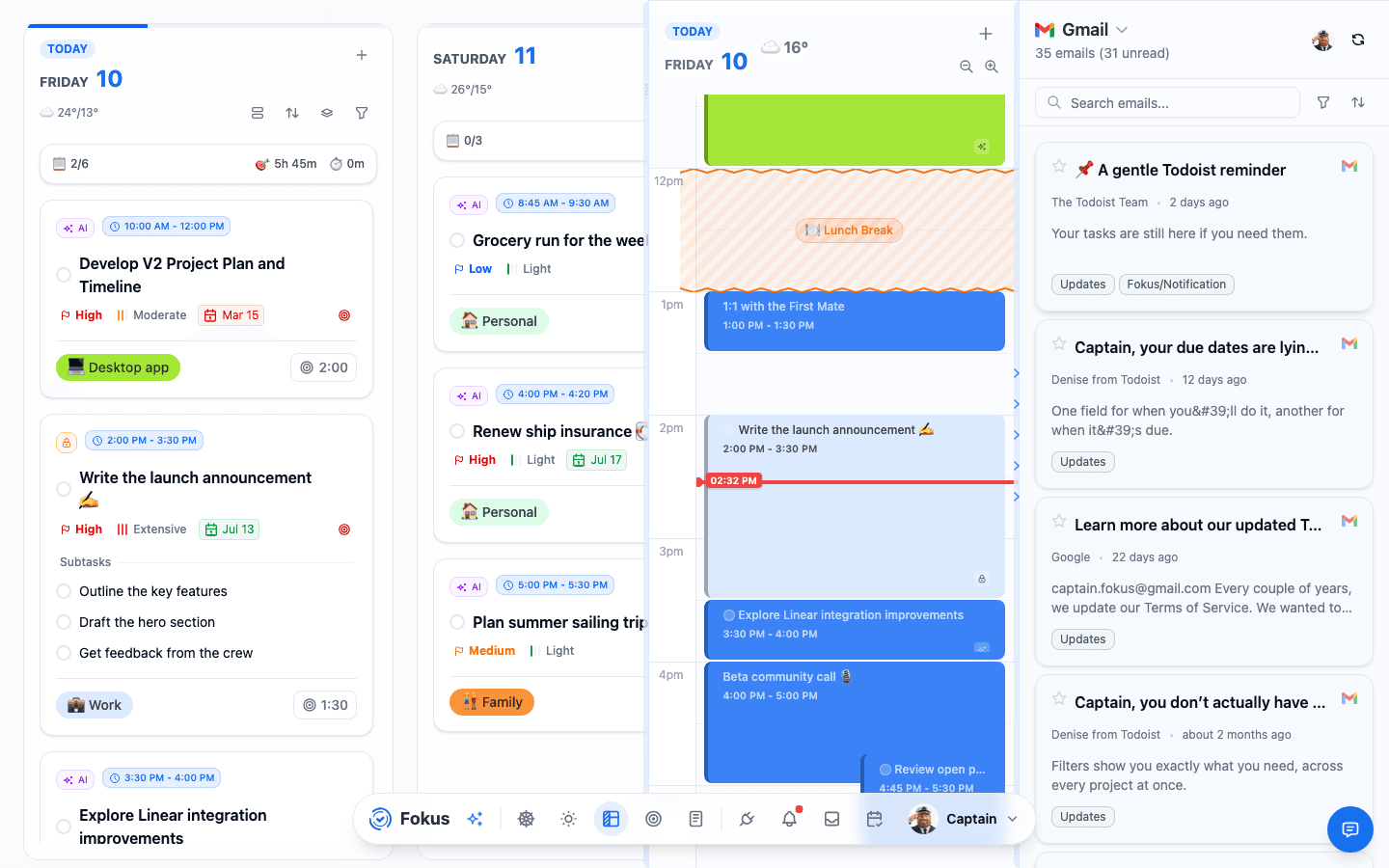
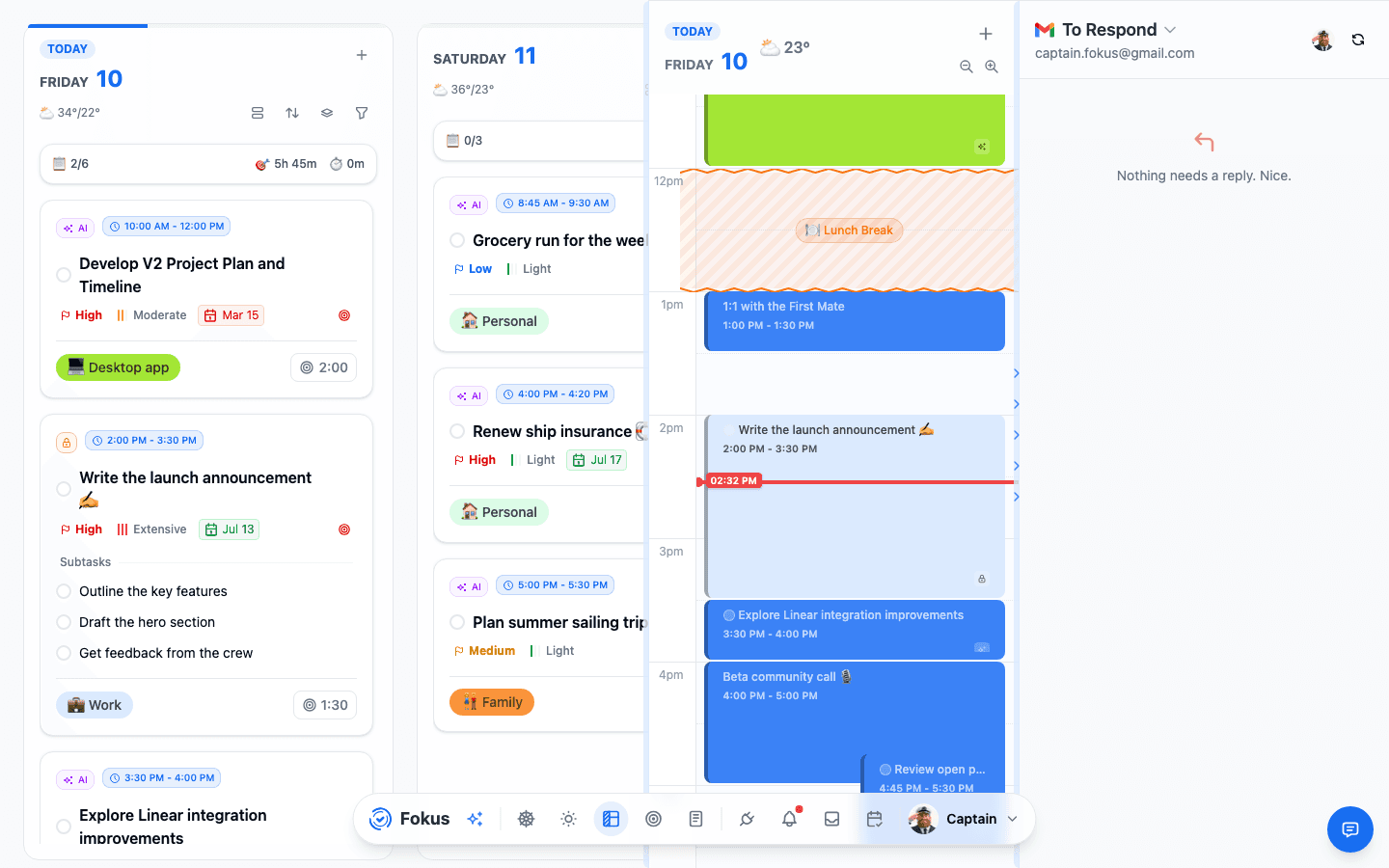
Work the To Respond view first — the header counts how many actually need you. And when you're done, the assistant says so, in style:
Got one wrong? Change category on any email re-teaches it (low-confidence calls are marked, so you know when it guessed). Archive and open-in-provider are one click. Senders you've marked VIP in a rule carry a star, so the people who matter are visible without reading a single subject line.
One caveat worth knowing: if a category came from a rule, correcting the email fixes that email but not the next one — the rule still decides. Fokus says so when it happens; edit the rule to change the verdict for good.
Clearing a whole view at once
Categories like Marketing and Notification are the ones you empty rather than read, so they don't have to be emptied one email at a time. Tick the checkbox on any email to start a selection, or use Select all at the top of the view to take everything currently loaded, then hit Archive — the whole selection leaves your Gmail or Outlook inbox in one go.
When a view holds more than the emails on screen, selecting them all offers one more thing: Archive all n in Marketing. That clears the entire category without scrolling it first, up to 1,000 emails per go. Archiving is the same action as the per-email one — mail leaves the inbox but stays in your mailbox, labeled and searchable, exactly as if you'd archived it in Gmail yourself.
If one of your accounts can't be reached (an expired connection, usually), Fokus tells you how many were archived and how many weren't, and leaves the ones that failed in the list to try again.
Snoozing and unsubscribing
Two more ways to empty a view without pretending you've dealt with it:
- Snooze drops an email out of every triage view until you want to see it again — in three hours, tomorrow morning, or next week. Snoozed mail isn't gone: the Snoozed view in the panel's dropdown lists everything waiting, and Unsnooze brings any of it back immediately. Snoozes are capped at 30 days, comfortably inside how long Fokus keeps a message, so nothing can quietly expire while it's hidden.
- Unsubscribe appears on any email whose sender advertises one. When the sender supports proper one-click unsubscribe, Fokus does it for you and marks the email. When it doesn't — because the sender wants a confirmation page, or only offers an email address — Fokus opens their link in your browser instead of guessing on your behalf.
Replies in your voice — never auto-sent
For anything needing an answer, hit Draft reply with AI (or find the draft already waiting, if auto-draft is on). Steer it with a note — "shorter", "decline politely" — regenerate until it's right, then push to your Drafts folder and send from Gmail or Outlook like any other email.
"In your voice" is meant literally, and it works on three levels. The assistant learns a general style from your recent sent mail — greetings, sign-off, tone, typical length. Your standing instructions then apply your explicit rules on top. And where Fokus has learned how you write to this particular person, it uses that too: the formal register you keep for a client is not the one you use with a teammate. A contact you've barely emailed simply falls back to your general style.
That last part comes from AI Profiling — the same understanding of your contacts that powers meeting briefings. The draft uses it for judgement, not for content: it decides how formal to be and what's worth mentioning, and it doesn't recite what it knows back at the person. Since nothing is ever sent without you, an imperfect fact costs you an edit rather than an embarrassment — and when you spot one, correct it once in Settings → AI Profiling and every future draft improves.
On a cold email — one with little or no thread behind it — the draft also glances at a couple of genuinely related items from your own notes, tasks, events and objectives. Deliberately a couple: a handful of tight matches sharpens a reply, while a pile of loosely-related material just crowds out the message you're actually answering. Weak matches are dropped rather than passed along, and once a thread has a real conversation in it the lookup is skipped entirely, because by then the thread is the context.
It learns from your edits. When you rewrite a draft before pushing it, Fokus keeps both versions — what it wrote and what you actually sent — and shows the difference to the next draft. Shorten enough replies and the drafts get shorter. Cut the throat-clearing opener often enough and it stops writing one. Accepting a draft unchanged teaches nothing, which is exactly right: silence isn't a correction.
Replying with real times
When an email asks to meet, the draft can answer with your actual availability rather than "let me check my calendar". Pick the behaviour per account:
- Share my booking link — the reply includes your booking page and the recipient picks.
- Propose specific free slots — the reply names real openings, drawn live from your booking page and your calendar, always with the timezone spelled out.
Availability is only offered on mail triaged as Meeting, so a draft never volunteers your calendar to whoever happens to write in. And as everywhere else: the times are real, but the reply is still a draft until you send it.
The whole flow also works from a conversation with Captain Fokus: "show my to-reply emails", "draft a reply to the one from Alice — tell her Friday works", iterate on the draft in chat, and the push to your Drafts folder happens only after you approve it on the card the chat shows you.
The rule that makes it trustworthy
Drafts are drafts. Even with every automation switched on — and even when the Captain does the pushing — no email leaves your account until you press send yourself.
Suggestions: mail that becomes work
Actionable emails surface proposals in the Suggestions view — a task ("Send the signed contract by Friday"), an event, or a note extracted from the message. Accept with one click and the machinery takes over: TEA enriches, auto-scheduling places it, and the email link rides along on the task. Dismiss the misses.
The workflow behind it
The Inbox Zero concept page shows the habit this agent was built for — triage in batches, reach zero undecided, close the panel.
How is this guide?
Meeting Scribe Agent (MSA)
Record meetings without a bot in the room — and get back a note with the summary written, the action items extracted, and every word searchable.
Voice Agent
Call Captain Fokus like a colleague — ask what's next, reschedule work, capture tasks — and just talk, hands-free, once the call is on.