ETA Scheduler Agent (ESA)
Never be late — Fokus watches live traffic, blocks the travel time on your calendar, and tells you when to leave.
You have a dentist appointment at 3:00 across town. You know this. What you don't know, at 2:35, is that the ring road is jammed. The ETA Scheduler Agent (ESA) does: for any event with a real address, it computes traffic-aware travel time, drops a "Leave for …" block on your calendar, and sends a leave-now reminder at exactly the right moment. And when the event is a flight, it knows the drive to the airport is only half the story — it budgets your check-in, security, and boarding time too, so "leave now" means leave now.
It's the least chatty agent in the crew — no LLM involved, just live routing data and arithmetic — and quietly one of the most useful. It's included in your plan, no add-on required.
Turning it on
Settings → AI Agents Crew → ETA Scheduler. It's off by default, because it needs to know where you start from:
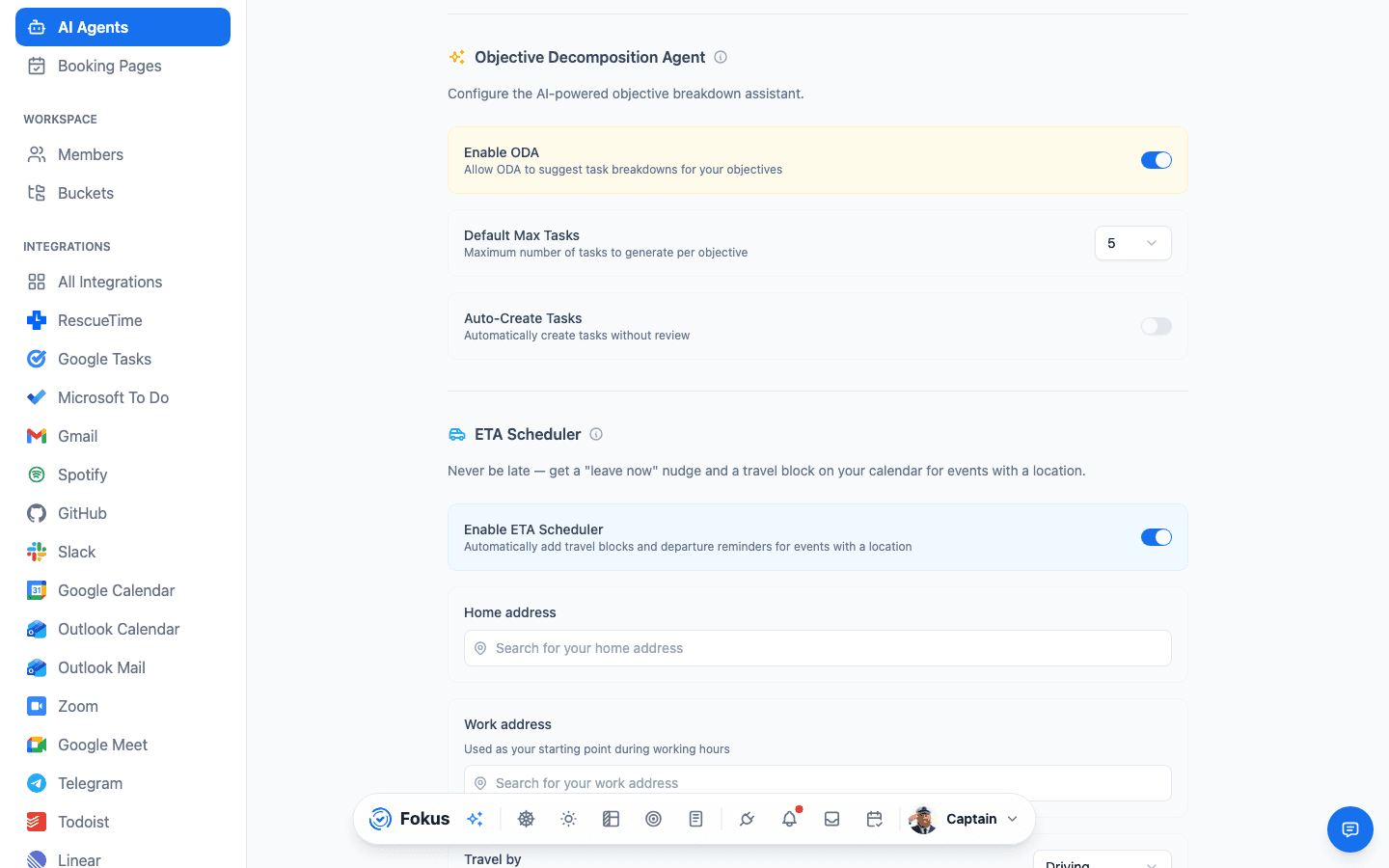
- Home address — where you leave from by default.
- Work address — used as the starting point instead of home during your working hours.
- Travel by — Driving, Transit, Walking, or Cycling. Your default, overridable per event.
- Buffer — extra minutes shaved off the departure time, for the coat, the keys, and the elevator.
- Smart prep time — on by default. Some events need you there well before they start — a flight isn't a coffee. Fokus detects the kind of event and adds that on-the-ground lead time on top of the drive, so the departure block covers check-in and security, not just the traffic. Tune it per category:
- Flight — time at the airport before departure (check-in, security, boarding). Default 120 min.
- Train — time at the station before it leaves. Default 25 min.
- Ferry — time at the port. Default 45 min.
- Medical — arrive early to check in. Default 15 min.
- Use my phone's location — off by default. Opt in and the mobile app shares your rounded, approximate position when you open it, so imminent departures are timed from where you actually are — your hotel in Berlin, not your empty apartment back home. It's a single stored point, never a history, and turning the toggle off deletes it.
How prep time stacks
Prep time is added on top of travel and your buffer, and the block spans the whole stretch — so Smart Scheduling won't drop a task into your commute or your time at the gate. Fokus spots the event type from its title and location (a flight number, an airport, a station); turn Smart prep time off and it falls back to travel time alone.
What it does, exactly
When an event qualifies, Fokus:
- Figures out where you're coming from. A fresh phone location (if you've opted in) wins for imminent departures. Otherwise: if another in-person event ends shortly before (within three hours), it routes from there; if your calendar shows you're away on a trip, it anchors on where the trip put you (see When you travel); failing all that, it uses your home address — or your work address during working hours.
- Asks for live travel time for your chosen mode, accounting for current traffic.
- Adds any prep time the event needs. A flight, train, ferry, or medical appointment gets its category lead time (above) layered on top of the drive — so the plan accounts for getting there and getting through the airport, not just the road.
- Blocks it on your calendar, titled after the event and spanning the whole window — travel plus prep — so the commute and the check-in queue both stay protected.
- Attaches a "leave now" reminder that arrives through your normal notification channels.
It's idempotent and self-maintaining: move the event, change its location, switch travel mode, or delete it entirely, and the travel block updates or disappears with it. Traffic is also re-checked every 30 minutes for events starting in the next three hours — so if the road jams up after the block was created, your departure time moves earlier and the reminder follows.
When you travel
Flights, trains, and ferries don't just occupy your calendar — they move you. ESA treats them as location changes: once your outbound train arrives in Berlin, your home address stops being the answer to "where are you leaving from". While you're away:
- It anchors on where your calendar last saw you — the dinner you booked in Berlin, or a located hotel / trip block spanning the day — even if that was yesterday, well past the usual three-hour chain.
- The return leg needs no anchor at all. Departing from Berlin Hbf means you're already in Berlin, so you get a "Get ready for …" block covering station prep and your buffer — not a phantom six-hour drive from home to the platform.
- The Trip Companion pitches in. If the crew's Trip Companion is tracking the trip, ESA borrows your hotel address as the departure point when the calendar offers nothing better.
- When it truly doesn't know, it stays quiet. No block beats a wrong one: unknown whereabouts skip the block, and any computed travel over ~4 hours is treated as a wrong-origin guess and dropped rather than written to your calendar.
Once the return leg lands, normal service resumes by itself — the next event near home routes from home again.
Which events qualify
An event gets a travel block when all of these hold:
- It has a physical address (a Zoom link doesn't count — nobody needs to leave early for that).
- It isn't an all-day event, and it isn't cancelled.
- It starts in the future, within the next 7 days.
- You haven't declined the invitation.
Everything else is skipped silently. Travel blocks themselves are never given travel blocks — the Captain thought of that.
Per-event travel mode
Usually driving but taking the train to this one? Set the travel mode on the event itself (the field is right there when you create or edit it) and ETA uses it for that trip only, leaving your default untouched.
What it needs
Real addresses, not room names — the routing lookup needs somewhere it can actually navigate to. Events synced from Google Calendar or Outlook with a location field qualify automatically.
It plays nicely with auto-scheduling
Travel blocks are real calendar blocks, so Smart Scheduling plans your tasks around them. The commute stops silently eating your focus time.
How is this guide?