Captain Fokus
Chat with the AI that can actually rearrange your day — create, search, schedule, delegate to the crew, search the web, and reach your connected apps from one conversation.
Captain Fokus is the conversational heart of the app's AI — and the chief of the whole crew. It sees your workspace — tasks, events, buckets, objectives — and it has hands: ask it to create, move, complete, or find things and it will, right from the chat. It also commands everything the rest of the crew produces: run and delegate Crew Tasks, read their results, search the live web, reach your Connectors, and work your inbox, meetings, and bookings.
Start a conversation
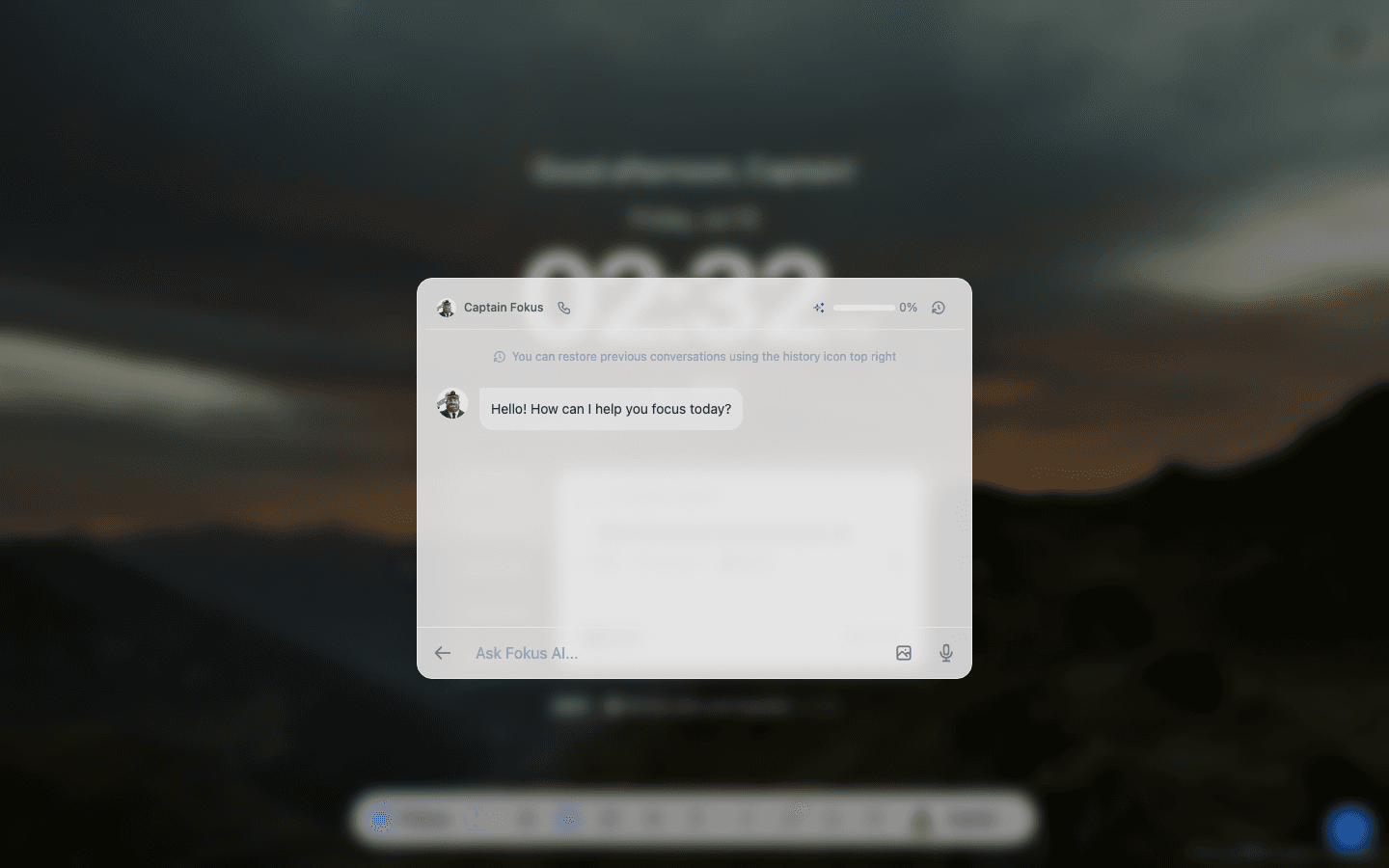
Press ⌘+K and choose Ask Captain Fokus (or just press F when nothing is focused). The chat opens as a calm overlay wherever you are:
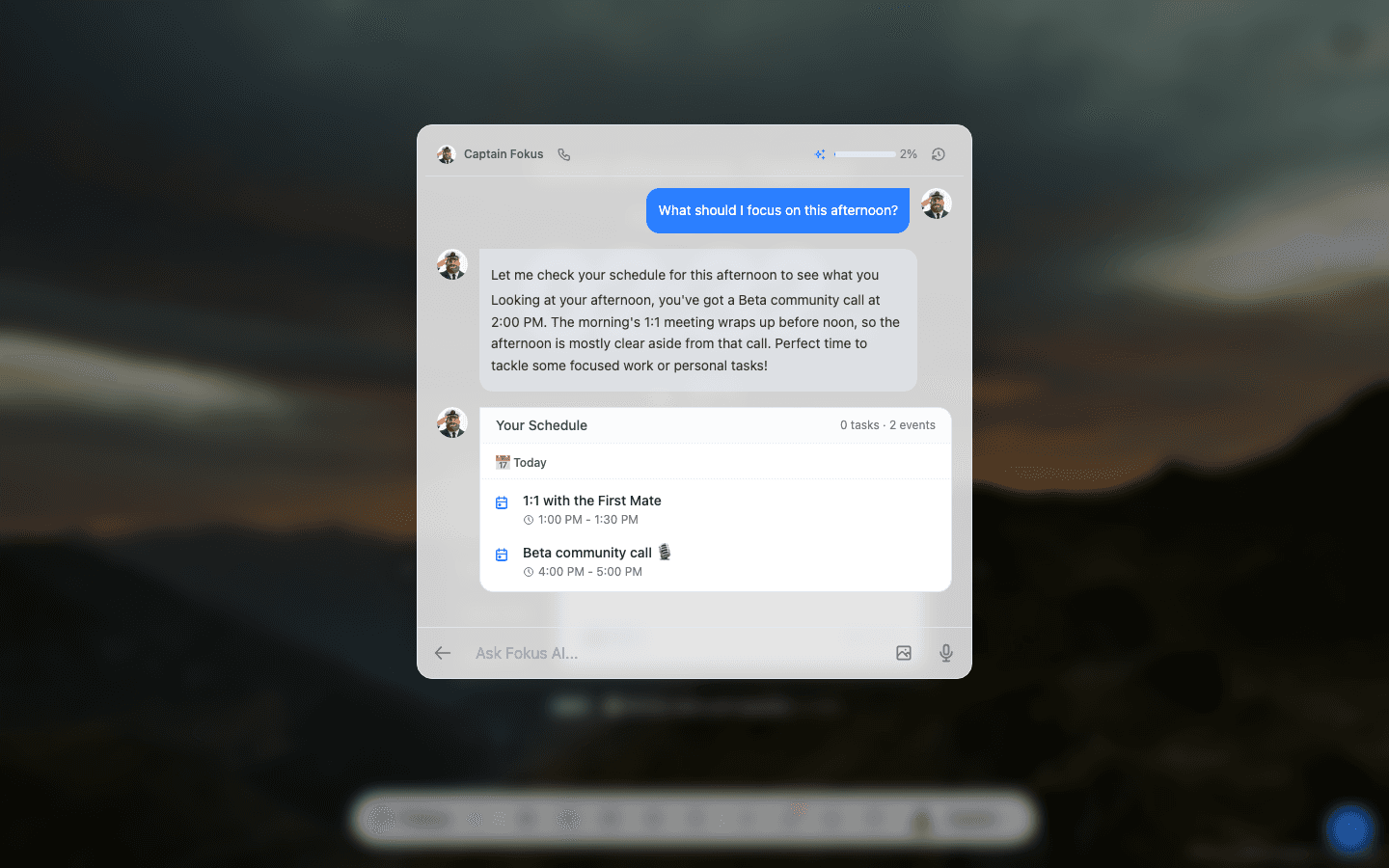
Ask something real — "What should I focus on this afternoon?" — and you get an answer grounded in your actual schedule, often with a live card of the items it's talking about:
Things worth asking
- "Plan my afternoon" / "What's on my plate tomorrow?" — schedule summaries with the relevant tasks attached.
- "Create a task to renew the ship insurance, high priority, due Friday" — full task creation, natural language only.
- "Move my PR review to Monday morning" — updates the real task.
- "What did I get done this week?" — progress summaries pulled from your history.
- "Break down my launch objective into tasks" — hands off to ODA and brings back proposals.
The input also takes voice (microphone button) and images — snap a whiteboard and ask it to turn the action items into tasks.
A few practical details: relative dates ("tomorrow", "next week") resolve against your timezone, and the meter at the top shows your daily AI budget as you go.
Threads, context and continuity
Captain Fokus remembers a conversation, so follow-ups like "go ahead" or "are you sure?" land in context. Wherever you open the chat — Spotlight, the AI command bar, or the full Captain screen — you pick up the same conversation you left; New Thread starts a clean one, and the history icon reopens older ones.
Attaching context. Asking about a specific email, task or note pins it to the thread as a chip, and Captain Fokus keeps that item in view for the whole conversation — not just the first question. Clear context detaches it and the conversation carries on without it. Attaching a different item starts a new thread, so two subjects never get tangled.
When a thread fills up. Conversations have a length limit. As you approach it you'll see a notice, and once you reach it Captain Fokus starts a fresh thread and carries a summary of the previous one across. Expect the earliest details to be summarised rather than quoted from then on — if precision matters, start a new thread yourself rather than letting a long one roll over.
The percentage meter at the top of the chat is your daily AI budget, not how full the current conversation is. They're separate: a fresh thread doesn't refill your budget, and a full budget doesn't end your thread.
Ask it how Fokus works
Captain Fokus can read this guide, so you can ask it product questions instead of going looking:
- "How does auto-scheduling decide what goes where?"
- "Where do I change my working hours?"
- "Does Fokus work with Todoist?"
- "Why can't I see the Meeting Scribe button?" — it checks your setup first, then explains the feature behind it.
Answers come from this guide and link back to the exact section they came from, so you can read further. If something genuinely isn't documented, it says so rather than guessing — and you can always ask in your own language, even though the guide is written in English.
You'll also find Ask Captain in the profile menu: it opens a conversation with a question about whichever screen you're on.
Kept in step with this guide
The Captain re-reads the guide automatically, so answers follow whatever is published here — usually within the hour of a change going live.
Chief of the crew
Captain Fokus opens every conversation aware of what your crew did in the last two days, and can dig in on request:
- "What did my crew find?" — recent runs across all your Crew Tasks, with the actual content (digests, dossiers, radar hits) summarized in chat.
- "Run my meeting briefing" — trigger any configured crew task on demand, or answer a question a run is waiting on.
- "Have the crew research …" — ad-hoc delegation: the Captain spins up a one-off job from the Task Catalog and runs it in the background. The task stays disabled (no schedule) unless you enable it in the Command Center.
Web search, connectors, email, meetings & bookings
- Web search — "search the web for …" runs live research with cited sources (requires the Research Agent add-on; each search counts toward its monthly quota).
- Connected apps — the Captain can read from any of your Connectors ("what's in my Linear inbox?"), and perform writes ("add a comment to FOO-12") only after you approve each one.
- Email — with the Email Assistant: "show my to-reply emails", "draft a reply to the one from Alice, tell her Friday works", then — after your approval — the draft lands in your mailbox, threaded to the original. Fokus never sends email; you hit send from your mail app.
- Meetings — with the Meeting Scribe: recaps, full transcripts, and "accept the second action item" to turn it into a real task.
- Bookings — with Booking Pages: "who booked me this week?", "send me my booking link", "pause my intro-call page".
Add-on-gated abilities show a small unlock card in chat when the add-on isn't enabled yet.
Approvals
Risky actions never run silently. Bulk task creation, deleting reminders, connector writes, and email draft pushes pause the conversation with an approval card showing exactly what's about to happen — approve or reject with one click, and the Captain continues either way.
Settings
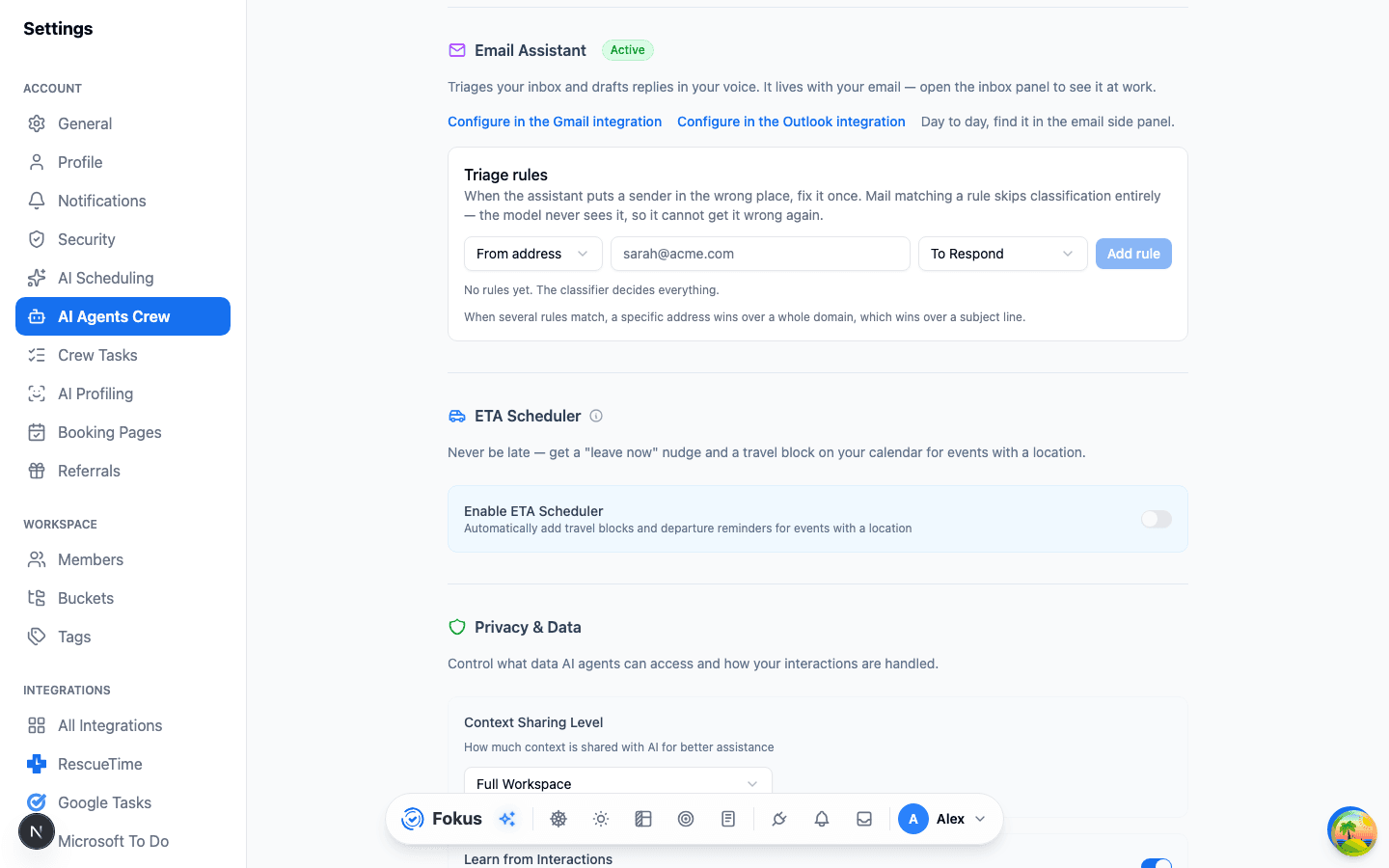
Tune the whole AI crew under Settings → AI Agents:
- Conversation style — Concise, Balanced, or Detailed answers.
- Proactive suggestions — whether the Captain volunteers advice or waits to be asked.
- Attention feed — a master switch plus one switch per card kind for the Attention Feed; a kind that's off is never produced.
- Context sharing — how much of your workspace the AI may read.
- Per-agent toggles for TEA, ODA, the Morning Briefing, and the End-of-Day Review.
- Email Assistant → triage rules — the sender, domain and subject rules that override its classification. They apply across every connected mailbox, so they belong to the agent rather than to one account; the per-account settings are on the Gmail and Outlook Mail pages. See Email Assistant.
- Meeting Scribe — meeting language and custom vocabulary for transcription.
Always on deck
Captain Fokus itself can't be disabled — it's a core part of Fokus. The background agents are all optional.
Also meet it on Telegram
Connect the Telegram integration and Captain Fokus answers there too — capture tasks from your phone chat while you're away from the app.
How is this guide?