Calendar
Tasks and events on one time grid — drag, drop, and resize until the day feels honest.
The Calendar shows your days as vertical timelines: events from your connected calendars, task blocks placed by the auto-scheduler, and the gaps in between. It's where you sanity-check whether the plan actually fits.
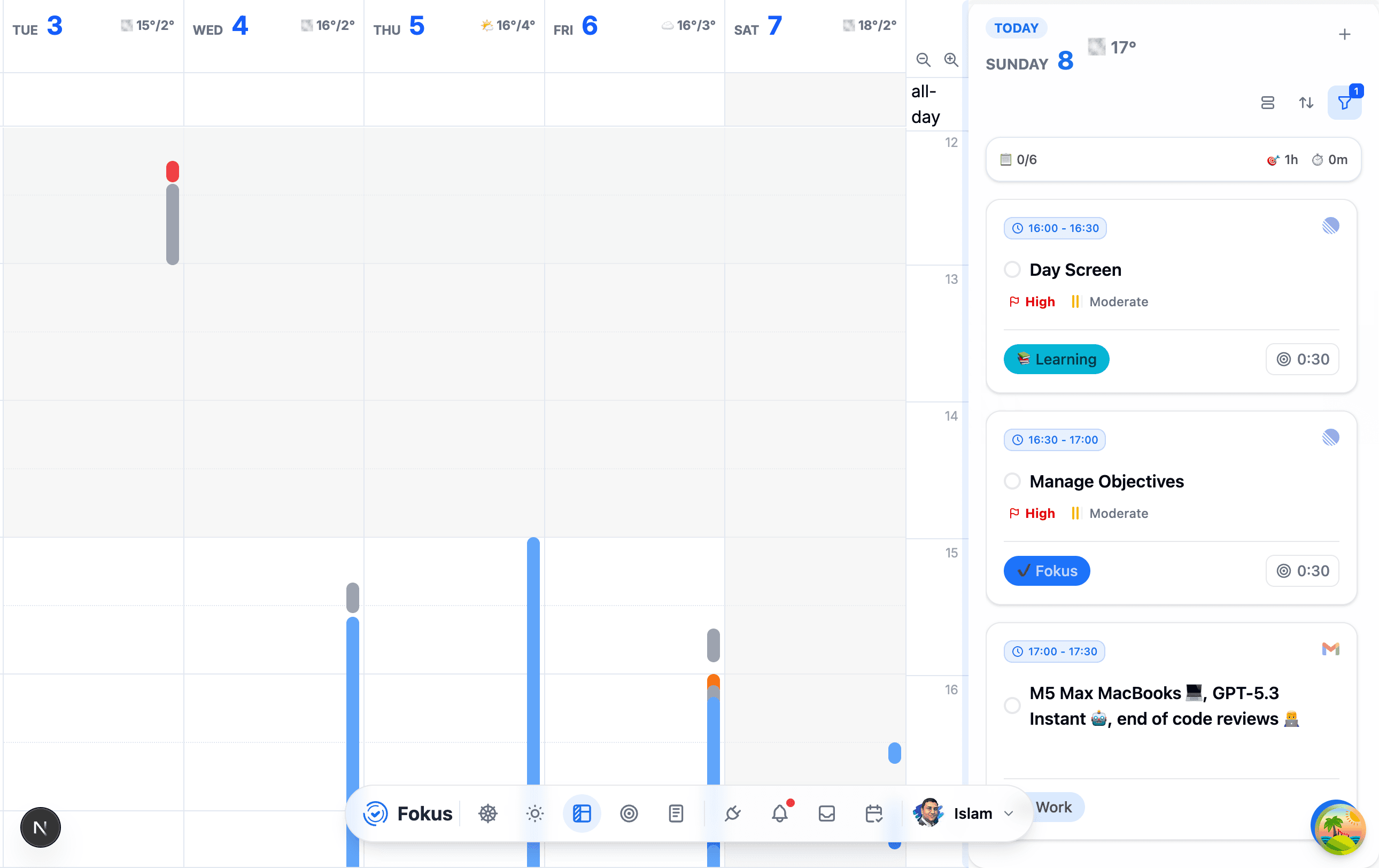
Reading the grid
- Every column is a day, with its weather forecast in the header — handy when deciding where the gym or the sailing trip goes.
- Solid colored blocks are events; lighter blocks with a circle are scheduled tasks — click the circle to complete one right from the grid.
- A small lock on a block means it's pinned: the auto-scheduler won't move it. Manually placed tasks get pinned automatically.
- The red line is now. The all-day row at the top collects date-only items.
- The timeline panel on the right is the same today-strip as in Kanban, so your task list is always one glance away.
Moving things around
Drag a block to move it; drag its edge to resize (which updates the task's estimated time). Fokus saves as you drop:
A few more grid tricks:
- Click an empty slot (or drag a range) to create an event right there — and the form's type switch turns it into a task or a Fokus Block instead. A task created this way is scheduled at exactly the time you drew and pinned, so the auto-scheduler won't move it.
- Zoom with the magnifier buttons to see more or less of the day at once.
- Scroll horizontally (or use the arrow keys) to move through days; the header arrows jump a full range.
Two-way calendar sync
With Google Calendar or Outlook connected, external events appear here and Fokus-created ones sync back — the auto-scheduler plans around all of it.
A second time zone
Working across time zones? Show a second time zone next to your own in the time column. Turn it on in Settings → General under Secondary time zone, and the hour gutter gains a second column of labels — your own zone next to the grid, the secondary one beside it, each with its zone abbreviation at the top.
It's display-only: it never changes when tasks get scheduled or how events are stored — it's just there so you can read the day in both zones at a glance. Want it on the now line too? Flip on Show secondary time on the current-time line in the same settings.
Related
How is this guide?