Spotlight
The command bar behind Cmd+K — search, create, navigate, and talk to Captain Fokus without touching the mouse.
Spotlight (also called the Fokus Navigator — the ship's wheel in the dock) is the keyboard-first way to do almost anything in Fokus. Press ⌘+K anywhere and it appears:
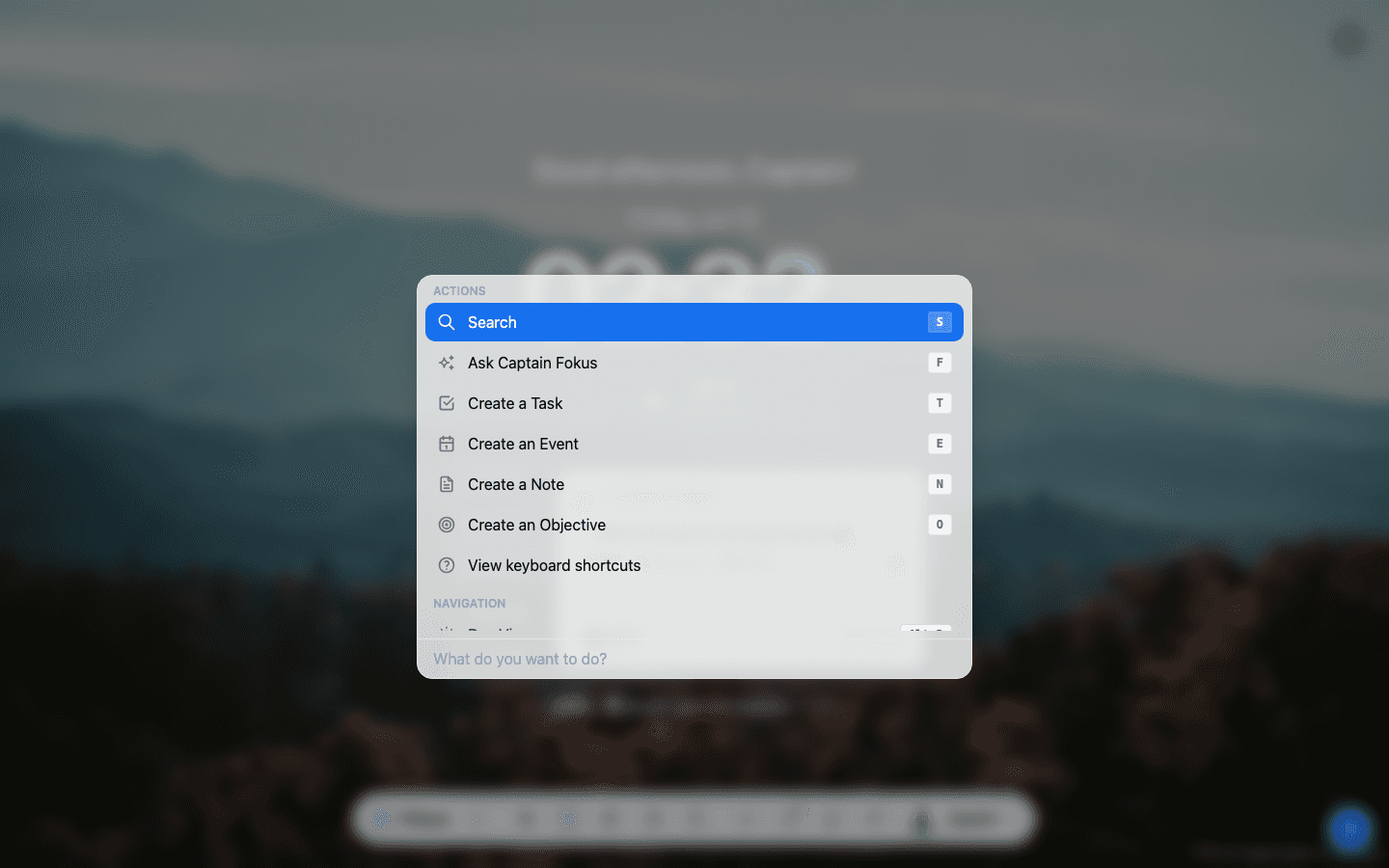
From here you can jump into any action with a single key: Search, F for Captain Fokus, Task, Event, Note, Objective — or scroll down to navigate to any screen in the app.
Create a task in one line
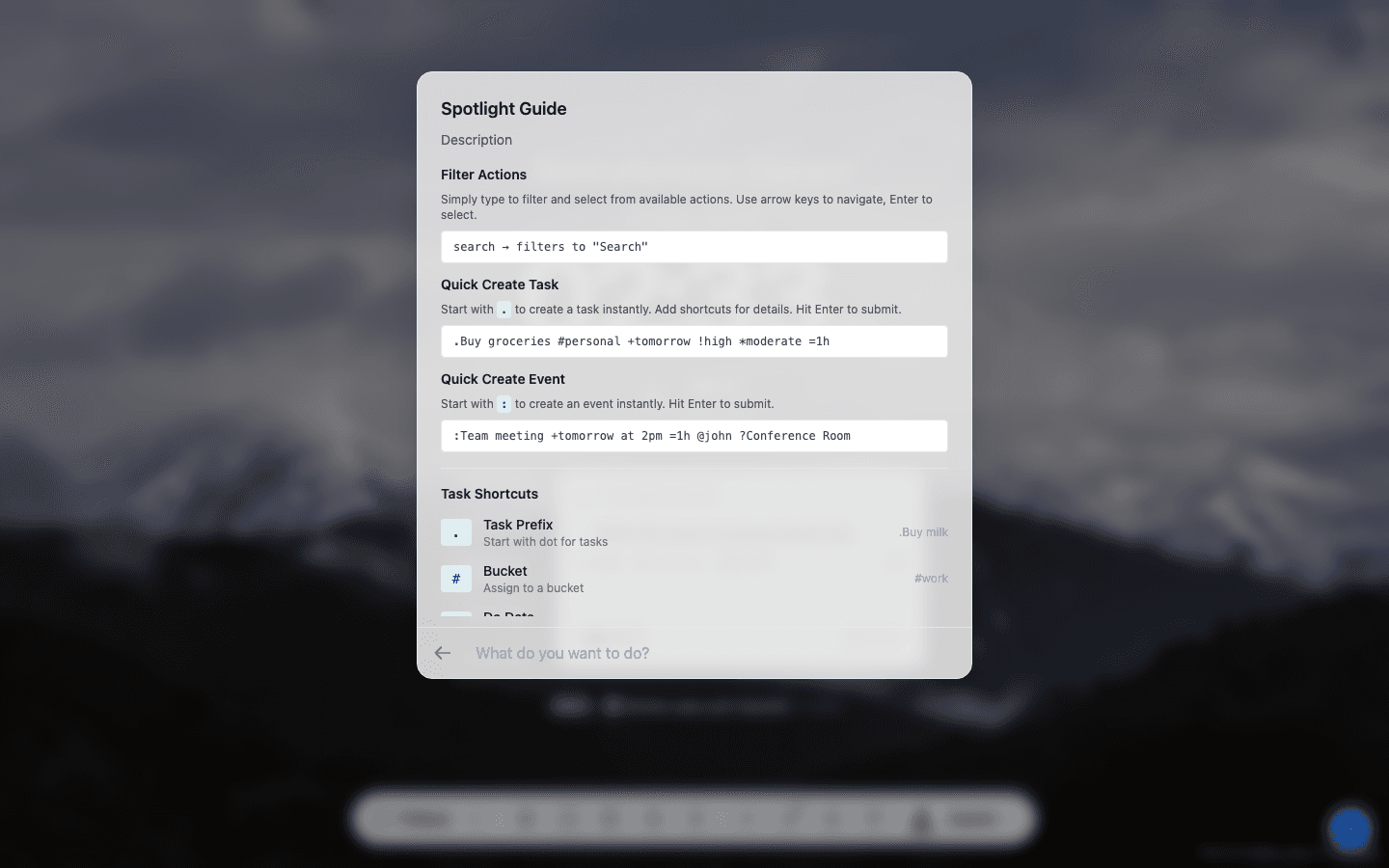
Type a . and Spotlight switches to task mode. Everything else is inline tokens — type them anywhere in the line and watch them turn into chips:
.Sketch social banner #Website +tomorrow 2pm !high =45m| Token | Meaning | Example |
|---|---|---|
# | Bucket | #Work, #Personal |
+ | Do date (when you'll work on it) — natural language works | +tomorrow 9am, +next monday |
~ | Due date (the deadline) | ~friday, ~jul 20 |
! | Priority | !high, !medium, !low |
* | Energy level | *light, *moderate, *extensive |
= | Estimated time | =45m, =2h |
^ | Link to an objective | ^Launch Fokus 2.0 |
>> | Description | >>Draft three variants first |
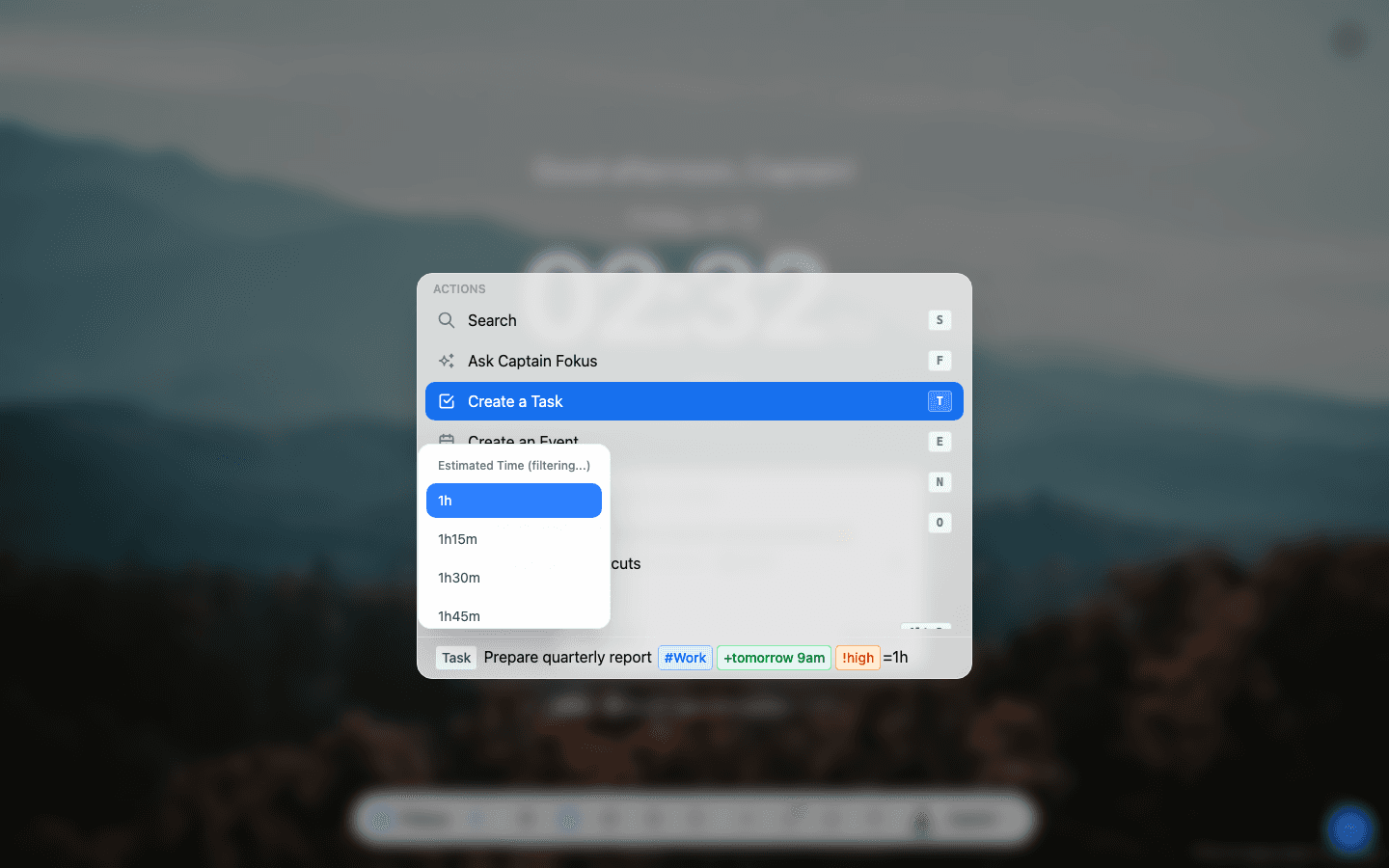
As you type a token, Spotlight offers matching values (buckets, durations, dates) so you can autocomplete instead of remembering the exact spelling:
Create an event just as fast
A leading : makes it an event. Events get their own tokens: + start time, = duration, @ attendees, ? location.
:Coffee with Alex +tomorrow at 3pm =45m ?Harbor Café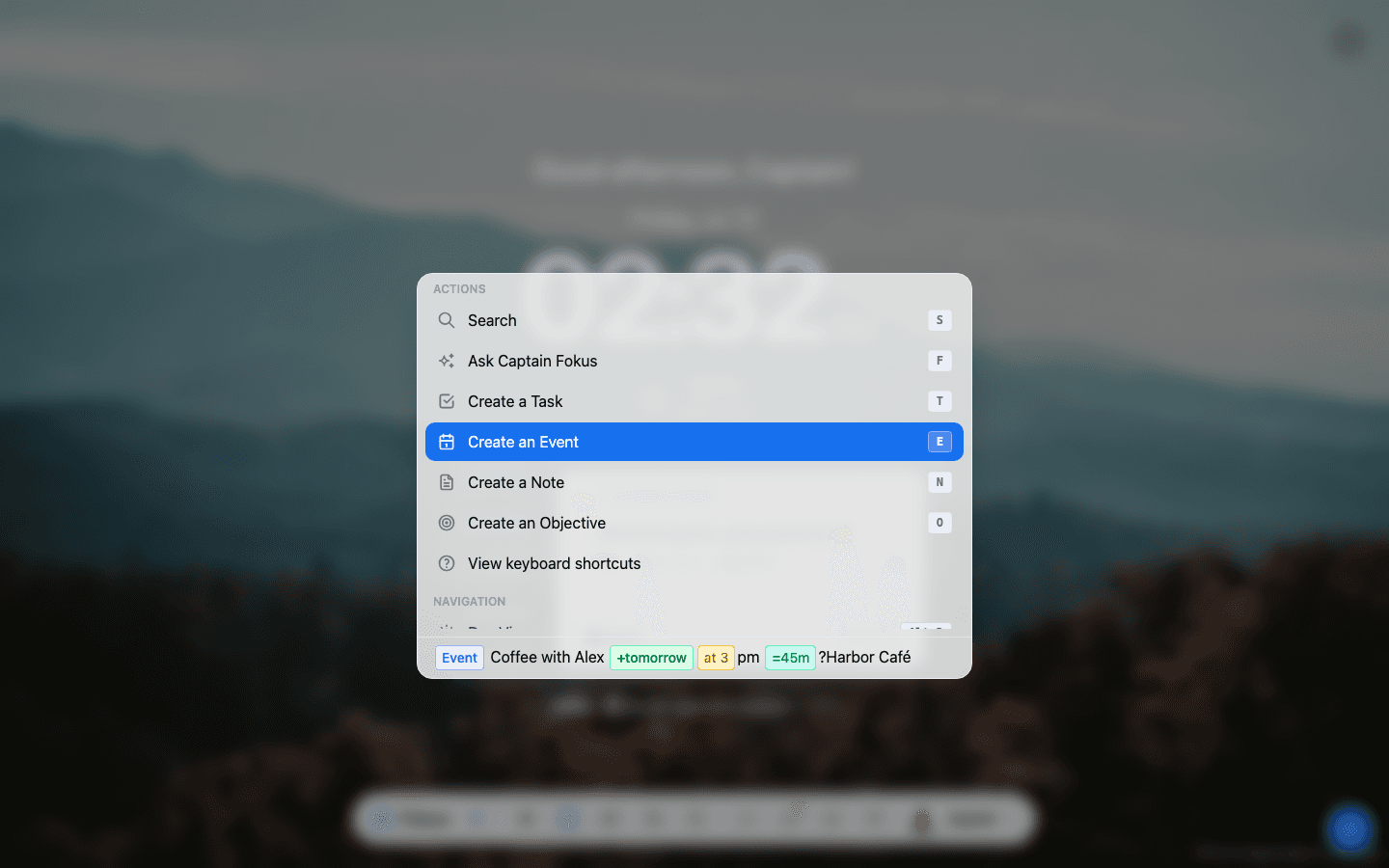
Search everything
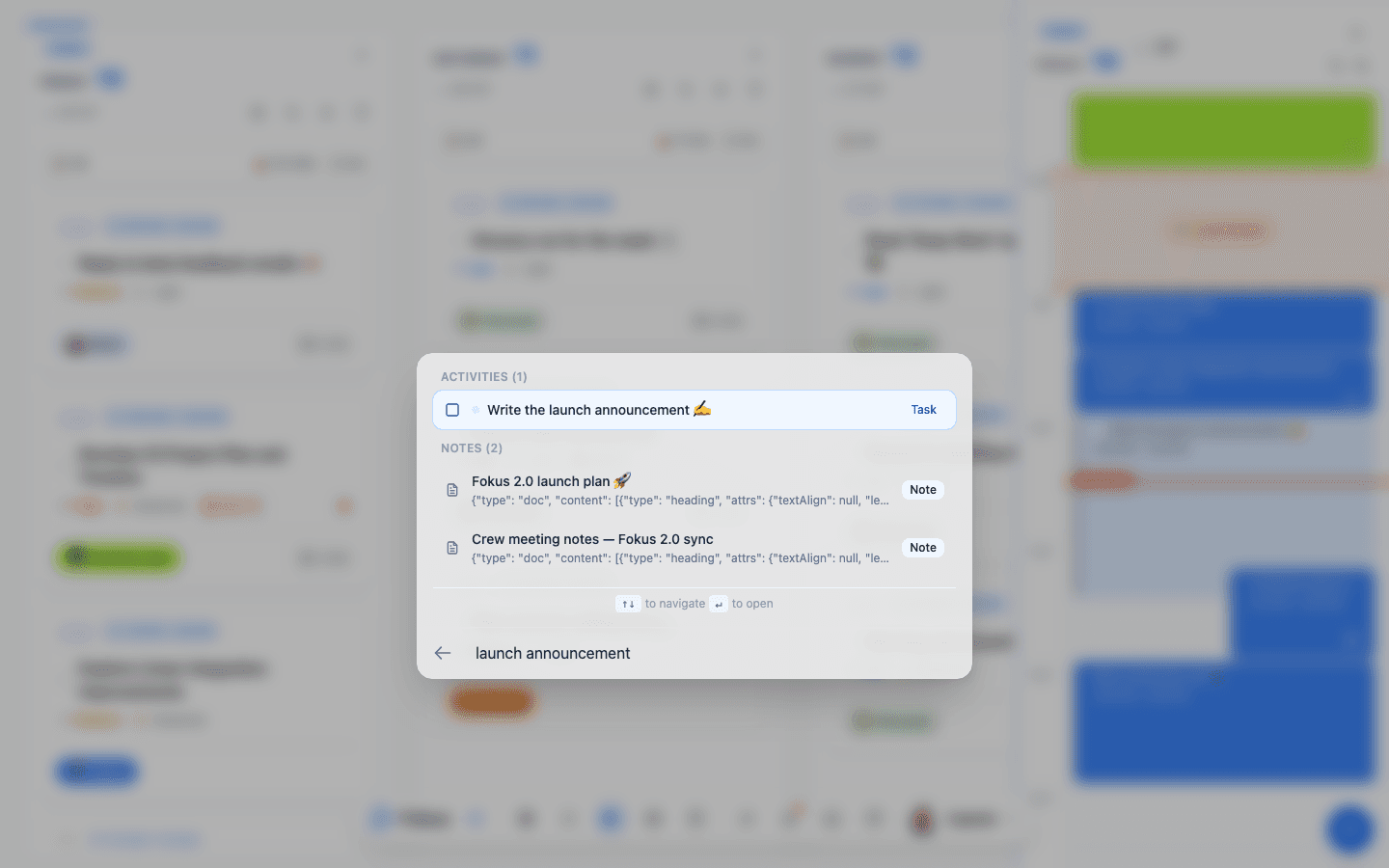
Choose Search (or click it) and type — Spotlight finds tasks, events, notes, and objectives in one list. ↑↓ to move, Enter to open:
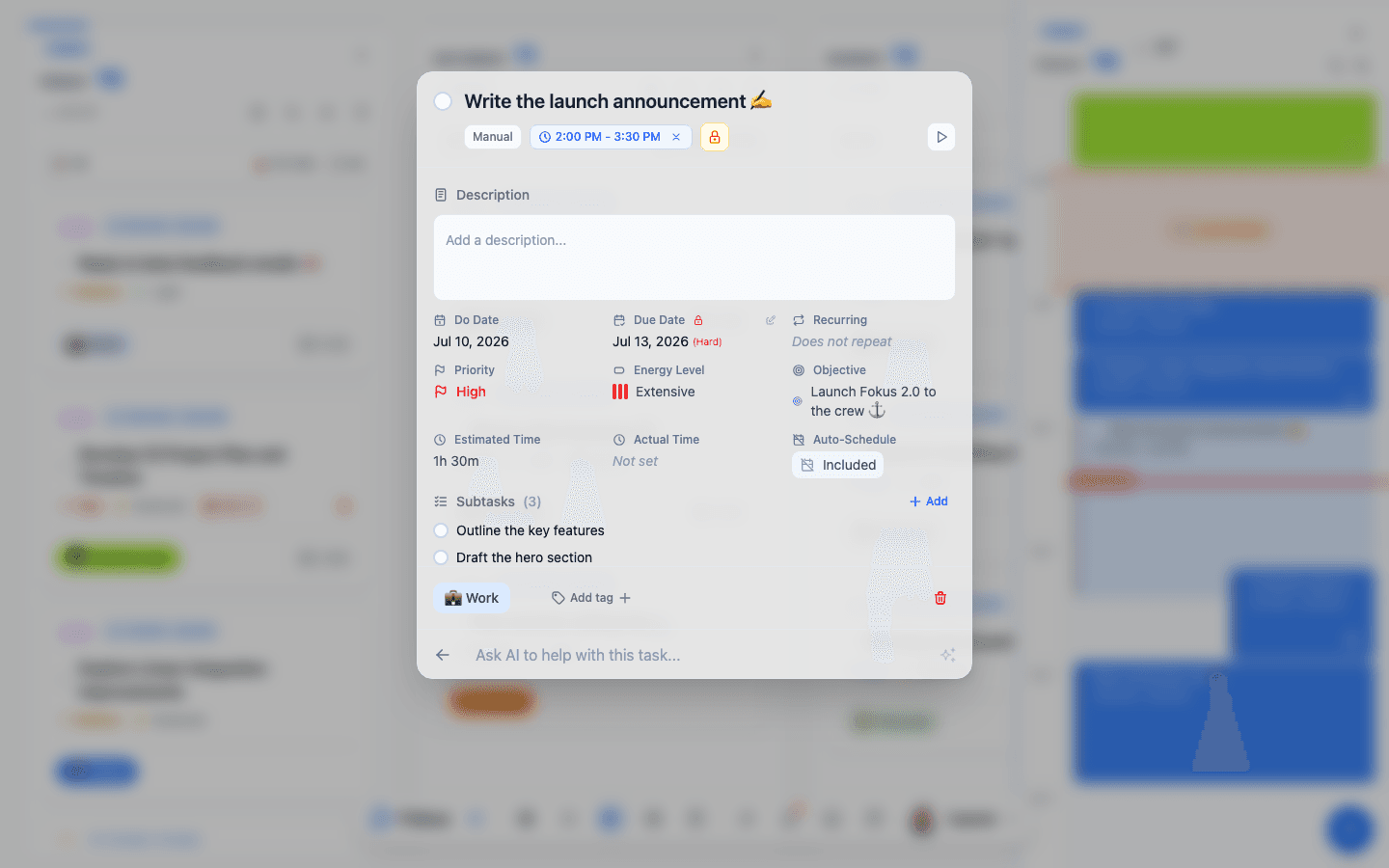
Opening a task this way shows the full task view — every field in one place, with an "Ask AI to help with this task…" bar at the bottom:
Filter by tag
While searching, add a #tag token to narrow the results to items carrying that tag. It works alone or alongside your search text:
review deck #urgent- Text + tag, or tag alone —
#urgenton its own lists everything tagged urgent; combine it with words to do both at once. - One word per tag — tag tokens run to the next space, so use single-word names like
#deep-work. - Objectives step aside — a tag filter hides objectives from the results, since only tasks, events, and notes can be tagged.
Fokus keeps the reminder "Tip: use #tag to filter by tag" right in the search box.
Keyboard shortcuts
Spotlight's View keyboard shortcuts option shows the full cheat sheet:
The ones worth memorizing first:
| Shortcut | Does |
|---|---|
| ⌘+K | Open/close Spotlight |
| T / E / N / O | Create task / event / note / objective (when nothing is focused) |
| F | Ask Captain Fokus |
| S | Search |
| Alt+D / K / C / B / A | Day View / Kanban / Calendar / Buckets / Analytics |
| Alt+N / W | Notes / Whiteboard |
| Ctrl+⇧+B | Reservoir |
| Ctrl+⇧+I | Captain's Log |
Connected-tool panels too
With integrations connected, Ctrl+⇧+G opens Gmail, …+L Linear, …+J Jira, …+T Google Tasks, and friends — each in a side panel without leaving your plan.
How is this guide?