Desktop app
The same Fokus, in a native shell — with a global capture hotkey, a floating timer, and the menu-bar tray.
The desktop app runs the full Fokus experience in its own window: same views, same shortcuts, same everything. What makes it worth installing is the handful of things a web page simply can't do — reach you when Fokus isn't the app you're looking at.
This page covers only what's different from the web app. Everything else works exactly as documented in Core Views and the rest of this guide.
Get it
Download from the profile menu → Download App, for macOS, Windows, and Linux. It updates itself in the background.
Quick Capture — capture without leaving anything
The headline feature. Press Cmd/Ctrl+⇧+K anywhere on your computer — in your editor, your browser, a meeting — and a small frameless window drops in over whatever you're doing:
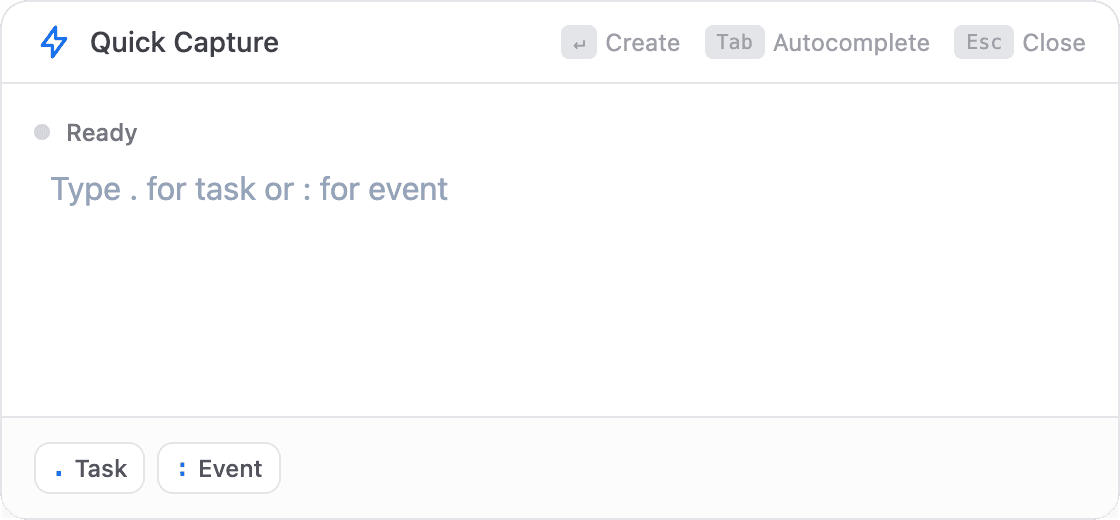
It speaks the same token syntax as Spotlight — a leading . for a task, : for an event — with the tokens turning into colored chips as you type, and inline autocomplete for buckets, dates, and durations:
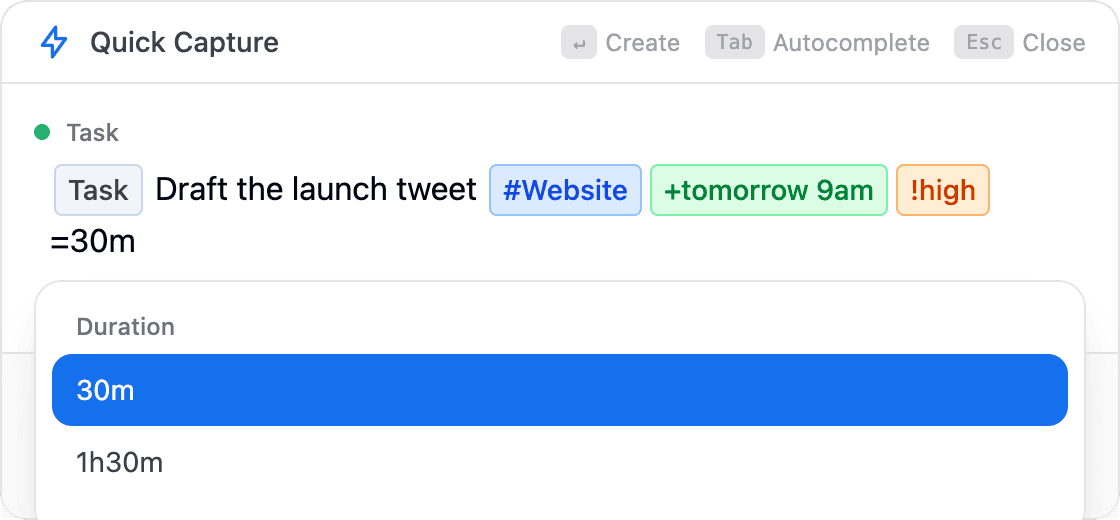
Enter creates it and the window disappears. ⇥ accepts the autocomplete, ⎋ cancels — and clicking away closes it too. The thought is captured; you never left what you were doing.
The floating timer
Start a timer on any task and it can pop out into a small always-on-top window that follows you across apps — so time stays visible while you're deep in the actual work:

The task, the elapsed time, pause, and stop — nothing more. Toggle it with Cmd/Ctrl+⇧+T, drag it wherever it doesn't bother you, and it remembers the spot.
The menu-bar tray
The Fokus icon lives in your macOS menu bar (or Windows system tray) and answers "what now?" without opening the app. Its menu shows what's happening right now — the current task or meeting with its time range, a Join Meeting link when there is one, or a cheerful "⛵ Nothing scheduled right now" — plus what's Next. During a Scribe recording the icon counts the meeting — ⏺ 12:34 next to it on macOS, and in the tooltip everywhere — with "🔴 Recording meeting…" and a stop button in the menu.
If you have the Meeting Scribe addon, the menu also offers to record. On macOS the offer follows your microphone: start a call in Zoom, Meet, Teams or anything else and 🎙 Record this meeting appears at the top of the menu, then goes away when the call ends. On Windows and Linux — where Fokus can't yet tell whether your mic is live — 🎙 Record a meeting is simply always there. Either way it starts the recording and brings the window forward, so you can always see that recording has begun.
From it you can jump to ⚡ Quick Capture, 🚢 Open Navigator (Spotlight), Preferences…, or quit.
Global shortcuts
Four shortcuts work system-wide, whatever app is in front:
| Shortcut | Does |
|---|---|
| Cmd/Ctrl+⇧+K | Quick Capture |
| Cmd/Ctrl+K | Open the Fokus Navigator (Spotlight) |
| Cmd/Ctrl+⇧+T | Toggle the floating timer |
| Cmd/Ctrl+⇧+F | Start or stop a Fokus Session |
The Fokus Session shortcut acts without asking: with no session running it starts one for 25 minutes with Do Not Disturb on, and with one running it ends it. It starts no timer, because a timer needs a task and a shortcut has none in hand — to focus on a task, start the session from Fokus itself. It also works while the app is locked, since it shows nothing on screen. The floating timer shortcut does not: it does nothing while the app is locked.
Only Quick Capture can be rebound: change it in Settings → General → Quick Capture Shortcut (that section only appears in the desktop app). The other three keep their keys.
Do Not Disturb on your Mac
Start a focus session with Do Not Disturb switched on and your Mac goes quiet for as long as it runs — alongside Slack, Teams and any Android phone you're signed into. It works whichever device you started from, so a session begun on your phone silences the Mac in front of you.
This needs a one-time setup, and it's worth knowing why. macOS gives apps no way to switch a Focus on directly, and no way to install a Shortcut for you. So Fokus ships a Shortcut and hands it to you to add — one click, once per Mac.
Until you do this, the Do Not Disturb switch still silences Slack, Teams and Android — it just won't touch the Mac, and the switch says so rather than pretending otherwise.
It's your Shortcut — change it if you like
Fokus only knows it should run the Shortcut you added; it doesn't care what's inside. Open it in the Shortcuts app and point it at Work, or any custom Focus, and Fokus keeps working exactly as before. The one thing to leave alone is the until time — that's what restores your notifications on its own.
What to expect
macOS runs one Focus at a time, so if you already had Work on when a session starts, Do Not Disturb replaces it — and when the session ends, macOS returns to no Focus rather than back to Work. Your Mac lifts the quiet at the session's end time even if Fokus is closed or crashes, because the Shortcut sets it to expire rather than relying on the app to come back. And if you turn a Focus on yourself after a session has ended, Fokus leaves it alone.
Other desktop-only touches
- Meeting Scribe recording. Live, bot-free meeting recording needs the desktop app, because it captures system audio — see Meeting Scribe.
- Native notifications. Reminders and briefings arrive through your OS notification center, not a browser tab. Click a reminder and Fokus opens the task or event it's about, over whatever screen you were on.
fokus://deep links. Links from emails and the web open the right screen in the app.- Connecting integrations brings you back. Google, Outlook, Slack and the rest ask for consent in your normal browser — that's the provider's requirement, not ours. When you approve, your browser hands you back to the desktop app and the new account appears there. If your browser asks permission to open Fokus, choose Allow.
- Auto-update. New versions download in the background and install on restart.
How is this guide?