Watch app
Today on your wrist — what's next, tick it off, run the timer, and capture what just crossed your mind.
Fokus on the wrist is deliberately small. The product's loop is Capture → Understand → Prioritize → Schedule → Execute, and only two of those belong on a watch: Capture, when something crosses your mind while you're walking, and Execute — what's next, start the timer, tick it off. Planning, editing and chatting with Captain Fokus are all better on your phone, so they aren't here.
Available for Apple Watch (watchOS 10 and later). A Wear OS app is coming, but it isn't on Google Play yet — there's nothing to install on a Wear OS watch today. What's planned for it is under Coming to Wear OS.
Getting set up
The watch app installs alongside the phone app, from the Watch app on iPhone.
Open Fokus on your watch and it asks to be paired:
- Open Fokus on your phone and leave it on screen. There's nothing to tap there — it answers on its own.
- On the watch, tap Request pairing.
That's the whole setup. There's no login form on the wrist: your phone provisions the watch its own session, and from then on the watch talks to Fokus directly. Ticking tasks, the timer and capture all work over Wi-Fi or LTE with your phone switched off — the day itself comes from your phone, so while it's away the watch shows the last day it synced and says so.
Your phone has to be open with Fokus in the foreground for the pairing moment itself. If the watch says "Couldn't reach your phone", that's what it means.
Three screens, side by side
Swipe between them. Today is the middle one, and where the app opens.
Today
The day header, then whatever is actually coming: agenda rows with their time and length, then your open tasks with a checkbox each.
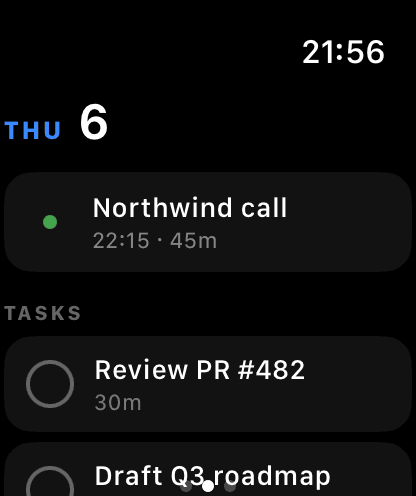
- Tap a checkbox to complete a task. It sticks immediately, and the change reaches the server when it can.
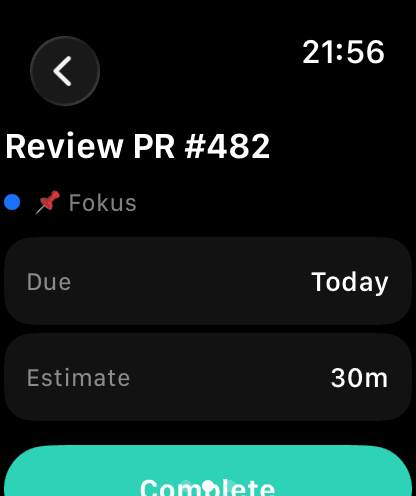
- Tap the row itself to open the task's details — bucket, due date, estimate — with Complete and Start timer at the bottom.
- Overdue (N) is a collapsed red group. It stays collapsed on purpose: it's something to be aware of on a wrist, not something to work through there.
Completed tasks stay on the list, struck through — so a mis-tap is one tap to undo, rather than something you have to fix on your phone. Below them sit the overdue group and the footer rows:
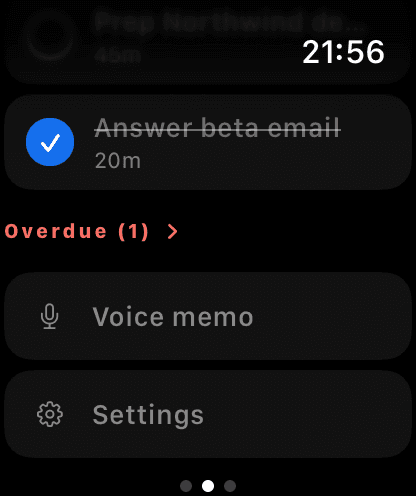
Tapping Overdue expands it. Each row shows the day the deadline actually was, in red:
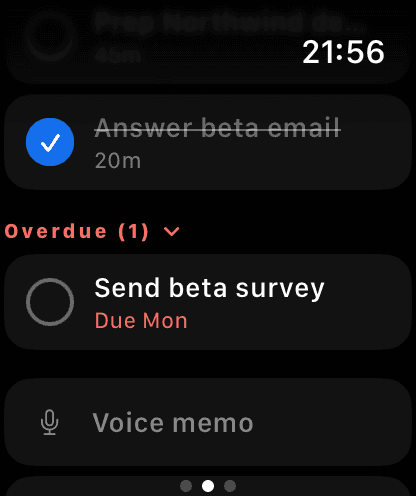
Tapping any task — today's or overdue — opens its detail:
Timer
A ring, the elapsed time, and the task you're focused on.
- Start opens a short list of today's open tasks, plus anything overdue, and lets you choose 25 min or Continuous.
- While running: pause, take a Break, or stop.
- The numerals tick on the watch itself, so the ring stays live without draining the battery talking to the network.
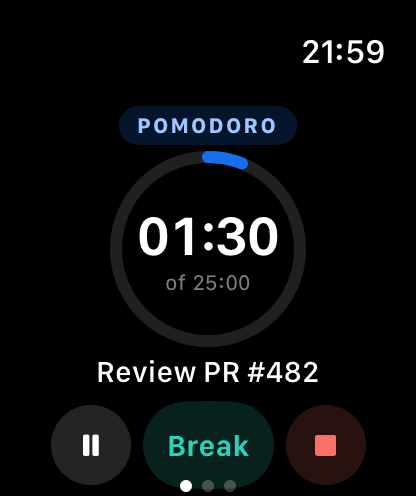
Sessions started on the wrist show up on web, desktop and your phone straight away — it's the same timer, not a separate one.
Capture
Tap the +, and your watch's own input sheet opens — dictation, scribble, keyboard or emoji, whichever you prefer. Fokus shows you what it heard, you fix it if it got a word wrong, and Add task puts it on today.
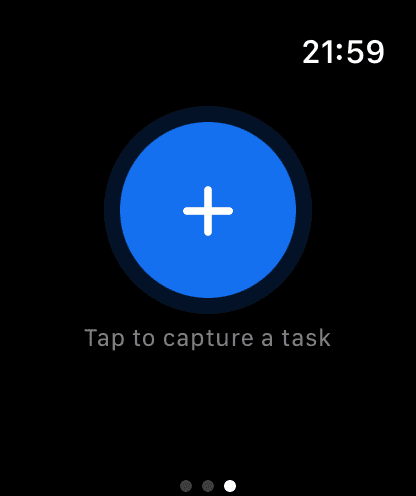
Nothing is saved until you tap Add task. Dictation mishears often enough that the wrist would otherwise become a place you create rubbish and clean it up later on your phone.
Voice memo
If your workspace has the Meeting Scribe add-on, Today has a Voice memo row at the bottom.
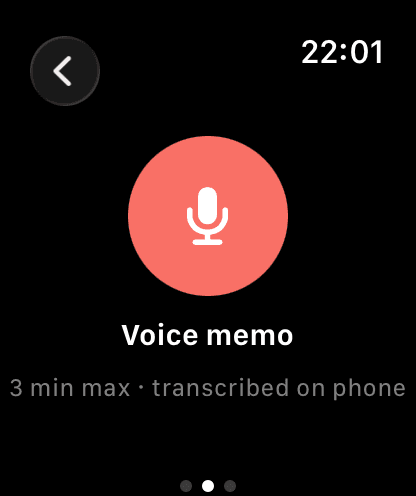
Record up to three minutes. The recording is handed to your phone, which transcribes it and files it as a note — so keep the watch near your phone while it uploads.
If it can't get through, the recording stays on your watch: you'll see "Upload failed — Recording is kept on the watch" with a Retry, and it survives closing the app. Discard underneath throws that recording away if you no longer want it.
Settings
The last row on Today. It shows which account and workspace the watch is showing, whether it's currently in touch with Fokus, when it last synced, and the app version.
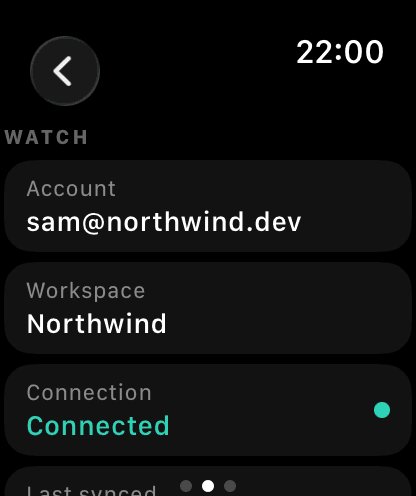
Sign out of watch ends this watch's session and clears everything stored on it. Signing out on your phone does the same thing automatically — a watch you've signed out of on the phone drops back to the pairing screen on its own.
On your watch face
Apple Watch complications
Four to choose from, and each one opens the screen it's about:
| Complication | Shows | Opens |
|---|---|---|
| Next up | The next thing on your agenda | Today |
| Focus timer | The running session as a ring | Timer |
| Open tasks | How much of today is left | Today |
| Capture | A + | Capture |
Add them the usual way: press and hold the face, tap Edit, swipe to Complications, and pick Fokus. Next up is also available in the Smart Stack.
They take their colour from the watch face rather than bringing their own, so they look right on any face you use.
When there's no signal
The watch is honest about it rather than pretending.
- An amber Not synced chip appears on Today when what you're looking at is old, with how old it is.
- Ticking a task still works. The change is held on the watch and sent the next time there's a connection — including after the app has been closed and reopened. The watch tries again whenever you raise your wrist or it gets fresh data, and gives up on a tick after five failed tries at least a minute apart. This is different from the phone app, which takes an offline change back instead of holding it.
- On launch, if your phone can't be reached within about a second, the watch opens on the last day it synced rather than making you wait.
If the watch stops working
- It's asking to pair again. Your phone signed out, or the session expired. Open Fokus on your phone and tap Request pairing on the watch.
- Tasks won't tick. Check Settings → Connection on the watch. While you're offline, ticks are held on the watch and sent when the connection returns. If it stays down for several minutes of retries, the watch drops the tick, so check the task is ticked once you're back online.
- The timer looks wrong. Open the Timer screen; it re-reads the live session when it appears.
- A memo won't upload. It's still on the watch. Bring the phone into range, open the Voice memo screen, and tap Retry.
Coming to Wear OS
The Wear OS app is not on Google Play yet, and there's no date for it. Nothing in this section works today — it's what the app will bring once it's released.
It will need Wear OS 3 or later, and it will install by itself on a watch paired with your Android phone, alongside the phone app.
Wear OS tiles
Two, both a swipe away from the watch face:
- Today — how many tasks are open, your next two agenda rows, and buttons to open Today or capture something.
- Focus timer — the running session, with pause and stop that work right there on the tile without opening the app.
How is this guide?