Tags
Lightweight labels you sprinkle across tasks, events, and notes — then filter by in one keystroke.
Tags are the flexible layer on top of your buckets and objectives. Where a task lives in exactly one bucket, it can carry as many tags as you like — #urgent, #deep-work, #waiting-on, #Q3 — so you can slice your work by any theme that cuts across projects. Tags apply to tasks, events, and notes, and they live at the workspace level, so everyone in the workspace shares the same set.
Add a tag
You don't create tags from a settings screen — you make them where you use them. In any task, event, or note, click Add tag (the tag icon):
- A small popover opens with a Search or create… box.
- Start typing. Matching tags appear as you go — click one to attach it.
- If nothing matches, a Create "…" row appears with what you typed. Press Enter or click it, and the tag is created and attached in one step.
Attached tags show up as colored chips; click the × on a chip to remove it. New tags get a color assigned automatically — you can change it later (see Manage your tags).
Tag names are matched loosely
Matching is case-insensitive, so typing urgent finds an existing Urgent instead of making a duplicate. Tag names can contain spaces here — but the #tag filter syntax in Spotlight can't, so short single-word names like deep-work are the most versatile.
Filter by tag
Once things are tagged, tags become one of the fastest ways to narrow a view. There are four places to do it:
- Spotlight — in Search, add
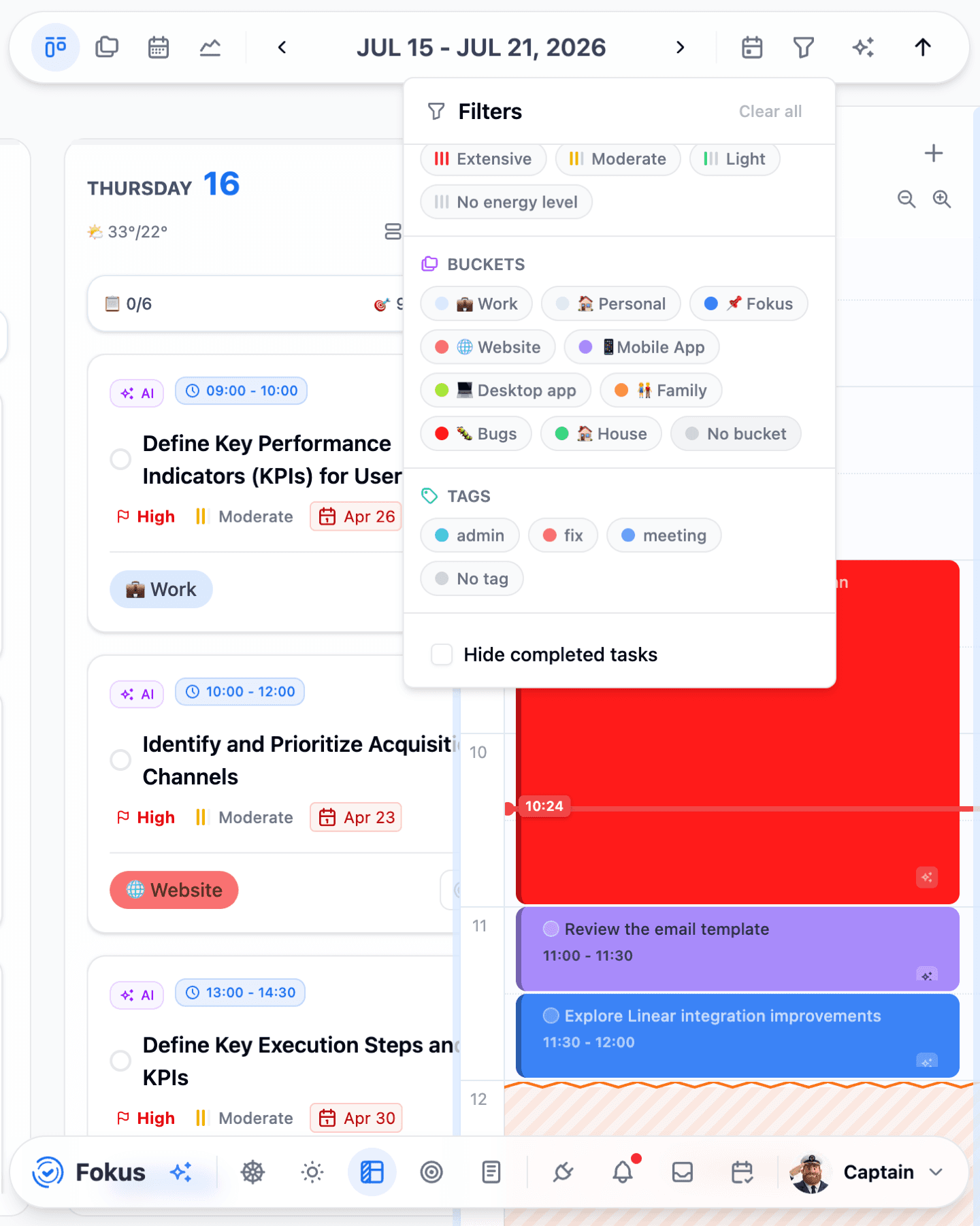
#tagnameto your query.review #urgentfinds only the urgent items matching "review"; a#tagon its own works too. Fokus even nudges you with "Tip: use #tag to filter by tag" in the search box. (Objectives drop out of tag-filtered results, since they can't be tagged.) See Spotlight. - Task board — in Kanban or Day View, open the Filters panel and use the Tags section. Toggle any number of tag pills to show only matching items, or pick No tag to surface everything that slipped through untagged.
- Notes list — open the notes filter and choose from the Tag dropdown (All tags by default) to show just the notes with that tag.
- Click a tag chip — clicking a tag anywhere it appears jumps straight to the matching list, pre-filtered to that tag: note tags open the filtered Notes list, task and event tags open the filtered Kanban board.
Manage your tags
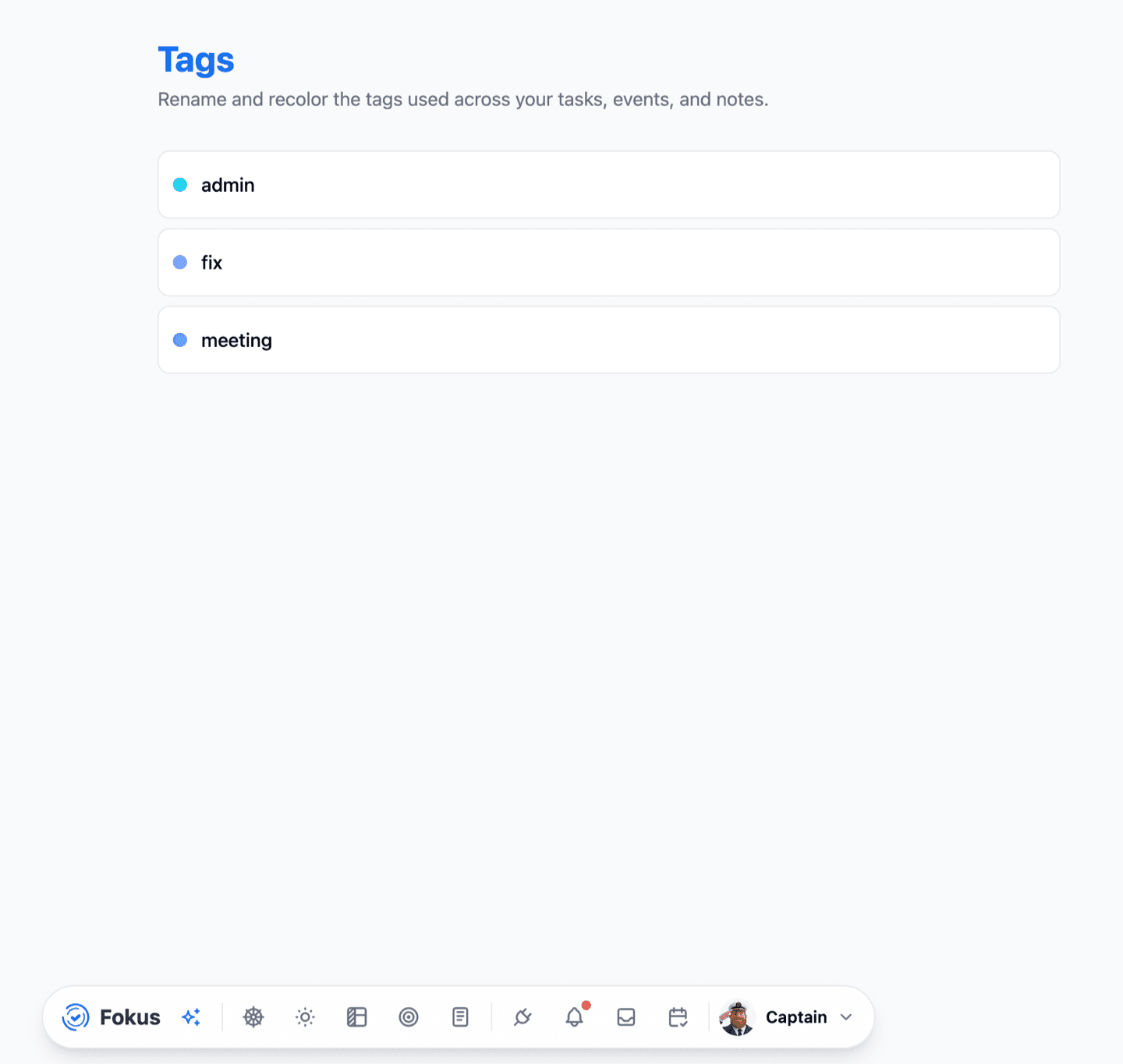
To rename, recolor, or delete a tag, go to Settings → Workspace → Tags. This is the one place that shows every tag in the workspace at once:
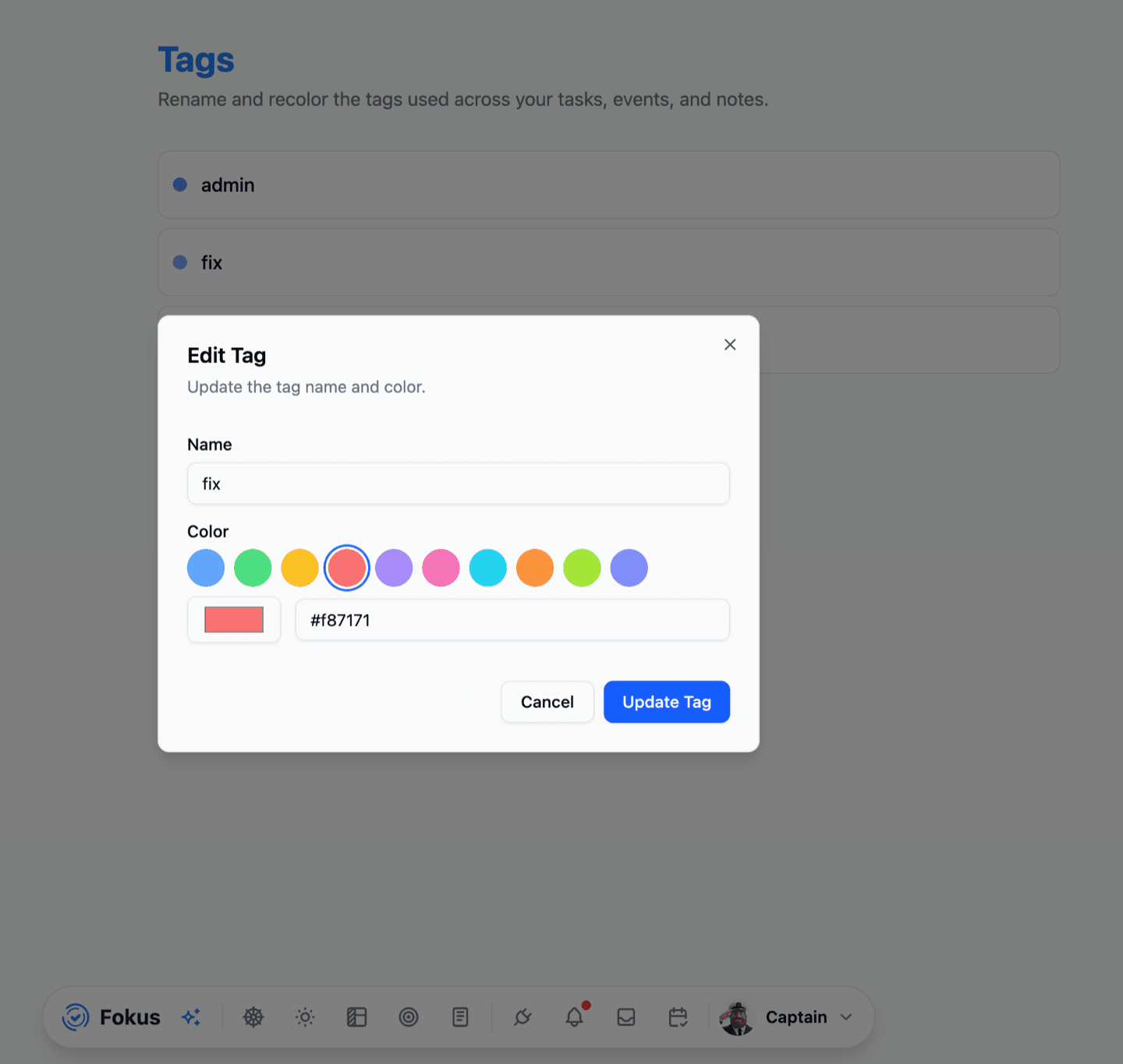
- Rename — click the pencil on a tag, edit the Name, and press Update Tag. The change propagates everywhere the tag is used.
- Recolor — the edit dialog offers ten preset colors plus a custom color picker (any hex value). Colors are what make tag chips scannable at a glance.
- Delete — click the trash icon. Fokus confirms first, because deleting a tag removes it from every task, event, and note it was on. The items themselves are untouched — they just lose that label.
Tags vs. buckets
Both organize your work, but differently. A bucket is a single home — one task, one bucket — and buckets also apply to objectives. A tag is a free-form label you can stack many-deep on the same item, but only on tasks, events, and notes. Use buckets for where something belongs and tags for how you want to find it later.
How is this guide?