Fokus

Notes

Capture, write, organize, and browse notes from a split editor and notes list.

Overview

Notes is the writing and reference space in Fokus. It combines a note editor with a searchable notes panel so you can work on the current note while keeping the rest of your note library close at hand.

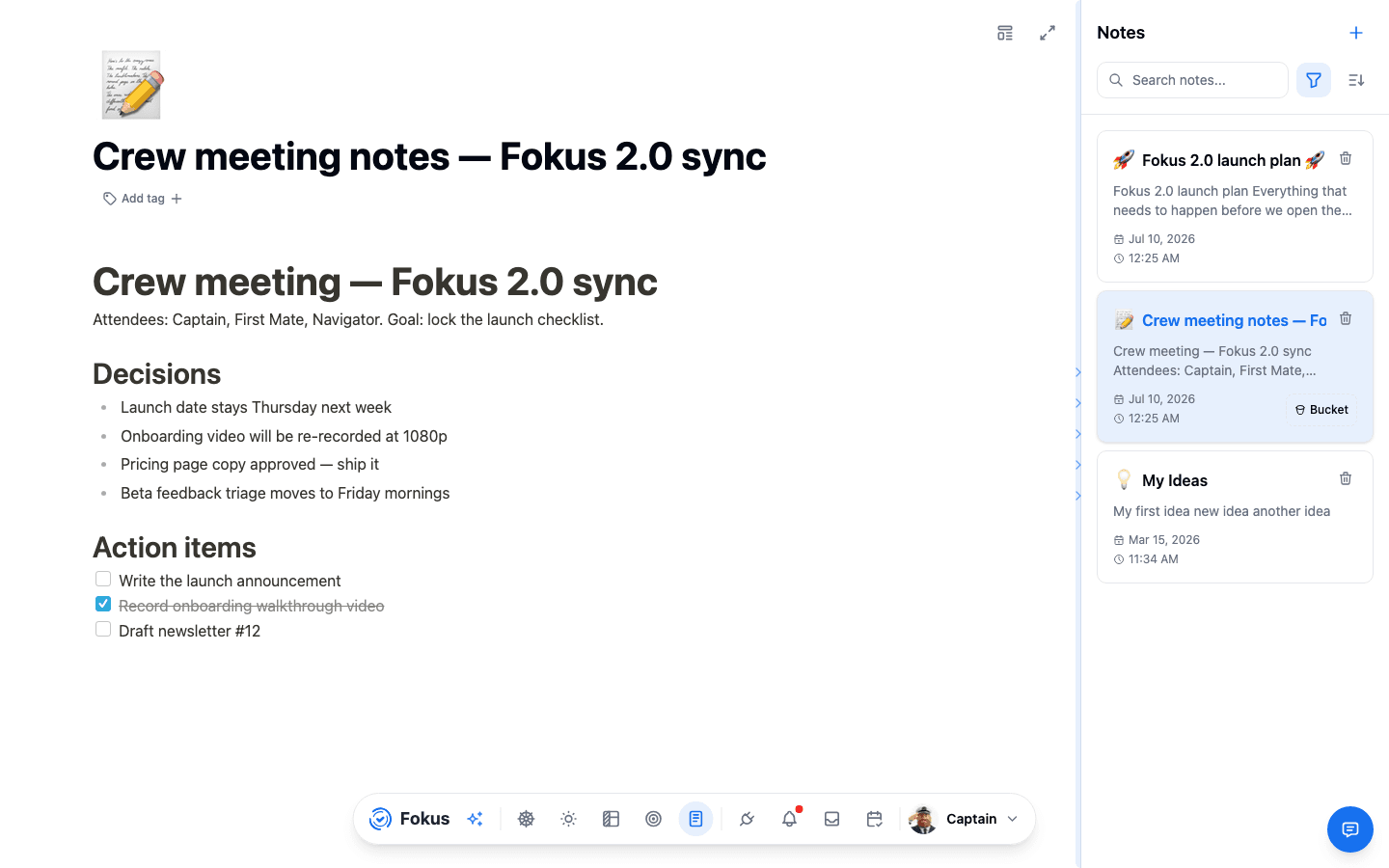
Notes view in Fokus

In the current layout, the main editor shows the selected note with its title and body, while the side panel lists existing notes with previews, dates, timestamps, note icons, and optional bucket tags. You can also switch between Note and Whiteboard, create a new note, search the library, and open filter or sort controls.

Whiteboard Mode

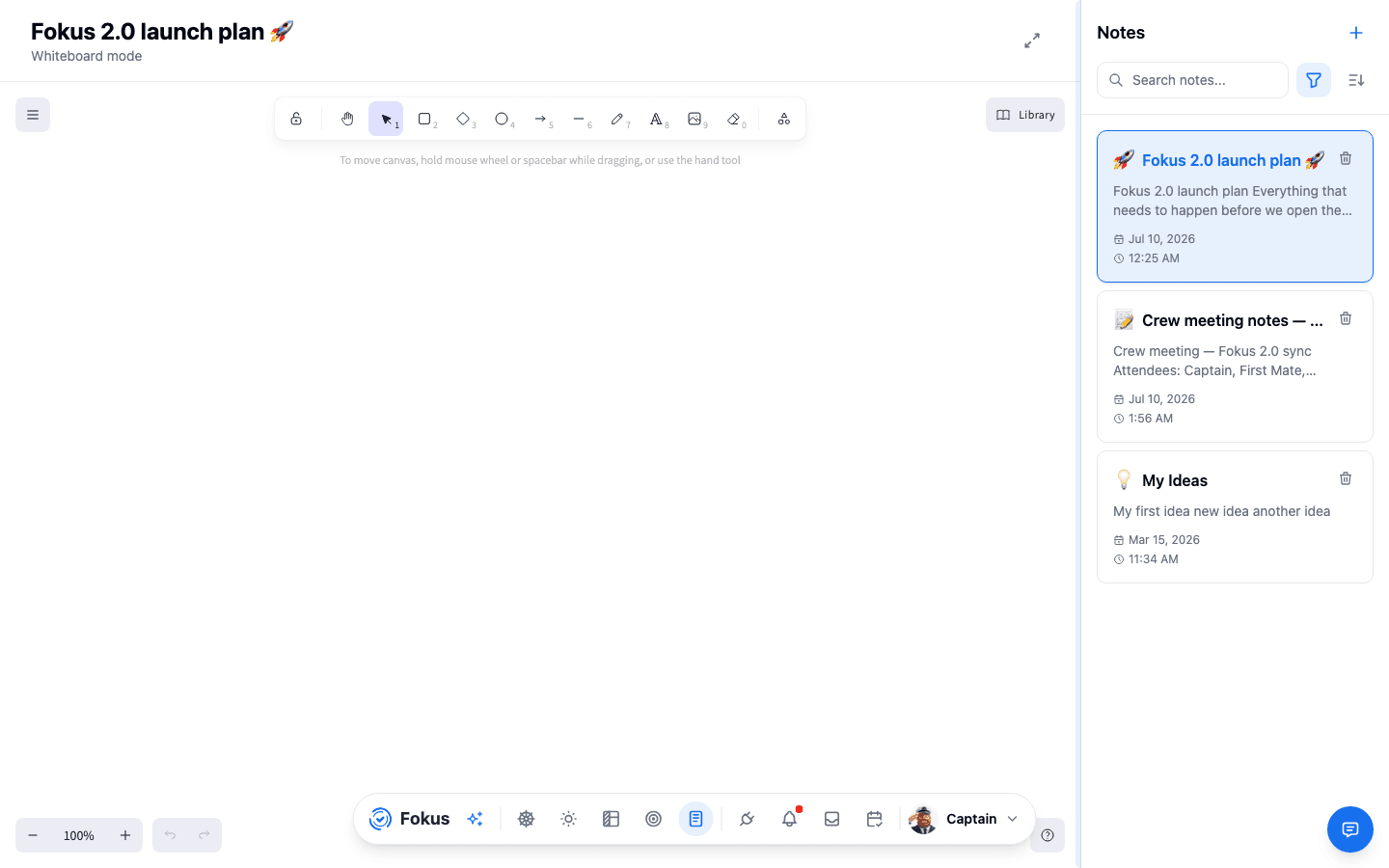
Whiteboard mode turns the same notes workspace into a visual canvas. Instead of editing long-form text, you get a drawing surface with shape tools, selection controls, zoom actions, undo and redo, image insertion, and a library panel.

Whiteboard mode in Fokus Notes

Use Whiteboard when you want to sketch ideas, map relationships, or think spatially before converting the result into notes, tasks, or objectives.

Best use of Notes

Use Notes when you need a flexible place for writing, collecting reference material, or keeping information that does not fit cleanly into a task card.

How to Access It

  • Open Notes from the bottom navigation.
  • Select an existing note from the notes panel or create a new one.
  • Switch between Note and Whiteboard depending on the format you want.

What You Can Do Here

  • Write and edit the active note in the main editor.
  • Rename the note using the title field at the top.
  • Switch between standard note mode and Whiteboard mode.
  • Enter fullscreen for a larger writing area.
  • Open or collapse the notes panel.
  • Create a new note from the notes panel header.
  • Search across notes using Search notes....
  • Use filter and sort controls to change how the notes list is shown.
  • Review note previews, dates, times, icons, and bucket labels from the list.
  • Delete notes directly from the notes panel.

Common Tasks

Open the right note

Start from the notes panel and select the note you want to review or continue writing.

Write in the main editor

Use the title field and content area to shape the note while keeping the rest of your notes visible beside it.

Find older material quickly

Use Search notes..., filter, or sort when the note list becomes too large to browse manually.

Create a new note when needed

Use Create new note from the panel header instead of overwriting an existing document.

Collapse distractions

Collapse the notes panel or enter fullscreen when you want a cleaner writing space.

Important Behaviors

  • Notes uses a split layout, so writing and browsing happen in the same view.
  • The note list surfaces enough metadata to identify notes without opening each one.
  • Different icons and bucket labels help distinguish note types and context at a glance.
  • Whiteboard appears alongside regular notes, which suggests visual and text-based thinking can live in the same workspace.
  • Search, filter, and sort controls matter more as the note library grows.

When to Use Notes Instead of Tasks

  • Use Notes when information is exploratory, reference-heavy, or not yet actionable.
  • Use tasks when the item already represents work that should be planned or completed.
  • Use Notes to think, draft, or collect detail first, then convert the result into tasks or objectives if action is required.

How is this guide?

On this page