Reservoir (Inbox)
Review unscheduled tasks in the global backlog panel and decide what to plan, edit, or start next.
Overview
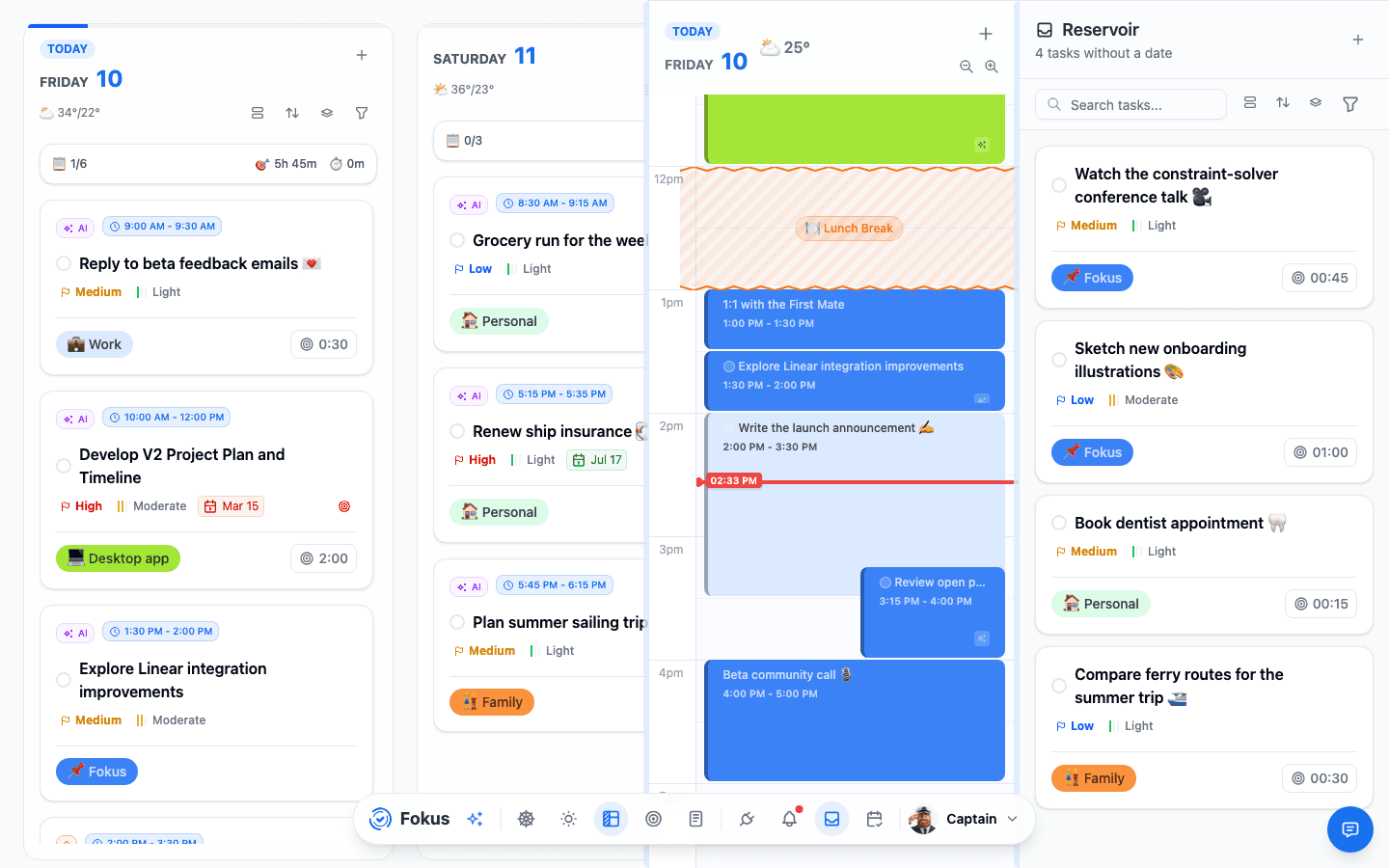
Reservoir is the global inbox panel for tasks that do not yet have a planned date. Instead of living on its own full page, it opens as a side panel from the main navigation and stays available across the workspace.
In the current layout, Reservoir shows the total number of tasks without a date, lets you add a task directly, and provides controls for search, view density, sorting, and filtering. Each task card can expose titles, subtasks, priorities, bucket labels, due dates, objectives, energy levels, tracked time, and timer actions, making Reservoir the main place to triage unplanned work.
Best use of Reservoir
Use Reservoir when tasks have entered your system but are not yet scheduled. It is the right place to clean up the backlog before pushing work into Kanban, Calendar, or today’s plan.
How to Access It
- Open the main workspace.
- Use the
Reservoirbutton in the bottom navigation. - The backlog opens as a side panel on top of your current view.
What You Can Do Here
- Review all tasks that currently have no assigned date.
- Add a new task directly from the panel.
- Search backlog items using
Search tasks.... - Change display density using the view mode control.
- Sort tasks and open filter controls.
- Edit task titles directly from the list.
- Review or update task details such as priority, due date, bucket, energy, objective, and tracked time.
- Manage subtasks, including completion, editing, conversion to standalone tasks, and deletion.
- Start a timer directly from a backlog task.
- Collapse the panel when you want to return to the underlying page without closing your current context.
Common Tasks
Open the inbox and scan the backlog
Start with the count at the top to understand how much unscheduled work is waiting for attention.
Search or filter when the list is large
Use search, sorting, or filters to narrow the backlog to a manageable slice instead of triaging everything at once.
Clean up task details
Update titles, review priority and energy, assign buckets or objectives, and fix subtasks before moving the work into the active plan.
Decide what happens next
Move a task into a dated plan after clarifying it, or start a timer immediately if the task is ready to execute.
Return to the current page without losing context
Collapse the side panel when you are done triaging and continue working from Day View, Notes, Objectives, or another surface.
Important Behaviors
- Reservoir is a global side panel, not a standalone workspace page.
- It focuses specifically on tasks without a
do date, which makes it a backlog rather than a general task list. - Task cards are highly actionable, so triage and light editing happen without leaving the panel.
- Subtasks and metadata remain visible, which helps you judge whether a backlog item is ready for scheduling.
- Because it opens over other views, Reservoir fits naturally into quick review cycles instead of forcing a full navigation change.
When to Use Reservoir Instead of Notes or Planner Views
- Use Reservoir when the item is already a task but has not been scheduled yet.
- Use Notes when the information is still exploratory and not ready to become actionable work.
- Use Kanban or Calendar after a task is clear enough to place by date or time.
- Use Reservoir first when you need backlog cleanup before deeper planning.
Related Features
How is this guide?