Kanban
Your week as columns — plan, reorder, and finish tasks with a live timeline of today beside you.
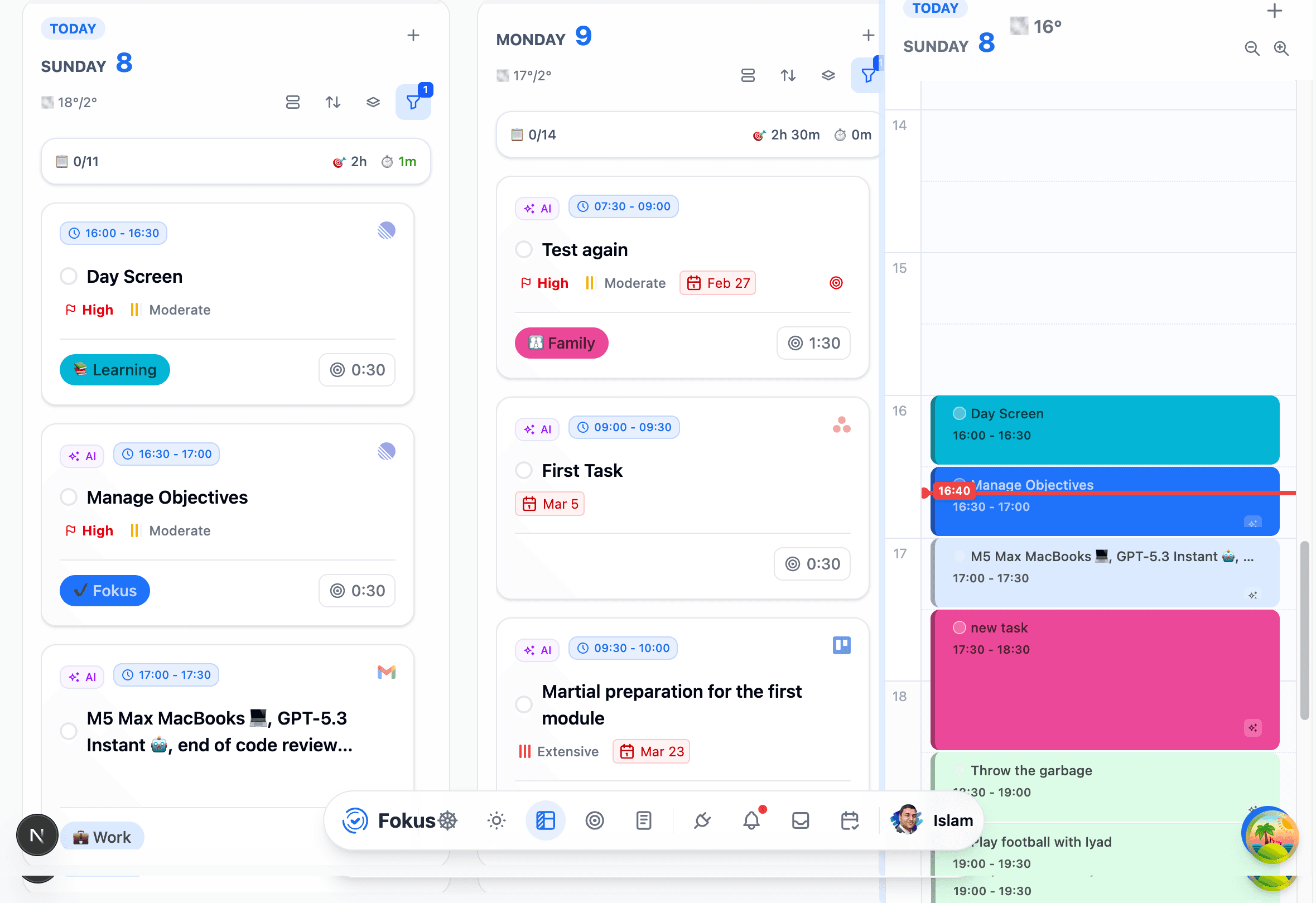
Kanban is the workbench of Fokus. Each column is a day, each card is a task, and the panel on the right is today's actual timeline — so while you plan the week, you never lose sight of what the day really looks like.
Reading the board
- The summary bar at the top of each column shows completed vs. planned tasks, total focus time, and tracked time for that day.
- Cards carry everything at a glance: the scheduled time chip, priority flag, energy level, due date (red when overdue!), bucket chip, and the estimated duration. A small AI badge means the Task Enrichment Agent filled in missing details for you.
- The timeline panel on the right mirrors today hour by hour — events, scheduled tasks, rest periods (the hatched blocks), and a red line for now.
Working with cards
Here's the part everyone finds by accident, so let's make it official:
- Click the task title to complete it (cue confetti 🎉). Click again to un-complete.
- Click anywhere else on the card to open the full task view with every field — dates, priority, objective, subtasks, and an "Ask AI" bar.
- Hover a card to reveal quick controls: edit title, set due date, link an objective, start a timer, or adjust the estimate — all without opening anything.
- Drag a card to another day to move it. Drag it onto the timeline panel to give it an exact time.
- Drop a card between two others to order a day by hand. A thick blue line marks the exact slot it will land in — above or below the card you are over, depending on which half you are pointing at — and nothing shuffles out of the way while you aim. (Hold still over the middle of a card instead, and it becomes a subtask of that one.)
- A day you arrange by hand stays that way, on every device you sign in on. New tasks slot in by their start time rather than dropping to the bottom. The sort button at the top of the column switches that day between your arrangement and plain start-time order — switching to automatic only changes how the day is shown, so your arrangement is still there when you switch back.
Repeating tasks
Give a task a repeat rule and it appears on every day the rule covers. Each of those days stands on its own: complete Tuesday's copy and only Tuesday is done, with Wednesday still waiting and the series carrying on. The same goes for editing — when you change one day, Fokus asks whether you mean this occurrence, this and all future ones, or all of them.
The moment you touch a day, it becomes a real task of its own rather than a projection of the rule, and it takes a copy of the series' subtasks with it. So a repeating "Weekly review" with a five-step checklist gives you a fresh, unchecked five steps every week — ticking this week's list never touches next week's. The rule itself keeps the original list as the template, so editing the series is how you change the checklist for future occurrences.
Completing a repeating task
Because completion belongs to a single day, "all occurrences" applies your other edits to the series but leaves the checkbox to the day you clicked. Un-completing a day works the same way.
The header
Hover near the top of the screen and the header slides in: the view switcher (Kanban / Buckets / Calendar / Analytics), date navigation, Filters (priority, energy, bucket), and the sparkles button — AI Quick Actions — where Smart Scheduling, the Morning Briefing, and the End-of-Day Review live.
Each column also has its own controls for layout, sorting, stacking, and filtering, plus a + to add a task directly to that day.
A dotted "Add task" row sits under a column's last card in either layout: click it, type a title, hit Enter, and the task is created on that day. The row stays open so you can rattle off several in a row — ⎋ closes it. When the column is grouped by bucket, each group gets its own row and the new task inherits that bucket.
Grouping a day
The stack button at the top of a column groups that day by bucket, priority, energy level or due date. Each heading carries the colour you already know from the cards — a red flag for high priority, three red bars for extensive energy, a red calendar for anything overdue.
Groups are also drop targets: drag a card into High priority and it becomes high priority; drop it on Due tomorrow and it gets tomorrow's date. Groups that stand for a range rather than a value — Overdue, Due later, No due date — leave a card alone rather than guess. Empty groups stay visible so there is always somewhere to drop, and a switch in the same menu hides them when a column gets long.
The choice is remembered per day and follows you to any device you sign in on.
Don't schedule by hand unless you want to
Cards with times got them from the auto-scheduler. If your day gets rearranged by a meeting, just hit Optimize Schedule in AI Quick Actions instead of dragging everything around — see Smart Scheduling.
Related
How is this guide?