Fokus

Day View

Work from a low-distraction home screen that keeps time, context, and focus controls in one place.

Overview

Day View is the home screen in Fokus. Its main purpose is to minimize distraction while you work by keeping the screen calm, ambient, and focused on the current moment instead of pushing you into a dense planning layout.

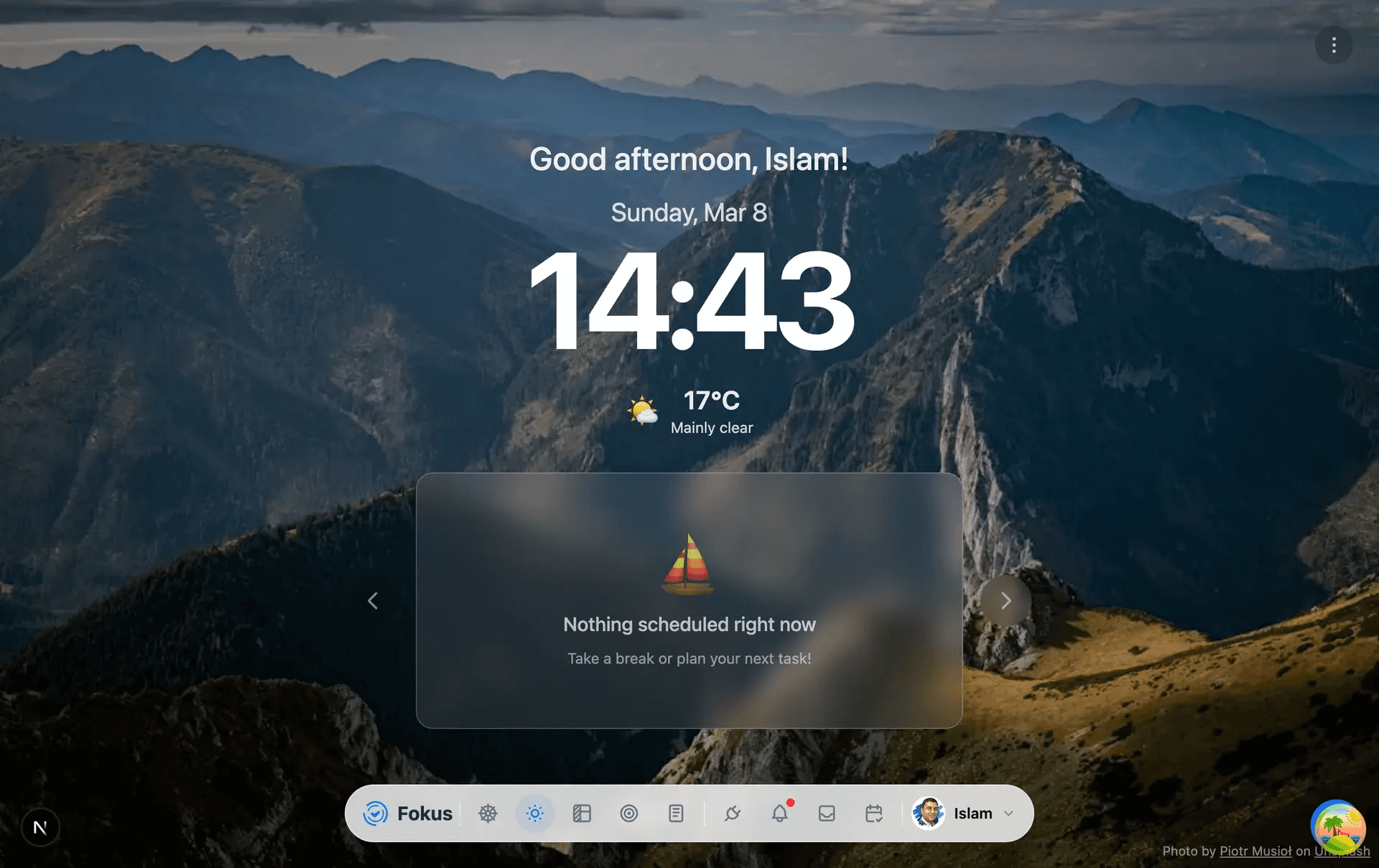
It shows the current date and time, local weather, and a central status panel that reflects what is happening right now. From the top-right menu, you can make the view even quieter by entering Immersive mode, switching to Full screen, and triggering Deep Fokus & DND.

Day View in Fokus

In the current state shown here, Day View indicates that nothing is scheduled right now and prompts you to take a break or plan your next task. When your day contains scheduled work, this area becomes the fastest way to understand what deserves attention next.

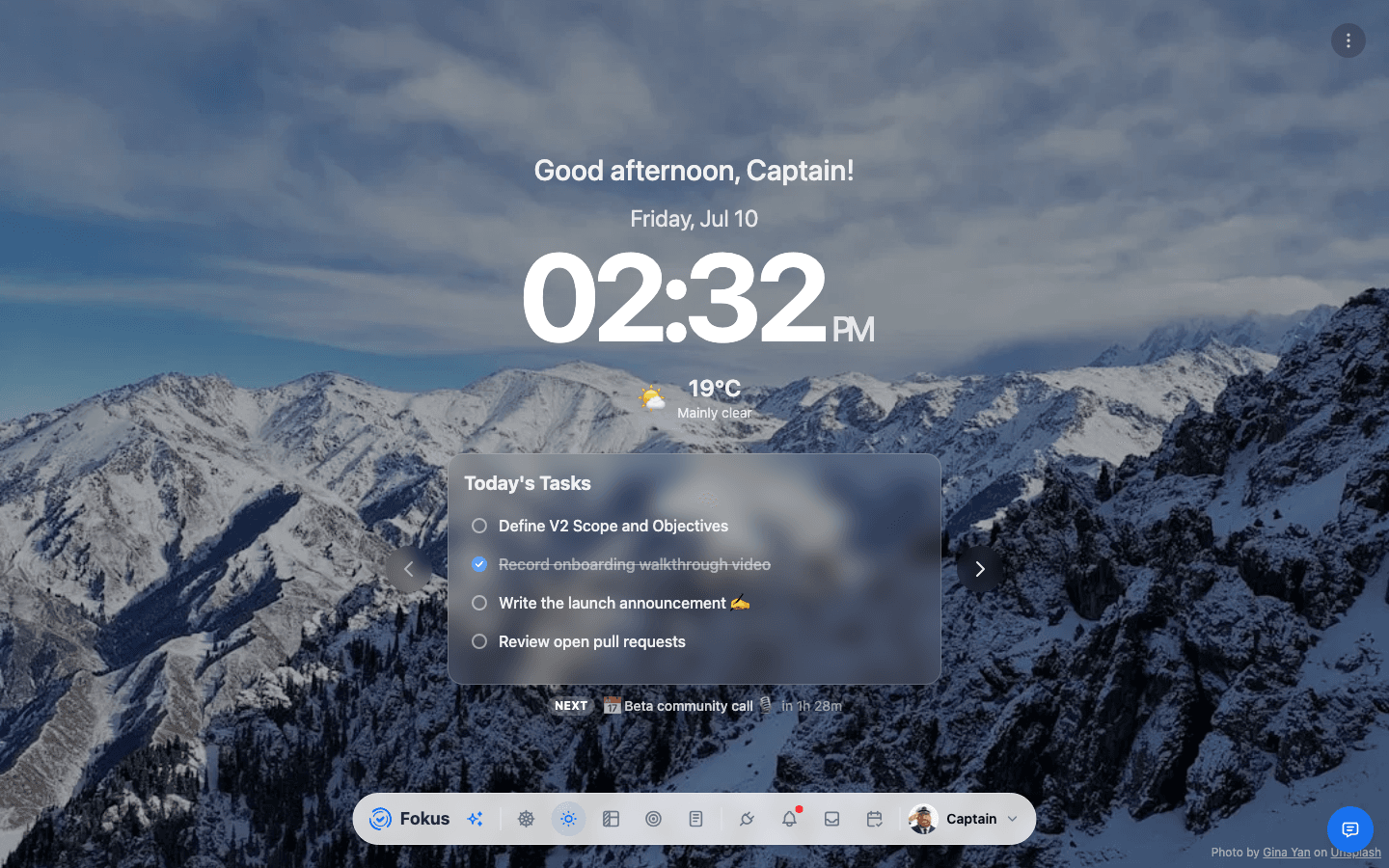
Day View in Fokus with a task currently scheduled

This additional example shows the same Day View with an active scheduled task. In that state, the center panel switches from a quiet standby message to the item you should focus on right now, along with its time block and quick actions.

Best use of Day View

Use Day View when you want quick awareness with fewer distractions. It is the best starting point when you open Fokus and want to understand the current moment, enter a focused working state, and only switch into deeper planning views when necessary.

How to Access It

  • Open Fokus and return to the home screen.
  • Use the Day View button in the bottom navigation.
  • Return here after planning if you want a calmer, status-focused view of the day.

What You Can Do Here

  • See a personalized greeting, the current date, and a live clock.
  • View the current weather and temperature.
  • Check whether something is scheduled right now.
  • Use the center panel to understand your current day status.
  • Move between Day View panels using the left and right arrows.
  • Open the top-right menu to change the background, enter Immersive mode, switch to Full screen, or trigger Deep Fokus & DND.
  • Jump into Planner, Objectives, Notes, Integrations, Notifications, Reservoir, or Bookings from the bottom navigation.

Top-Right Focus Menu

Use the three-dot menu in the top-right corner when you want Day View to become more immersive and interruption-resistant.

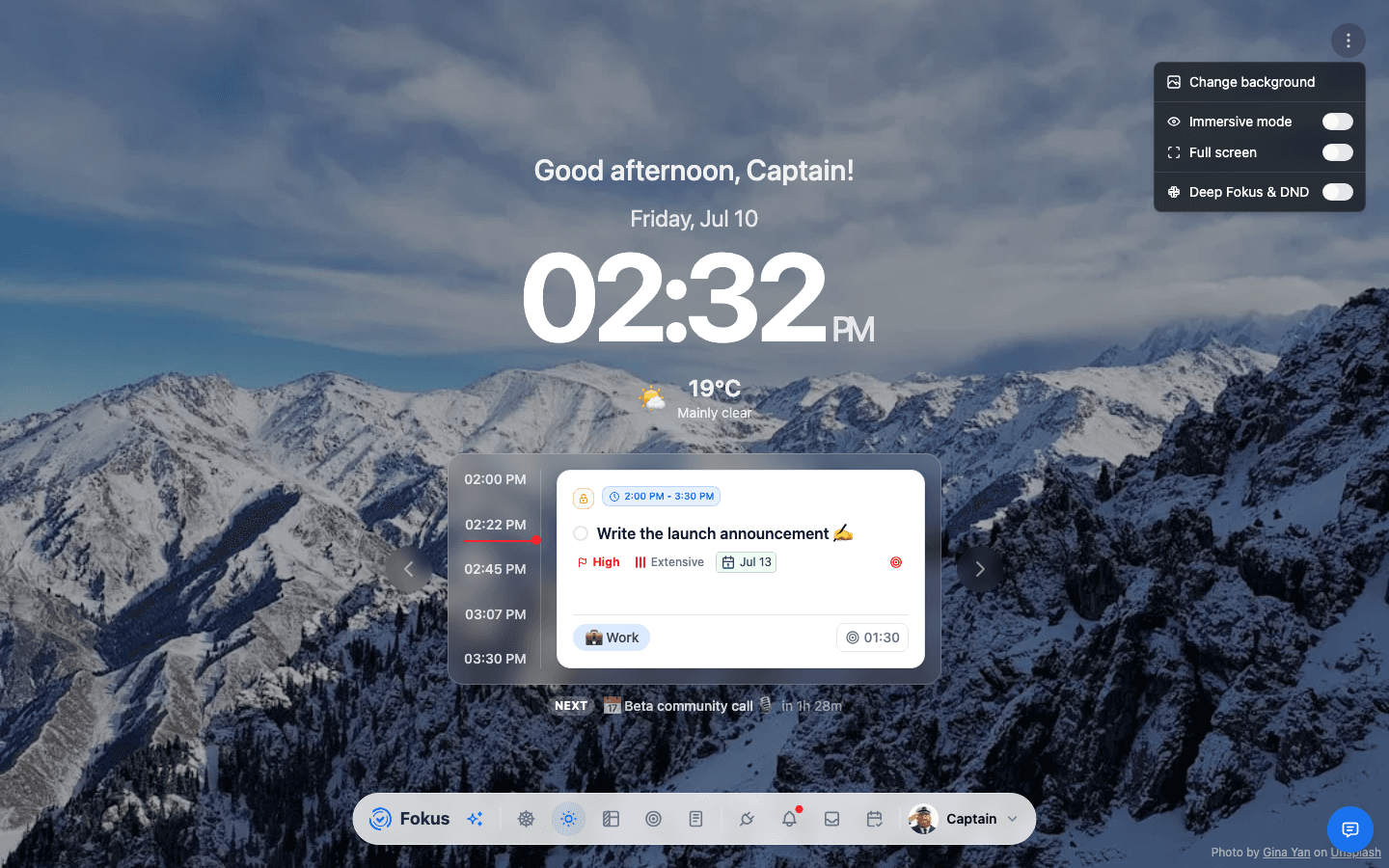
  • Change background refreshes the ambient background photo without changing your tasks or schedule.
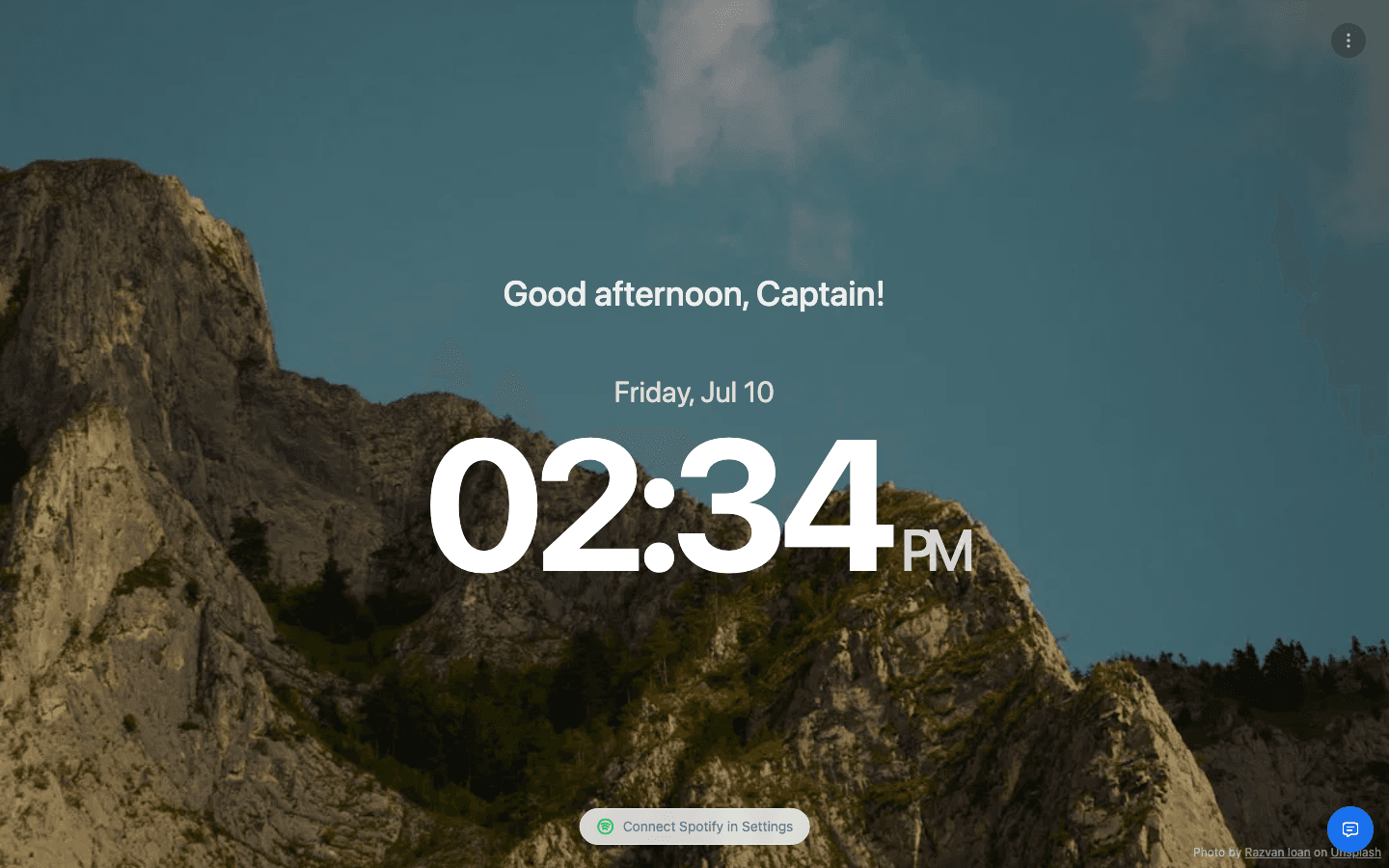
  • Immersive mode hides the central Day View content panels and leaves a much simpler surface focused on the greeting, date, and clock. This is useful when you want Day View to behave more like a calm focus screen than a dashboard.
  • Full screen expands Fokus into the browser or system fullscreen mode so surrounding browser chrome and other visual clutter disappear.
  • Deep Fokus & DND is the communication-side focus control. In the current Day View UI, it appears when Slack is connected and turns on Deep Fokus status plus Slack Do Not Disturb. Fokus also supports the same Deep Fokus concept for Microsoft Teams through its integrations, so teams using Slack and Teams can align their communication status with focused work.
Day View in immersive mode with the top-right focus menu open

This view shows Day View after Immersive mode is enabled. The main task panels are hidden, leaving a calmer screen built around the greeting, date, time, and quick access to focus controls.

Common Tasks

Check your current status

Start with the center panel to see whether you have an active scheduled item or free time.

Review today’s context

Use the date, time, and weather summary to get grounded before deciding what to do next.

Reduce distractions before starting

Open the three-dot menu and enable Immersive mode, Full screen, or Deep Fokus & DND if you want a quieter work session.

Move into planning if needed

If nothing is scheduled or your plan needs adjustment, open Planner from the bottom navigation and switch to Kanban or Calendar.

Return for quick orientation

Come back to Day View after planning when you want a simpler, less crowded summary of the day.

Important Behaviors

  • The background image creates an ambient, low-friction workspace rather than a dense planning surface.
  • The central panel changes with context, so what you see depends on whether tasks or events are currently scheduled.
  • Immersive mode reduces on-screen detail by hiding the central panels and leaving a more minimal focus surface.
  • Full screen is meant to turn Day View into a dedicated work screen rather than a standard browser page.
  • Deep Fokus & DND is part of the distraction-reduction workflow, not just a visual option, because it can update communication presence and Do Not Disturb behavior in connected tools.
  • The left and right arrows indicate that Day View can cycle through more than one panel or content state.
  • The bottom navigation keeps the rest of the workspace one click away, so Day View can act as both a home screen and a launch point.

When to Leave Day View

  • Open Planner when you need to reorganize tasks or schedule work.
  • Open Objectives when you want to connect daily work to bigger goals.
  • Open Notes when you need to capture or review written material.
  • Open Notifications, Reservoir, or Bookings when you need supporting context without changing your main workflow.

How is this guide?

On this page