Getting Started
Create your account, learn the layout, and let Fokus plan your first day.
Welcome aboard! This page takes you from a fresh account to a planned day. It's the only page you need to read — everything else in this guide goes deeper on things you'll discover here.
1. Create your account
Head to web.getfokus.com and sign up with your email, or continue with Google, Microsoft, or Apple. Passwords need at least 8 characters, with a letter, a number, and a special character.
Verify your email
Sign up with an email and password and Fokus mails you a 6-character code. Type it into the screen that follows — or click Verify Email in the same message, which does the same job. Both are good for 48 hours. (Sign up with Google, Microsoft, or Apple and there's nothing to verify: they've already vouched for the address.)
- Didn't get it? After a minute you can ask for a new code. It replaces the old one, so always use the latest email — and check the spam folder first.
- There's a limit on new codes: three in ten minutes, five in an hour. Past that, Fokus asks you to wait rather than send another.
- Five wrong codes lock code entry for ten minutes. Asking for a new code gets you going again sooner.
- On mobile you can Skip for now and verify later — with the email's link while it's still good, or from the web app's Profile settings, which show Not Verified with an Enter the code link until you do.
Then Captain Fokus — the app's AI first mate — greets you with a short setup wizard:
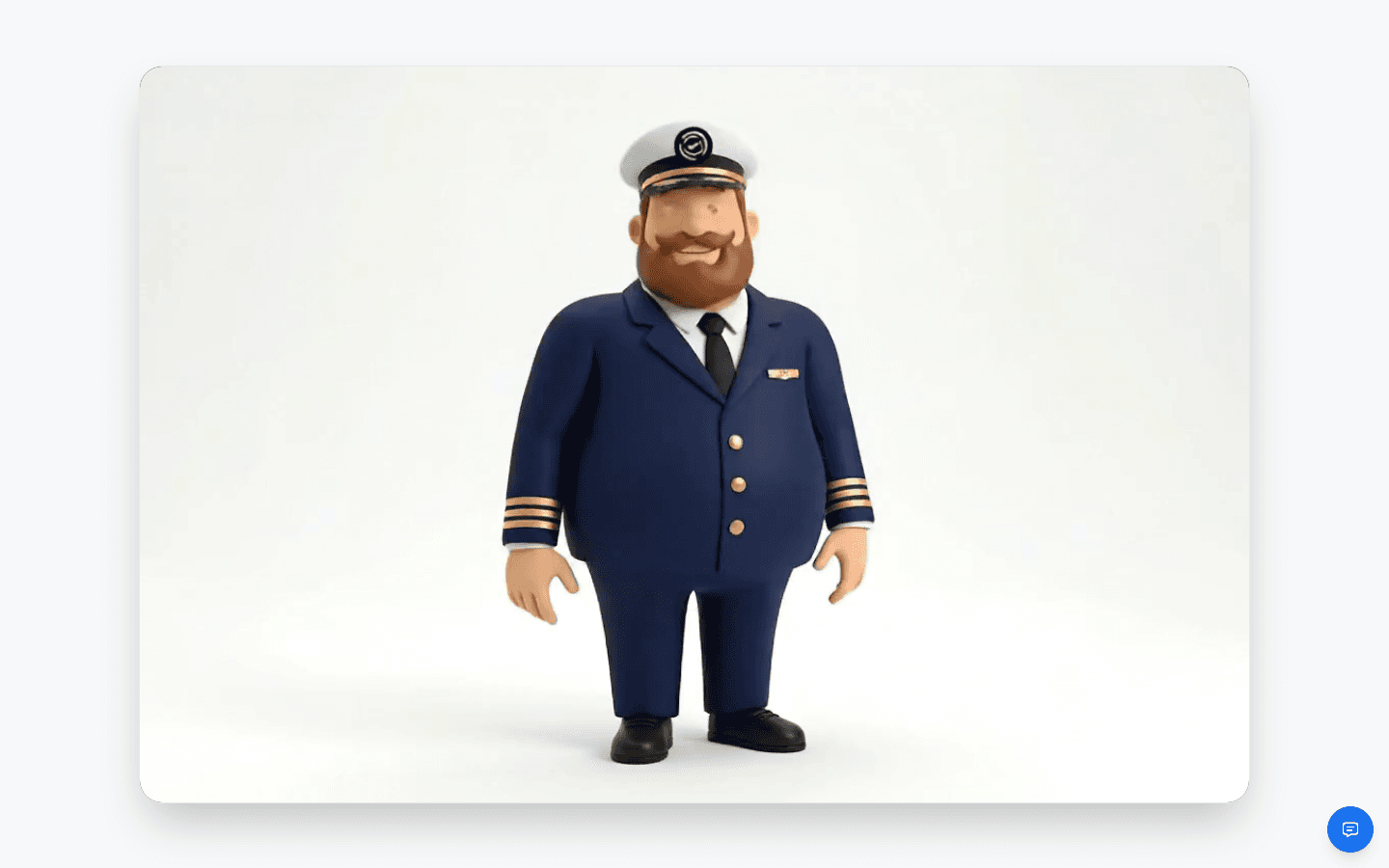
The wizard walks you through the essentials, one small step at a time:
- Welcome — timezone, language, time format, and start of week.
- Work Schedule — the hours and days you usually work.
- Peak & Rest Hours — when your energy is highest, and when you don't want anything scheduled (lunch, sleep).
- Organize Your Life — your first buckets (think folders for tasks: Work, Personal, …).
- AI Assistants — meet Captain Fokus, the Morning Briefing, and the End-of-Day Review.
- Connect Calendar — link Google or Outlook so scheduling sees your real availability.
- First Goal, First Task, Powerful Notes — create one of each to get a feel for it.
- Ready to Go! — pick where to land: Day View, Kanban, or Calendar.
Skip freely
Everything the wizard asks can be changed later in Settings. Don't overthink it — working hours and a connected calendar are the two that matter most for good auto-scheduling.
2. Find your way around
Fokus has one main navigation element: the dock at the bottom of the screen. From left to right:
| Item | What it opens |
|---|---|
| Fokus logo | Day View — your home screen |
| Sparkle | Switches the dock to the AI command bar |
| Ship's wheel | The Fokus Navigator (Spotlight) — search, create, and navigate from the keyboard |
| Sun | Day View |
| Planner (board icon) | Click it to open Kanban, Buckets, Calendar, Analytics, or Graph. Tasks synced from your integrations show up here like any other task — undated ones wait in the Reservoir |
| Target | Objectives — weekly to yearly goals |
| Document | Notes — rich text and whiteboards |
| Plug | Your connected integrations, one click away |
| Bell | Notifications |
| Inbox tray | The Reservoir — tasks you haven't dated yet |
| Calendar-check | Bookings — your scheduling links (add-on) |
| Avatar | Profile menu — settings, downloads, what's new, log out |
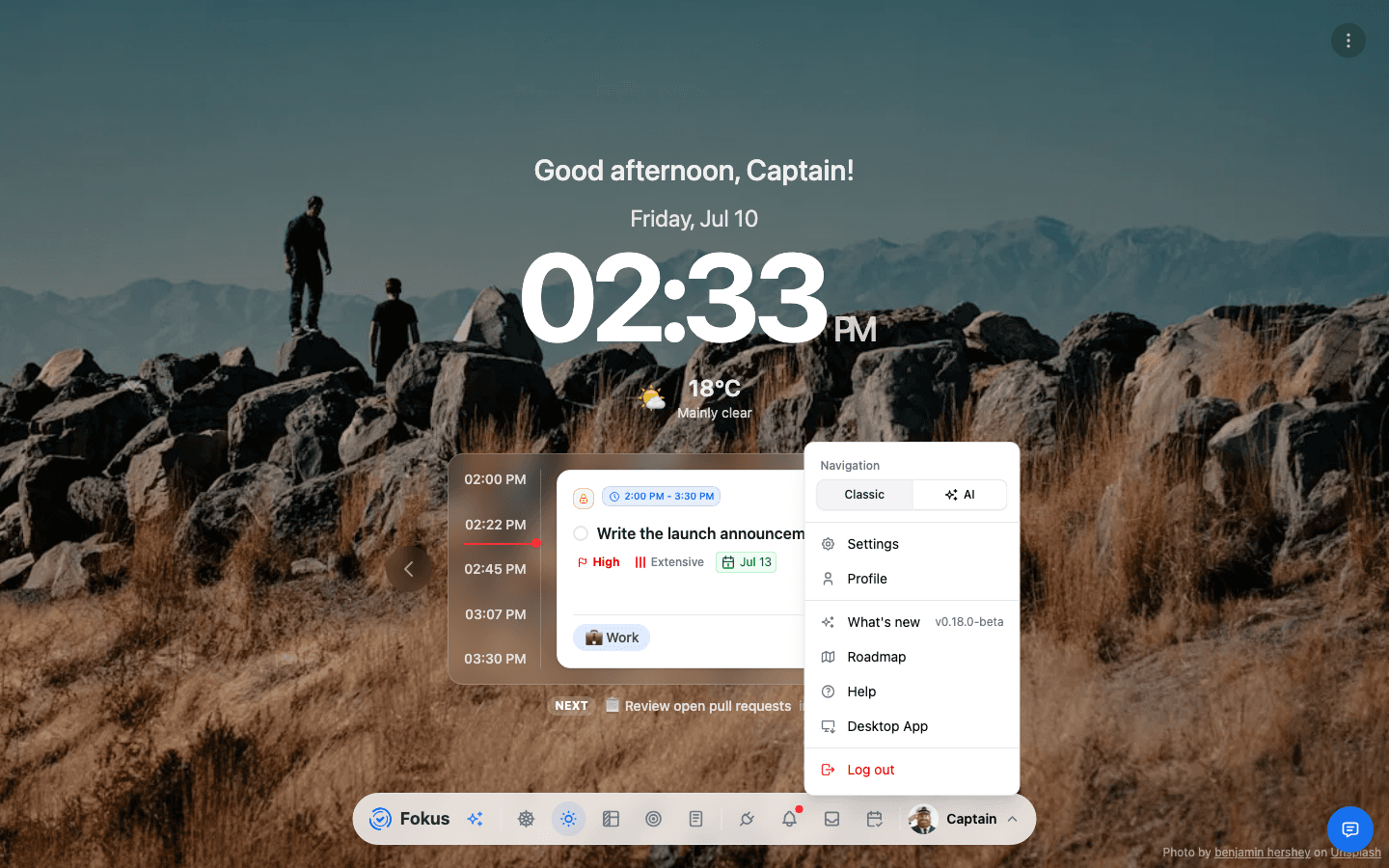
One more button lives outside the dock: the round blue support button floating in the bottom corner — release notes, bug reports, and feature requests, one click away. More in Support & Feedback.
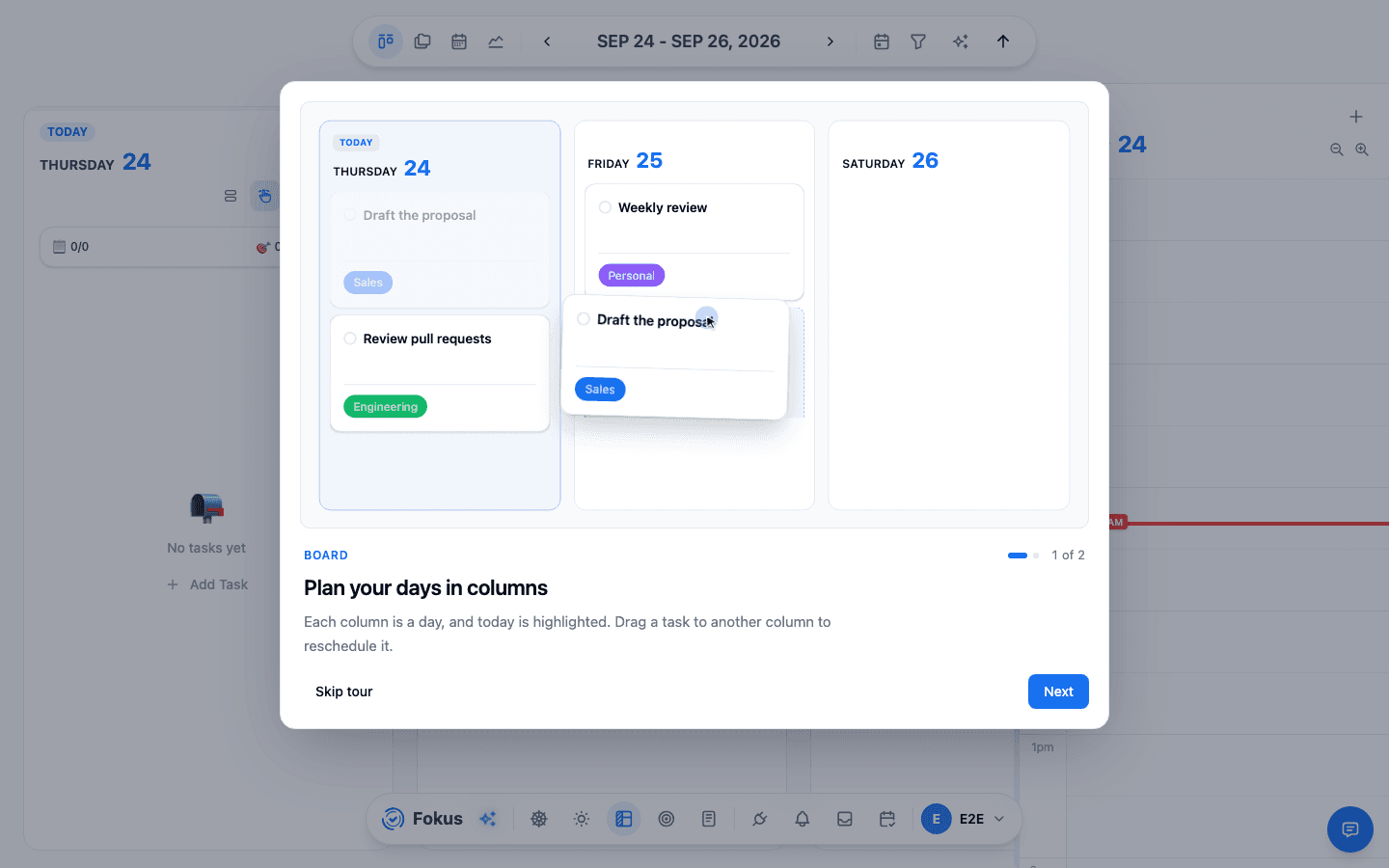
On your first visit, short animated tours show the moves that are easier to see than to read: dragging tasks between days and onto the timeline on the Board, scheduling today's tasks on the Calendar, and opening the Navigator with ⌘K to jump anywhere or quick-create a task or event. Use Next and Back (or the arrow keys) to step through, or Skip tour to close it — each tour shows only once.
3. Capture your first task
Press ⌘+K anywhere and start typing. A leading dot means "task", and inline tokens fill in the details as you type — no forms involved:
The one-liner from the video:
.Sketch social banner #Website +tomorrow 2pm !high =45mThat's a high-priority, 45-minute task in the Website bucket, scheduled for tomorrow at 2 PM. The full token syntax (due dates, energy, objectives, descriptions, events with attendees…) is on the Spotlight page.
4. Let Fokus plan your day
You don't have to drag every task into a time slot — that's the auto-scheduler's job. It runs on its own when new tasks appear or plans collide, and you can trigger it manually any time:
Open Kanban or Calendar, hover near the top of the screen, and click the sparkles icon — that's AI Quick Actions, home of Smart Scheduling, the Morning Briefing, and the End-of-Day Review. More in Smart Scheduling.
Connect your calendar first
Auto-scheduling plans around your existing meetings, so connect Google Calendar or Outlook early. Until then it only knows about events created inside Fokus.
5. Make it yours
A few five-minute upgrades, in rough order of payoff:
- Connect your tools. Calendar first, then task sources (Todoist, Linear, Jira, …) and communication (Gmail, Slack, Teams). Everything syncs into one place — see Integrations.
- Tune your scheduling. Working hours, peak hours, buffers between tasks, and how far ahead Fokus plans — all in AI Scheduling settings.
- Set up your buckets. Rename, recolor, and nest them in Settings → Buckets.
- Meet Captain Fokus. Press ⌘+K and choose Ask Captain Fokus — the chat assistant can create tasks, move things around, and answer "what should I focus on?" — see AI Assistant.
- Install the apps. The desktop app adds a global capture hotkey, the mobile app puts your day in your pocket, and the browser extension for Chrome and Firefox captures the web.
Where to next?
How is this guide?