Notes
A full rich-text editor and an infinite whiteboard — for everything that doesn't fit in a task title.
Notes in Fokus are proper documents: headings, task lists, tables, images, math, embeds — with a searchable list on the side. Meeting notes, plans, journaling, brain dumps; if it's words, it lives here.
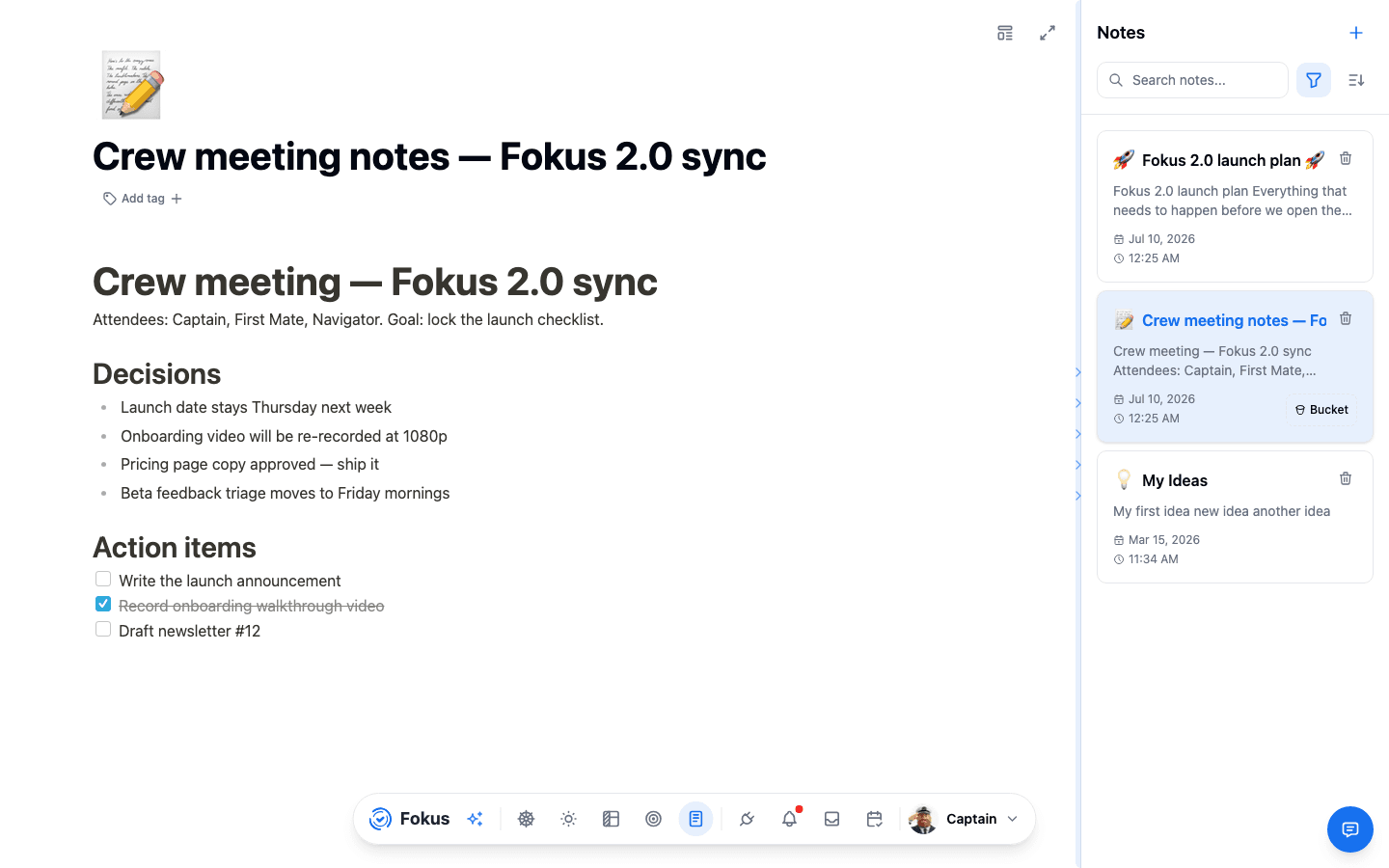
The editor
Open Notes from the dock (document icon) or with Alt+N, then click + to start a note. Writing feels like any modern editor:
- Markdown as you type —
#for headings,-for lists,**bold**, and so on convert instantly. - Slash commands — type
/for the block menu: task lists, tables, callouts, images, and more. - Table of contents —
/tocdrops in a live outline of the note's headings. Click an entry to jump there, and collapse the whole block when you want it out of the way. - Task lists with real checkboxes — perfect for meeting action items.
- Icons and tags — give each note an emoji icon and tags to keep the list scannable.
- Notes save as you type; the timestamp in the list always tells you what's fresh.
- Deleting — click the trash icon on the note's row in the list, then confirm. If it's the note you have open, the editor moves to the next note in the list (or the one above it, when it was the last).
The whiteboard
Every note has a second personality: click the Whiteboard toggle (or press Alt+W) and the same note becomes an infinite Excalidraw canvas — shapes, arrows, freehand drawing, text, and a component library:
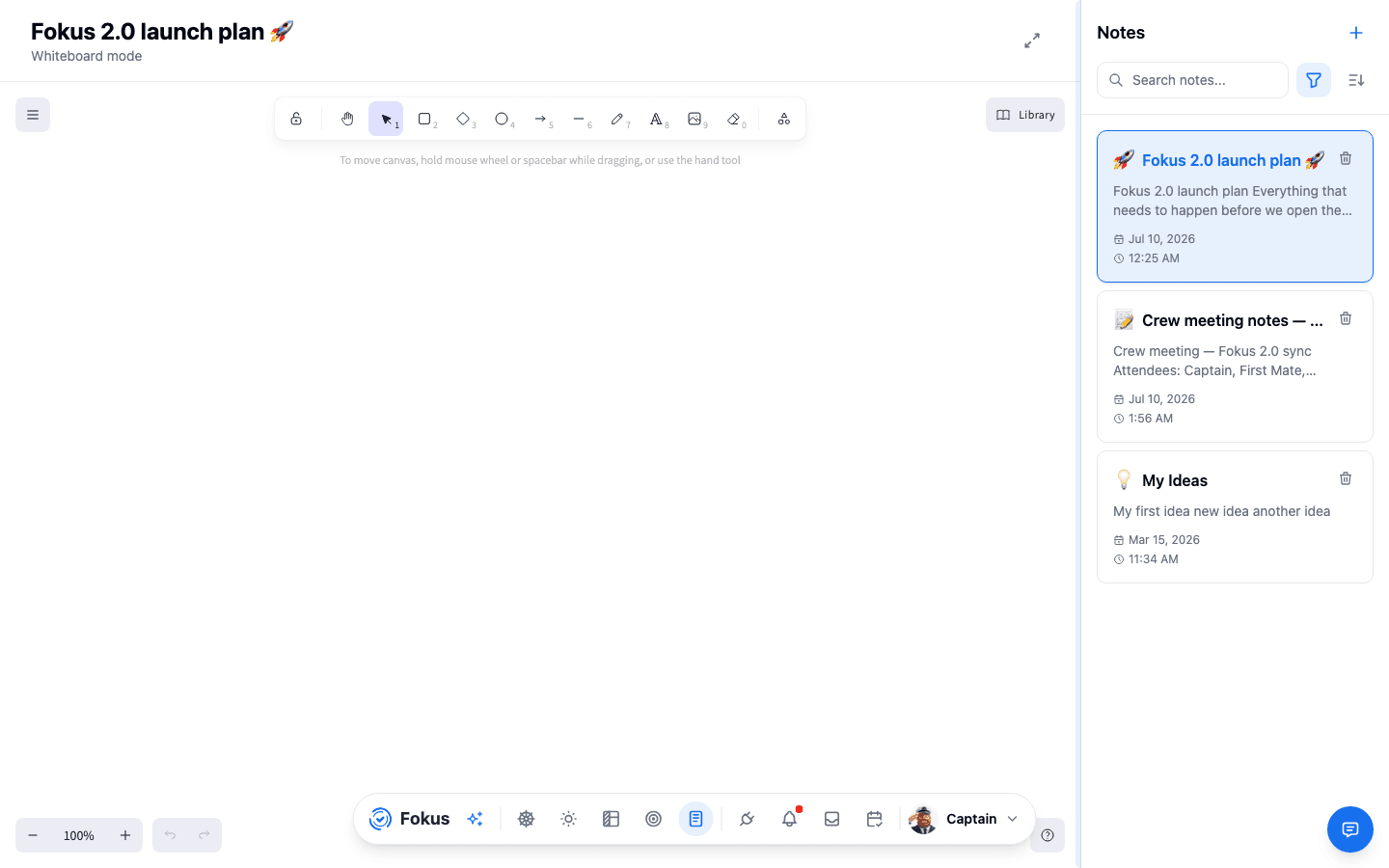
Sketch the system diagram next to the meeting notes about it — same note, two views.
Templates
Click + in the notes list and pick Browse templates… to open the gallery: around twenty built-in starting points grouped into Meetings, Planning, Thinking, Personal and Knowledge — meeting notes, 1:1, retrospective, weekly review, project brief, decision log, daily journal, bug report, and more. Search narrows the grid, and the templates you use most appear straight in the + menu so you rarely need the gallery twice.
Section headings inside a template follow your app language, so a German or Arabic workspace gets a note in that language rather than English headings.
Save your own: open a note you've set up the way you like, then ⋮ → Save as template. Give it a name, an icon and an optional description, and it appears under My templates in the gallery.
Change a saved template: hover its card in My templates and open ⋮. Edit opens the template itself: its name, icon and description, and the body in the same editor your notes use (type / for headings, lists, checklists, tables and toggles). Save updates the template; notes you already made from it stay as they are. Delete removes it after a confirmation.
Reformat an existing note
Already wrote the note and wish it had structure? ⋮ → Reformat with template…, pick a template, and Captain Fokus reorganises what you wrote under that template's headings. It moves your content, it doesn't rewrite it — wording, names, numbers and dates stay exactly as you typed them, and anything that doesn't fit lands under Other notes.
Nothing changes until you say so: the result streams into a preview, and you choose Replace note, Insert below, or cancel.
Sharing and export
The ⋮ menu beside the fullscreen button is where a note leaves the app.
- Share… creates a read-only public link. Anyone with it can read the note without a Fokus account; nobody can edit it. Toggle it off (or Revoke link) and every copy of that link stops working. Images already loaded through their own links stay viewable, which the dialog reminds you of.
- Export as PDF — a branded document laid out from the note itself, so headings are real headings. Arabic and CJK text render properly, and your images are embedded.
- Export as Markdown — the note as a
.mdfile. - Copy for LLMs — copies the note as clean Markdown with a small header (title, tags, bucket, dates), @mentions flattened to plain names and images left out. Paste it straight into any AI chat.
A shared link is public
Anyone who has the link can open the note — treat it like an unlisted URL, not a private one. Shared notes are marked no-index so search engines skip them.
Finding notes again
The notes list has search, plus filter and sort controls. Search matches note titles by default; the document icon inside the search box widens it to the note contents as well, and remembers your choice. A contents search matches the words you wrote; a note's formatting never counts as a match. Notes also show up in Spotlight search alongside tasks, so ⌘+K gets you to any note in two keystrokes.
Notes attach to tasks too
Task descriptions are notes under the hood — the same editor appears inside the task view, so checklists and formatting work there as well.
How is this guide?