Spotlight
The command bar behind Cmd+K — search, create, navigate, and talk to Captain Fokus without touching the mouse.
Spotlight (also called the Fokus Navigator — the ship's wheel in the dock) is the keyboard-first way to do almost anything in Fokus. Press ⌘+K anywhere and it appears:
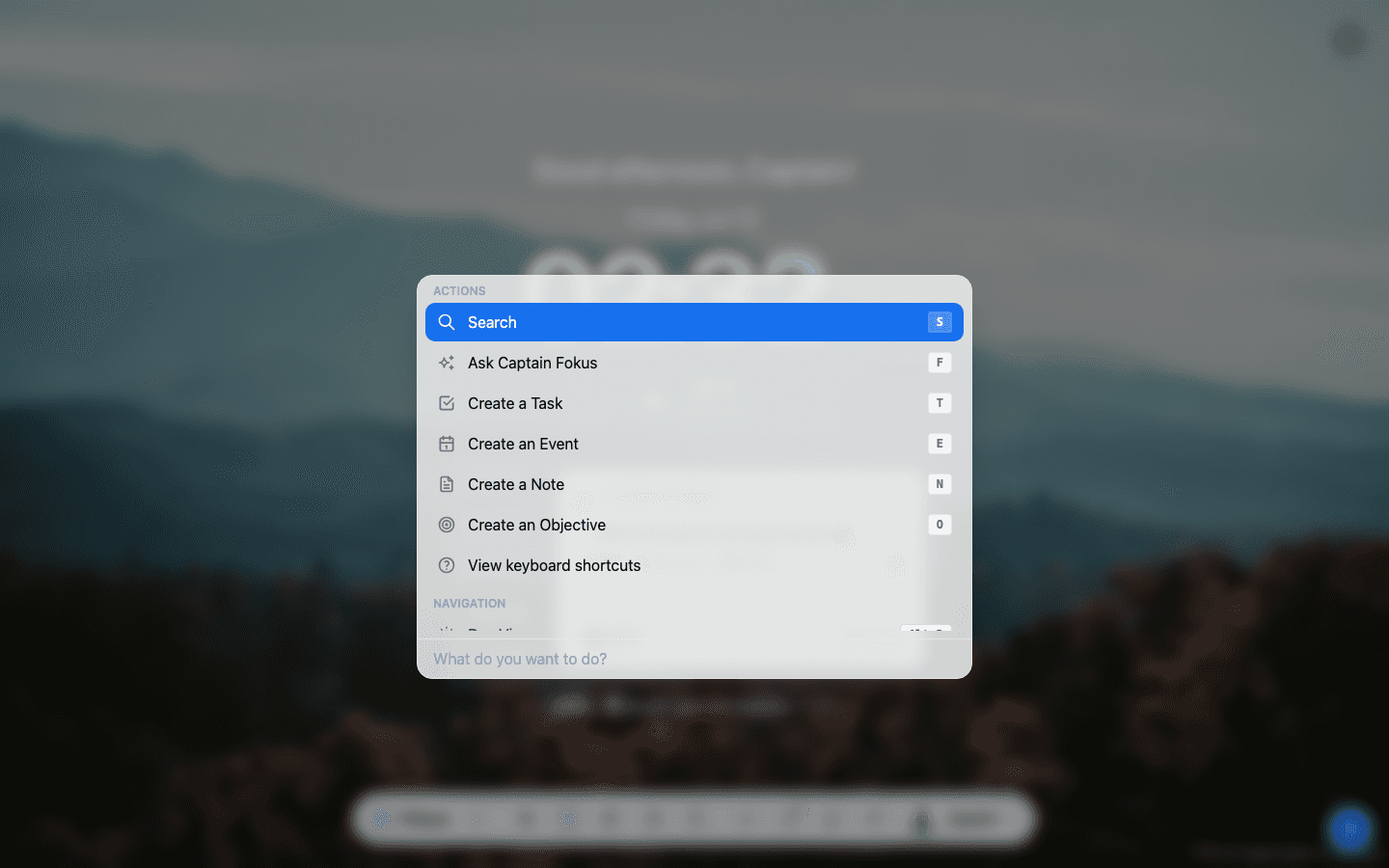
From here you can jump into any action with a single key: Search, F for Captain Fokus, Task, Event, Note, Objective — or scroll down to navigate to any screen in the app.
Fokus Session is in the list too: pick it (or type session and press Enter) to open the session dialog from any screen, choose how long to focus and whether to switch on Do Not Disturb and focus music, then start. It opens the dialog rather than starting straight away, and while a session is running the same entry lets you end it. On a Mac, see Do Not Disturb on your Mac.
Create a task in one line
Type a . and Spotlight switches to task mode. Everything else is inline tokens — type them anywhere in the line and watch them turn into chips:
.Sketch social banner #Website +tomorrow 2pm !high =45m| Token | Meaning | Example |
|---|---|---|
# | Bucket | #Work, #Personal |
+ | Do date (when you'll work on it) — natural language works | +tomorrow 9am, +next monday |
~ | Due date (the deadline) | ~friday, ~jul 20 |
! | Priority | !high, !medium, !low |
* | Energy level | *light, *moderate, *extensive |
= | Estimated time | =45m, =2h |
^ | Link to an objective | ^Launch Fokus 2.0 |
>> | Description | >>Draft three variants first |
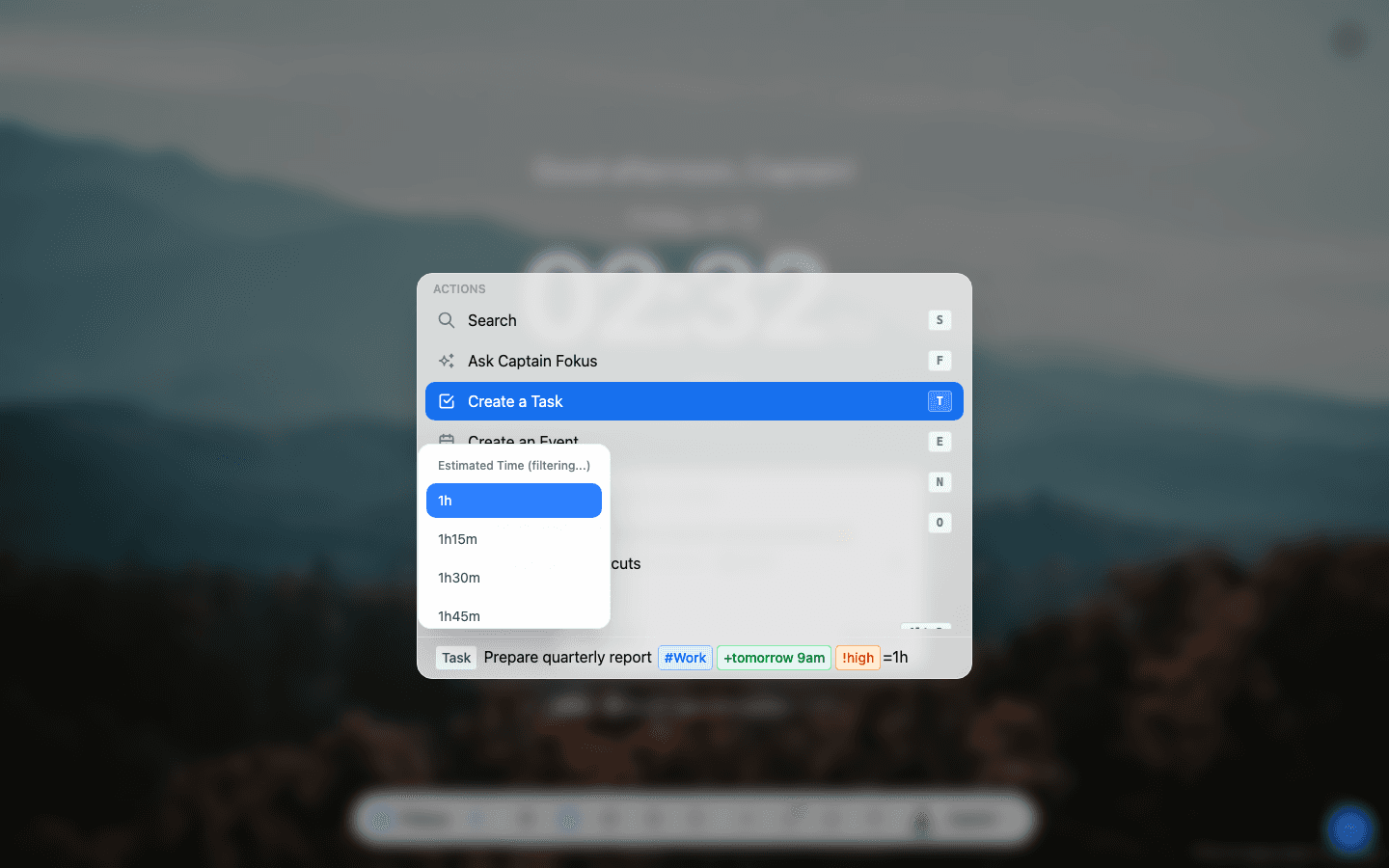
As you type a token, Spotlight offers matching values (buckets, durations, dates) so you can autocomplete instead of remembering the exact spelling:
Create an event just as fast
A leading : makes it an event. Events get their own tokens: + start time, = duration, @ attendees, ? location.
:Coffee with Alex +tomorrow at 3pm =45m ?Harbor Café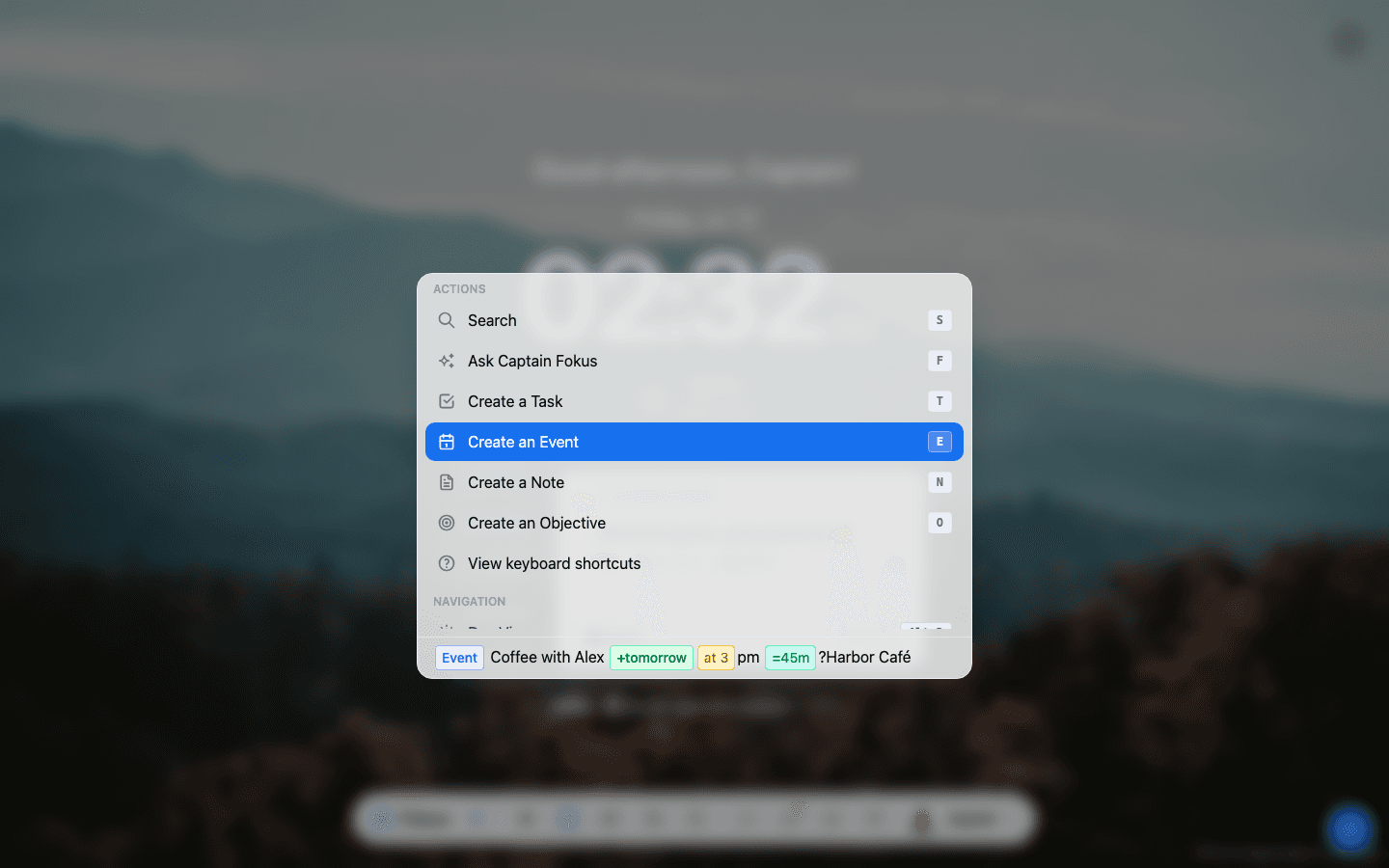
Search everything
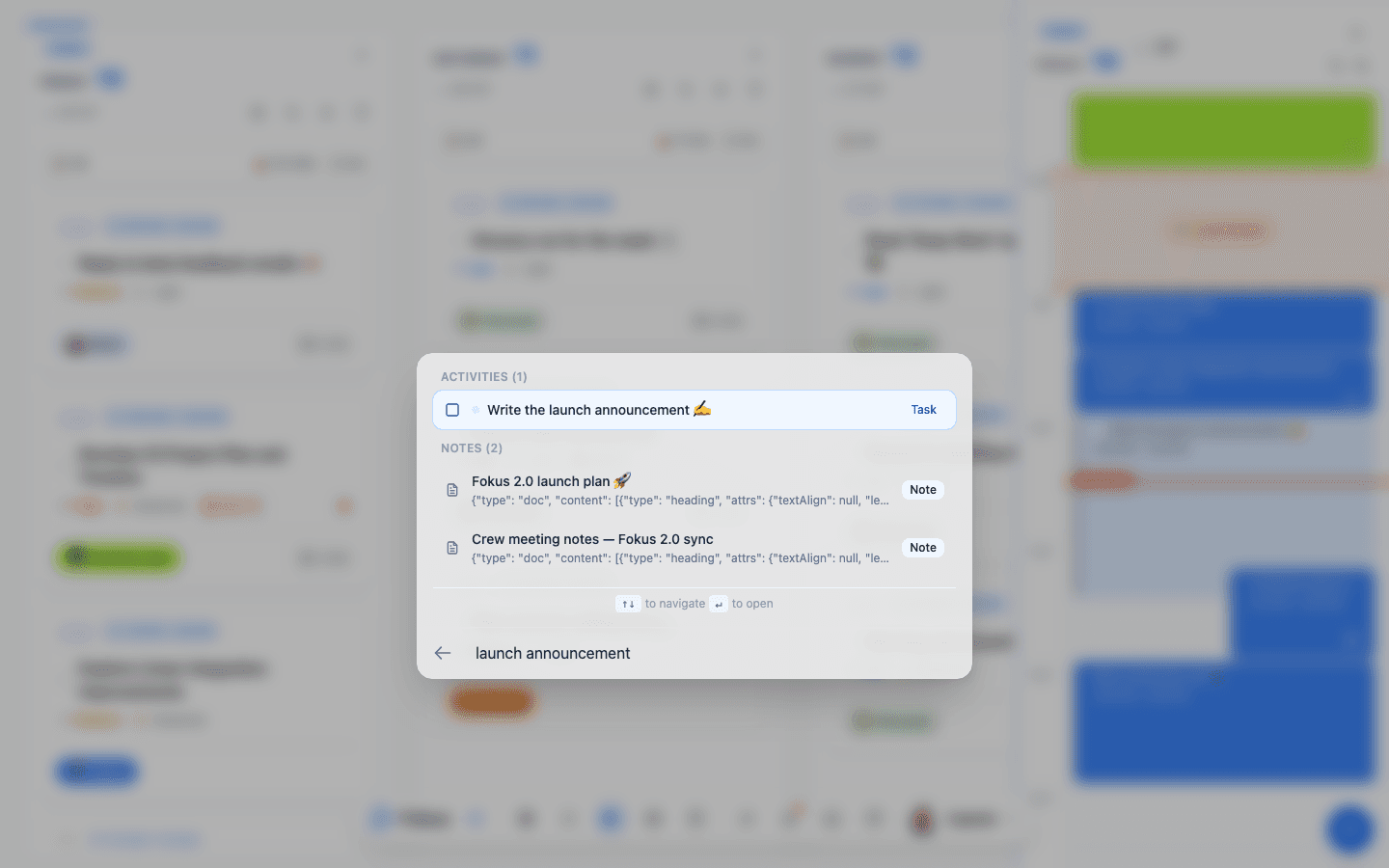
Choose Search (or click it) and type — Spotlight finds tasks, events, notes, and objectives in one list. ↑↓ to move, Enter to open:
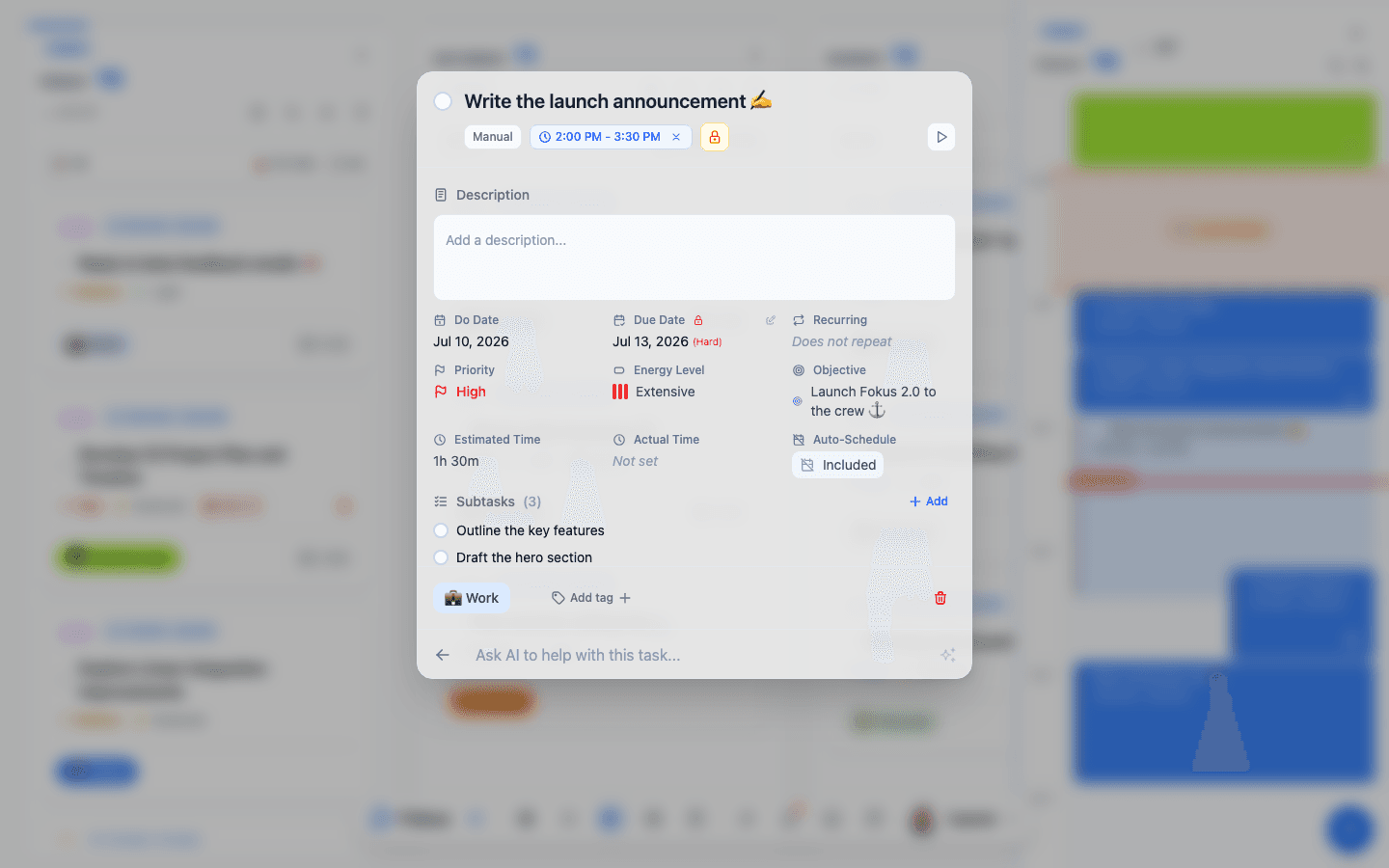
Opening a task this way shows the full task view — every field in one place, with an "Ask AI to help with this task…" bar at the bottom:
Filter by tag
While searching, add a #tag token to narrow the results to items carrying that tag. It works alone or alongside your search text:
review deck #urgent- Text + tag, or tag alone —
#urgenton its own lists everything tagged urgent; combine it with words to do both at once. - One word per tag — tag tokens run to the next space, so use single-word names like
#deep-work. - Objectives step aside — a tag filter hides objectives from the results, since only tasks, events, and notes can be tagged.
Fokus keeps the reminder "Tip: use #tag to filter by tag" right in the search box.
Keyboard shortcuts
Spotlight's View keyboard shortcuts option shows the full cheat sheet:
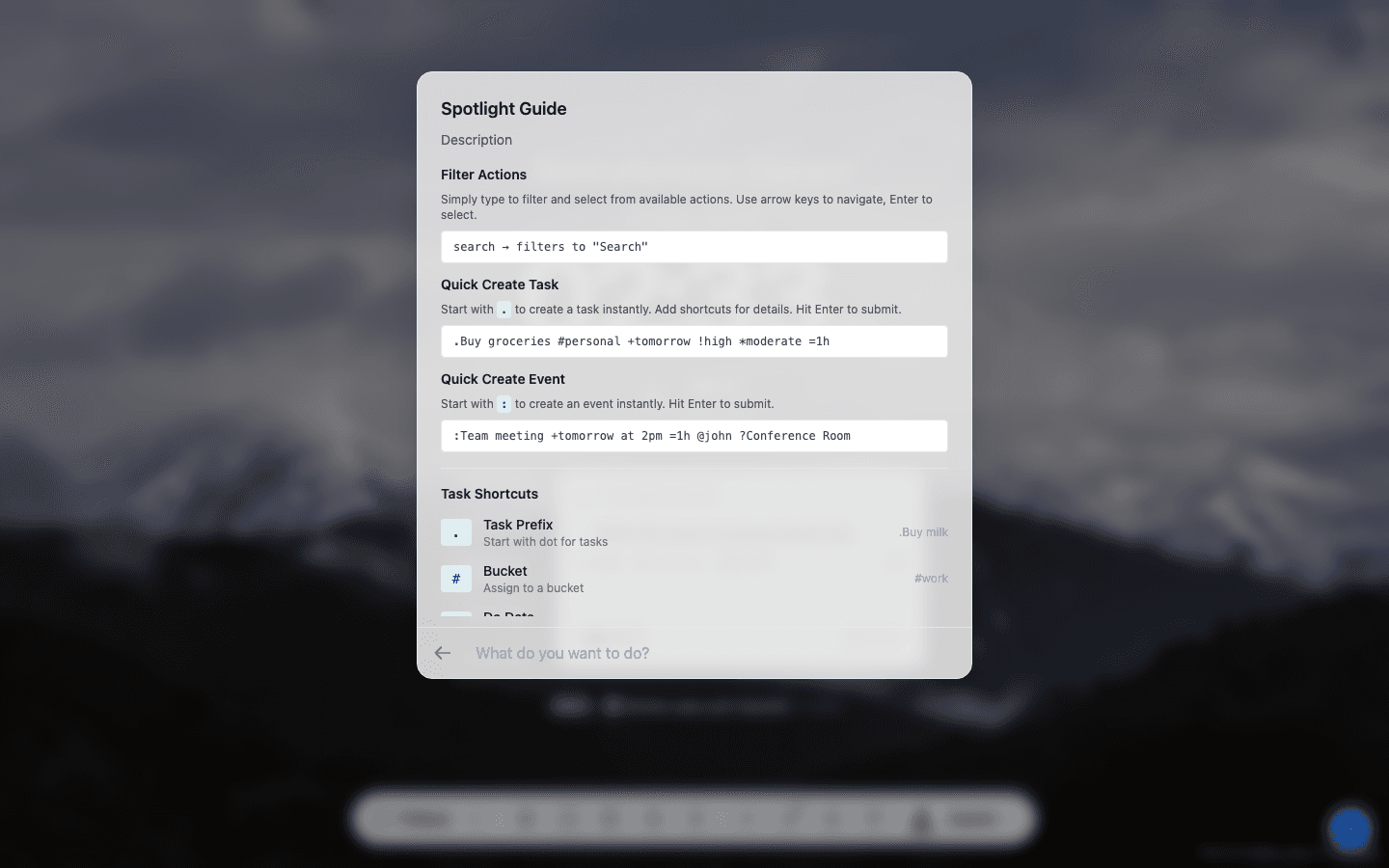
The ones worth memorizing first:
| Shortcut | Does |
|---|---|
| ⌘+K | Open/close Spotlight |
| T / E / N / O | Create task / event / note / objective (when nothing is focused) |
| F | Ask Captain Fokus |
| S | Search |
| Alt+D / K / C / B / A | Day View / Kanban / Calendar / Buckets / Analytics |
| Alt+N / W | Notes / Whiteboard |
| Ctrl+⇧+B | Reservoir |
| Ctrl+⇧+I | Captain's Log |
Connected-tool panels too
With integrations connected, Ctrl+⇧+G opens Gmail, …+L Linear, …+J Jira, …+T Google Tasks, and friends — each in a side panel without leaving your plan.
How is this guide?