Day View
The calm home screen — what's happening now, what's next, and nothing else.
Day View is where Fokus opens: a full-screen photo, the time, the weather, and one card telling you what deserves your attention right now. It's deliberately the opposite of a dense dashboard — a place to land between tasks, not another thing to manage.
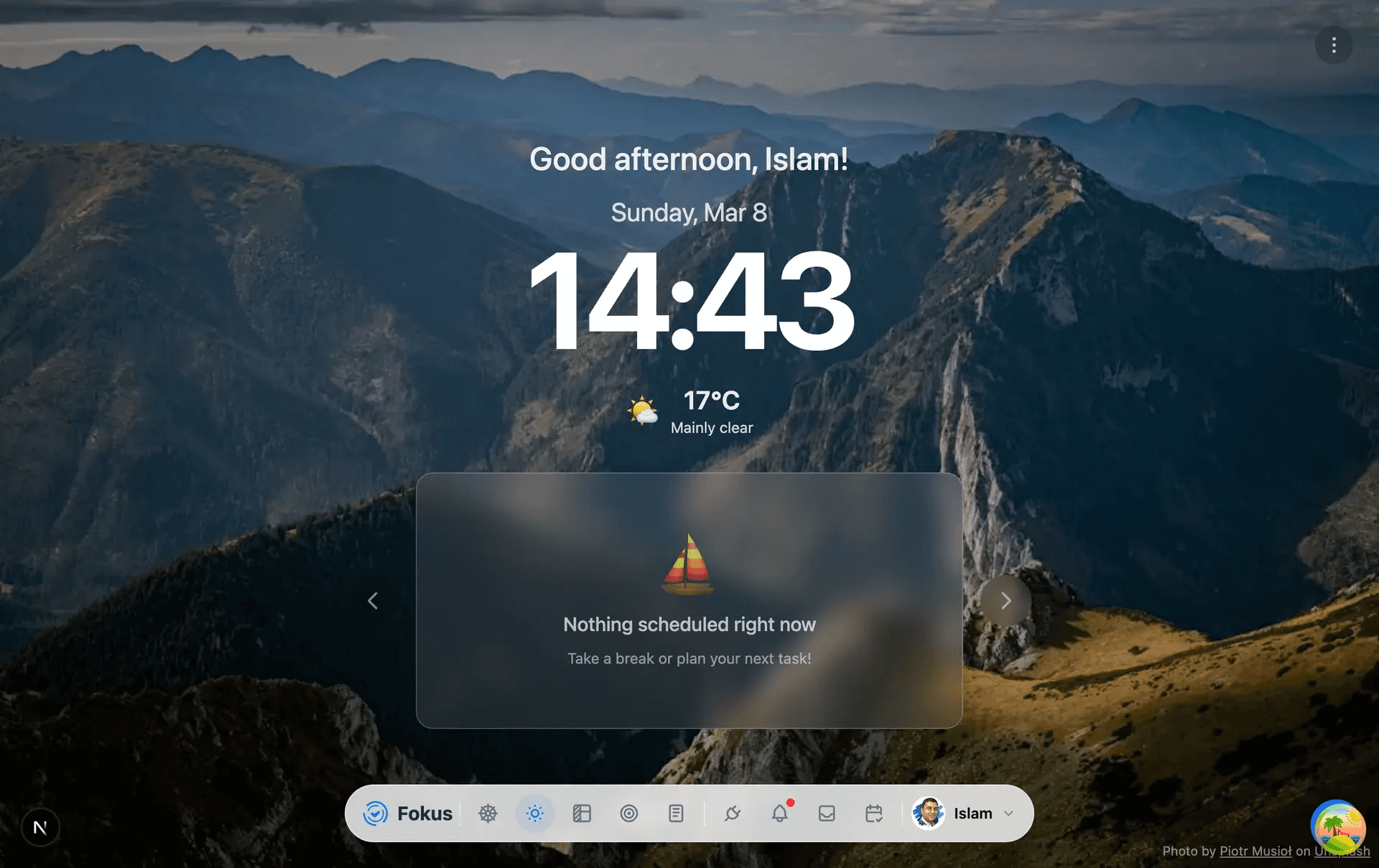
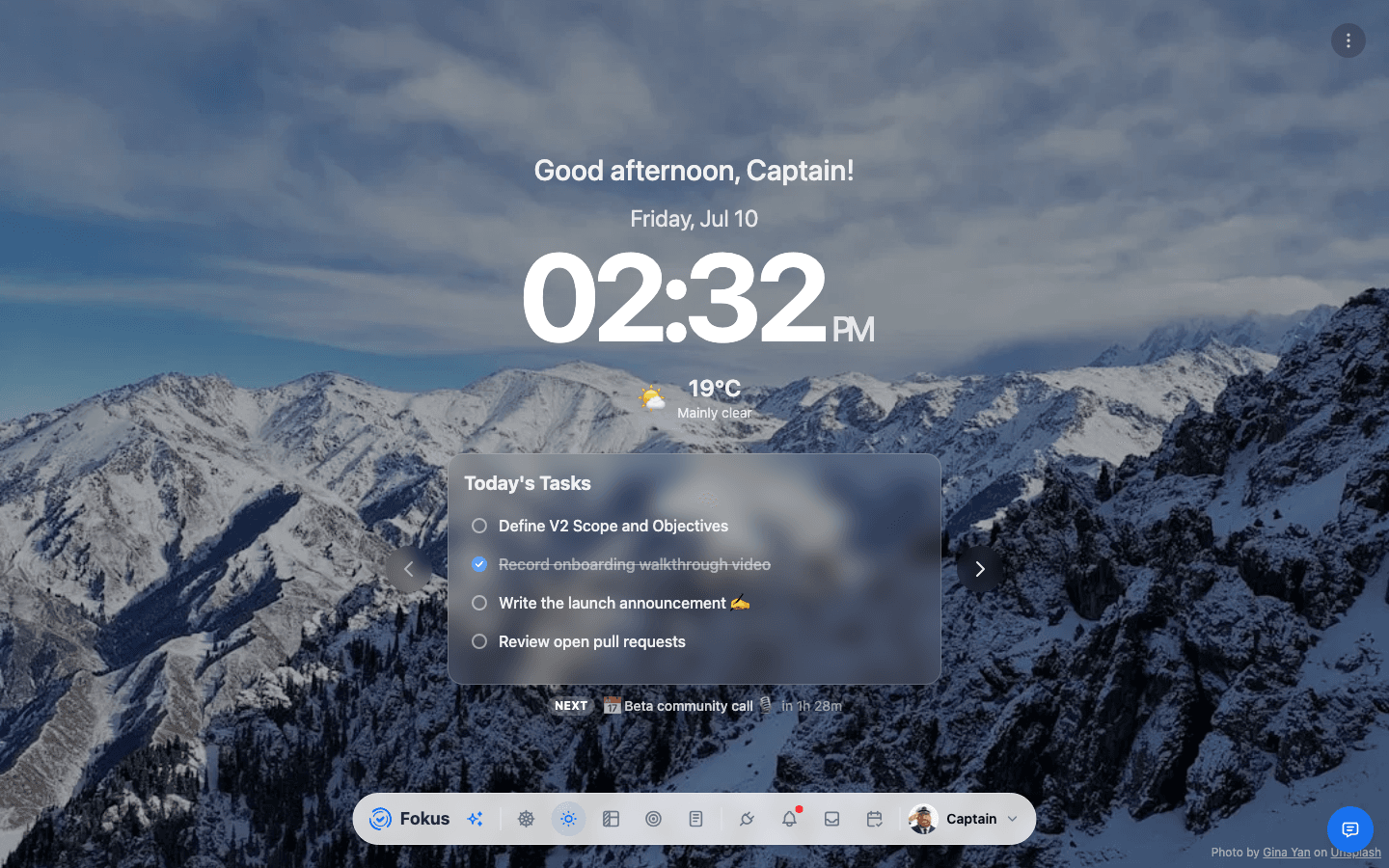
The center panel is Day at a Glance. When something is scheduled right now, you'll see it front and center — with its time block, priority, bucket, and a mini timeline of the surrounding half hours. When nothing is scheduled, it gently suggests a break or a plan. Underneath, the NEXT line always tells you what's coming and in how long.
Use the left and right arrows (or swipe) to flip through the panel's cards — upcoming tasks and events for the rest of the day:
The focus menu
The three-dot menu in the top-right corner holds the distraction dials:
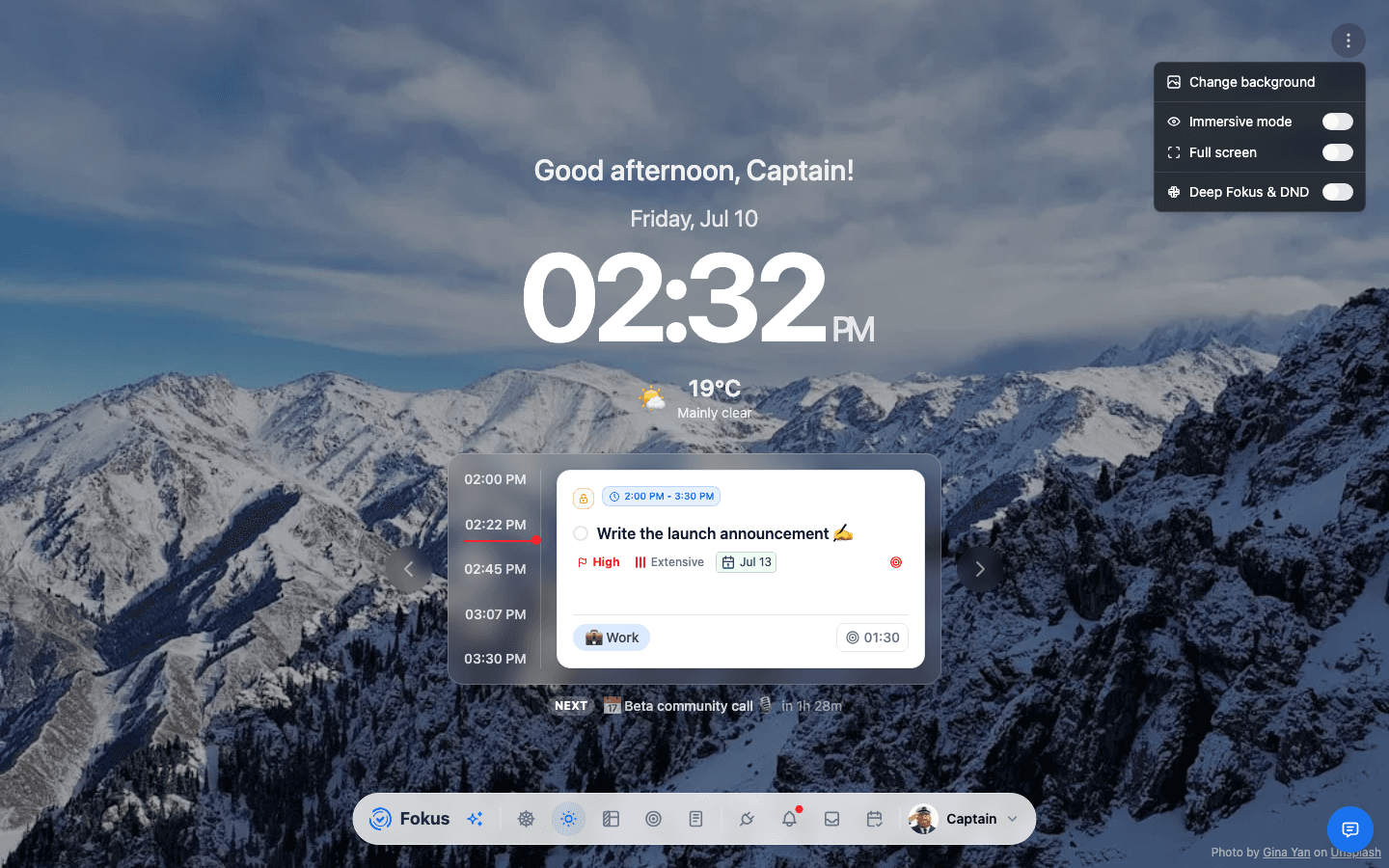
- Change background — a fresh ambient photo whenever you want one.
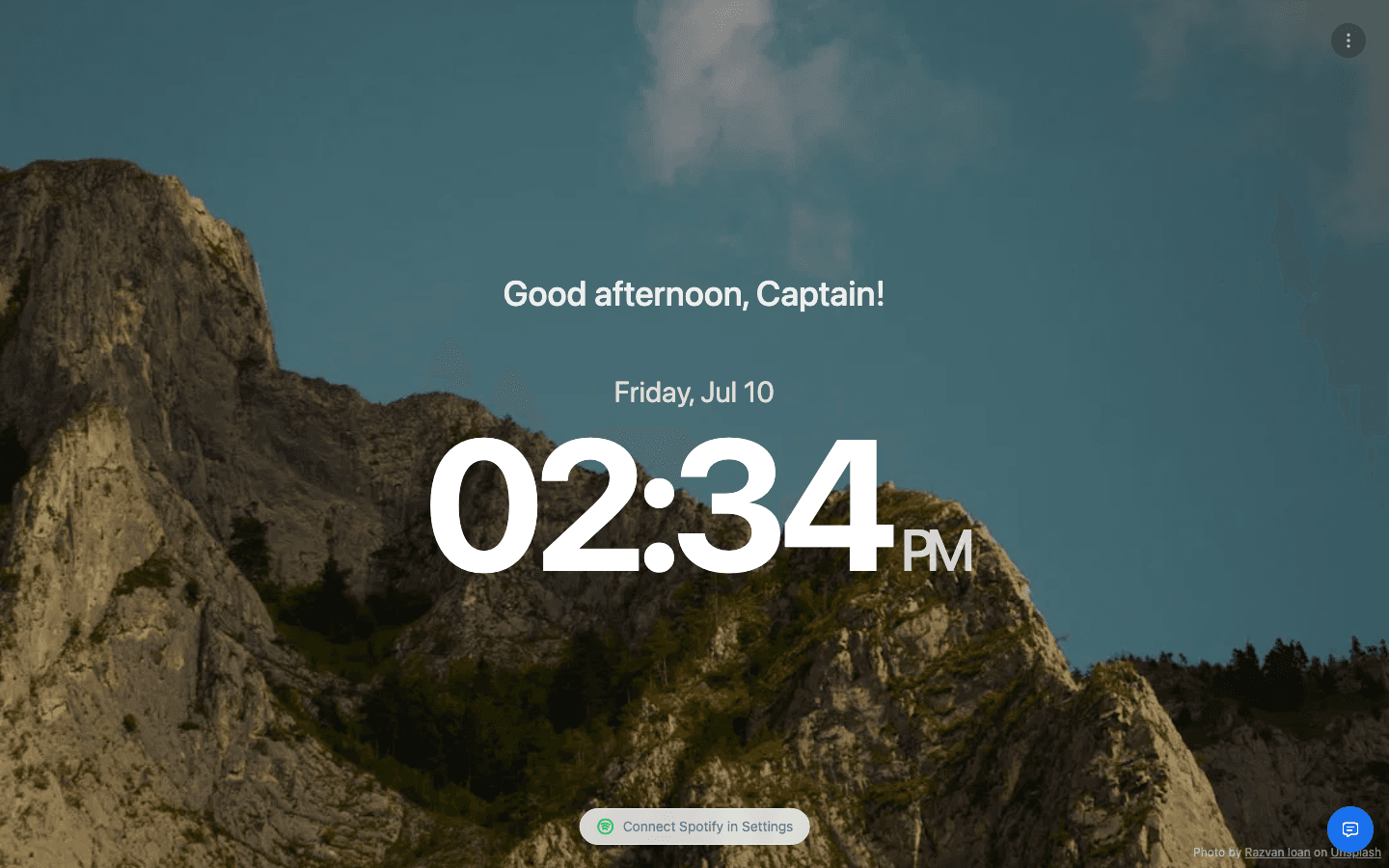
- Immersive mode — hides the panels, leaving just the greeting, date, and clock. The dock collapses too (down to a Focus music player for your saved Spotify playlists). Toggle it with Alt+I.
- Full screen — takes over the whole display, browser chrome and all.
- Fokus Session — the outward-facing half of focus. It opens a dialog: choose 25, 50 or 90 minutes, whether to switch on Do Not Disturb (Slack, Microsoft Teams, an Android phone, and your Mac once it's set up) and Focus music, then Start focusing. While a session runs, its icon is tinted, and the same entry opens the dialog with the time it ends and End session — what a session does.
Good to know
- The greeting, clock, weather, and background all follow your local time and location — Day View doubles nicely as a desk clock on a second monitor.
- Fokus can rotate through beautiful nature photography; if you'd rather choose the theme, that's in Settings → General.
- Day View is the fastest way to answer "should I start something new or is a meeting about to interrupt me?" — that's what the NEXT line is for.
- Completing your current task from here (click its circle) immediately promotes the next thing into the spotlight.
When to leave
Day View tells you what's now; the moment you want to change the plan, hop to a planning view:
How is this guide?