Notifications
Choose which channels reach you, which emails you get, and when everything stays quiet.
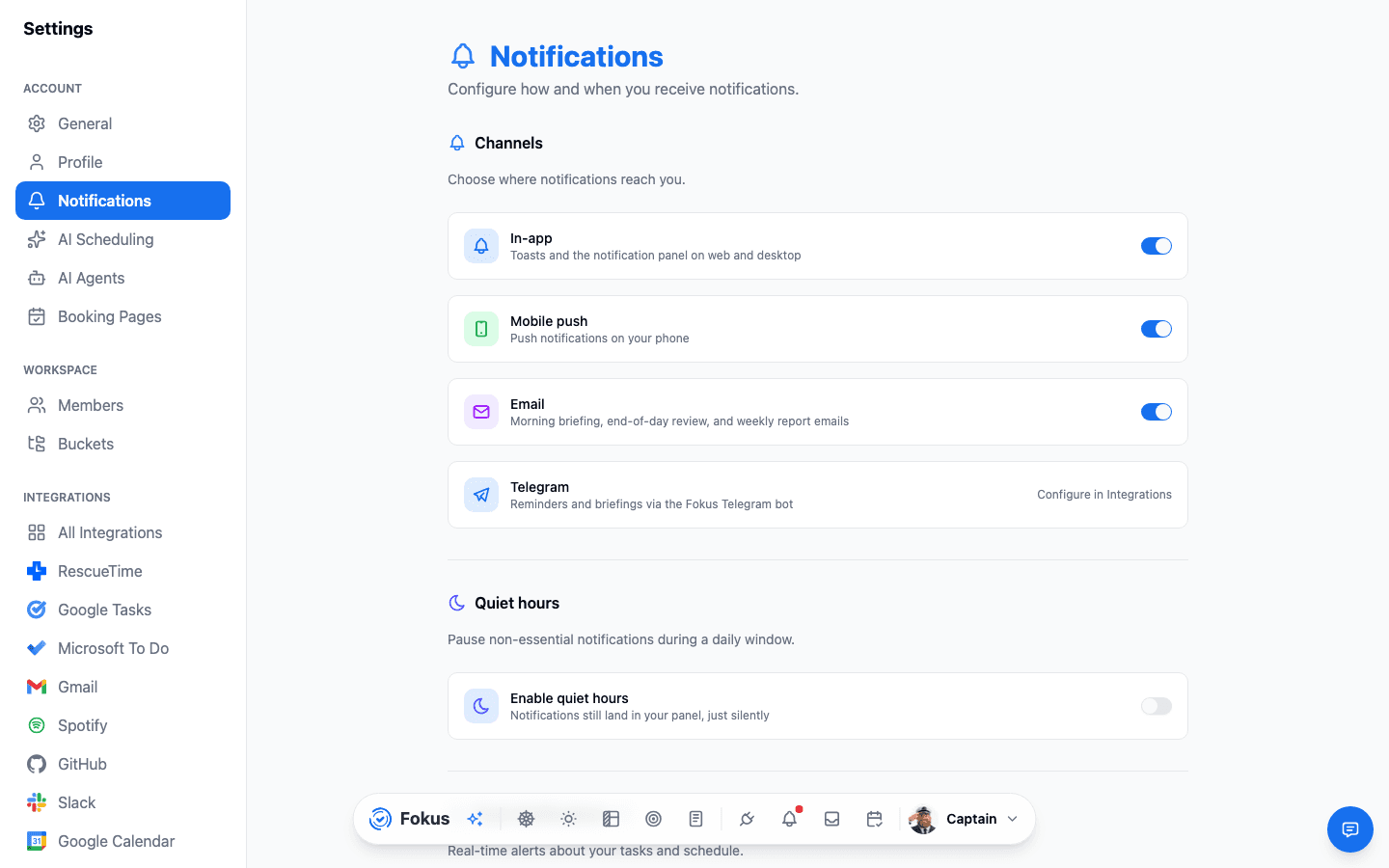
Fokus can reach you four ways — this page decides which ones, for what, and when they're allowed to make noise.
Channels
- In-app — toasts and the bell-icon panel on web and desktop.
- Notification sound — whether in-app notifications make a noise. Turn it off and everything still arrives, just silently — reminders included.
- Mobile push — notifications on your phone via the Fokus mobile app.
- Email — the slower lane: Morning Briefing, End-of-Day Review, the weekly report, the birthday greeting, and disconnected-integration alerts land in your inbox.
- Telegram — reminders and briefings through the Fokus bot; set it up via the Telegram integration.
The number on the app icon
On your phone, the badge on the Fokus icon counts the notifications that arrived since that device last had Fokus open. Open the app and it's back to zero — and it stays at zero when you leave, because whatever came in while you were in the app, you've already seen there.
It's counted per device: your phone and your tablet each keep their own number, and reading something on your laptop changes neither. It isn't the unread count from the bell panel, either — a badge of 3 means three things came in while you were away, nothing more. Signing out clears it.
Quiet hours
Set a daily window where non-essential notifications hold their tongue — they still arrive in the panel, just silently. Sleep is a feature.
What actually notifies you
Below the channels you'll find per-category switches: task reminders, event reminders, schedule changes from the auto-scheduler, briefing/review availability, and workspace activity. Default reminders for new tasks and events (e.g. "10 minutes before start") are configured here too.
Muting straight from the notification
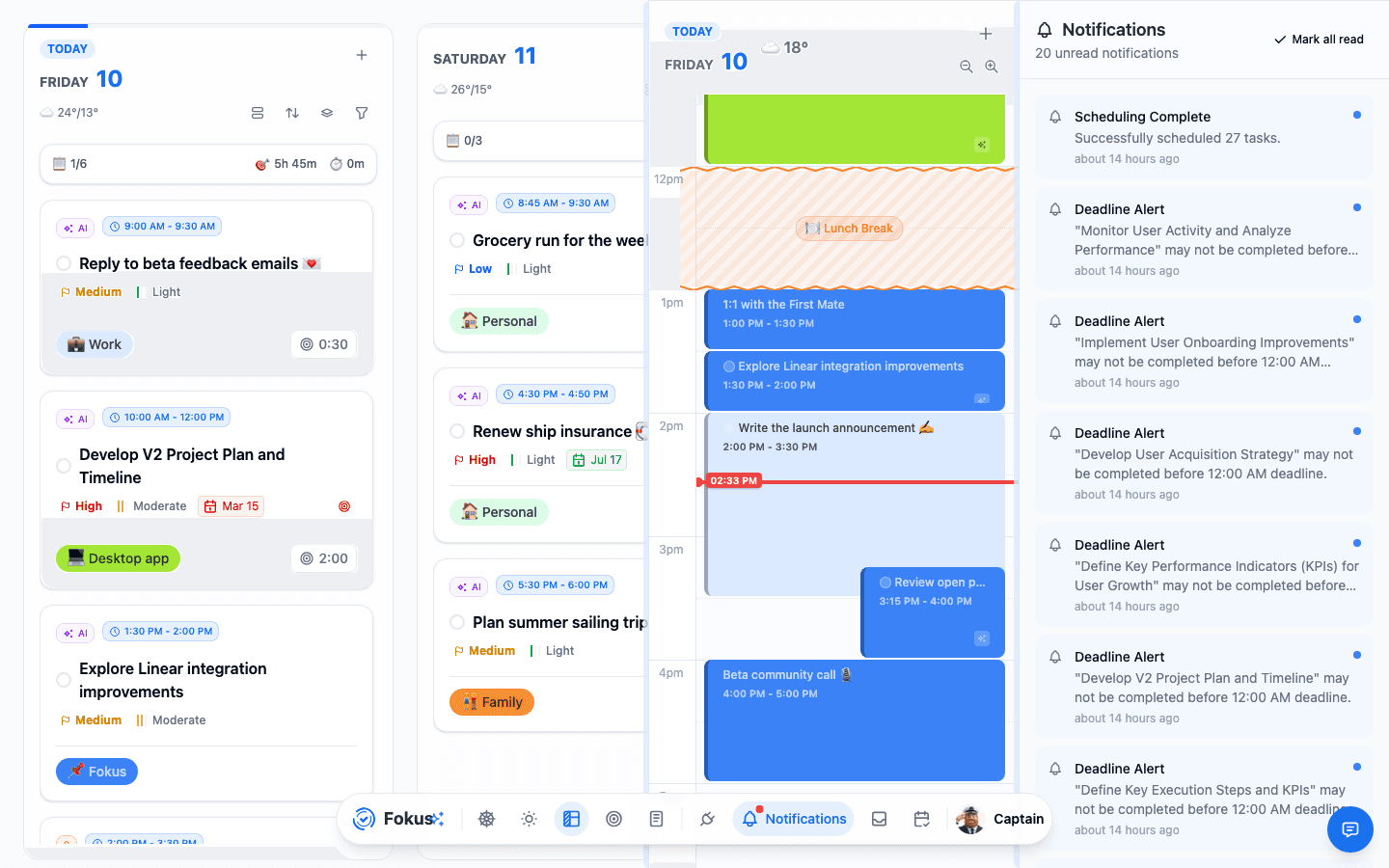
The auto-scheduler runs on its own schedule, so its Scheduling Complete notification is the one most likely to arrive at a bad moment. You don't have to come here to silence it — the toast carries its own two off-switches:
- Mute sound — keeps the notification, drops the noise. Same switch as Notification sound above, so it applies to every notification from then on.
- Mute these — stops scheduling notifications altogether: no sound, no toast, no push, no panel entry, on every device. Same switch as Scheduled tasks under What actually notifies you.
Either way a confirmation appears with an Undo, and both are just the settings on this page — flip them back here whenever you like.
Deadline reminders
A due date is a day, not a moment — so before Fokus can warn you that something is due, it needs to know what time of day that day means. Two controls, right under the Task due soon switch:
- Treat a deadline as due at — the time your deadlines land, in your own timezone. Default 09:00.
- The reminder list — up to five entries, each a distance before that moment. Default: 1 week before, 1 day before, and on the day.
So a task due Friday, with the defaults, pings you at 09:00 the previous Friday, 09:00 Thursday, and 09:00 Friday. Change the anchor to 17:00 and all three shift with it. Remove every entry and you'll get no advance warning at all — just the overdue alert.
The same anchor time decides when the per-task on due date and on do date reminders fire, so the two never disagree.
Why these are exempt from quiet hours
You picked these times deliberately, so Fokus treats them like the reminders you set by hand: they come through even inside your quiet-hours window. If that's too much, shorten the list rather than relying on quiet hours to mute it.
When an integration disconnects
Connections expire — you revoke access, change your password, or the provider simply times the token out. When that happens the integration stops syncing silently, which is the worst way to find out about it.
So Fokus tells you once, the moment it gives up on refreshing the token: a notification in the panel (and on your phone) plus an email. Tapping the notification opens Integrations, where reconnecting takes a few seconds. Nothing already synced is lost.
Both alerts have their own switches — the in-app/push one under What actually notifies you, the email one under Email notifications. Unlike the digest emails, the email alert is on by default: if you rarely open the app, it's the only way you'd learn the sync died.
Birthday greeting
If your profile has a birth date, Fokus emails you a short greeting at 08:00 on the day — your 08:00, in your own time zone and language. One email a year, nothing to buy in it. Born on 29 February? It arrives on the 28th in the years that skip your day.
It's on by default. The Birthday greeting switch under Email notifications turns it off, and the greeting itself links there. Turning the Email channel off silences it too, and so does having unsubscribed from all Fokus email.
If you go quiet
Stop opening Fokus for a while and we'll write to you: once after three days, once after a week, and a last time after two weeks — mid-morning, your time. Each one is short and reminds you what's still waiting. Open Fokus at any point and the rest are cancelled; there's nothing else to do. A new round can start at most once every 90 days.
Don't want them? Every one has an Unsubscribe link at the bottom. They also stay away while the Email channel is off.
Least-regret setup
In-app on, push for reminders only, email for the two daily reports, quiet hours 22:00–07:00. Informed, not nagged. Leave the disconnect alerts on — they only fire when something's actually broken.
How is this guide?