Smart Scheduling
The auto-scheduler that turns a pile of tasks into a realistic day — and how to steer it.
Smart Scheduling is the reason your task cards have times on them without you dragging anything. It looks at your open tasks and finds each one a slot that respects your meetings, working hours, energy patterns, priorities, and deadlines — recalculating whenever life happens.
Where it lives
Open Kanban or Calendar, hover near the top, and click the sparkles — AI Quick Actions:
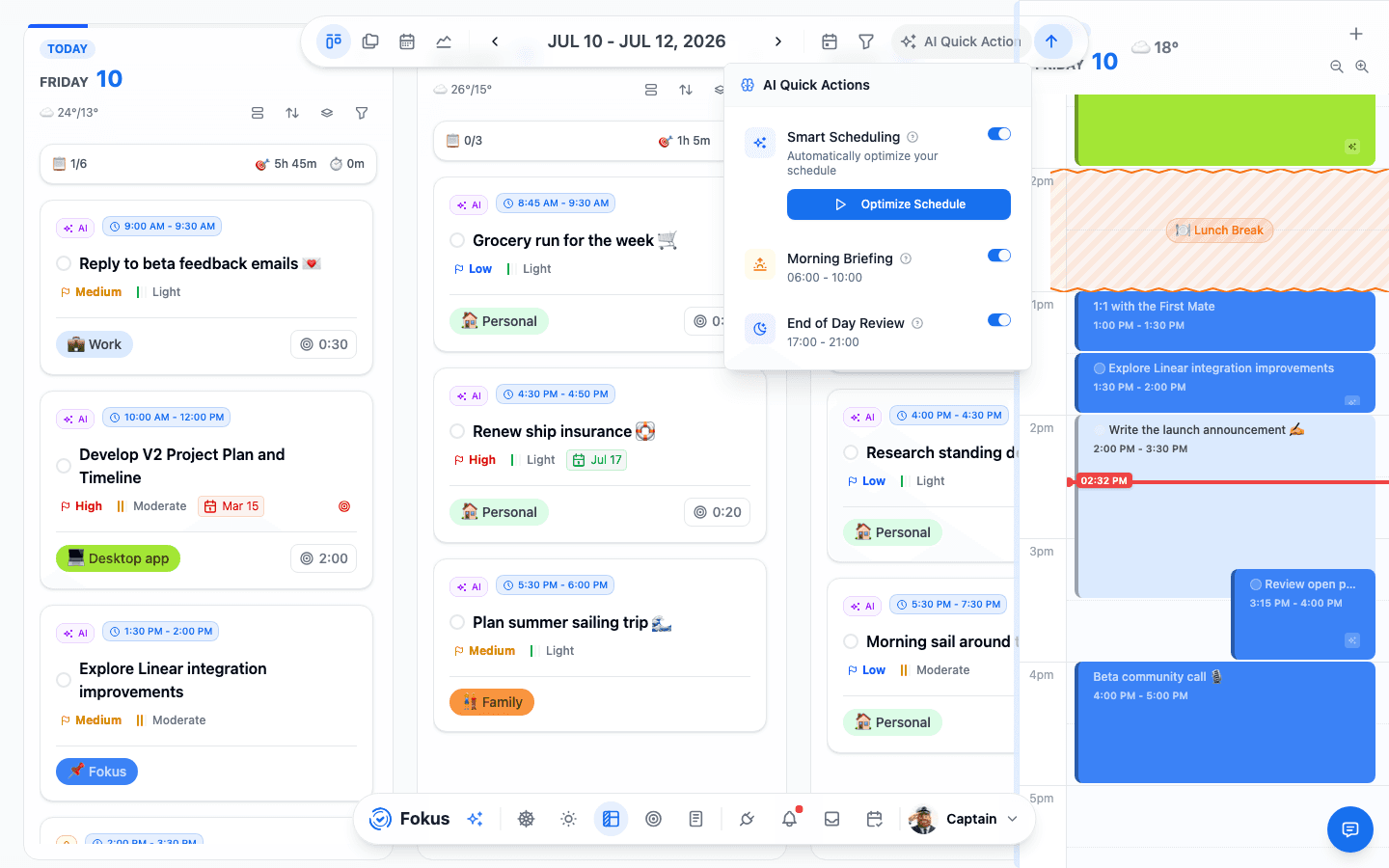
- The Smart Scheduling toggle turns automatic runs on or off.
- Optimize Schedule runs it right now — the "just fix my day" button.
- Below it, the Morning Briefing and End-of-Day Review share the same popover.
When it runs by itself
You rarely need the manual button. The scheduler re-plans automatically when:
- new tasks arrive (created by you, an agent, or an integration),
- conflicts appear — a meeting lands on top of a planned task,
- your external calendar changes — meetings synced in from Google or Outlook (added, moved, or deleted) trigger a re-plan within seconds,
- you finish early — completing a task shrinks its block to the time actually used and the rest of the day compacts forward,
- tasks roll over — yesterday's unfinished work needs a new home today.
How it decides
A constraint solver weighs some twenty rules; the ones you'll feel day to day:
- Meetings win. Tasks flow around calendar events, never over them.
- Working hours and rest hours are sacred — no tasks at lunch, none at 2 AM.
- Peak hours attract demanding work. Tasks marked extensive energy gravitate to the hours you flagged as high-energy; light tasks fill the valleys.
- Deadlines pull. As a due date approaches, its task muscles toward the front. Hard deadlines are non-negotiable; soft ones bend only under real pressure — finishing late costs the plan far more than any convenience.
- Priority breaks ties, and estimated time decides what fits where.
- Blocks reserve and attract. Where you've set up Fokus Blocks, tasks that don't match a block are never scheduled inside it, and matching tasks are pulled in even when an earlier slot is free — spilling into normal free time once the block is full.
Staying in control
The scheduler proposes; you dispose. Every task offers three levels of say-so:
- Pin it — drag a block to a time (or set one manually) and it's locked; the scheduler plans around it. Look for the small padlock.
- Exclude it — flip Auto-Schedule: Included off in the task view and the task keeps its date but never gets auto-placed.
- Exclude a whole bucket — switch Exclude from auto-scheduling on in Settings → Buckets and nothing filed under that bucket is ever auto-placed. The per-area version of the toggle above, for the part of your life you always plan by hand. It does not spread to sub-buckets, so 💼 Work → 🌐 Website carries on being scheduled even when 💼 Work isn't.
- Keep the Reservoir out — undated Reservoir tasks are auto-placed by default; flip on Exclude Reservoir from scheduling in Settings → AI Scheduling to leave them untouched until they get a date.
Long tasks can also be chunked — split into multiple sittings — via the chunking option on the task. With Auto-Chunking on (Settings → AI Scheduling), the enrichment agent pre-chunks new 2-hour-plus tasks into 60-minute parts for you; whatever you set on the task itself always wins.
When a day genuinely doesn't fit everything, the scheduler defers the least urgent tasks instead of overpacking — deferred tasks show a small Deferred badge explaining why, and get replanned as soon as capacity frees up. A task whose hard deadline has already passed is also deferred rather than silently squeezed in somewhere: a hard deadline that's gone by can't be met anymore, so Fokus surfaces the task with a hard deadline passed badge and leaves the decision — reschedule, soften the deadline, or complete it — to you.
Tune how Fokus schedules
Deeper preferences live in Settings → AI Scheduling:
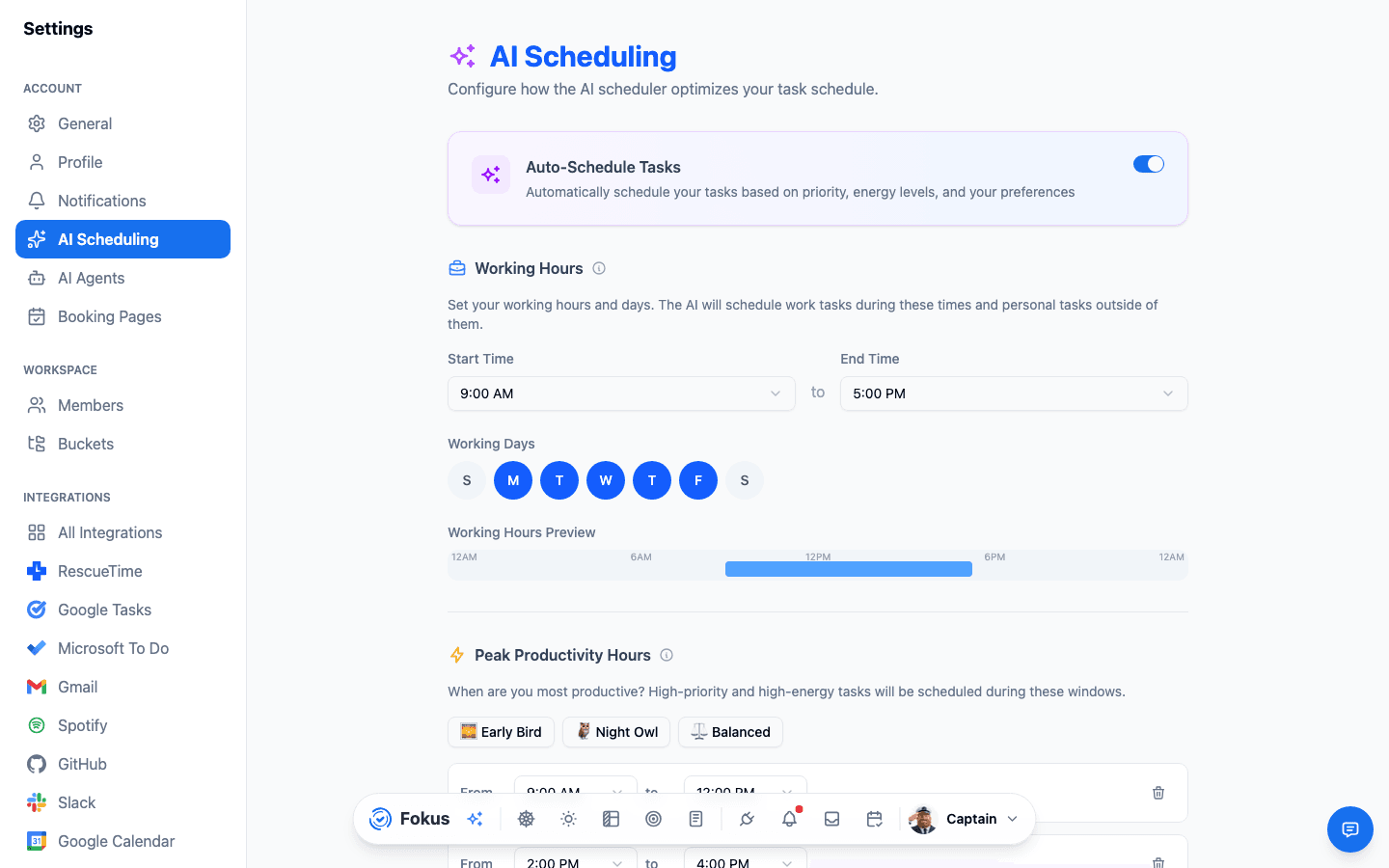
- Working Hours & Days — the outer bounds of any plan. Work the same hours all week, or flip on Different hours each day to give every weekday its own start and end — Monday 9–5, Tuesday 10–3, Wednesday off. A day you don't work is switched off with its own toggle; breaks within a day stay Rest Hours.
- Peak Hours / Rest Hours — your energy map: when deep work should land, and when nothing should (sleep, lunch). Once you've completed enough tasks, Fokus also suggests peak hours from when you actually finish things — apply the suggestion with one click.
- Task Buffer & Recovery Buffer — breathing room between blocks, and a longer break (15 or 30 minutes, your pick) after demanding ones.
- Context-Switch Buffer — off by default; when on, adds a short gap whenever the plan jumps between deep work and light tasks.
- Auto-Chunking — off by default; when on, long new tasks arrive pre-split into parts (per-task chunking settings always win).
- Fokus Blocks — on by default; recurring time reserved for a kind of work, which the solver keeps non-matching tasks out of. Its Show as busy on my calendar sub-toggle stays off unless you turn it on.
- Scheduling Window — how many days ahead Fokus plans (default: a week).
- Rollover — whether unfinished tasks automatically move forward.
- Flexible scheduling — allow slots outside working hours when things genuinely don't fit.
- Exclude Reservoir from scheduling — keep undated backlog tasks as a holding pen instead of auto-placing them.
Time off — vacations & holidays
The scheduler should know when you're not working, too. Set your days off in Settings → AI Scheduling → Vacations & Holidays:
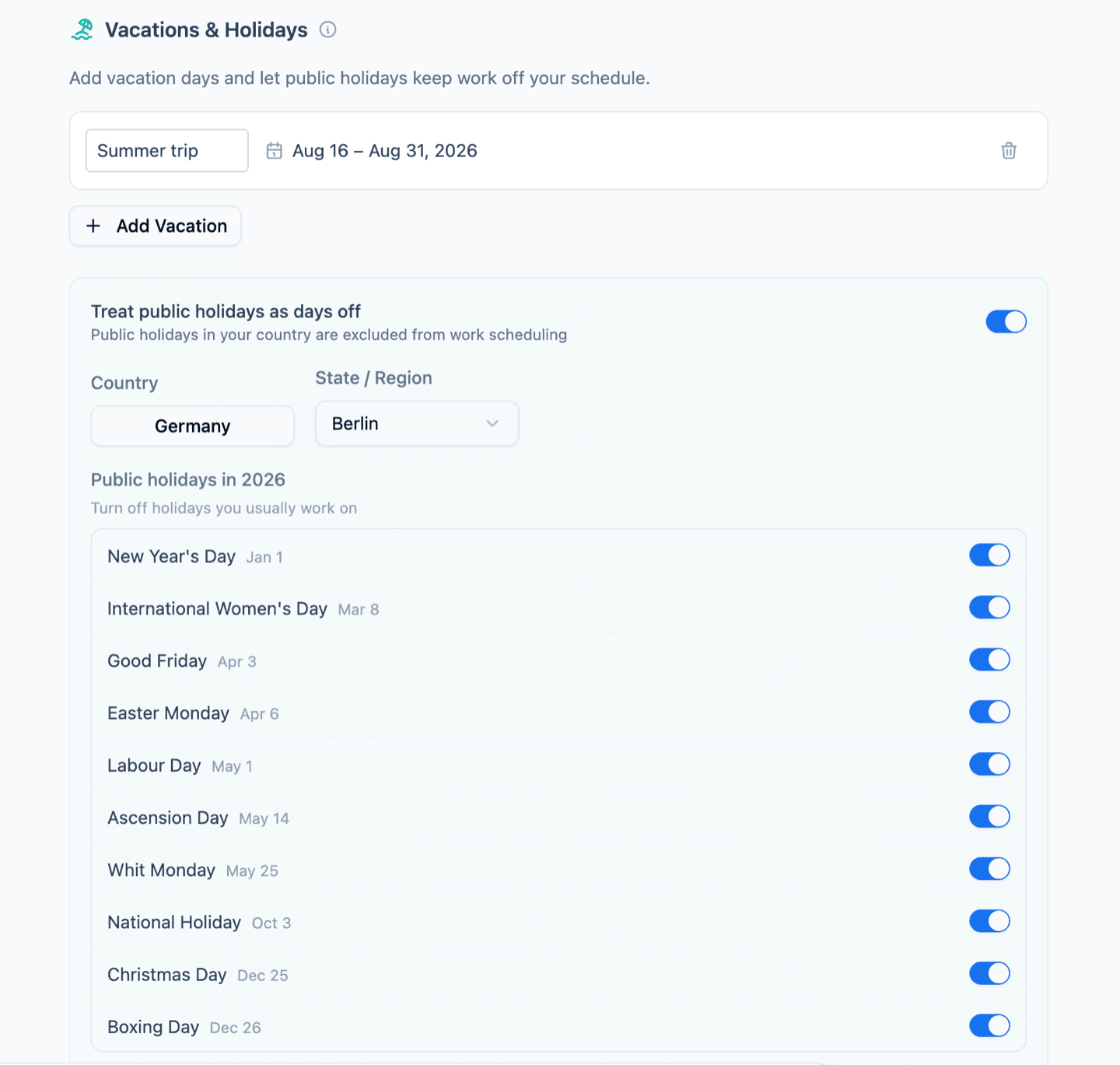
- Vacation days. Add a date range — with an optional label like "Summer trip" — and nothing gets auto-scheduled across it. Add as many as you need.
- Public holidays. Pick your country (and region/state where it matters) and turn on Treat public holidays as days off. Fokus loads that location's public holidays automatically — no typing dates. Observe a different set than the default? Turn off the holidays you usually work on and they stay normal working days.
Work stops, life doesn't
On vacation days and public holidays only work tasks are held back — personal tasks can still be scheduled, exactly like on a weekend. Both your vacations and your holidays also appear as all-day events on your calendar, so the time reads as blocked everywhere in Fokus.
If the schedule looks wrong
Nine times out of ten it's one of: calendar not connected (Fokus can't see your meetings), rest hours covering your afternoon, or estimates so long nothing fits. Fix the input, hit Optimize Schedule, and the plan snaps into shape.
How is this guide?