Voice Agent
Call Captain Fokus like a colleague — ask what's next, reschedule work, capture tasks — and just talk, hands-free, once the call is on.
Paid add-on
The Voice Agent is an optional add-on, billed separately from your plan. During the public beta it's free, and there's no switch for add-ons on your side: it's either already on for your workspace or, if the app says it isn't enabled for this workspace, tell us which add-on you're missing through Support. Once billing is on, you turn it on in Settings → Billing — see During the public beta.
Some moments are wrong for typing: you're making coffee, walking to a meeting, driving, or just thinking better out loud. The Voice Agent puts Captain Fokus on a call — a real, low-latency voice conversation with the assistant that can actually see and change your schedule.
A call, start to finish
Every call starts Hands-free, and the rhythm feels like a phone call with a very organized colleague:
- Call — open the Captain Fokus chat (⌘+K → Ask Captain Fokus) and press the phone button in the header. Grant mic access and you're connected.
- Just talk — the mic stays open and the Captain notices when you start and stop speaking. There's no button to hold and no wake word. The mic button mutes you; tap it again to unmute.
- It answers — the status line walks through Listening… Thinking… Speaking… so you always know whose turn it is, and the level meter shows it's hearing you. Start talking while the Captain speaks and it stops to listen, so you can cut in like on any call.
- Hang up — the red button, like every call since 1876.
Push to talk
Hands-free is the default, but you can decide exactly when the Captain hears you. Under the call buttons, a Hands-free | Push to talk switch changes the mode at any point in the call. In Push to talk, the mic only streams while you hold the mic button (the call says Hold to talk), so background noise and half-thoughts stay private: handy in a noisy café or an open-plan office. Pressing the button while the Captain speaks cuts it off. The app remembers your choice for the next call in that browser or on that phone.
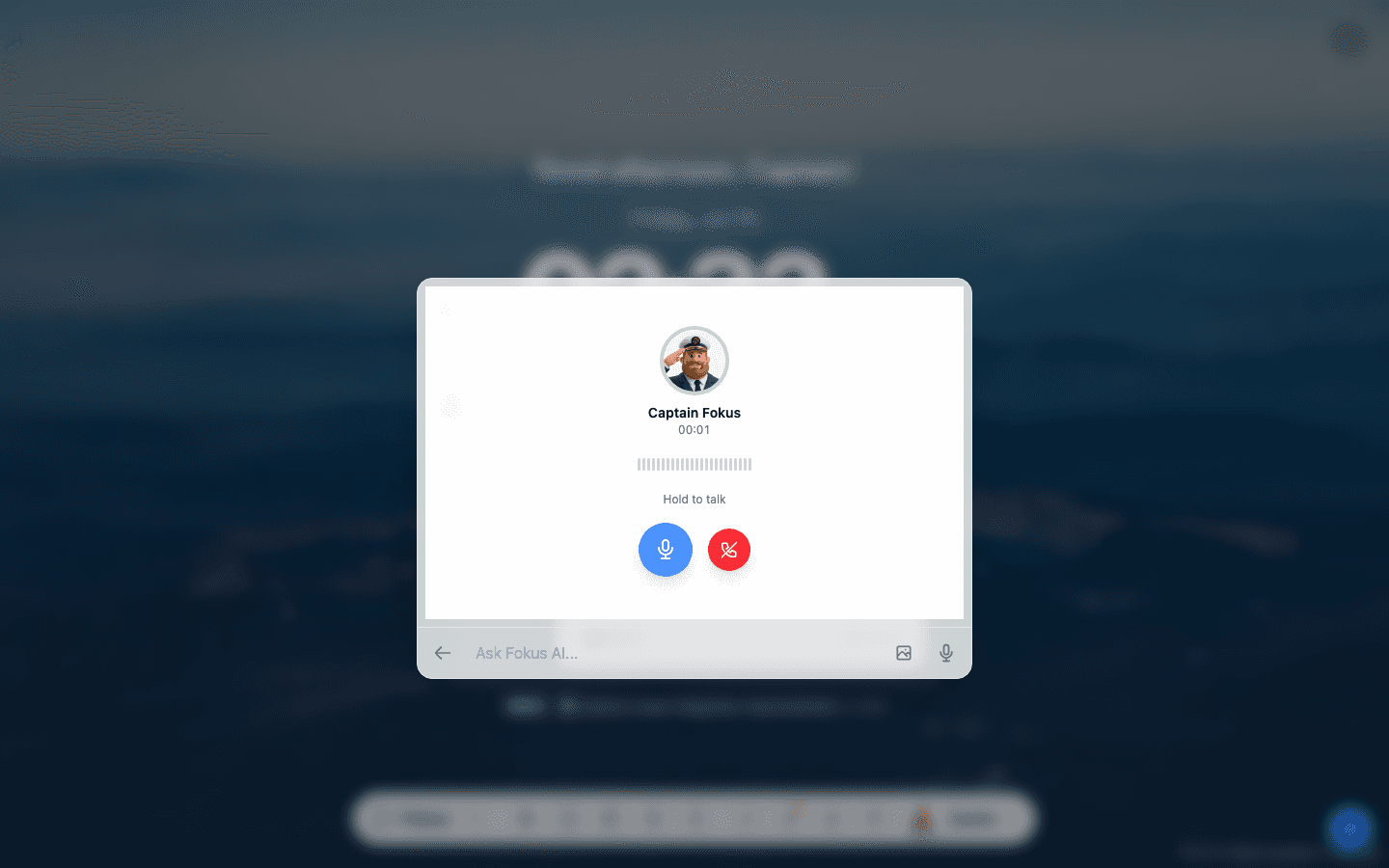
Here's a complete conversation in push-to-talk mode — asking the Captain about today's schedule, out loud:
What to say
Everything the chat can do, the call can do — it's the same Captain with the same access to your workspace:
- "What's on my schedule today?" — a spoken rundown of your real day.
- "Add a task to renew the ship insurance — high priority, due Friday." — created, enriched, and scheduled while you pour the coffee.
- "Move my pull request review to Monday morning." — done, and the calendar reflects it before you hang up.
- "How did this week go?" — your completion stats, out loud.
Changes happen live — tasks created mid-call are already on the board when you get back to the screen.
Practical notes
- On mobile, hands-free means no button to hold — not a speakerphone. The call plays through the earpiece, so hold the phone to your ear like any call, or wear earphones or a Bluetooth headset and the sound goes there. Tap the speaker button in the call controls to switch to the loudspeaker; it stays on for the rest of the session.
- Voice shares the same daily AI budget as chat; the meter in the chat header covers both.
- For quick one-shot voice input, the chat's own mic icon takes a spoken message without starting a call — the call is for back-and-forth.
- Works in the browser and desktop app, and makes the mobile app a genuine walking-meeting companion.
Where to find it
Once the add-on is on, the phone button appears in the Captain Fokus chat header — in the browser, the desktop app, and mobile.
How is this guide?