Booking Pages
One link ends the "when works for you?" email chain — guests pick from your real availability, and the meeting schedules itself.
Paid add-on
Booking Pages is an optional add-on, billed separately from your plan. During the public beta it's free, and there's no switch for add-ons on your side: it's either already on for your workspace or, if the app says it isn't enabled for this workspace, tell us which add-on you're missing through Support. Once billing is on, you turn it on in Settings → Billing — see During the public beta. When it's on for your workspace, the Bookings icon appears in your dock.
Scheduling a meeting by email is a three-day negotiation; a booking page is a link. Guests see only slots that genuinely work — computed from your actual calendar and working hours — pick one, and the meeting lands in your plan with a video link attached. No back-and-forth, no double bookings, no Calendly subscription.
Create your page
Head to Settings → Booking Pages and click New Booking Page:
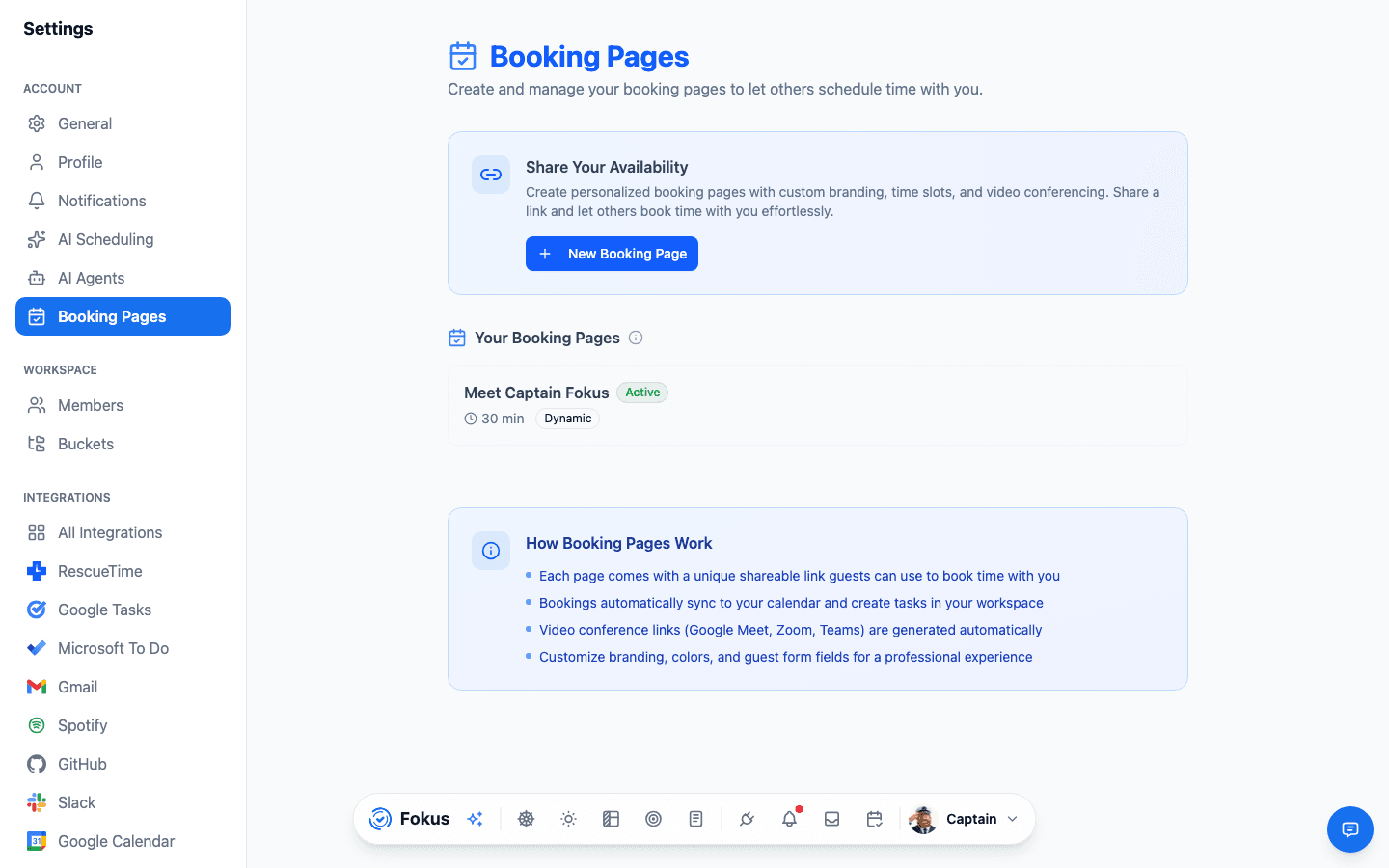
Each page in the list carries its own share kit: copy the link, show a QR code (lovely on a conference badge or slide), open the public page, edit, or delete.
The editor organizes everything into four tabs:
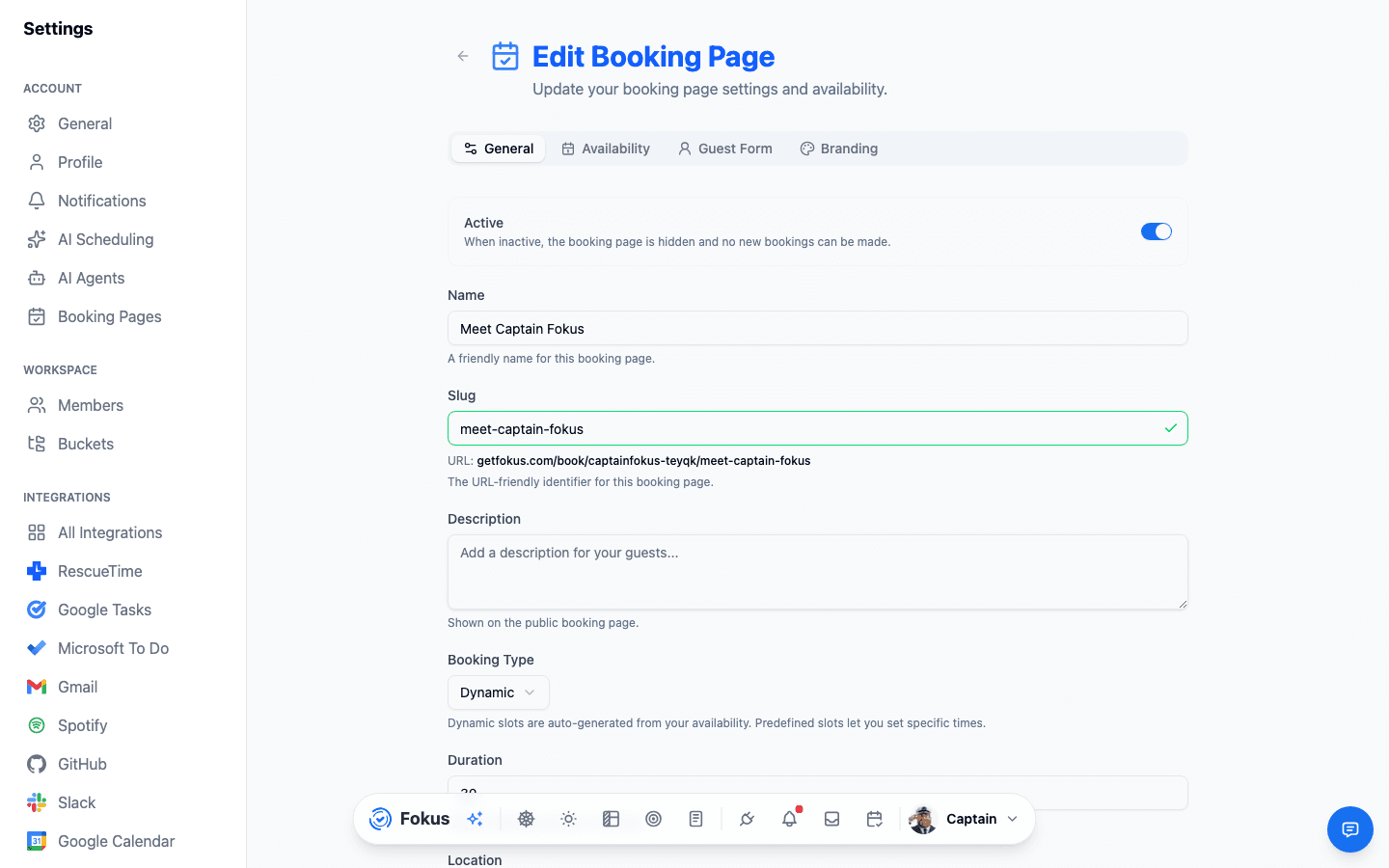
- General — name, URL slug (with a live link preview), description, duration, location, and the booking type: Dynamic slots generated from your real availability, or Predefined fixed times you choose.
- Availability — the days and hours you offer, plus buffers and minimum notice so nobody books your 9:00 at 8:57. Same options as your working hours: one window for the week, or Different hours each day. Leave the hours alone entirely and the page simply follows your working hours, per weekday. Turn on Protect Scheduled Tasks and slots that overlap your planned task blocks aren't offered at all.
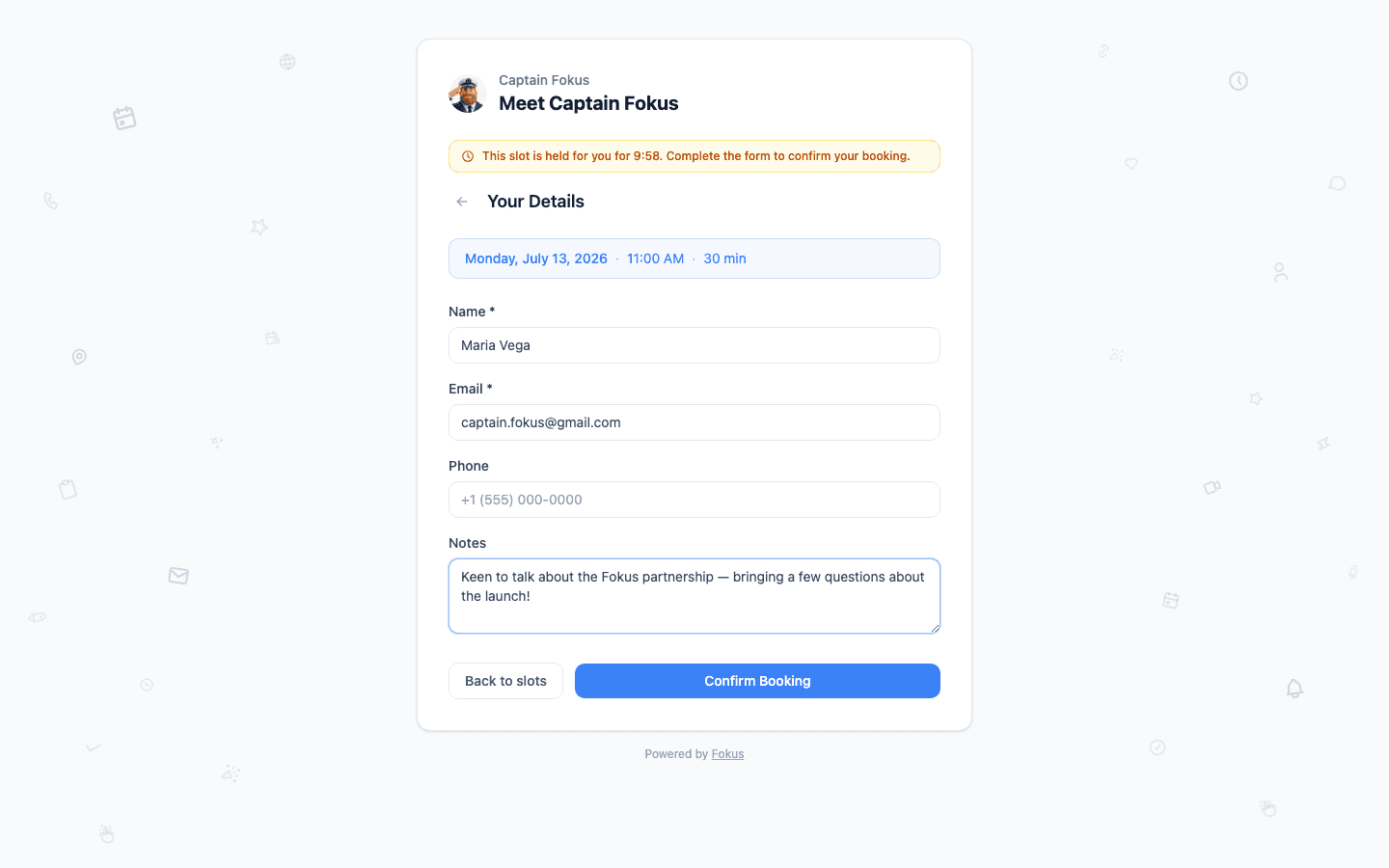
- Guest Form — what you ask for: name and email, plus any custom questions.
- Branding — make the public page look like you.
What blocks a slot
A slot disappears when it overlaps something real:
- Meetings on your calendar — including repeating ones, and an occurrence you moved counts at its new time, not its old one.
- Existing bookings on any of your pages, plus the buffers around them.
- Pinned tasks, and your planned task blocks too if you turned on Protect Scheduled Tasks.
- Rest hours, minimum notice, and the end of your booking window.
- Days off — a vacation from Scheduling preferences, or a public holiday you chose to exclude, closes the page for that whole day.
All-day events are the exception: they mark a day, they don't fill it. A two-week sprint cycle, a birthday, or a full-day reminder leaves your slots open — the same rule auto-scheduling follows, from Settings → Scheduling → Exclude All-Day Events. Turn that setting off and all-day events block booking slots again.
One all-day event that should block
Open the event and switch it to Scheduling on. That single event then blocks its day for both your booking page and auto-scheduling, whatever the global setting says.
What guests see
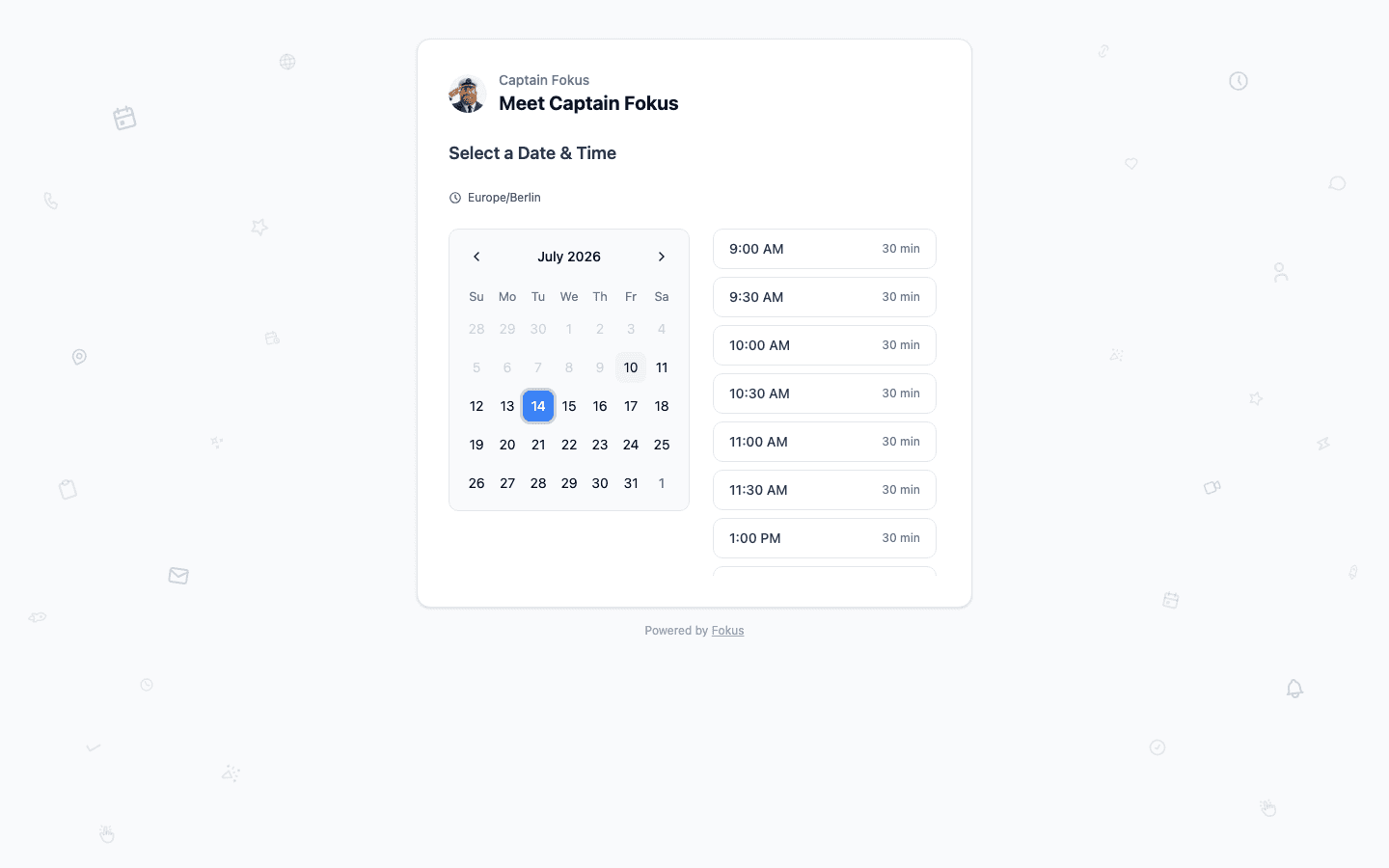
Your page lives at getfokus.com/book/you/your-page — no account needed, and times display in the guest's timezone automatically (the host's timezone is shown for clarity). They pick a day, pick a slot, and fill your form:
One click later, it's done — a confirmation screen with the details and an Add to Calendar button:
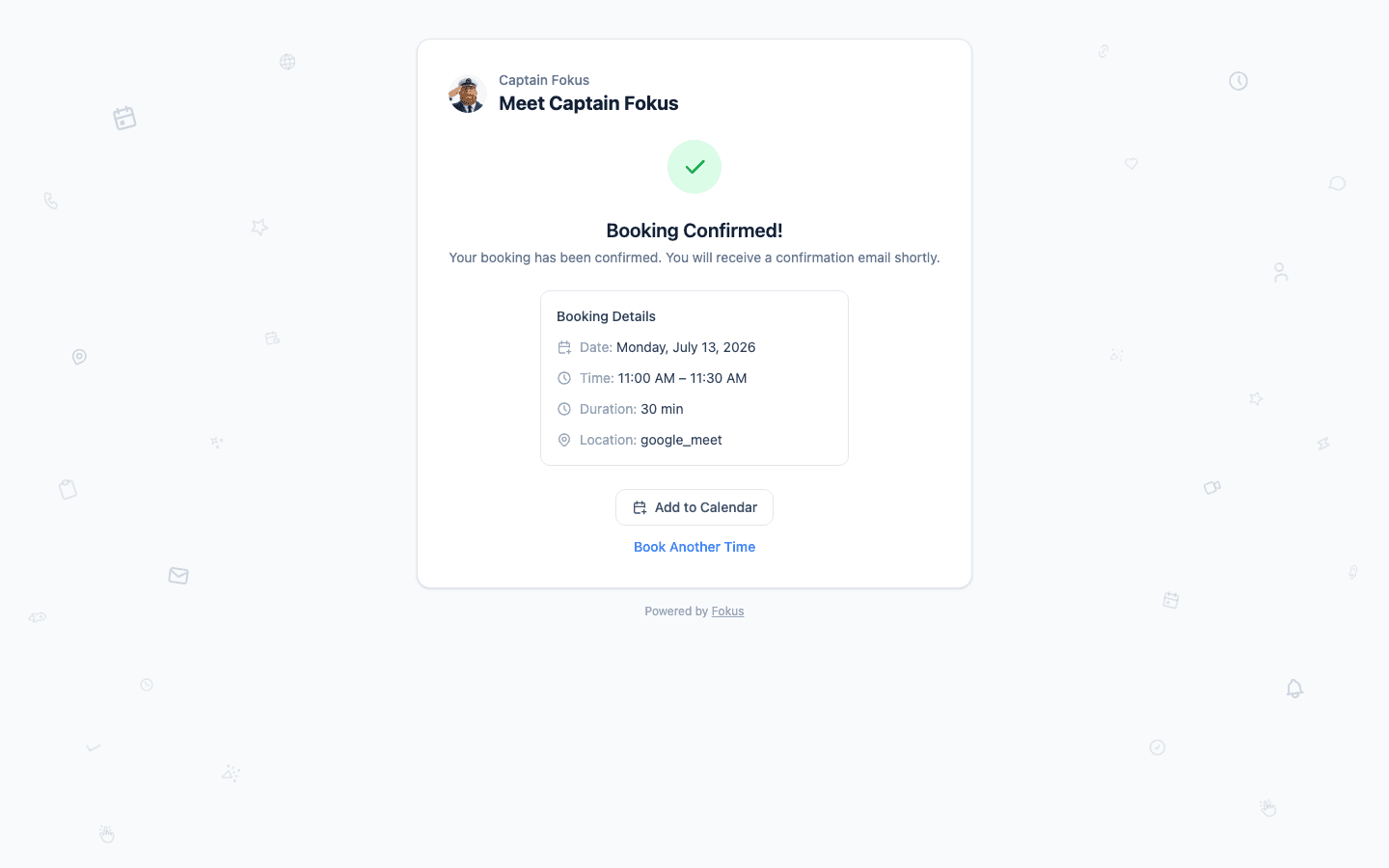
Confirmation emails go out to both of you, with cancel and reschedule links included — so even changes handle themselves.
What happens on your side
- The meeting appears on your Calendar, and auto-scheduling re-plans your tasks around it — your day absorbs the booking without you touching anything.
- With Google Meet, Zoom, or Teams connected, a video link is generated automatically and attached for both sides.
- The booked slot vanishes from the public page instantly — double bookings are structurally impossible.
- The Bookings icon in your dock lists everything upcoming and past, and booking analytics show how your pages perform.
- Captain Fokus handles the quick questions in chat — "who booked me this week?", "send me my intro-call link", or "pause my booking page" while you're heads-down.
The availability is real
This is the quiet superpower: because Fokus already knows your calendar, your working hours, and your planned tasks, booking pages never offer a slot you'd have to fight for. Connect your calendar and the math takes care of itself.
How is this guide?