Meeting Scribe Agent (MSA)
Record meetings without a bot in the room — and get back a note with the summary written, the action items extracted, and every word searchable.
Paid add-on
The Meeting Scribe Agent is an optional add-on, billed separately from your plan. During the public beta it's free, and there's no switch for add-ons on your side: it's either already on for your workspace or, if the app says it isn't enabled for this workspace, tell us which add-on you're missing through Support. Once billing is on, you turn it on in Settings → Billing — see During the public beta.
You know the feeling: great meeting, everyone agreed on everything, and two days later nobody remembers who owned what. The Meeting Scribe Agent (MSA) exists so that never happens again. Record the conversation — no bot joining your call — and a few moments later there's a note in your workspace with the summary written, decisions captured, and action items ready to become tasks.
This is a real meeting, transcribed by Scribe:
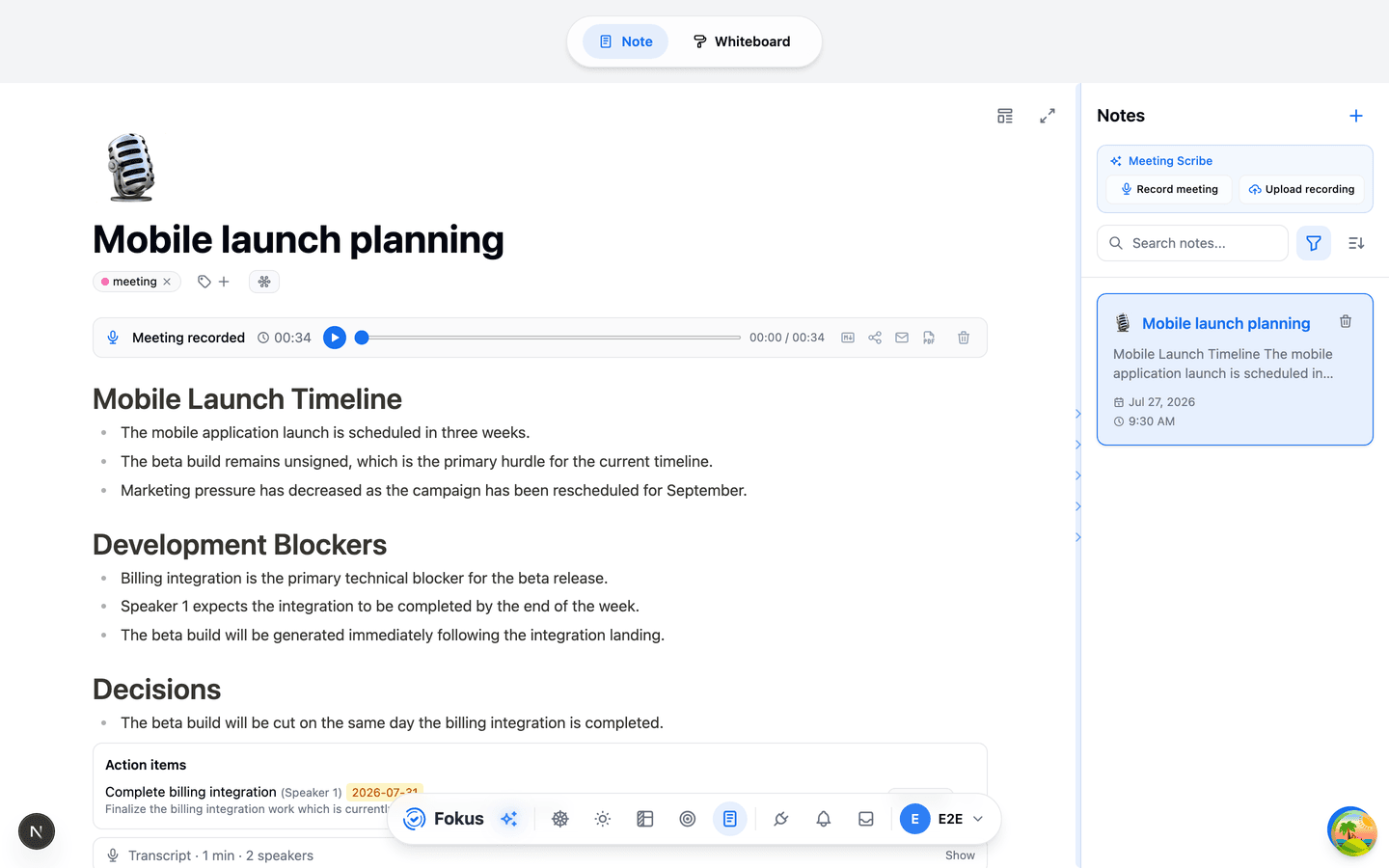
Nobody typed any of that. The topic headings, the bullets, the decisions — all drawn from the audio. The player at the top holds the original recording, so the source of truth is always one click away.
Scribe works in the browser, the desktop app, and on mobile. The differences between them are real but small, and they're all in one table further down.
Three ways to capture
All three live in a Meeting Scribe card at the top of the Notes panel — Record meeting on its own row, with Voice note and Upload audio below it:
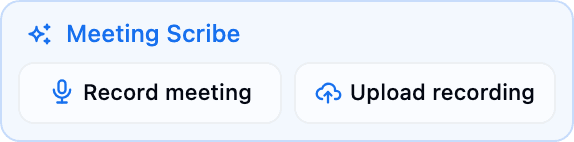
Record live. One click when the meeting starts; that's the whole workflow. No calendar event required — walk into a room, hit record. Calendar events also carry their own Record meeting button, which links the recording to that event automatically and lets Scribe use the attendee list when it works out who's speaking.
Record a voice note. Talk, and get a note. This is the same machinery pointed at a different job — see Voice notes below.
Upload a recording. Already have the audio? Use Upload audio in the same card. Voice memos, exported meeting audio, an interview from your phone — Fokus transcribes it and drafts the same meeting note.
The card only appears once the add-on is on. If you don't see it, that's why.
Voice notes
A meeting has several voices worth telling apart and a summary worth condensing. Dictating a note is the opposite job: one voice, and the words are the point — condensing them by default would throw away the thing you just said. So voice notes run the same pipeline with the speaker machinery switched off, and nothing is shortened unless you ask for it.
What you get is the note you meant to write: Fokus tidies what you said into readable paragraphs — fillers, false starts and repetitions removed, wording and meaning kept — and that becomes the note body. Nothing you said is dropped. Action items are still pulled out, and the word-for-word transcript stays collapsed underneath if you want to check something.
Not the same as talking to Captain Fokus
Dictate to Captain Fokus in the chat transcribes what you say and then acts on it — creating tasks, answering questions. A voice note keeps what you said as a note. Different buttons, different outcomes.
Ask for a summary, and it tags itself
A long note is still a long note. Summarize & tag sits on the recording card of a finished voice note, and pressing it does two things: it writes a line saying what the note is about with a few supporting points under it, and it works out which of your tags the note belongs under and files it there.
It's a button rather than something that happens on its own, on purpose. Most voice notes are short enough that a summary above them is noise, and a tag you didn't ask for is worse than no tag — so nothing happens until you decide this particular note has earned it.
Nothing is replaced. The summary is added above your words; the words underneath, the action items and the word-for-word transcript are all untouched.
For the tags, Fokus looks at the tags you already have and reuses one wherever it fits, rather than coining a near-duplicate — so a note about hiring joins your existing hiring tag instead of starting a second one. It only invents a tag when nothing you have fits. They're ordinary tags: remove any you disagree with by clicking the × on the chip.
On mobile too
The voice-note screen has the same button at the top of its Summary tab, and shows the tags it applied just above the tabs.
Practical differences from a meeting recording:
- Microphone only. No system audio, so the desktop app never asks for screen-capture permission when you start one.
- No speaker labels. There is only you, so there are no speaker chips to assign and no transcript prefixes.
- No calendar event. There is nothing to link, and no attendee list to name anyone from.
- Same allowance. Voice notes draw from the same monthly Scribe minutes as meetings, metered the same way: by how long you recorded.
Voice notes are filed under a voice note tag rather than meeting, so the two stay easy to tell apart in your notes. Anything Summarize & tag works out is added on top of that one — the voice note tag never goes away, so a filter that finds all your voice notes keeps finding them.
Your own notes, blended into the summary
Typing during a meeting is not the same as recording it, and Fokus keeps both. Every meeting note opens with a My notes area under the recording card:
- What you type inside it is blended into the AI summary. The summary is written from the transcript and your notes together, so a point you thought was important gets weight even if it was said in passing — and your spelling of a name or a figure wins over whatever the transcription heard.
- What you type outside it is not. Anything elsewhere in the note is yours alone and never reaches the summarizer.
What that boundary does and doesn't mean
The My notes area decides what goes into the meeting summary. It is not a privacy setting: like every note in Fokus, the whole thing is still searchable and can still be used as context when you ask Captain Fokus about your work.
Nothing is required — leave it empty and the summary is written from the transcript exactly as before.
While the meeting is running
The transcript fills in while you're still talking. On the desktop app and on iPhone the audio streams to Fokus as you speak, so lines land a second or two behind the room. In a browser and on Android it uploads in chunks instead, each transcribed the moment it lands — the first line usually within about half a minute.
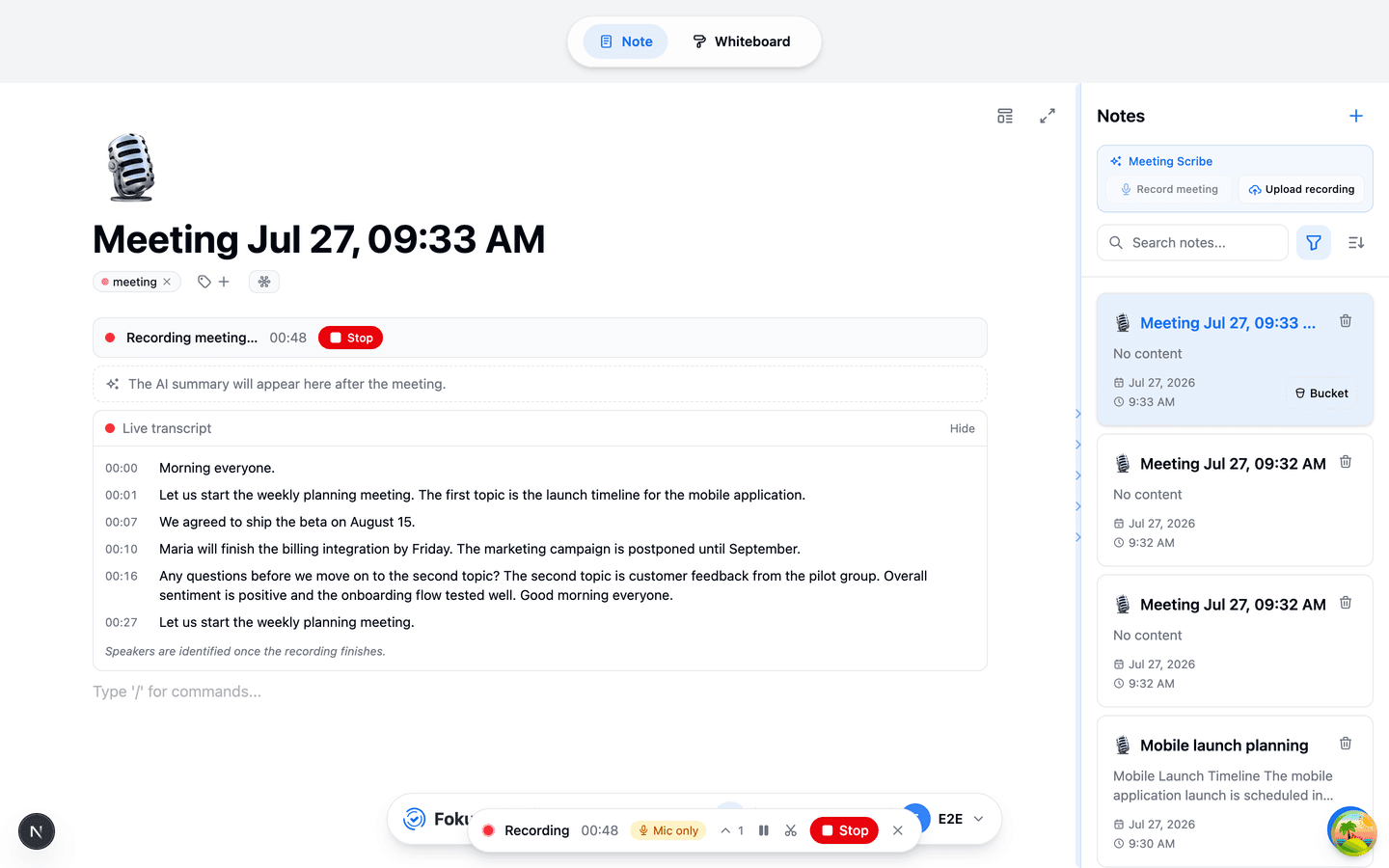
A recording pill follows you around the app, so you can go answer an email without losing the controls:

From left to right, that's the elapsed time, a Mic only badge when system audio isn't being captured, and then:
Expand
The chevron opens the transcript so far, right in the pill, and follows along as new lines land. It stays collapsed by default — an hour-long meeting is hundreds of lines, and there's no reason to stream them all unless you're looking. Scroll up to read something earlier and it stops chasing the bottom until you come back.
Link a calendar event
Only shown when you started the recording by hand — from the tray, or from the "are you in a meeting?" prompt — so there's no event attached yet. It lists the events around now; pick one and Scribe files the note against it, names the note after that event when the meeting ends, and uses the invitee list to work out who was speaking. Worth doing at any point before you stop.
Screenshot
Desktop only. Saves a picture of your screen into the meeting note, captioned with the time it was taken — for the slide, the diagram, or the number someone put up for four seconds. It uses the screen capture the recording already has, so there's no prompt and nothing to pick.
Pause
Speak off the record. Nothing is captured while paused, and paused time doesn't count toward your Scribe minutes.
Split
End this meeting and start the next. Back-to-back calls become two separate notes without touching the recorder in between.
Stop
Ends the recording and hands it over for the summary.
Forgot to press stop? After five minutes of silence Scribe stops on its own and keeps everything up to that point. An empty room won't quietly burn through your minutes overnight.
If Fokus stops hearing you
Microphones get taken away mid-meeting: a headset is unplugged, another app grabs the mic, a phone call comes in. The recording would carry on capturing nothing, so Scribe watches for it. When nothing has come through for about ten seconds — or straight away if the microphone disappears — the recording bar turns red with Fokus can't hear anything and a Reconnect mic button. On the desktop app the floating recorder shows the same warning. Reconnecting keeps the same meeting going; nothing recorded so far is lost.
- It tries once by itself. While the warning is up, plugging a headset back in or switching inputs reconnects on its own in the browser and the desktop app. On mobile, coming back to Fokus after a call does the same.
- Your phone tells you. If the Fokus app is in the background when it stops hearing you, a notification says so. And on a recording that streams live to Fokus, if audio still hasn't arrived two minutes later, a push notification reaches your phone — even if the app was closed.
- Nothing the recording kept is lost. On the desktop app and your phone the live transcript comes over a separate stream from the audio file being saved. If that stream lost the audio while the recording carried on, Fokus transcribes the saved recording when the meeting ends and uses that transcript instead — it counts toward your Scribe minutes only for the part the live stream missed.
- Noise-cancelling microphones (Krisp, NVIDIA Broadcast, some headsets) go completely silent between words. Once Fokus notices that, it waits a few minutes rather than ten seconds before warning you, so a pause in the conversation doesn't set it off.
Rough live captions
Ahead of the real transcript you'll see faint live captions — a rough running draft, replaced by the proper text as it's confirmed. Nothing about them is saved.
In the desktop app they come from Fokus's own transcription, running a moment ahead of the lines it has committed to.
In a browser your browser does the recognising. Where it can recognise speech on the device itself, the captions never leave your machine. Where it can't, your browser's own speech service does the recognition, which means the microphone stream goes to your browser vendor for the length of the recording. Hover the … marker to see which of the two is running.
The transcript Fokus stores always comes from Fokus's own transcription, on every platform.
In the desktop app
The desktop app is the one to use for online meetings, because it captures system audio as well as your microphone. That's why no bot has to join, and why it works with any meeting tool — Zoom, Meet, Teams, a phone on speaker.
It also means the two sides of the conversation arrive on separate channels, so you and them are read straight off the microphone rather than guessed at — and stay that way for the whole meeting. This applies to every desktop recording that picks up system audio, including ones you start by hand with no calendar event attached. On a group call, the far side arrives pre-mixed by the meeting app; Fokus splits it into separate voices where it can, and otherwise labels everyone on that side as Them for you to sort out afterwards.
The floating recorder
Meetings happen in someone else's window. The moment Fokus stops being the app you're in, the recorder detaches into a small always-on-top bar with the same controls:

It appears whenever Fokus isn't the app in front — minimised, hidden, or just sitting on your second monitor while you work elsewhere. The pill inside the app steps aside while it's up, so you only ever see one set of controls. It follows you onto full-screen spaces and never steals focus. Drag it anywhere — it remembers where you put it. Closing it does not end the meeting; the recording belongs to the app, not the bar. The last button reopens the main window.
The live transcript panel
The chevron grows the bar into a transcript panel that scrolls along with the conversation, labelled You and Them:
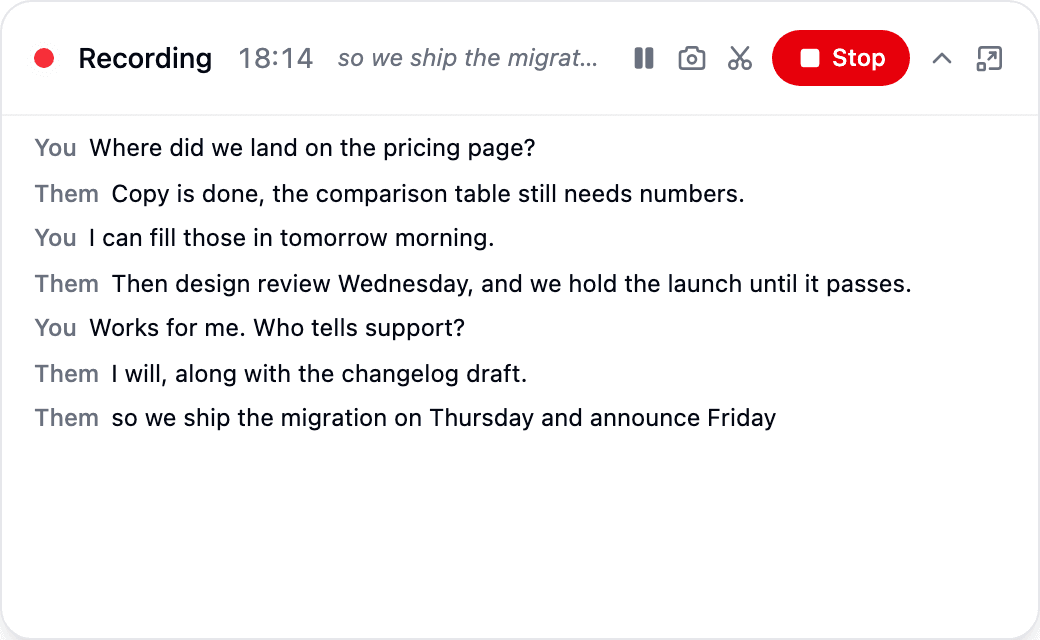
A one-line bar only has room for a few words, which is no use when you want to check what was just said. Scroll up to read something earlier and it stops chasing the bottom until you scroll back down. The bar reopens the way you left it, so if you work with the transcript open it stays open next meeting.
"Are you in a meeting?"
The meetings that get lost are the unplanned ones — the "hop on for five minutes" call that was never on anyone's calendar. So the desktop app watches for sustained microphone use and offers:
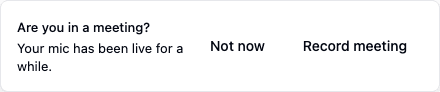
The signal is deliberately dumb: something is using your microphone. That catches every meeting app without Fokus needing to know they exist. Dictating a message or a quick sound check won't trigger it — the mic has to stay live for a while first. Ignoring the prompt is a valid answer, and Not now stays quiet for the next half hour rather than asking again during the same call.
Where it appears depends on where you are. If Fokus is in front, it's the toast above. If it isn't — which is the usual case, since you're in a call with the meeting window on top — it comes through as a system notification instead, where you'll actually see it. Click it, or its Record button, and Fokus comes forward and starts recording. If you've turned Fokus notifications off, the prompt stays quiet rather than appearing somewhere you can't see it.
macOS only, for now
Call detection is available on macOS. The floating recorder works on every desktop platform.
On mobile
The same two buttons sit at the top of Notes:
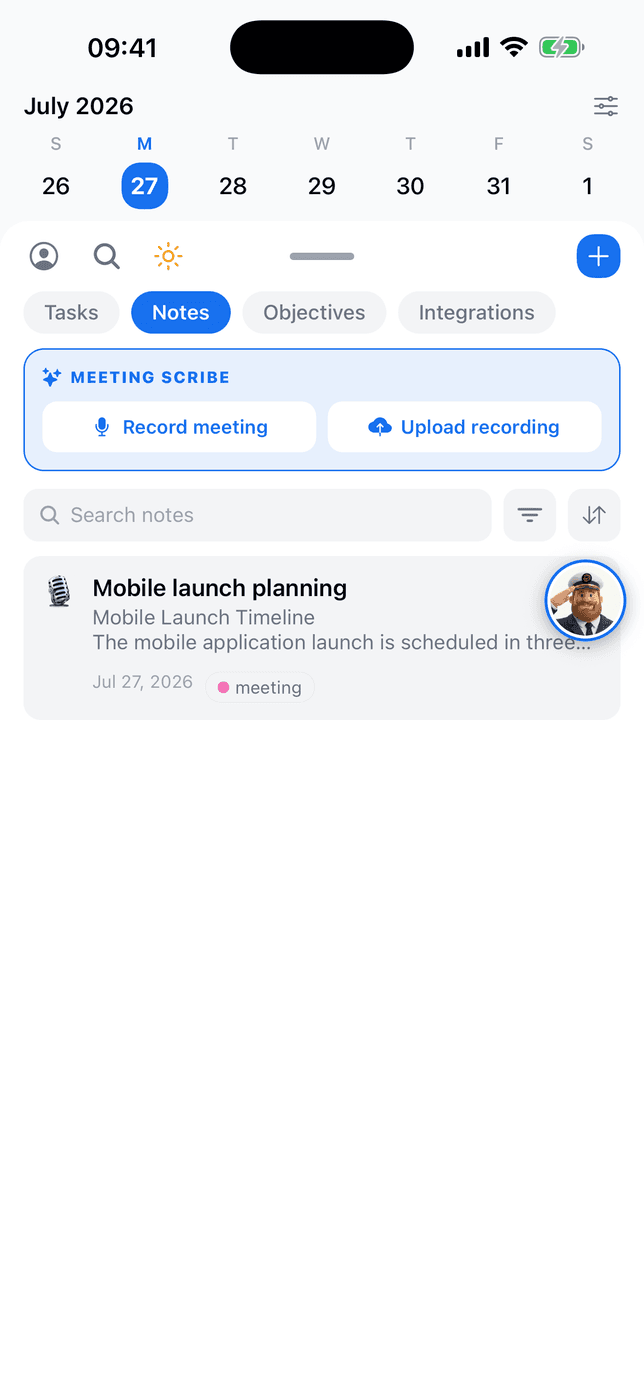
Tap Record meeting and the recorder takes over the screen: a level meter, the elapsed time, and the transcript building underneath as each chunk comes back.
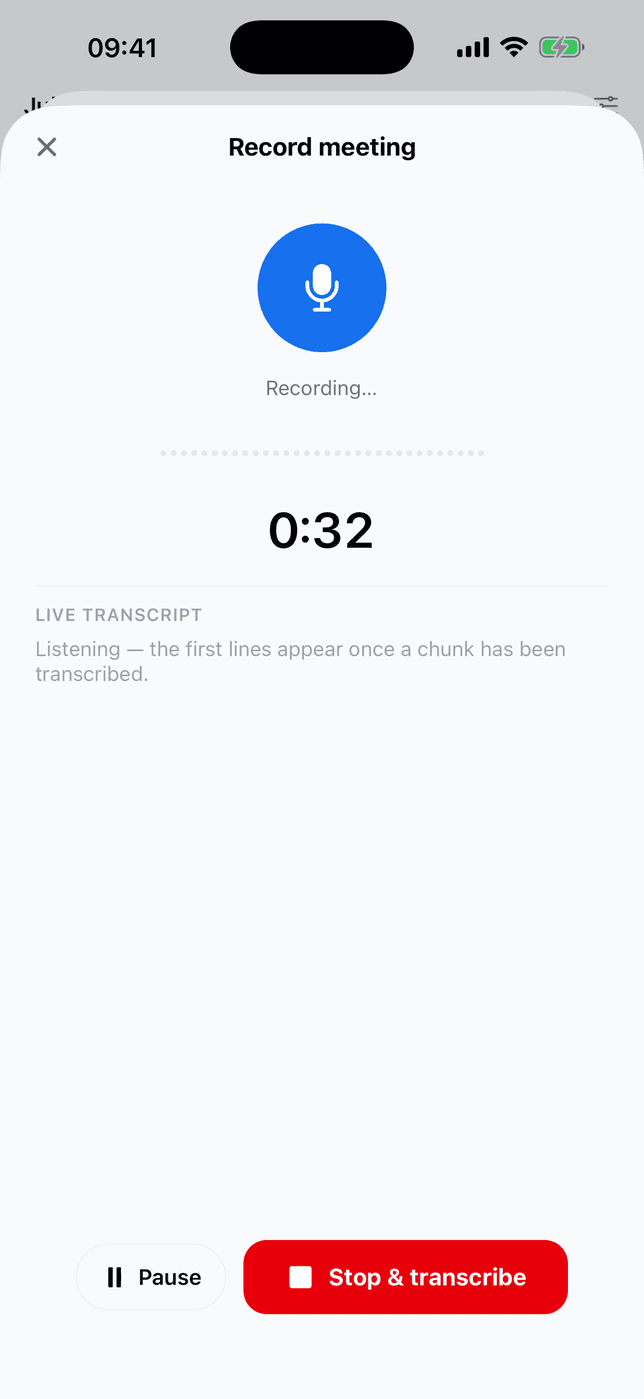
On iPhone the audio streams to Fokus as you speak, so lines land a second or two behind the room, the same as on the desktop app.
On Android the recording is uploaded in parts instead, a little more patiently than the web — the first part closes after about 20 seconds, then 40, then a minute — which keeps the first line quick without spending your battery and data on rotation for a two-hour meeting. Streaming needs to hold the microphone while your phone is locked, which Android only allows the recorder we already use for those parts.
A few things worth knowing:
- Recording survives a locked screen and the app going to the background. Put the phone face-down on the table and it keeps going.
- Link it to an event while you're recording, from the pill on the record screen — no need to decide up front.
- Pause works the same as everywhere else. Splitting a recording in two is web and desktop only.
- Voice notes work here too — the card offers Voice note beside Meeting Scribe, and on iPhone the words appear as you dictate. The My notes area is web and desktop only for now; on mobile a meeting note opens read-only, so it will show what you typed elsewhere but not let you add to it.
- Rough captions appear ahead of the transcript as you speak — from Fokus's own transcription on iPhone, and recognised on the device itself on newer Android phones. Older Android phones simply wait for the first part, and the record screen says so above the transcript rather than leaving you watching an empty panel. Either way the saved transcript comes from Fokus's own transcription.
Afterwards: the meeting note
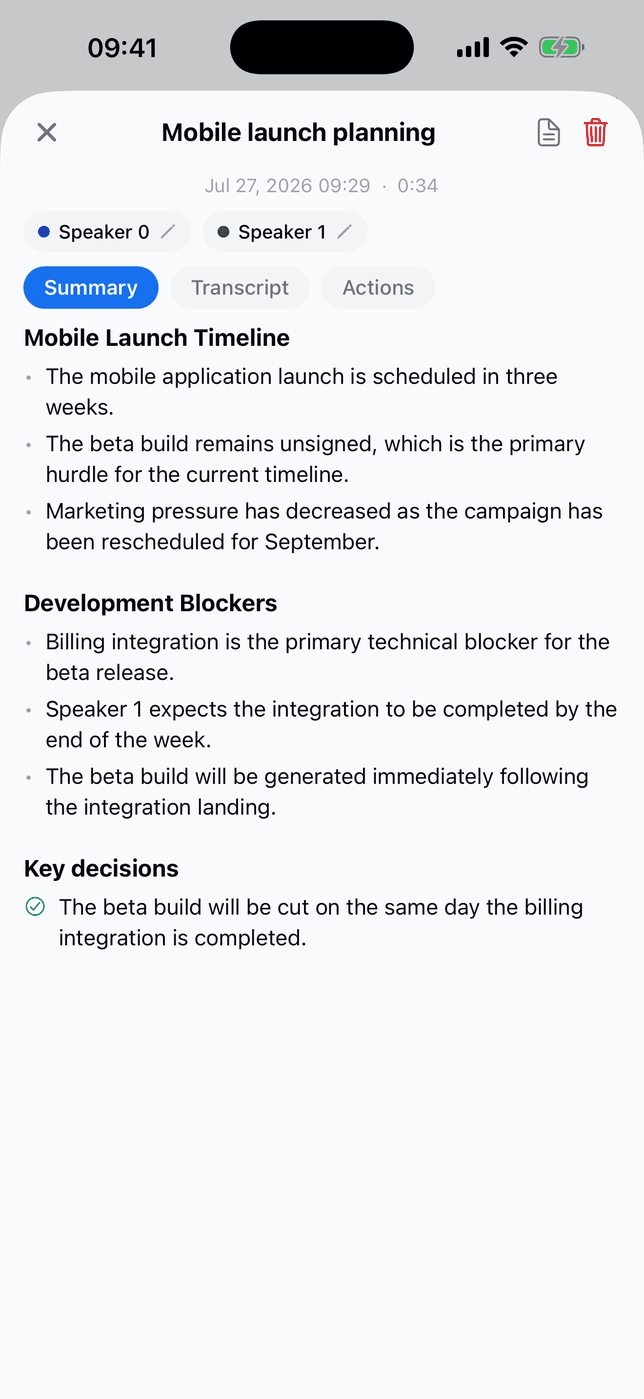
When you stop, Scribe re-reads the whole recording in one pass, then writes the note: a summary organised into the topics that were actually discussed, the decisions, and the action items. It's the same meeting on every device — three tabs on mobile, one scrolling note on the web:
The note gets its name here too. A recording has to be called something the moment it starts, before anyone knows what it will be about — so it begins life as a timestamp, like Meeting Sep 21, 02:30 PM. Once the summary lands, Fokus renames it to what it was actually about, with the date after it: the calendar event when there is one (Design review — Sep 21), otherwise the topic it found in the conversation (Pricing page redesign — Sep 21). Voice notes are named the same way, from what you dictated. Named it yourself — when you started it, or by renaming the note while it ran? Then yours is kept.
If the summary couldn't be written, the note says so and offers Retry summary — in the summary's place in the note, as the ↻ icon on the recording bar, and in the Summary tab on mobile. It rewrites the summary from the transcript already stored, in the background; the summary appears in the note when it's ready, usually within a minute or two. Only the person who recorded the meeting sees the button.
A recording nobody stopped — the app was closed or the device went offline for good — is finished by Fokus once it has heard nothing from the device for ten minutes. Everything it received is kept, the note is marked Incomplete recording, and its length runs to the last audio that arrived, since part of the meeting may be missing.
Why the final transcript looks better than the live one
The live transcript is assembled chunk by chunk, so each piece is analysed without knowing about the others. Once the meeting ends, Fokus transcribes the complete recording in a single pass and replaces the provisional text. That's what keeps speakers consistent from the first minute to the last on microphone-only recordings — and why a line can change slightly between what you saw live and what you keep.
Action items that actually get done
Here's where Scribe stops being a transcription tool and starts being a Fokus feature. Every commitment made in the meeting comes back as a structured action item — with the owner, the deadline they said out loud, and an Add task button:
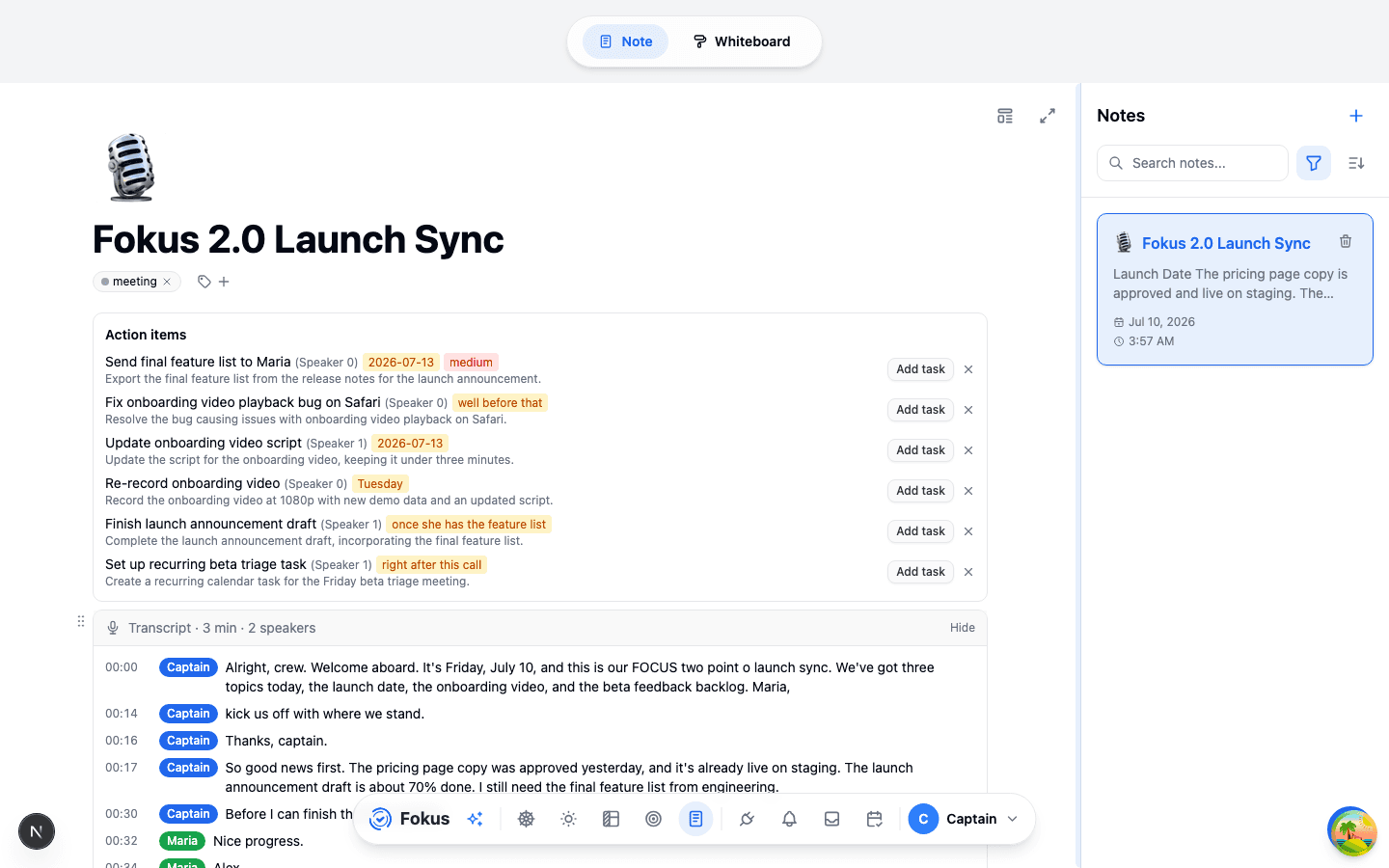
Click Add task and the item enters your real plan — TEA fills in the details, auto-scheduling finds it a slot. "Maria will update the script by Monday" goes from a sentence in a meeting to a scheduled block on Maria's Monday, in two clicks. Items that don't belong get an ✕.
The same list is on mobile, with the same two buttons:
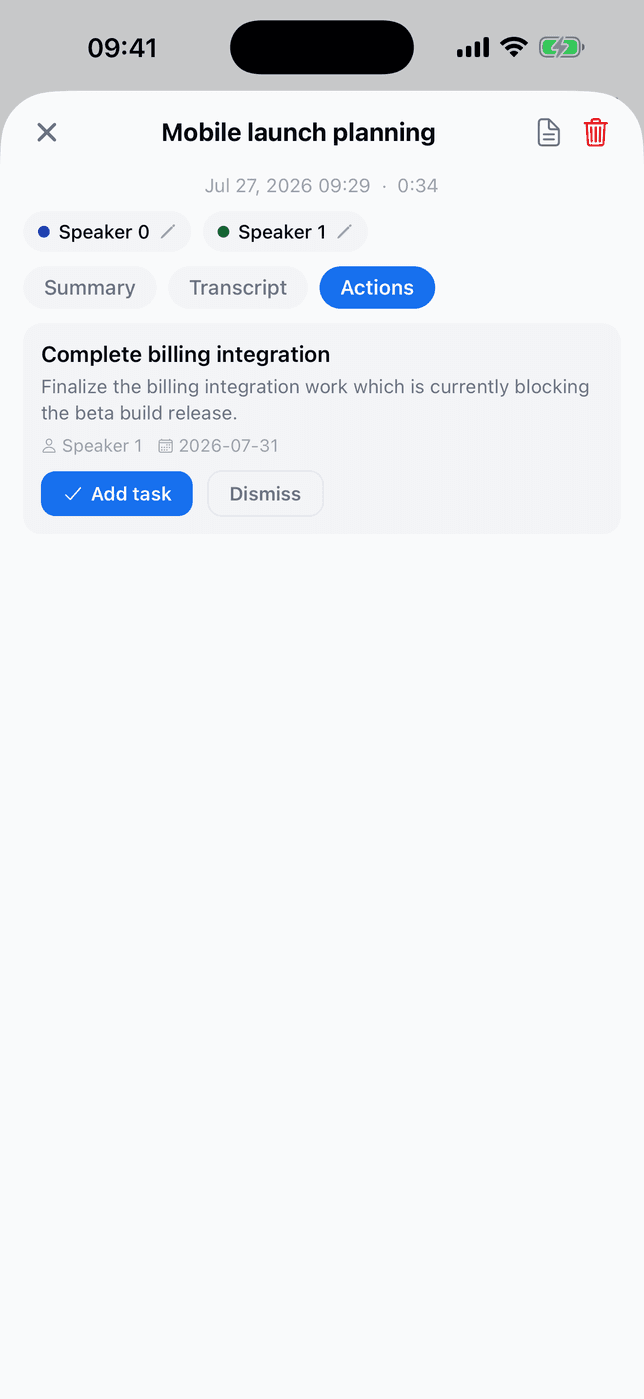
You don't even have to open the note: ask Captain Fokus "what were the action items from my last meeting?" and accept or dismiss them right in chat — "accept the second one" creates the task on the spot. The Captain can read full transcripts too, when a summary isn't enough.
The transcript underneath
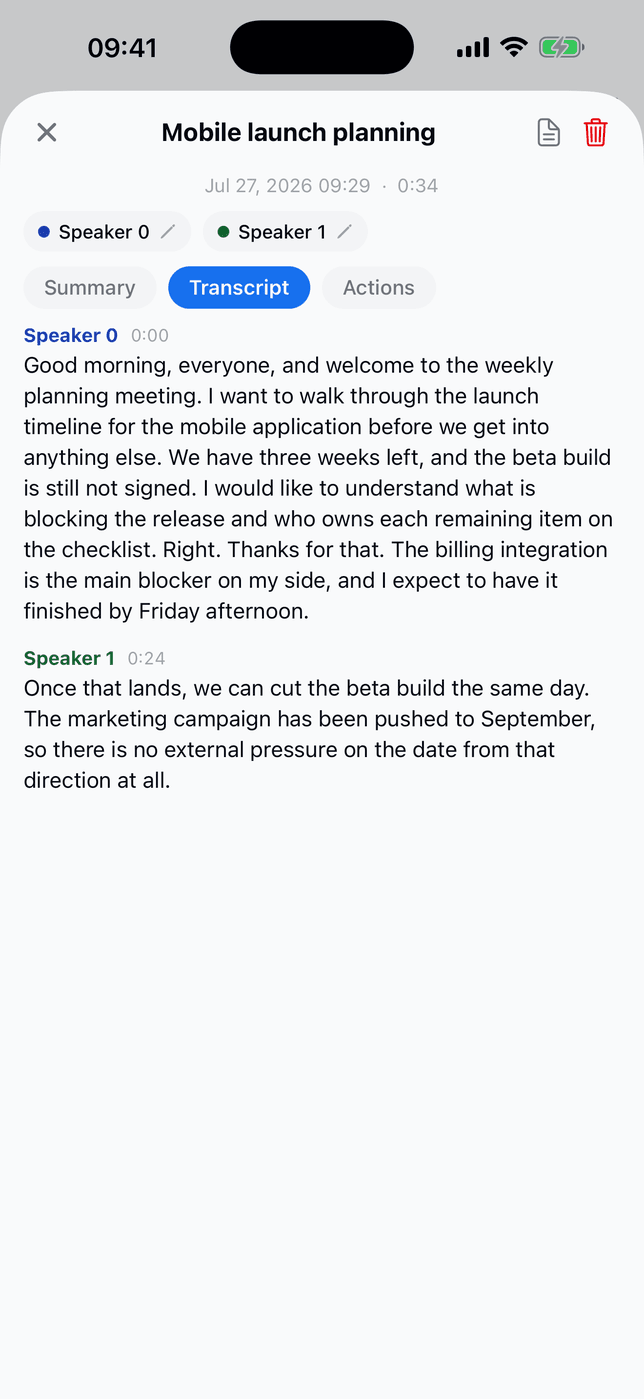
- Timestamped and speaker-labeled — "Transcript · 3 min · 2 speakers", with each line attributed and clickable. Speaker labels are worked out when the recording finishes, so the live transcript shows timestamps and text only.
- Name the voices once. Tap an unknown speaker and say who it is — search your people, pick an invitee from the calendar event, choose This is me, or just type a new name — and the whole transcript updates. Action items follow: an owner the summary recorded as "Speaker 2" starts reading as the real person the moment you name them.
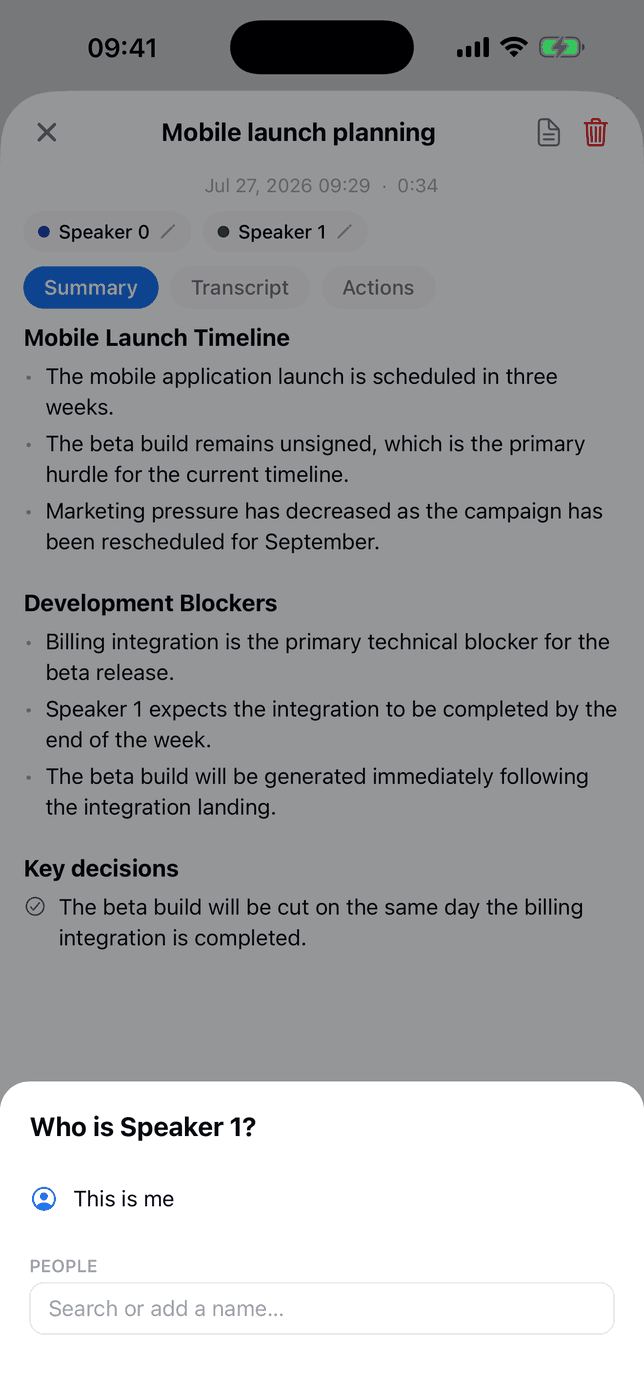
- Fix a line that's attributed to the wrong person. Speaker detection is very good on the desktop app's two channels and only a guess anywhere else, so it does get lines wrong. Click the speaker chip on any line and choose Wrong speaker? to move just that line — or move all of that speaker's lines at once when a whole voice has been mislabelled from the start.
- It remembers. Name someone in a recurring meeting and Scribe reuses that the next time the same people are in the room. Desktop recordings of a one-to-one usually don't need naming at all — with the two sides on separate channels, Fokus can work out who's who by itself.
- Listen from any line. Playback jumps the audio to the exact moment someone said the thing.
- It's a note, so it's searchable from Spotlight, taggable, and editable like everything else. Pair it with the Meeting notes template for agendas on top, evidence below.
Getting it out of Fokus
The recording bar in the meeting note carries everything you can do with a finished meeting — on the web and in the desktop app:

Markdown or PDF
Download the whole meeting — summary, decisions, action items, and full transcript — as a file. Markdown for anywhere that takes text; PDF for a laid-out document with a Fokus header and footer on every page.
A follow-up email, drafted
Connect Gmail or Outlook and Fokus writes the recap into a draft addressed to the attendees. It lands in your drafts, not in their inboxes — you read it before anyone else does.
Straight into Slack or Teams
Post the recap to a channel, the same way the daily briefing does. You get a preview of the exact message before anything is sent.
Who gets a follow-up draft, and when
The draft email button needs nothing but a connected Gmail or Outlook account — Meeting Scribe on its own is enough, and it works for a walk-up meeting with no invitees. Having Fokus draft one automatically after every meeting is a feature of the Email Assistant add-on, and needs invitees on the event.
With one mailbox connected, Fokus drafts straight away and tells you which address it used. With more than one, it asks first — so a follow-up never quietly lands in the wrong Drafts folder.
Either way, drafting has its own daily AI allowance — separate from Captain Fokus's, and shared with the Email Assistant when you have it. If it runs out, the button tells you so and comes back after the daily reset.
PDFs and non-Latin scripts
Arabic exports properly — the letters join and the text sits right-aligned. Two things to know: a line that mixes Arabic with Latin words or numbers keeps them in typed order rather than reading order, and Chinese, Japanese and Korean aren't covered yet and come out as empty boxes.
For either of those, use the Markdown export — it's plain UTF-8 and keeps everything exactly as it was.
Getting the words right
Two settings decide how accurate the transcript is, and both live under Meeting Scribe in Settings → AI Agents Crew:
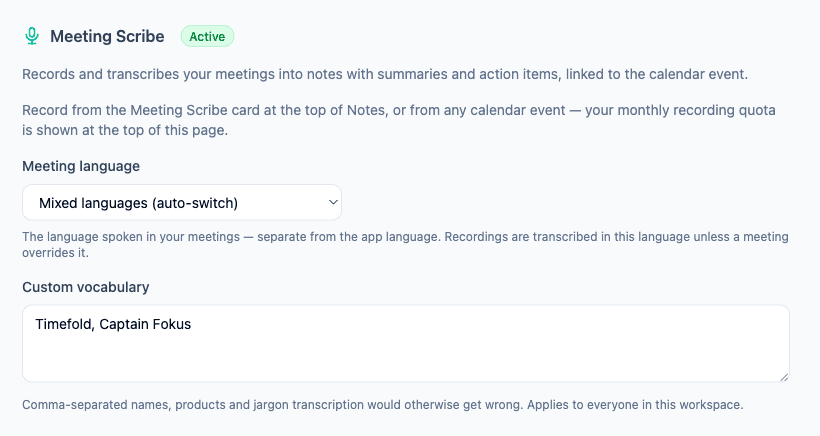
Meeting language. The language people actually speak in your meetings, which is often not the language you use the app in. Pick it. Leaving it on Mixed languages lets Scribe switch mid-sentence, which is the right answer for genuinely multilingual teams — but if your meetings are always in German, saying so produces a noticeably cleaner transcript than auto-detection does.
Custom vocabulary. A comma-separated list of the names, products and jargon a general-purpose transcriber would mangle — internal project names, an unusual surname, the library nobody outside your team has heard of. It applies to everyone in the workspace.
The usage meter at the top of the same page shows how many of the workspace's monthly Scribe minutes are gone, and when it resets.
Mobile has the same meeting-language setting, plus a switch for whether the transcript appears while you record. Both live under Account → Meeting scribe:
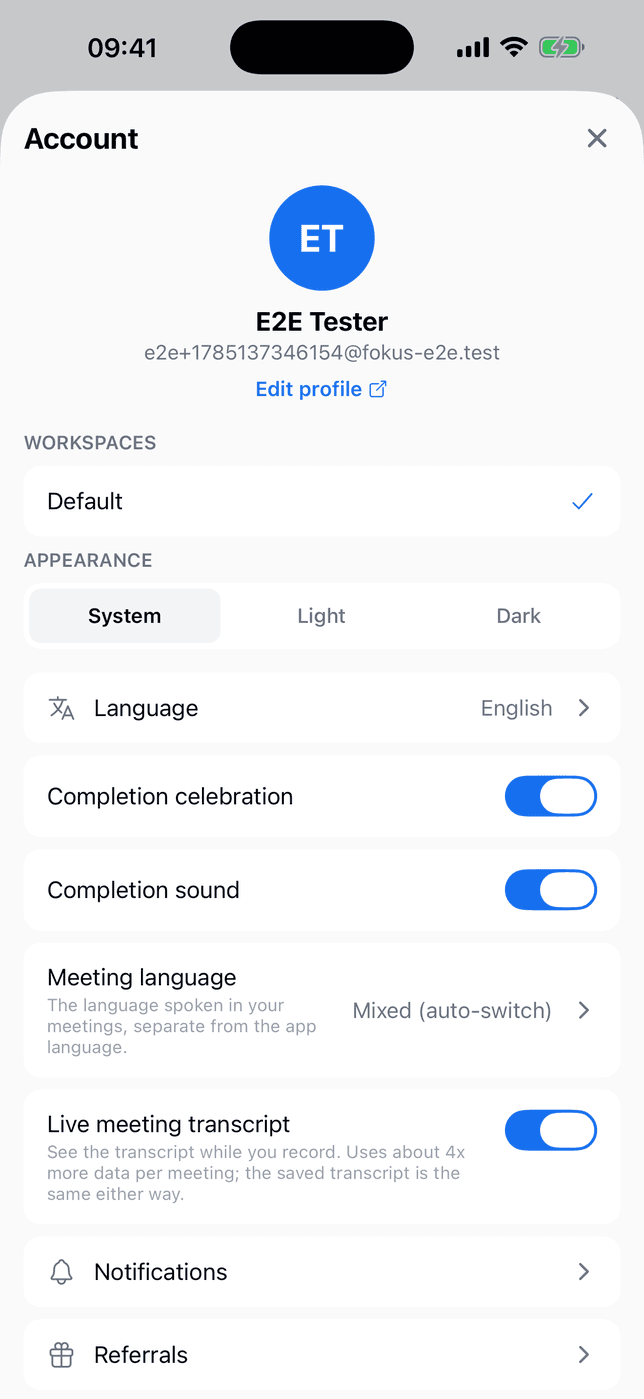
Turning Live meeting transcript off doesn't change what you keep — the saved transcript is identical either way. It just stops the phone fetching it during the meeting, which is the one to reach for on a metered connection.
What changes between web, desktop, and mobile
| Browser | Desktop app | Mobile | |
|---|---|---|---|
| What gets recorded | Your microphone | System audio + your microphone | Your microphone |
| Best for | In-person meetings | Online meetings (Zoom, Meet, Teams…) | In-person, on the move |
| Speaker labels | Worked out when the recording finishes | you / them, separated by channel | Worked out when the recording finishes |
| Names filled in for you | — | Yes, in one-to-one meetings | — |
| Correct a mislabelled line | ✓ | ✓ | — |
| Record a voice note | ✓ | ✓ | ✓ |
| Summarize & tag a voice note | ✓ | ✓ | ✓ |
| My notes blended into the summary | ✓ | ✓ | read-only |
| Start a recording | ✓ | ✓ | ✓ |
| Upload an existing file | ✓ | ✓ | ✓ |
| Live transcript while recording | ✓ (~30s chunks) | ✓ (~30s chunks) | ✓ (20s → 40s → 60s), switchable |
| Rough live captions | ✓ browser speech recognition | — | ✓ on-device, newer phones |
| "Are you in a meeting?" prompt | — | ✓ system notification | — |
| Pause and resume | ✓ | ✓ | ✓ |
| Split into two meetings | ✓ | ✓ | — |
| Auto-stop after 5 min of silence | ✓ | ✓ | ✓ |
| Warns when the microphone goes silent, Reconnect mic | ✓ | ✓ also in the floating recorder | ✓ plus a notification in the background |
| Retry a failed summary | ✓ | ✓ | ✓ |
| Keeps recording when you look away | Tab must stay open | ✓ including minimised | ✓ including a locked screen |
| Floating recorder window | — | ✓ whenever Fokus isn't in front | — |
| Live transcript in the floating bar | — | ✓ | — |
| Screenshot into the meeting note | — | ✓ | — |
| Meeting time in the menu bar / tray | — | ✓ | — |
| "Are you in a meeting?" prompt | — | ✓ macOS | — |
| Link a recording to a calendar event | ✓ | ✓ | ✓ |
| Assign and rename speakers | ✓ | ✓ | ✓ |
| Export Markdown / PDF | ✓ | ✓ | — |
| Draft a follow-up email | ✓ | ✓ | — |
| Share to Slack / Teams | ✓ | ✓ | — |
| Delete a recording | ✓ | ✓ | ✓ |
The desktop app runs the same interface as the browser, so anything in the Browser column is there too — the Desktop column is what it adds on top.
Deleting a recording
One action removes everything: hit the trash icon on the recording bar inside the meeting note (or in the meeting screen header on mobile), confirm, and the recording, transcript, audio, and the meeting note are deleted together. Deleting the meeting note itself does the same cleanup — no orphaned recordings either way.
Practical notes
- Scribe time is metered monthly per workspace — Settings → AI Agents Crew shows what's left. Paused time isn't counted. The allowance resets on the 1st of the month (UTC).
- When the monthly allowance runs out, the Scribe card in the notes side panel says so and names the reset date, and the record actions are unavailable until then. If the allowance runs out during a recording, the recording keeps going and the audio is still saved — transcription is what stops, and the recording bar says so rather than leaving you to notice the transcript went quiet.
- Recording is offline-tolerant: chunks upload as they're captured and retry on their own, so a flaky connection doesn't lose the meeting — and neither does a crash, since everything already uploaded is kept.
- Keep-audio is optional — if you'd rather store only the transcript, the audio can be discarded after processing.
- Everyone in the room should know they're being recorded. That's basic courtesy in most places and the law in some of them.
Where it runs
Once the add-on is on, recording and uploading both work everywhere — browser, desktop app, and mobile. Only the desktop app can capture system audio, so that's the one to use for online meetings; everywhere else records the microphone, which is what in-person meetings need.
How is this guide?