End-of-Day Review
Close the day knowing what got done, what didn't, and what tomorrow looks like.
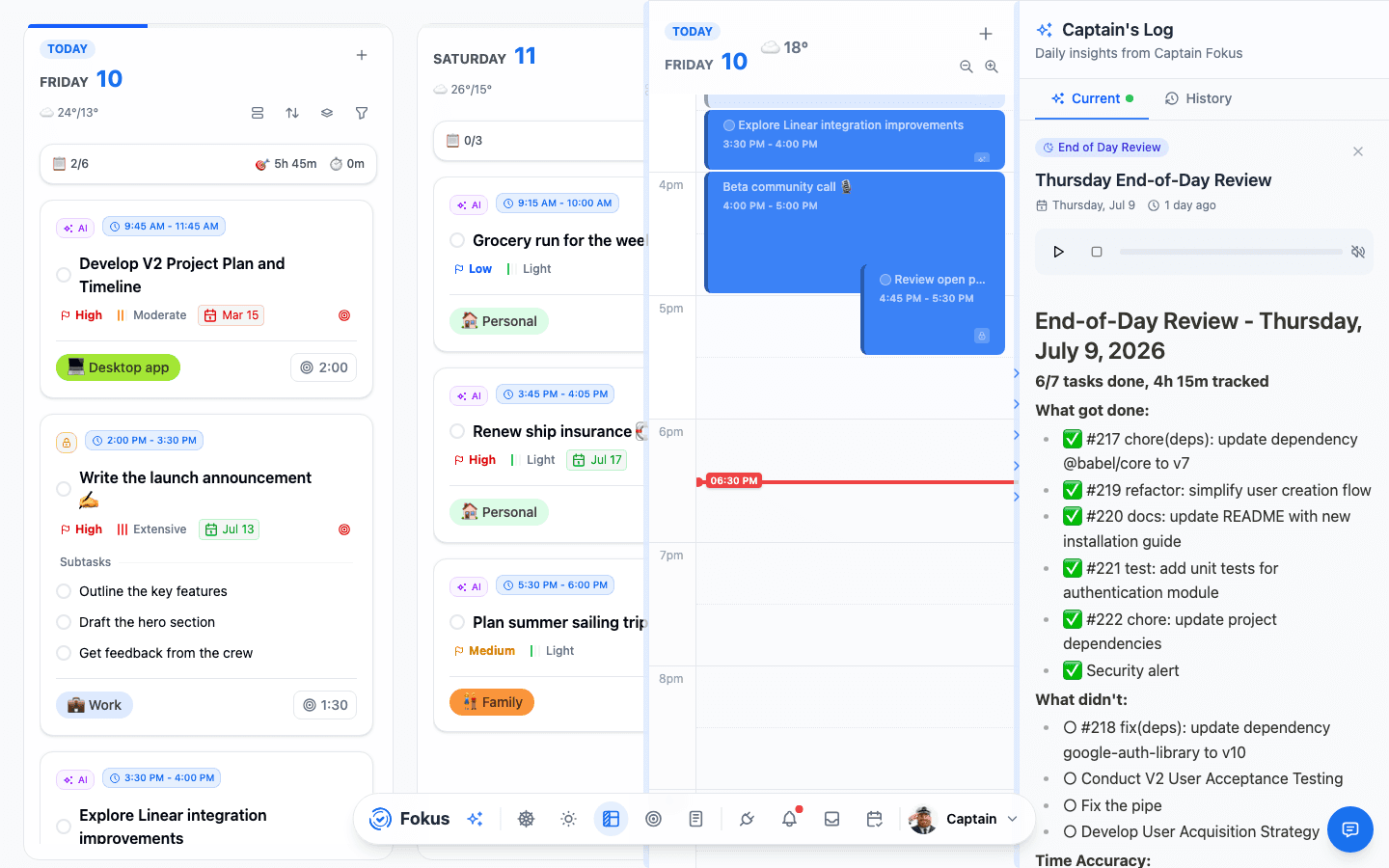
The End-of-Day Review is the evening counterpart to the Morning Briefing: Captain Fokus tallies what you finished, what slipped, how honest your time estimates were, and what's waiting tomorrow — so you can actually stop thinking about work when you stop working.
How you get it
Same rhythm as the briefing: your evening window opens (default 17:00–21:00) with a nudge to close the day out, and the review is written when that window closes — late enough that the last hours of work count. In the browser or the desktop app you can have it sooner: Generate Review in the AI Quick Actions popover, which shows only during your evening window and only until today's review exists. The phone has no such button: it opens the most recent review, it doesn't write one. Once today's is written, the moon button above the panel opens it, and you can listen to it there; to get it sooner, ask Captain Fokus for it in the chat. Past reviews live in the Captain's Log (Ctrl+⇧+I) under History.
If you planned the day, the review measures it against what you actually committed to that morning — the hours you booked, and whether the day went the way you decided it would.
Close out the day
When the evening window is open, Close out the day opens a single screen built for a one-minute routine: see how today went, decide what's unfinished, glance at tomorrow, close.
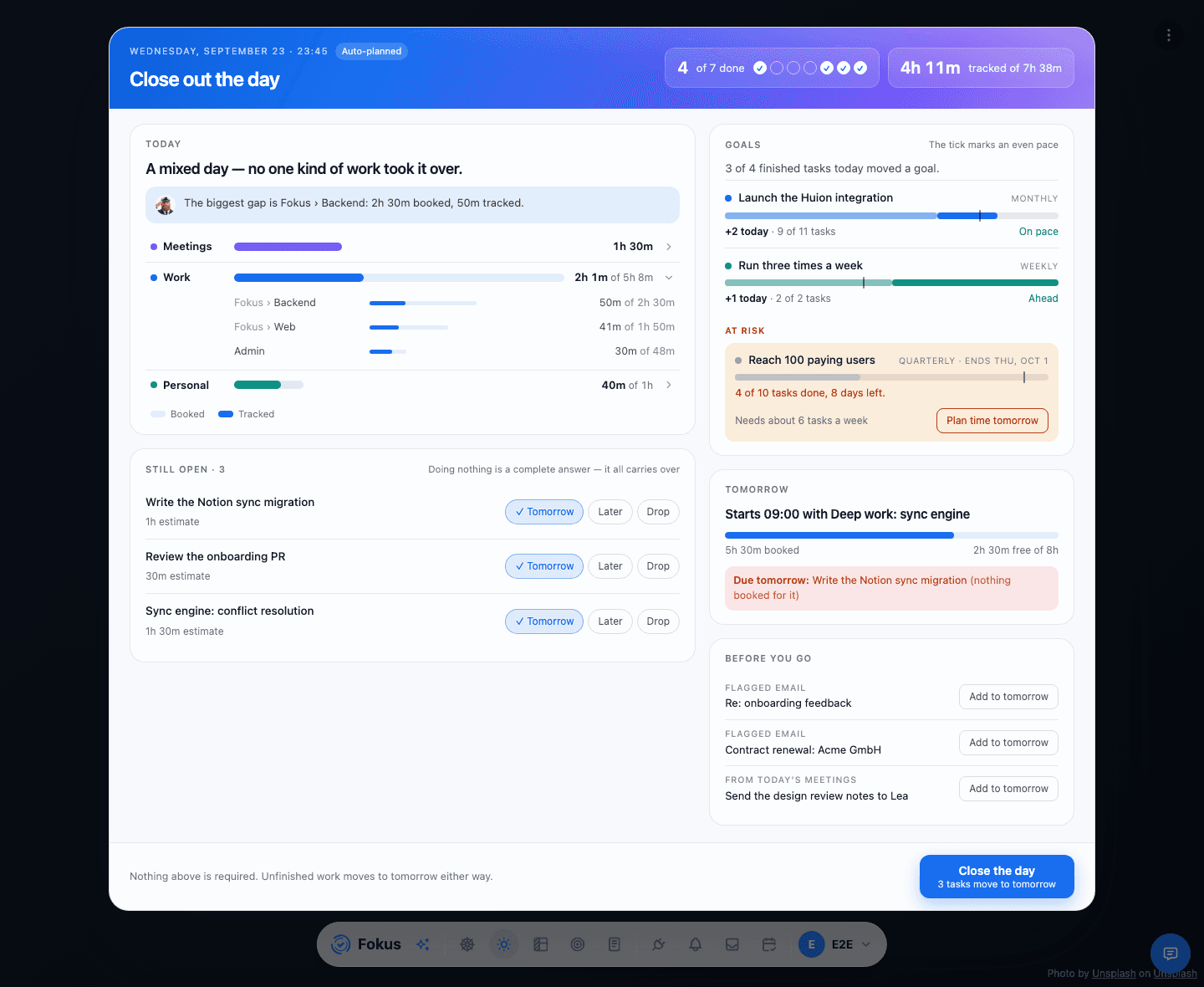
- Today — one sentence on where the time went, then one bar each for Meetings, Work and Personal: the pale bar is what you booked, the solid bar what you tracked. Click a group to see it bucket by bucket (sub-buckets show as Parent › Child). Tasks count as Personal when their bucket is a personal bucket; all-day events are never counted as meetings, and a meeting still ahead tonight shows as later, not as time spent. Captain Fokus adds one remark — often the bucket where plan and day parted furthest.
- Goals — the objectives today's finished tasks moved, with a tick on each bar marking where an even pace would put you by now. Goals that are clearly behind the clock (and at least a quarter of the way through their period) show under At risk; Plan time tomorrow moves the goal's next open task onto tomorrow.
- Still open — each unfinished task goes to Tomorrow (the default), Later or Drop. Doing nothing is fine: it all carries over.
- Tomorrow — when it starts, how full it is against your working hours, and any deadline landing tomorrow with nothing booked for it.
- Before you go — flagged emails and meeting action items, each with Add to tomorrow, which turns it into a task on tomorrow and clears it from the Captain's Log.
Close the day tells you what closing will do ("2 tasks move to tomorrow"). Afterwards you'll see your streak, one question about the day, and room for a note.
On your phone
The iPhone and Android app have the same routine, as its own screen titled Close out the day.
- Where to open it — on the Home screen, the moon button above the bottom panel (on the bar between the calendar and the panel). While your evening window is open and no review has been written for it yet, the moon opens Close out the day. Once a review exists for the evening, the same button opens that review instead. Outside the evening window it doesn't open this screen at all.
- What you see — a Tasks done count, the time you tracked against the time you booked (Unknown when no timer ran, not zero), one line on the shape of the day, then Still open, a Needs attention list, tomorrow, and Captain Fokus's one remark when it has one.
- Still open — the same three answers per task, Tomorrow (the default), Later or Drop. Choose Later or Drop and you can add a reason: Blocked, Not important now, No time or Waiting on someone. Leaving it alone is fine, and Close the day moves the rest to tomorrow.
- After closing — your streak, the question Was today a good use of your time? (1 to 5), a note for your weekly look-back with Save, and Reopen the day if you closed too soon.
What differs from the web screen: the phone shows a single tracked-versus-booked total rather than the Meetings, Work and Personal bars, has no Goals section, and shows Needs attention as counts (for example "2 emails still flagged") without the Add to tomorrow buttons. To turn a flagged email or meeting action item into a task for tomorrow, use Fokus on the web or desktop.
If the evening window closes while the screen is open, the phone says the day is reviewed in the evening; what you did that day is still recorded, so come back tomorrow evening. If the screen can't load, tap Retry.
What's inside the written review
- What got done — the satisfying checklist, with a headline like "6/7 tasks done, 4h 15m tracked."
- What didn't — unfinished items, so tomorrow starts with eyes open (rollover handles the moving; the review handles the knowing).
- Time accuracy — estimated vs. actual, which is how your estimates get better week over week. Tracked time comes from the focus timer and logged actuals.
- Tomorrow preview — a first look at the next day's shape.
- An audio version, same as the morning — and, in the review email, a Listen to your review button that opens the report in Fokus and plays it. The email leads with the review itself, with the numbers and task lists underneath as detail.
Share it with your team
Post your review to Slack or Microsoft Teams as a quick first-person standup — Captain Fokus drafts it, you pick the channel, and it posts as you. Open a review and tap Share; the mobile walkthrough shows each step.
Make it yours
In Settings → AI Agents Crew: move the window, skip weekends, and pick sections (accuracy, tomorrow preview, insights). Email delivery is in Notifications.
A two-minute ritual
Read the review, complete anything you actually finished but forgot to tick, and drag one "didn't" to tomorrow morning. That's the whole habit — the rest is automatic.
How is this guide?